How to Set Up Orangetheory Heart Rate Monitor
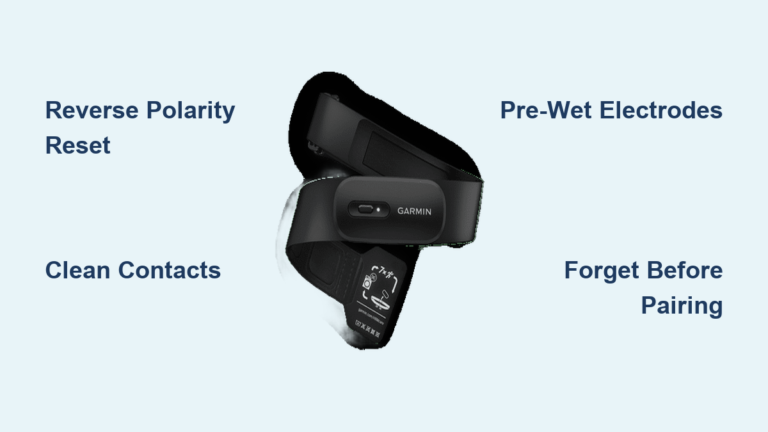
You walk into Orangetheory, ready to crush your workout, and your heart rate never shows up on the screen. The fix almost always starts with proper setup of your Orangetheory heart rate monitor. Whether you just unboxed the new OTconnect Beat™ armband or you’re pairing the OTbeat Link for Apple Watch, getting it configured correctly ensures accurate zones, full splat points, and seamless studio recognition.
This guide walks you through every step to set up an Orangetheory heart rate monitor, including device pairing, app settings, in-studio use, charging, and troubleshooting. No fluff, just clear instructions so you can focus on your workout, not your tech.
Choose Your Orangetheory Heart Rate Monitor
Before setup, confirm which device you own. The process differs significantly between models.
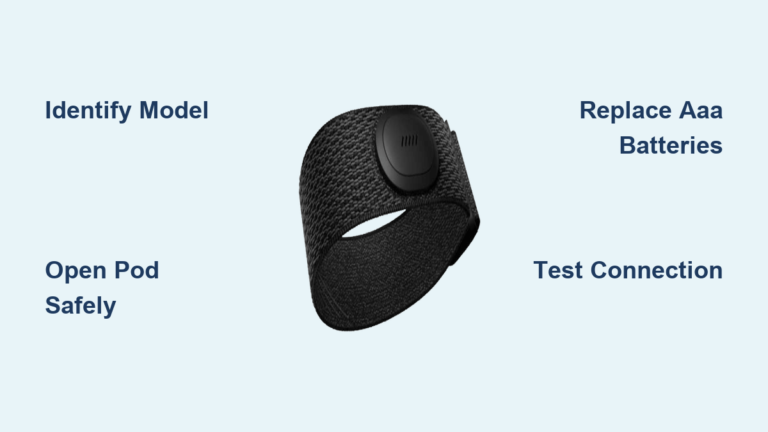
OTconnect Beat™ Armband
This is Orangetheory’s latest optical armband monitor. It tracks heart rate directly from your bicep, displays your zone via a built-in LED ring, and pairs with the Orangetheory mobile app.
Best for:
– Members who want independent, accurate tracking
– Users without an Apple Watch
– Those who prefer armband sensors over wrist devices
OTbeat Link for Apple Watch
A small dongle that connects your Apple Watch to Orangetheory’s in-studio system. It sends your Apple Watch heart rate data to studio screens without a chest strap.
Best for:
– Apple Watch owners
– Members who want one device for daily activity and workouts
– Users avoiding extra wearable hardware
⚠️ Important: The OTbeat Link only works in-studio. For at-home sessions, use the native Apple Watch workout app.
Set Up the OTconnect Beat™ Armband
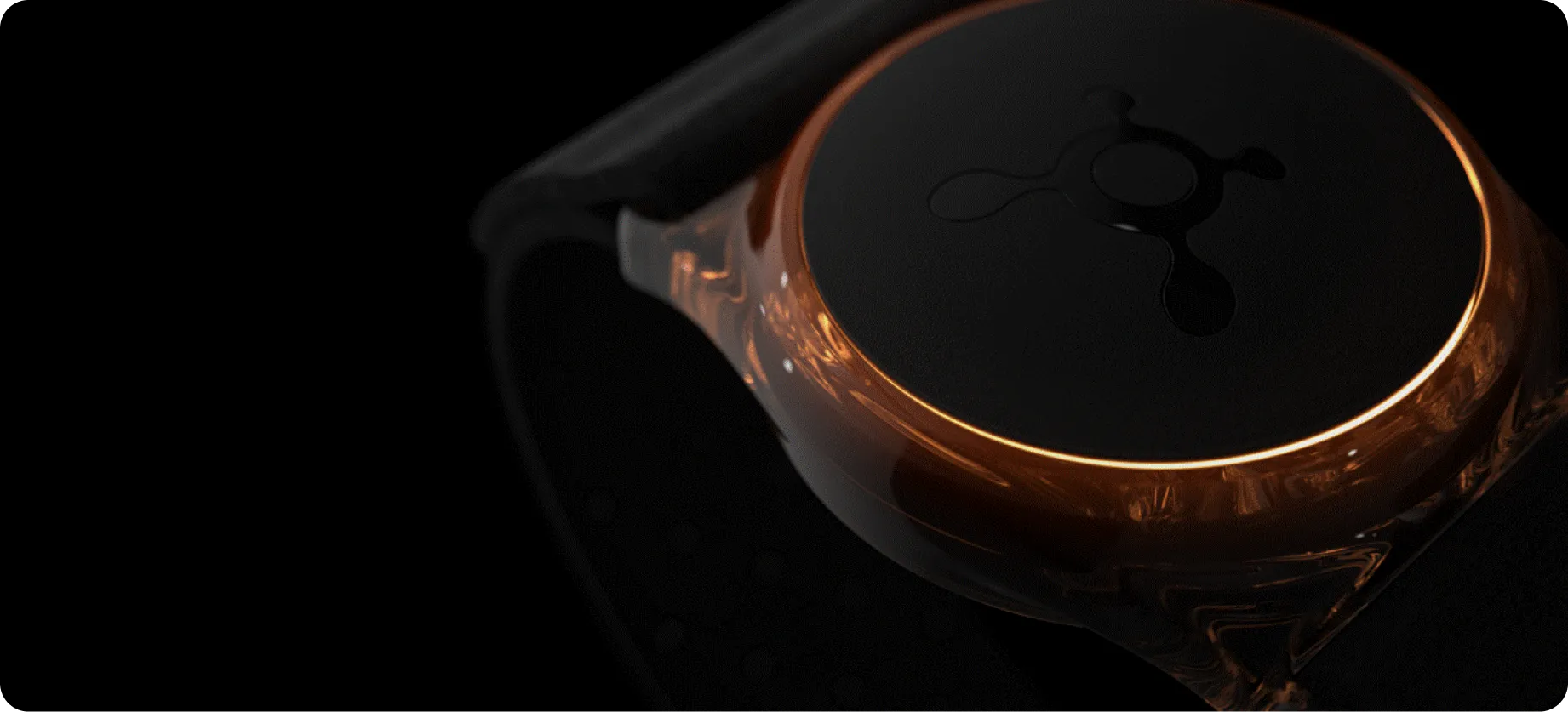
Wear the Device Correctly
Proper placement ensures accurate readings and stable connectivity.
- Position: Snugly on the bicep, about 1–2 inches above the elbow.
- Pod Orientation: The pod must face outward, away from your body.
- Skin Contact: The optical sensor must touch bare skin.
- Avoid Tattoos: Never place the sensor over tattoos, as ink blocks light and reduces accuracy.
Charge Before First Use
Your OTconnect Beat™ ships partially charged, but a full charge prevents setup interruptions.
- Charging Port: Located under a rubber flap on the underside.
- Cable: Use the included USB-C cable with any standard USB power source.
- Charging Time: About 2 hours for a full charge.
- Indicator Lights:
- Pulsing white = charging
- Solid white for 2 seconds = fully charged
🔋 Battery Life: Up to 10 hours per charge. A red blink (3x) means battery is below 15%.
Power On and Pair to the App
Pairing links your device to your Orangetheory account for automatic studio recognition.
Prerequisites:
– Orangetheory Mobile App (version 5.0.0 or higher)
– Bluetooth enabled on your phone
– Device fully charged
Pairing Steps:
1. Press and hold the side button for 3 seconds to power on.
2. Open the Orangetheory Mobile App.
3. Tap the gear icon (top-right) → “Your Device”.
4. Wait for the device to appear. If it doesn’t:
– Tap “Add Device”
– Follow on-screen prompts to complete pairing
✅ Pro Tip: Enable “Use Device for In-Studio Workouts” so your monitor is automatically detected when you enter class.
Enable Heart Rate Zone Display
Turn on the LED ring to see your zone without checking studio screens.
- In the “Your Device” settings, toggle on “Enable Heart Rate Zone Display”
- Once enabled, the ring lights up in real time:
- Gray: Resting
- Blue: Zone 1 (50–60% max HR)
- Green: Zone 2 (61–70%)
- Orange: Zone 3 (71–83%)
- Red: Zone 4 (84–91%)
- Full Red Pulse: Zone 5 (92–100%)
If disabled, the ring pulses white to indicate it’s on but not showing zones.
Set Up the OTbeat Link for Apple Watch
Install Required Apps and Permissions
The OTbeat Link requires two apps and one critical permission.
- Orangetheory Mobile App (on iPhone)
- Orangetheory Watch App (on Apple Watch)
- Apple Health Permissions:
– Open the Orangetheory Mobile App → Settings → Health Integration
– Allow read and write access to Heart Rate and Workout data
– Without this, the Link will not work
Pair the OTbeat Link to Your Apple Watch
The Link must be within 2 inches of your Apple Watch during pairing.
Steps:
1. Attach the OTbeat Link to your Apple Watch band (above or below the watch face).
2. Open the Orangetheory Watch App.
3. Swipe to the pairing screen.
4. Hold the OTbeat Link close to the watch until it connects.
5. Once paired, locate the Serial Number (found in the Watch App under “Join Class” → swipe left).
✏️ Give this Serial Number to your studio coach so they can register it in the OTbeat system.
Confirm In-Studio Functionality
After registration, your Apple Watch heart rate appears on the studio screen.
- Starting a Workout:
- Open the Watch App → tap “Start Workout”
- If you forget, it auto-starts when the class begins in-studio
- Ending Early:
- Swipe left → tap “End”
- Tap “RESUME” to continue later
- Data Sync: All workout metrics (steps, calories, HR) sync to Apple Health and contribute to your Activity Rings.
❌ No At-Home Use: The OTbeat Link does not work with the Orangetheory mobile app for outdoor or home workouts.
Use Your Monitor in Class
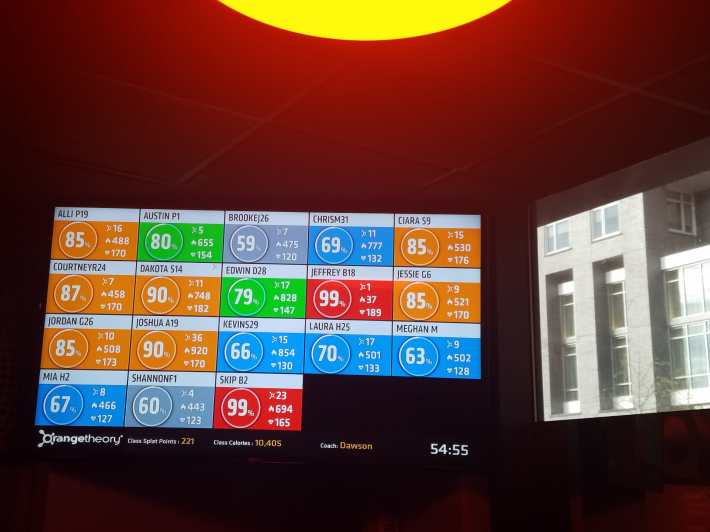
For OTconnect Beat™ Users
- Enter the studio with your device on and paired.
- If “Use Device for In-Studio Workouts” is enabled, you’ll be automatically recognized.
- Watch the LED ring for real-time zone feedback.
- No need to manually start; your workout begins when class starts.
For OTbeat Link Users
- Arrive with the Link attached and Apple Watch powered on.
- Open the Orangetheory Watch App before class.
- Tap “Start Workout” or wait for auto-start.
- Your heart rate appears on the screen within seconds.
🟨 Troubleshooting Tip: If your heart rate doesn’t appear, check:
– Is the Link within 2 inches of the watch?
– Is the Serial Number registered in the studio system?
– Are Apple Health permissions granted?
Charge and Maintain Your Device
OTconnect Beat™ Charging and Care
- Charge Frequency: After every 8–10 workouts
- Charging Steps:
1. Lift the rubber cover on the pod
2. Insert USB-C cable
3. Plug into a power source - Indicator Lights:
- Pulsing white = charging
- Solid white (2 sec) = fully charged
- Red blink (3x) = low battery (<15%)
Cleaning:
– Wipe the sensor with a soft, damp cloth after each use
– Use mild soap and water for deeper cleaning
– Do NOT machine wash the pod
– Strap: Machine washable in cold water, but air dry only
Environmental Limits:
– Water Resistance: IPX8 (sweat and rain safe, not for swimming)
– Operating Temp: 32°F to 104°F (0°C to 40°C)
OTbeat Link Charging and Battery
- Battery Life: About 6 hours per charge
- Charging Method: Use the OTbeat Link charging case only
- Case Battery: Holds 8–10 full charges before needing a recharge
- Case Charging Time: About 2.5 hours via USB-C
- Case Indicator:
- Red light = charging
- Green light = fully charged
🔌 Never lose the case. This device cannot be charged without it.
Troubleshoot Common Setup Issues
Device Not Detected in Studio
For OTconnect Beat™:
– Verify “Use Device for In-Studio Workouts” is enabled
– Ensure the device is fully charged
– Confirm Bluetooth is on and the app is updated
For OTbeat Link:
– Confirm Serial Number is registered in the studio system
– Check Apple Health permissions
– Ensure the Link is within 2 inches of the watch
Heart Rate Seems Inaccurate
- Check fit: Strap should be snug but not tight
- Avoid tattoos: Move sensor to clean skin
- OTbeat Link users: The Apple Watch samples once every 5 seconds, slower than the OTconnect Beat™ (4x per second). This may cause slight lag during intense intervals.
Gray Zone or Connectivity Loss
- Cause: Signal interference or distance from receiver
- Fix:
- Stay within 35 feet (10.7 meters) of the studio receiver
- Ensure the device is snug and properly oriented
- The OTconnect Beat™ has larger antennas to reduce this issue
Firmware Updates
The OTconnect Beat™ updates wirelessly via the app.
- Signs of Update:
- Flashing yellow light = updating
- Flashing green light = update complete
- Keep the app updated to receive the latest firmware
Maximize Your Orangetheory Experience

Pro Tips for Better Performance
- Always wear the same arm. This helps the app track consistency.
- Charge after class. Plug it in right after your session to avoid surprises.
- Carry a spare strap. Helpful if you switch between sleeve lengths.
- Use At-Home Mode. With the OTconnect Beat™, log outdoor runs or home workouts via the app’s “At Home” tab.
Why Accuracy Matters
Orangetheory’s splat point system rewards time spent in Zones 4 and 5. Inaccurate heart rate data means missed splats and missed progress. The OTconnect Beat™ offers the highest accuracy thanks to its 4x per second sampling rate and direct skin contact.
📊 Data Note: Apple Watch (via OTbeat Link) samples every 5 seconds. While reliable, it may miss brief spikes that dedicated devices catch.
Final Setup Checklist
OTconnect Beat™
– Worn snugly on bicep, pod facing out
– Sensor on bare skin, away from tattoos
– Fully charged (solid white flash)
– Paired in Orangetheory app
– “Use for In-Studio Workouts” enabled
– Zone display turned on (optional)
OTbeat Link
– Orangetheory Watch App installed
– Apple Health permissions granted
– Link paired to Apple Watch
– Serial Number provided to studio
– Link attached within 2 inches of watch
Frequently Asked Questions About Orangetheory Heart Rate Monitors
Which Orangetheory heart rate monitor is the most accurate?
The OTconnect Beat™ offers the highest accuracy because it uses direct optical skin contact and samples heart rate approximately 4 times per second. The OTbeat Link relies on Apple Watch, which samples only once every 5 seconds, potentially missing brief spikes during intense intervals.
Can I use the OTbeat Link for at-home workouts?
No. The OTbeat Link only works inside Orangetheory studios because it relies on the in-studio OTbeat system. For outdoor or home workouts, use the native Apple Watch workout app or the OTconnect Beat™ with the app’s “At Home” tab.
Why does my heart rate show a gray zone in class?
A gray zone usually means connectivity loss between your device and the studio receiver. Stay within 35 feet of the receiver, ensure the strap is snug, and confirm the pod faces outward. The OTconnect Beat™ has larger antennas that reduce this issue compared to older models.
How do I find my OTbeat Link serial number?
Open the Orangetheory Watch App, swipe to the “Join Class” screen, then swipe left. Your serial number appears there. You can also find it on the original packaging. Give this number to your studio coach so they can register it in the OTbeat system.
Do I need to charge my OTconnect Beat™ before first use?
Yes. Although it ships partially charged, a full 2-hour charge ensures uninterrupted setup and pairing. The light ring pulses white while charging and shows solid white for 2 seconds when complete.
Can I wear the OTconnect Beat™ over a tattoo?
No. Tattoo ink can block the optical sensor and cause inaccurate readings. Always position the sensor on clean, bare skin for reliable data.
Key Takeaways for Setting Up Your Orangetheory Heart Rate Monitor
Setting up your Orangetheory heart rate monitor comes down to three essentials: correct placement, proper app pairing, and consistent charging. The OTconnect Beat™ delivers the best accuracy with its 4x per second sampling and direct skin contact, while the OTbeat Link offers convenience for Apple Watch users who want one device for everything.
Once your monitor is configured, double-check the setup checklist above before your next class. Accurate heart rate data means more splat points, better zone tracking, and a clearer picture of your fitness progress. Now go earn those splats.