Fix Zwift Not Detecting Heart Rate Monitor
You hop on the trainer, ready for a hard interval session, but Zwift shows dashed lines where your heart rate should be. No matter how many times you re-pair your strap, the signal refuses to connect. This frustrating scenario has plagued Zwift users since Game Update 1.51 landed in October 2023, especially those riding on Apple TV.
The good news? Detection failures follow predictable patterns with proven fixes. Whether you use a Garmin HRM-Dual, Wahoo TICKR, or Polar H10, this guide walks you through the exact troubleshooting sequence Zwift support and the community have validated. You’ll learn how to bypass the pairing bug, eliminate app conflicts, and choose hardware that actually works with your setup.
Verify HRM Compatibility Before Troubleshooting
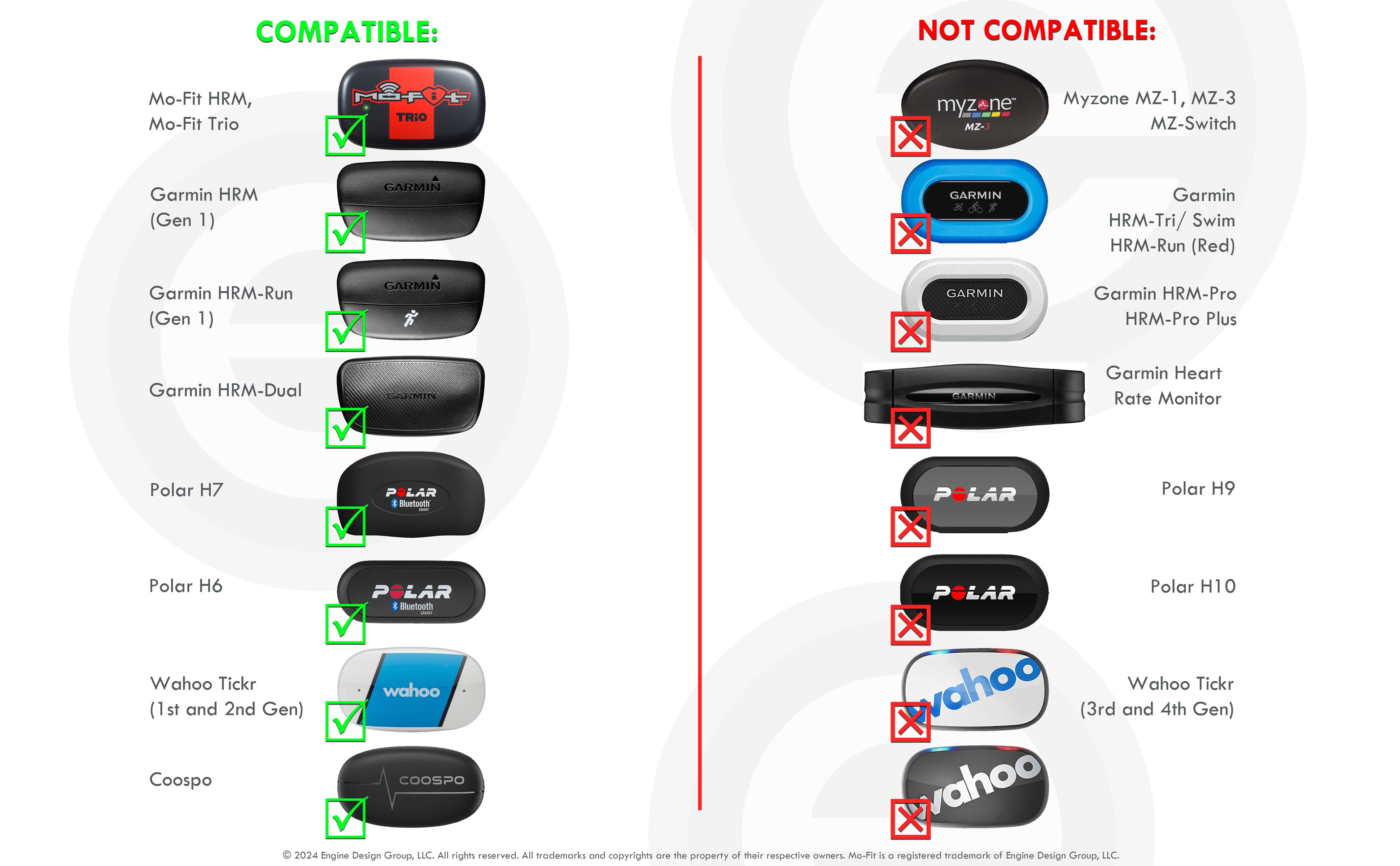
A surprising number of detection issues trace back to protocol mismatches. Before diving into complex fixes, confirm your heart rate monitor can actually talk to your device.
Check Bluetooth vs. ANT+ Support
Zwift supports both Bluetooth Low Energy (BLE) and ANT+, but your host device must match your sensor’s output protocol.
- iPhones, iPads, and Apple TV only support Bluetooth natively. They cannot detect ANT+ signals without an external adapter.
- Windows PCs, Macs, and Android devices can support both, but only if equipped with a compatible USB ANT+ dongle.
Critical compatibility notes:
– The Garmin HRM-Tri and older HRM-Run models are ANT+ only and will never connect to an iPhone.
– Of the four main Garmin chest straps available, only the Garmin HRM-Dual broadcasts via Bluetooth.
– Some HRM-Pro units operate in ANT+ only mode depending on configuration.
If you ride on iOS or Apple TV with an ANT+ only strap, no software fix will help. You need a dual-band upgrade.
Choose Dual-Band Sensors for Reliability
For cross-platform flexibility and fewer connection headaches, invest in a sensor that broadcasts both protocols:
- Wahoo TICKR (all versions): Reliable BLE and ANT+ performance
- Polar H10: Excellent Bluetooth stability across platforms
- Garmin HRM-Dual: Works well but prone to occasional drops on Windows and Mac
Avoid single-protocol devices unless you’re certain your setup matches the required standard.
Apply the Pause Menu Workaround for Apple TV Detection Failures
If your HRM worked perfectly before October 2023 but vanished after Zwift Update 1.51, you’re dealing with a software regression. This bug specifically broke the Companion App’s ability to detect HRMs during initial pairing on Apple TV.
A community-tested workaround forces the game engine to initialize before requesting heart rate data.
Follow This Exact Pairing Sequence
- Launch Zwift and navigate to the Pairing Screen.
- Pair all devices except your HRM (trainer, power meter, steering controllers, cadence sensor).
- Enter the World by starting your ride or run. Wait for your avatar to appear.
- Pause the activity using the menu button.
- Navigate to Menu → Pair from the pause screen.
- Scan and connect your HRM now.
- Resume your ride.
This method works on Apple TV, Windows, and iOS when using the Zwift Companion App as a Bluetooth bridge. It remains the most reliable workaround for post-2023 detection failures.
Eliminate App Connection Conflicts
Heart rate monitors allow only one active Bluetooth connection at a time. If another app holds the signal, Zwift sees the device as unavailable, even when it appears connected elsewhere.
Close Background Fitness Apps
Common culprits that lock HRMs include:
- Garmin Connect
- Wahoo Fitness
- Strava
- Suunto App
- Apple Watch Workout app
On iPhone and iPad, swiping up to close apps doesn’t always terminate Bluetooth sessions. Open the conflicting app and manually stop any ongoing workout or sensor sync. Alternatively, go to Bluetooth Settings, forget the HRM, then re-pair only in Zwift.
On Apple Watch, if your watch auto-pairs with the HRM, disable Workout Detection or stop any active session. Using Airplane Mode during Zwift sessions prevents interference.
Restart the HRM Strap
After closing other apps, power cycle your sensor:
- Turn off the HRM (remove the battery or hold the power button).
- Wait 10 seconds.
- Re-activate it just before pairing with Zwift.
This clears zombie connections and resets the Bluetooth stack.
Fix PC-Specific Detection Issues
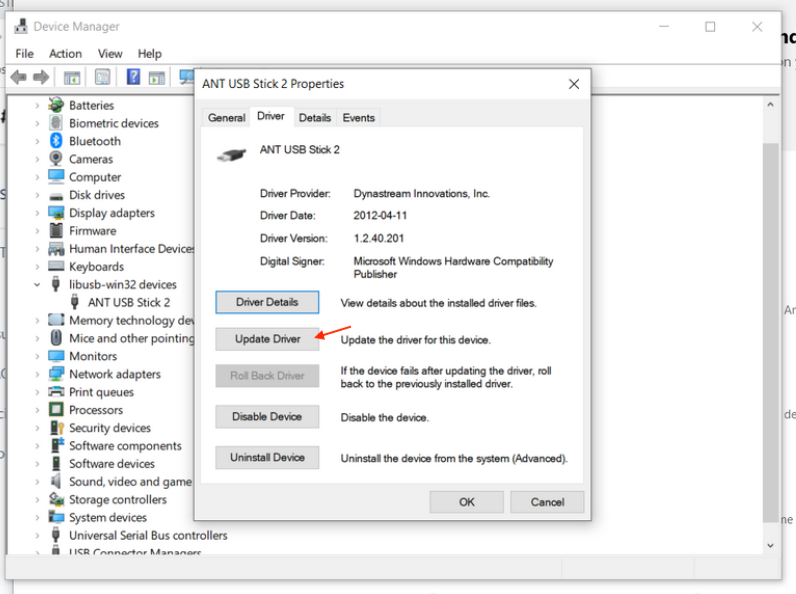
Windows users face unique challenges from driver conflicts and corrupted pairing caches.
Reinstall ANT+ Drivers to Fix the NULL Driver Problem
After a Windows update, your ANT+ USB stick may show a warning triangle in Zwift despite working on other devices like Garmin Edge. Windows likely replaced your functional driver with a generic NULL Driver.
Resolution steps:
- Unplug the ANT+ dongle.
- Navigate to
C:\Windows\System32\DriverStore\FileRepository. - Search for folders containing “ant” or “garmin.”
- Delete any related folders (back up first if unsure).
- Download the latest Garmin ANT Agent (version 2.3.1.2 or later).
- Install the software, then reconnect your dongle.
Zwift should now recognize the ANT+ stick without errors.
Reset Zwift’s Device Cache
Corrupted pairing data blocks HRM detection even when hardware works perfectly.
Delete the KnownDevices.xml file:
- Close Zwift completely.
- Navigate to
Documents > Zwift. - Find and delete the file
KnownDevices.xml. - Restart Zwift.
This forces a full sensor rediscovery, acting like a factory reset for pairings.
Troubleshoot Apple TV Bluetooth Conflicts
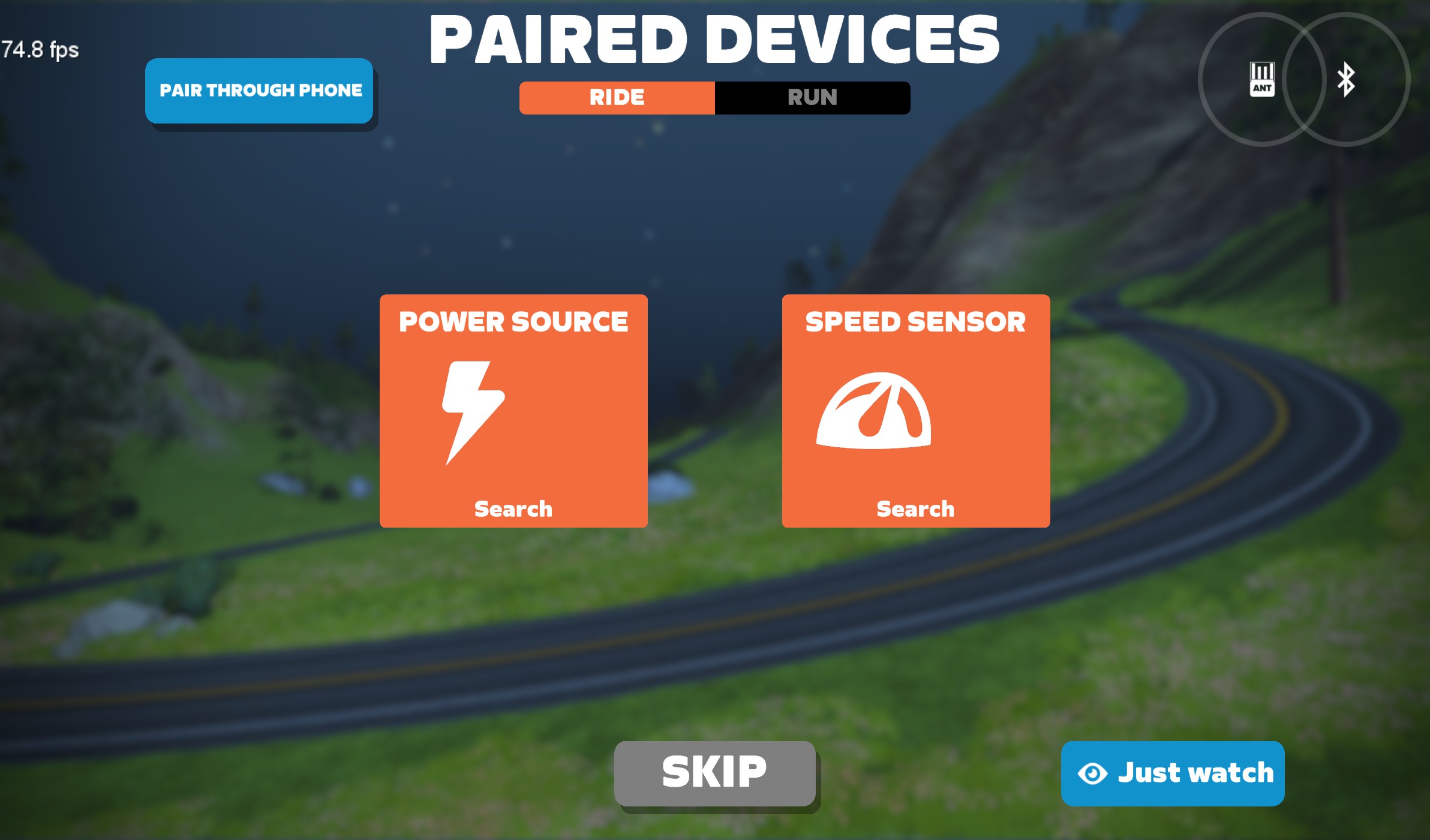
Apple TV users with Zwift Play or Click controllers face a difficult choice when the Companion App bridge malfunctions. The system often allows only one device type to connect reliably.
Choose Between Steering and HRM
You have two viable options:
Option 1: Prioritize both steering and HRM (recommended)
- Use the Zwift Companion App to bridge your steering controller.
- Apply the Pause Menu workaround to pair the HRM after entering the world.
- This setup gives you control and heart rate data simultaneously.
Option 2: Prioritize HRM only
- Pair the HRM directly to Apple TV’s Bluetooth settings (Settings > Remotes & Devices > Bluetooth).
- This often stabilizes heart rate detection.
- However, steering devices may disconnect or become unresponsive.
Native Apple TV pairing bypasses the Companion App bug but limits peripheral support.
Address Signal Interference and Hardware Issues

Even with perfect software configuration, physical factors can block detection.
Reduce Bluetooth Congestion
Too many active devices create signal interference:
- Turn off Bluetooth on nearby laptops, phones, and tablets.
- Unpair unused devices from your phone or Apple TV.
- Move your HRM strap closer to the receiving device (place your phone on the handlebars).
Ensure Proper Sensor Activation
HRMs require moisture to conduct electrical signals. Dry electrodes or cold weather delay activation.
If the strap doesn’t activate:
- Wet the electrode pads with water, saline solution, or aloe vera gel.
- Avoid alcohol or lotions, which degrade conductivity.
- Wear the strap snugly just below the chest muscles.
Pre-wet the pads before starting in cold conditions.
Replace the Battery
Even new batteries can be weak or defective.
Symptoms of low battery:
- Intermittent signal drops
- Failure to pair
- Stuck readings (0 or 50 bpm)
Most HRMs use standard CR2032 or CR2450 cells. Swap in a fresh battery before assuming hardware failure.
Resolve Watch Broadcast Conflicts
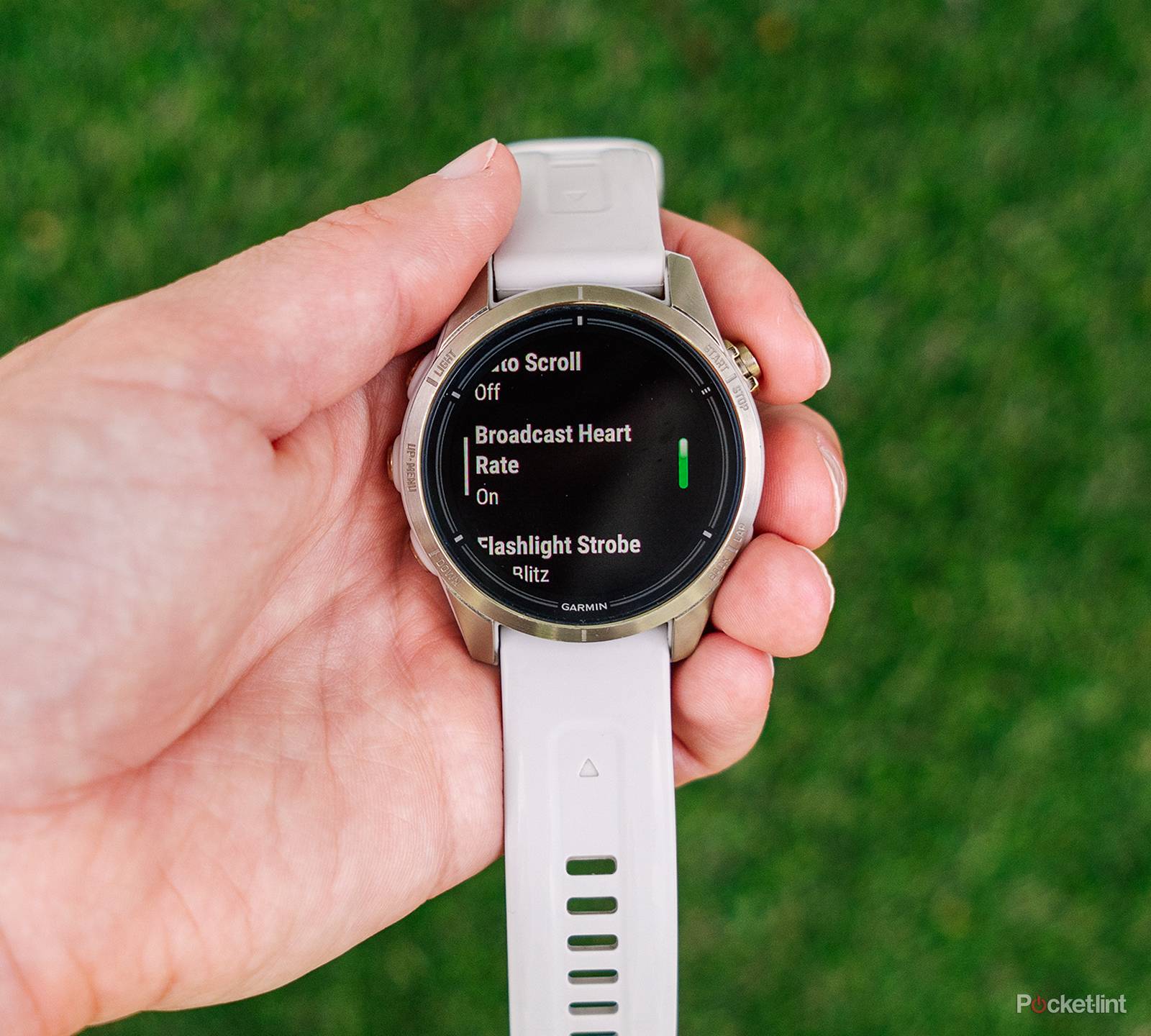
Using a Garmin watch (such as the Fenix 6) to broadcast heart rate to Zwift creates a common snag. When the watch simultaneously records a workout, it may lock the HRM for internal use, causing frozen readings like a constant 50 bpm.
Fix Frozen HR Readings
Solution steps:
- On your watch, go to Workout Settings.
- Ensure Broadcast Heart Rate is enabled.
- Stop any active workout before starting Zwift.
- Alternatively, start your Zwift session first, then begin the watch broadcast.
You can also pair the HRM directly to Zwift instead of relying on watch relay mode.
Try Advanced Reset Methods
When standard fixes fail, escalate to system-level resets.
Reinstall Zwift on Apple TV
A full app reinstall clears persistent bugs that survive other troubleshooting.
Steps:
- From the Apple TV home screen, long-press the Zwift app icon.
- Select Delete App.
- Reinstall Zwift from the App Store.
- Log in and re-pair your devices.
Warning: This resets local settings and may require re-downloading game data. Use this as a last resort.
Factory Reset the HRM
Some Wahoo and Polar straps support factory resets:
- Wahoo TICKR: Hold the button for 15+ seconds until the LED flashes red and white.
- Polar H10: Use the Polar Beat app to reset.
Consult your manual for model-specific instructions.
Prevent Future Detection Failures
Once your HRM connects reliably, maintain that connection with these habits.
Pre-Ride Checklist
- Close all fitness apps on nearby devices
- Wet HRM electrodes if dry
- Power cycle the HRM before each ride
- Use the Pause Menu method on Apple TV
- Keep firmware updated through manufacturer apps
Choose Reliable Hardware
For zero-hassle heart rate monitoring:
- Best overall: Wahoo TICKR (excellent Bluetooth stability)
- Best for iOS and Apple TV: Polar H10 (proven Companion App reliability)
- Avoid: Garmin HRM-Tri and HRM-Run (ANT+ only, incompatible with iPhone)
When to Contact Zwift Support
If you’ve exhausted all troubleshooting options, reach out to Zwift Support with:
- Your device model (Apple TV, PC, etc.)
- HRM model and firmware version
- Steps you’ve already tried
- A video showing the issue
Reference the Update 1.51 HRM detection bug. Support staff recognize this specific issue and can provide additional guidance.
Frequently Asked Questions About Zwift Heart Rate Monitor Detection
Why does Zwift suddenly not detect my heart rate monitor after working fine before?
The most common cause is Zwift Game Update 1.51 from October 2023, which introduced a regression breaking the Companion App’s Bluetooth bridge on Apple TV. Use the Pause Menu workaround by pairing all other devices first, entering the world, then connecting your HRM from the pause menu.
Can I use an ANT+ heart rate monitor with my iPhone or Apple TV?
No. iPhones, iPads, and Apple TV only support Bluetooth natively. ANT+ only straps like the Garmin HRM-Tri and older HRM-Run models will never be detected. Upgrade to a dual-band sensor such as the Wahoo TICKR, Polar H10, or Garmin HRM-Dual.
Why does my heart rate show dashed lines or stay at 50 bpm?
Dashed lines indicate a connection without data, often caused by another app holding the Bluetooth signal. A frozen 50 bpm reading typically points to a watch broadcast conflict where the source device is simultaneously tracking a workout internally. Close all fitness apps, restart the strap, and ensure Broadcast Heart Rate is enabled without active recording.
How do I fix the ANT+ warning triangle on Windows?
Windows updates sometimes overwrite ANT+ USB drivers with a generic NULL Driver. Delete the corrupted driver folders from C:\Windows\System32\DriverStore\FileRepository, then reinstall Garmin ANT Agent version 2.3.1.2 or later. Zwift should then recognize your dongle.
Should I delete KnownDevices.xml to fix detection issues?
Yes, deleting KnownDevices.xml from your Documents/Zwift folder forces Zwift to rediscover all sensors. This clears corrupted pairing data that blocks detection. The file regenerates automatically on the next launch.
Which heart rate monitor works best with Zwift on Apple TV?
The Polar H10 offers the most reliable Bluetooth performance on Apple TV, especially when paired through the Companion App bridge. The Wahoo TICKR is a close second with excellent cross-platform stability. Avoid Garmin ANT+ only straps entirely on iOS devices.
Key Takeaways for Restoring Your Zwift Heart Rate Connection
Start with compatibility verification, then apply the Pause Menu workaround for any post-October 2023 detection failures on Apple TV. Eliminate app conflicts by closing background fitness apps and power cycling your strap. For Windows users, reinstall ANT+ drivers and delete the KnownDevices.xml cache file to clear corrupted pairing data.
With the right troubleshooting sequence, you’ll have accurate heart rate data flowing again within minutes, and you’ll never waste another ride staring at dashed lines.