How to Fix Garmin Heart Rate Monitor
Your Garmin heart rate monitor just froze at 72 BPM mid-run, dropped connection the second you hit “start,” or refuses to pair no matter how many times you try. You’re not imagining the problem, and you’re definitely not alone. The Garmin HRM-Dual in particular has earned a reputation for premature failure, often within months of purchase, despite a claimed 2–3 year battery life. The frustrating part: most of these “dead” units aren’t actually broken.
This guide walks you through the exact fix that resolves the majority of Garmin heart rate monitor issues. You’ll learn the reverse polarity reset technique, proper cleaning methods, correct pairing steps, and how to prevent future dropouts. Whether you ride, run, or swim, you can get reliable heart rate data back without buying a replacement.
Run the Reverse Polarity Reset to Fix a Frozen Garmin HRM
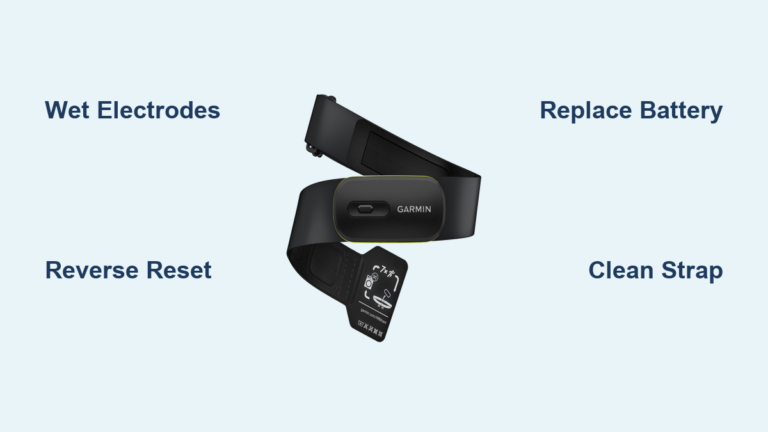
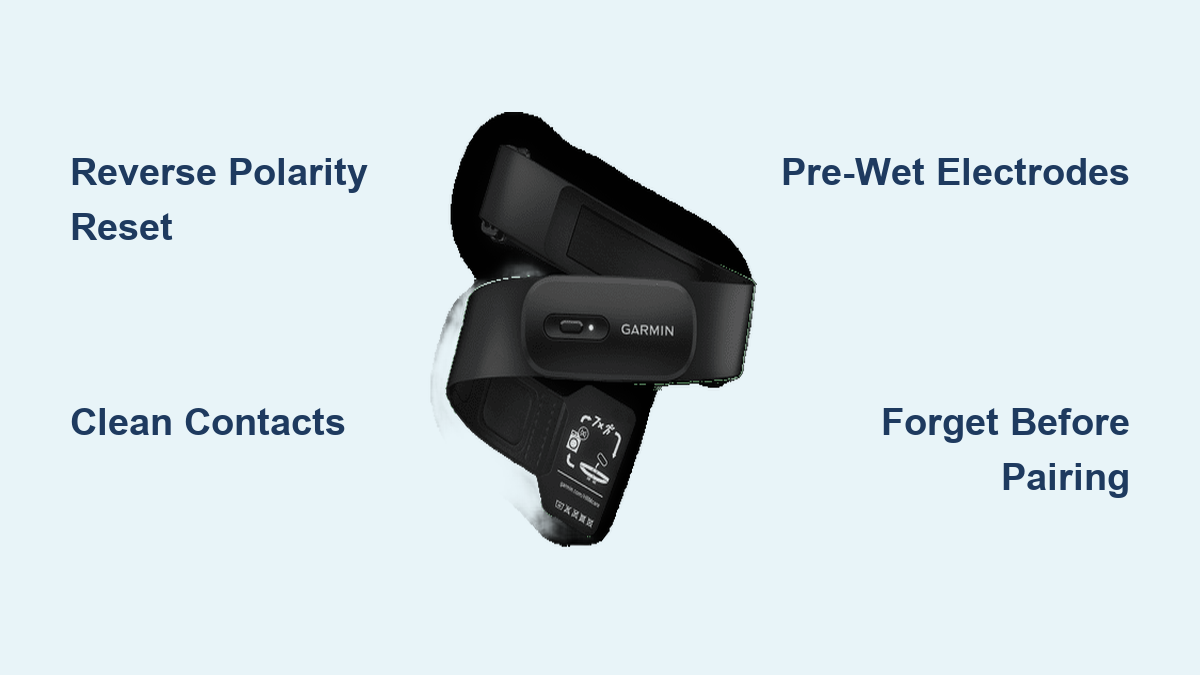
The reverse polarity reset is the single most effective fix for an unresponsive or dropping Garmin heart rate monitor, especially the HRM-Dual. It forces a full power discharge that clears firmware glitches and static buildup, something a normal battery swap cannot do.
What You Need for the Reset
- A fresh CR2032 coin cell battery (never reuse the old one)
- A small flat tool like a fingernail or plastic opener
- About 10 seconds of time
Step-by-Step Reverse Polarity Procedure
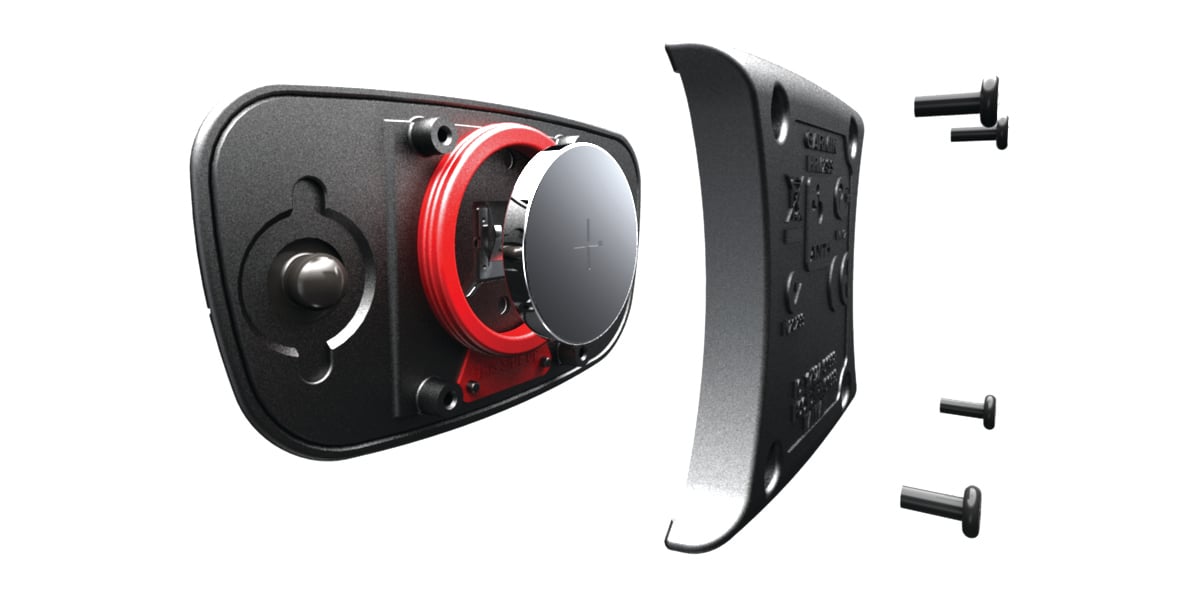
- Remove the existing battery. Open the compartment and slide out the current coin cell.
- Insert the battery backward. Flip it so the positive side faces down. Hold it in place for 5 to 10 seconds to discharge residual power.
- Install a fresh battery. Remove the reversed cell and insert a brand-new CR2032 with correct polarity (logo side up).
- Snap the module back into the strap. Listen for a firm click to confirm moisture resistance and stable contact.
- Activate and re-pair. Wet the electrodes, wear the strap snugly, and do 5–10 quick jumps to trigger transmission. Then pair with your Garmin device.
⚠️ Critical Tip: You must select “Forget” or “Remove” on your watch or phone before re-pairing. Otherwise, the device may reject the reset sensor and refuse to connect.
Clean the Strap and Sensor Contacts to Eliminate Signal Loss

Dirt, sweat salt, and corrosion on the metal contacts are leading causes of signal dropouts. These issues often get mistaken for dead batteries or broken hardware.
Remove the Sensor Pod First
Always detach the module from the strap before cleaning. This prevents water damage to the electronics.
Wash the Fabric Strap by Hand
Hand wash with mild soap and water every 3–5 uses. Avoid bleach, detergents with additives, or fabric softeners. Rinse thoroughly and air dry flat. Never machine wash or tumble dry the strap.
Wipe the Sensor Contacts Carefully
Use a slightly damp cloth to clean the metal contacts on the back of the sensor. For stubborn buildup, lightly rub with a cotton swab dipped in isopropyl alcohol. Do not submerge the module.
Inspect for Corrosion and Damage
Check both the strap’s contact points and the module’s spring terminals. Look for:
– Green or white crusty residue
– Rust or pitting on metal surfaces
– Bent, loose, or missing spring clips
If you spot corrosion, gently clean it with a pencil eraser or fine sandpaper. Replace the strap entirely if the damage is severe.
Fix Garmin HRM Pairing and Connection Problems
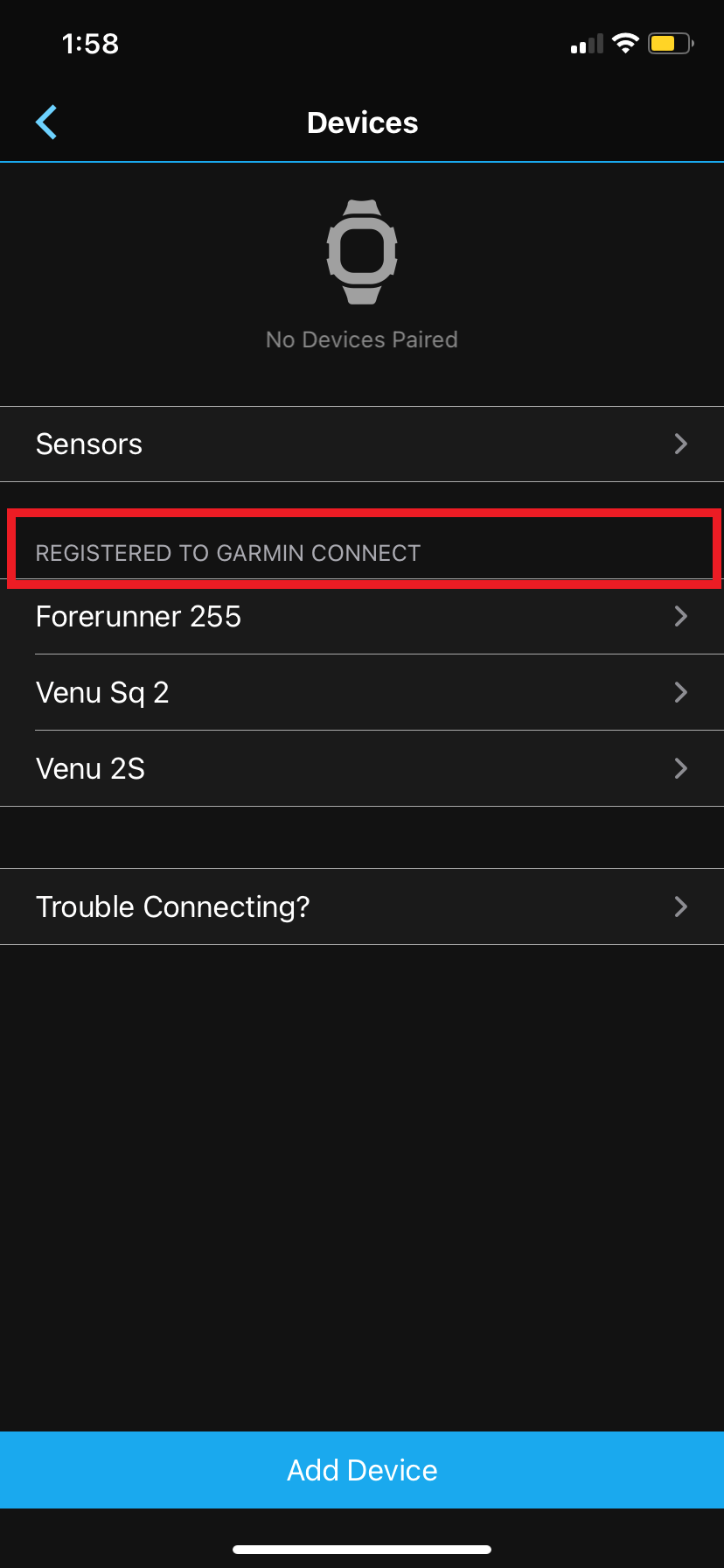
Even a perfectly working sensor won’t transmit if pairing fails. These steps eliminate software conflicts on the receiving device.
Delete the Old Sensor Profile
On your Garmin watch, Edge computer, or phone:
1. Navigate to Settings > Sensors
2. Locate your HRM in the list
3. Select Forget or Remove
This clears outdated connection data that blocks fresh pairing attempts.
Test the HRM on a Smartphone
Download a free app like Wahoo Fitness or Polar Beat to test the sensor independently. If it connects and reads heart rate on your phone but not your watch, the problem is with the watch, not the monitor.
Restart the Receiving Device
Power cycle your Garmin watch, Edge bike computer, or smartphone. A simple reboot clears temporary Bluetooth and ANT+ glitches.
Check for Firmware Updates
Outdated firmware can cause stubborn incompatibility:
– Sync your watch to Garmin Express on a computer
– Check for updates inside Garmin Connect
– Search “[Your Device Model] + firmware” on Garmin’s support site
💡 Note: Some users reported pairing failures after updating to beta firmware (such as Fenix 6X version 9.96). Downgrading to a stable release like 9.00 resolved the issue, though you should only attempt this if standard updates don’t help.
Wear the Strap Correctly for Accurate Readings
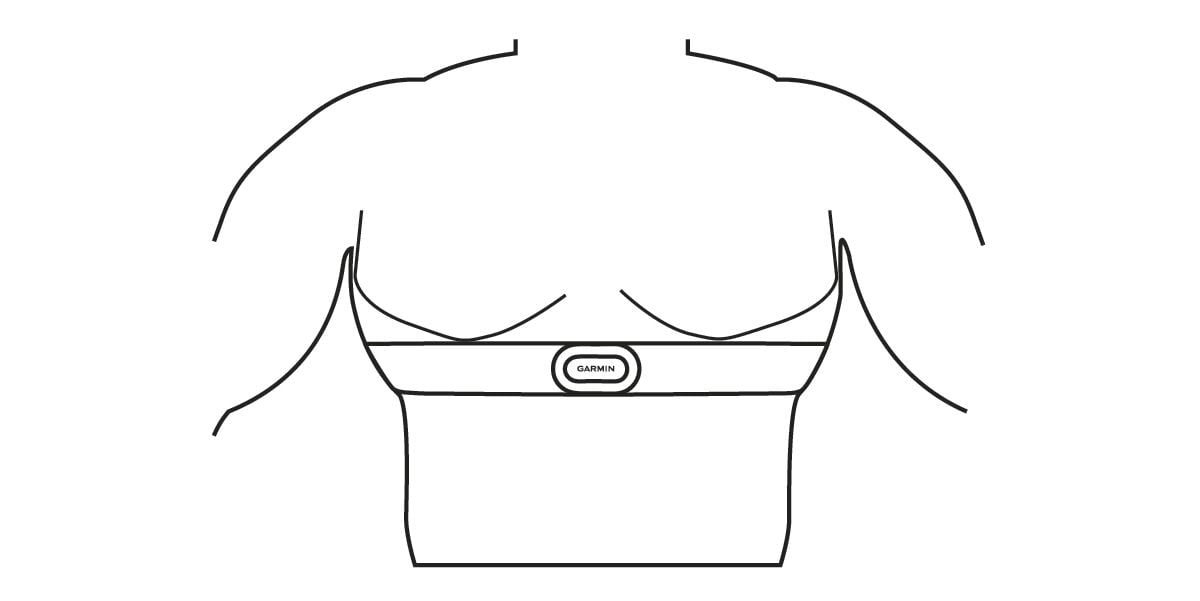
Incorrect fit and placement cause erratic or missing data, even when the hardware is perfectly fine.
Keep It Against Bare Skin
The strap must touch skin directly. Clothing, base layers, and bib straps all block the electrical signal. Slide the strap underneath every layer before you start moving.
Adjust the Tightness
Too loose causes signal drops. Too tight causes discomfort. The strap should stay in place during movement while still allowing one finger to slide underneath.
Align the Module Properly
- The logo on the sensor should face up when worn
- The battery compartment should sit vertically
- For dual-sensor models, confirm orientation matches your device’s requirements
Pre-Wet the Electrodes Before Every Workout
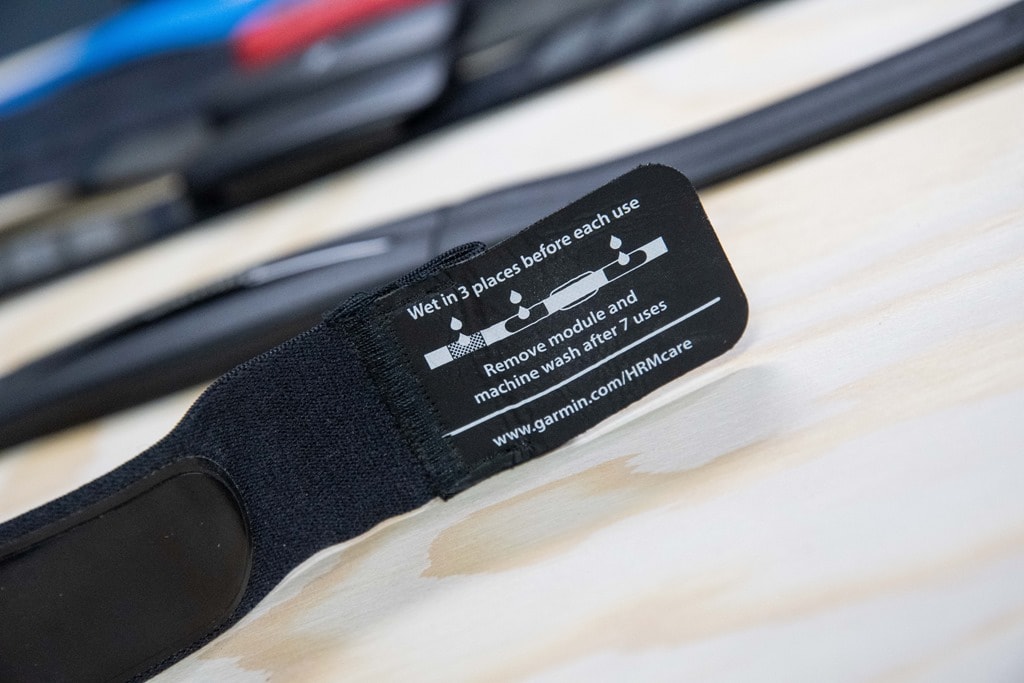
Never wait for sweat to activate the sensor. By the time you’re sweating, you’ve already missed your warm-up data.
Wet the Electrodes Before Putting It On
Dampen the front and back electrodes with water or saline spray before strapping on the monitor. This guarantees immediate signal transmission from the first second.
Make Pre-Wetting a Habit in Dry Conditions
Cold weather and dry climates reduce skin conductivity significantly. Pre-wetting becomes essential in these environments, not optional.
Reduce Signal Interference from Wind and Fabric
External factors like static and technical fabrics can disrupt Bluetooth and ANT+ signals without warning.
Cut Down on Static Buildup
Wind, flapping jackets, and synthetic layers generate static electricity that kills transmission.
Try these fixes:
– Wear a tighter-fitting top over the strap
– Try wearing the strap backwards if it’s comfortable, to reduce wind exposure
Test for Fabric Interference
Some technical shirts, especially mesh panels or silver-lined anti-odor materials, block heart rate signals.
Try this fix:
– Switch to a different shirt and test again. If the signal returns, the fabric was the culprit.
Replace the Battery the Right Way

A weak or improperly installed battery remains the most common root cause of Garmin HRM failure.
Always Use a Fresh CR2032
Even batteries fresh out of the package can be weak or part of a bad batch. Stick with trusted brands like Panasonic or Energizer for consistent quality.
Inspect the Contact Spring
Look at the metal clip inside the battery compartment and check:
– Is the spring bent or misshapen?
– Does it press firmly against the battery?
– Is there visible corrosion?
A loose or damaged spring won’t maintain consistent contact, which causes frustrating dropouts even with a brand-new battery.
Remove the Battery for Long-Term Storage
If you’re not using the HRM for several weeks, take the battery out. This prevents corrosion from damaging the internal contacts.
Know When It’s Time to Replace the Monitor
If every fix fails, the sensor may have a permanent hardware fault. Watch for these signs:
– No LED flash or pairing attempt when battery is installed
– Severely corroded contacts that won’t respond to cleaning
– The reverse polarity reset works only briefly before failure returns
Best Garmin HRM Alternatives Worth Considering
| Model | Key Strength | Best For |
|---|---|---|
| Polar H10 | Gold-standard accuracy, reliable Bluetooth and ANT+, HRV support | Serious athletes and training optimization |
| Wahoo Tickr | Strong signal, wide app compatibility, durable build | Multi-sport users, Zwift, Peloton |
| Coospo C521 | Budget-friendly, consistent long-term performance | Casual users and backup straps |
These alternatives show fewer reported dropouts and better long-term reliability based on aggregated user feedback.
Prevent Future Garmin HRM Failures
Build these habits into your routine to avoid repeat problems:
– Clean the strap after every 3–5 workouts
– Pre-wet electrodes before every session
– Store the monitor with the battery removed
– Run the reverse polarity reset at the first sign of glitchy behavior
– Re-pair after any major firmware update
🔁 Pro Tip: If you find yourself resetting every few weeks, your unit may have a firmware instability. Keep a fresh battery on hand and reset proactively before important workouts rather than waiting for failure.
Frequently Asked Questions About Garmin Heart Rate Monitors
Why does my Garmin HRM freeze at 72 BPM?
The 72 BPM freeze is a classic symptom of a firmware glitch or static charge buildup in the sensor module. The reverse polarity reset clears this issue in most cases by fully discharging the internal circuit and forcing a logic board reset.
How long should a Garmin heart rate monitor battery last?
Manufacturer specifications state 2–3 years for a CR2032 coin cell. However, many users report premature failure within 1 month to 1 year. Always use a fresh, high-quality battery during troubleshooting, since even new batteries can have weak charge.
Can I wash my Garmin HRM strap in the washing machine?
No. Machine washing can damage the elastic and the metal contacts embedded in the strap. Hand wash only with mild soap and water, then air dry flat. Always remove the sensor pod before washing.
Do I need to forget the sensor before re-pairing?
Yes. If you don’t delete the old sensor profile from your watch or phone, the device may reject the reset HRM and refuse to connect. Always select “Forget” or “Remove” under Settings > Sensors before attempting a new pairing.
What should I do if the reverse polarity reset stops working?
If the fix only works temporarily and you need to reset every few weeks, your unit likely has a firmware or hardware instability. Keep a fresh CR2032 on hand for proactive resets. If the problem persists, consider replacing the strap or upgrading to a Polar H10 or Wahoo Tickr for better reliability.
Will Garmin replace my HRM under warranty?
Warranty claims have been processed, but some users report receiving replacement units with the exact same “connect then drop” behavior. This suggests possible batch-wide issues in certain HRM-Dual generations. Document your troubleshooting steps before filing a claim.
Key Takeaways for Fixing Your Garmin Heart Rate Monitor
Most Garmin heart rate monitor problems come down to three culprits: firmware glitches, dirty or corroded contacts, and weak batteries. The reverse polarity reset alone resolves the majority of “dead” HRM cases by clearing the internal circuit completely. Pair that technique with regular strap cleaning, correct wearing technique, and proper pre-wetting, and you can extend your monitor’s life well beyond the typical failure window.
Your next step: Grab a fresh CR2032 battery and run the reverse polarity reset today. If your HRM comes back to life, set a reminder to clean the strap every 3–5 workouts and pre-wet the electrodes before every session. Those two habits alone will prevent most future dropouts.