Fix Galaxy Fit 3 Sleep Tracking Not Working
If your Galaxy Fit 3 sleep tracking not working properly, you’re not alone. Many users report that their device fails to record full sleep sessions, starts tracking hours after falling asleep, or shows frequent false awakenings. Some nights, it doesn’t track at all, even with the band snug on the wrist. This issue undermines one of the core features of a fitness tracker, especially when cheaper bands deliver more accurate results.
The problem has persisted since at least April 2024, with multiple users confirming it across Samsung Members forums. But before you give up, there are steps you can take to diagnose and potentially fix the Galaxy Fit 3 sleep tracking not working issue. This guide covers troubleshooting methods, firmware checks, app resets, and workarounds based on real user experiences.
Confirm Auto-Sleep Detection Settings
Enable Sleep Mode Automatically
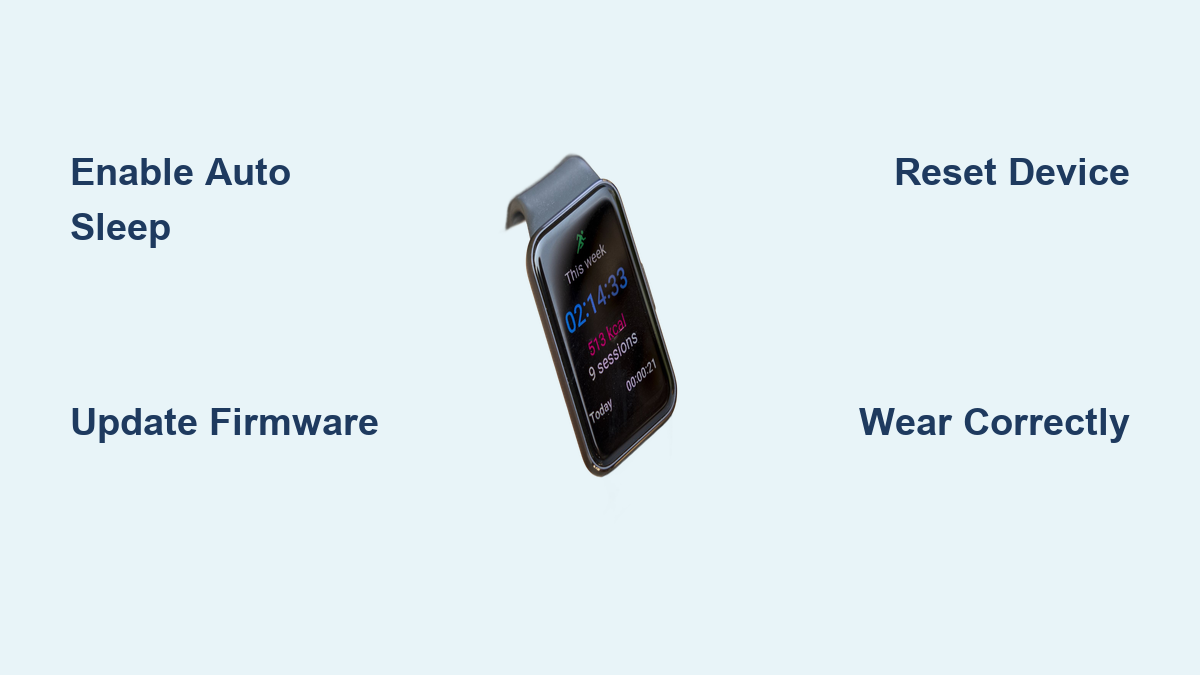
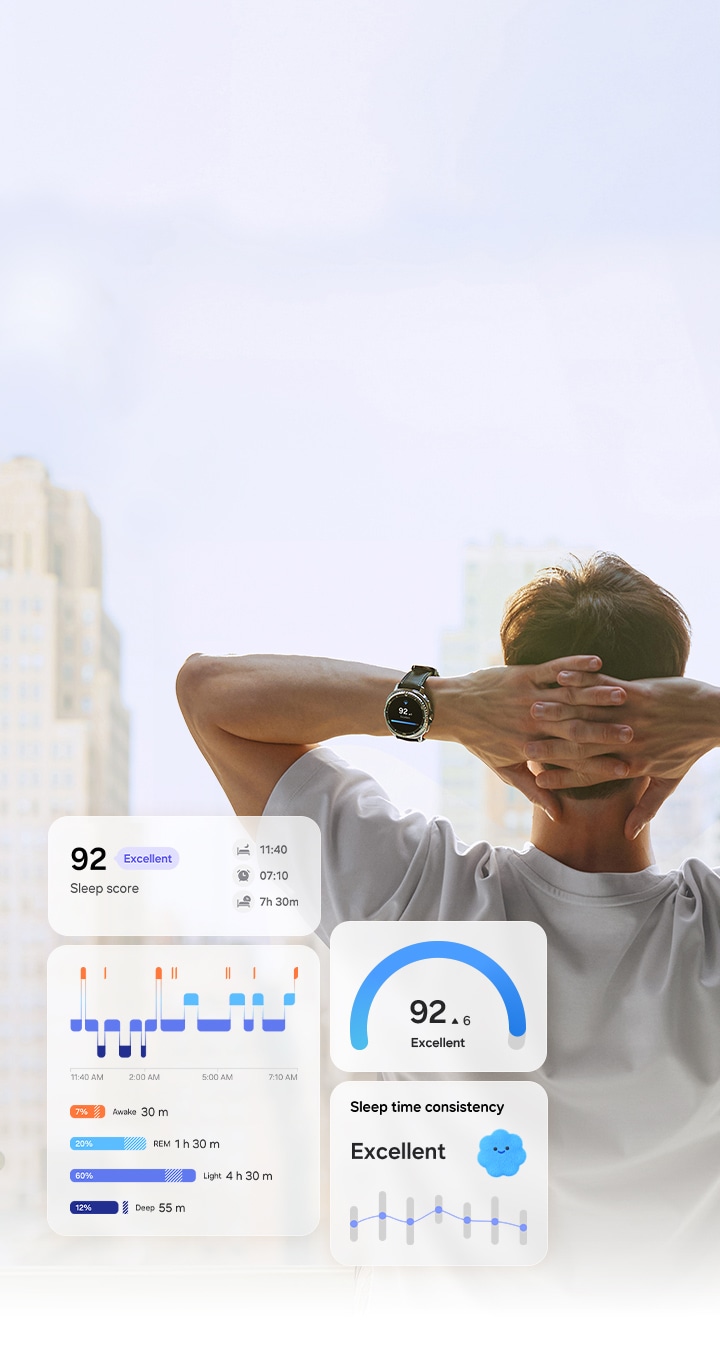
The Galaxy Fit 3 relies on motion patterns to detect when you fall asleep. If auto-sleep tracking is turned off or misconfigured, it won’t start unless manually activated.
To ensure auto-detection is active:
1. Open Samsung Health on your phone.
2. Tap Devices > Galaxy Fit 3.
3. Go to Sleep settings.
4. Toggle on Automatic sleep tracking.
5. Make sure Wear detection is also enabled.
Without these settings active, the band may wait for prolonged stillness, sometimes too long, before registering sleep mode.
Avoid Manual Sleep Mode Conflicts
Some users manually start sleep mode using the Modes shortcut on the Fit 3. While this forces tracking, it can interfere with the automatic algorithm if used inconsistently. Use either auto-detect or manual mode, but don’t mix both. For accurate baseline testing, disable manual starts and rely solely on auto-detection for a few nights.
Check Firmware and App Versions

Verify Latest Fit 3 Firmware
Outdated firmware is a common cause behind inaccurate sleep tracking. As of July 2024, the latest known firmware version is R390XXU0AXG2, the same version reported by affected users, meaning the bug may exist even in updated software.
To check your firmware:
1. Open Galaxy Wearable app.
2. Select your Galaxy Fit 3.
3. Scroll to About > Software information.
4. Confirm Firmware version matches the latest release.
Even if up-to-date, a corrupted update can cause sensor glitches.
Update Galaxy Fit 3 Plugin
The Fit 3 Plugin app acts as a bridge between the band and Samsung Health. One user noted a version difference (2.2.14.24070941N vs 2.2.14.24070951) that might impact performance.
To fix potential plugin issues:
1. Go to Phone Settings > Apps.
2. Find Galaxy Fit 3 Plugin.
3. Tap Storage > Clear Data and Clear Cache.
4. Uninstall updates, then re-download from Galaxy Store.
5. Re-pair the device if prompted.
This resets communication channels that may be dropping sleep data.
Reset Galaxy Fit 3 Properly
Perform a Full Factory Reset
A soft reset may not clear deep software bugs affecting sleep tracking.
To factory reset:
1. On the Fit 3, go to Settings > General > Reset.
2. Enter your PIN (if set).
3. Confirm Delete All Data.
Important: Do not restore from backup after resetting. Backups can carry over corrupted settings. Instead, set up the band as new and test sleep tracking for 3–4 nights.
Users have reported improved accuracy after a clean reset without restoration.
Re-Pair with Samsung Health
After reset, re-pairing ensures a clean connection:
1. In Galaxy Wearable, unpair the Fit 3.
2. Restart your phone.
3. Reconnect the band via Bluetooth.
4. Re-enable sleep tracking in Samsung Health.
This eliminates sync delays or corrupted pairing data.
Analyze Real User Reports

Delayed Sleep Detection Is Widespread
Multiple users report the Fit 3 starting sleep tracking 3–4 hours after bedtime. One user went to bed at 10:45 PM but was only tracked from 1:00 AM onward. This suggests the motion detection algorithm requires excessive stillness before registering sleep, possibly mistaking light sleep or tossing for wakefulness.
False Wake-Ups Skew Sleep Data
Even when tracking starts, the band often logs multiple long awakenings during a continuous sleep period. This results in drastically reduced “actual sleep” time, for example, 7 hours in bed but only 2–3 hours recorded. The band may misinterpret minor movements, like adjusting blankets, as full wake-ups.
Comparison with Other Devices
One user tested the Fit 3 against the Galaxy Watch 5 and found both devices matched closely. This implies the algorithm itself may be consistent but overly sensitive rather than broken. However, others argue that Amazfit and Huawei bands provide more realistic sleep logs, suggesting Samsung’s implementation could be optimized.
Troubleshoot Sync and App Issues
Ensure Samsung Health Is Updated
Sleep data is processed in the Samsung Health app. An outdated version can cause display errors or missing logs.
Check your version:
– Open Google Play Store.
– Search for Samsung Health.
– Update to the latest version (e.g., 6.27.0.161 or higher).
Also verify Samsung Accessory Service is updated (v3.1.96.50315 or newer), as it handles background syncing.
Force Sync the Device
If sleep data appears on the band but not in the app:
1. Open Galaxy Wearable.
2. Pull down to force sync.
3. Open Samsung Health and wait 1–2 minutes.
If data still doesn’t appear, restart both the phone and the Fit 3 before syncing again.
Improve Wear and Placement
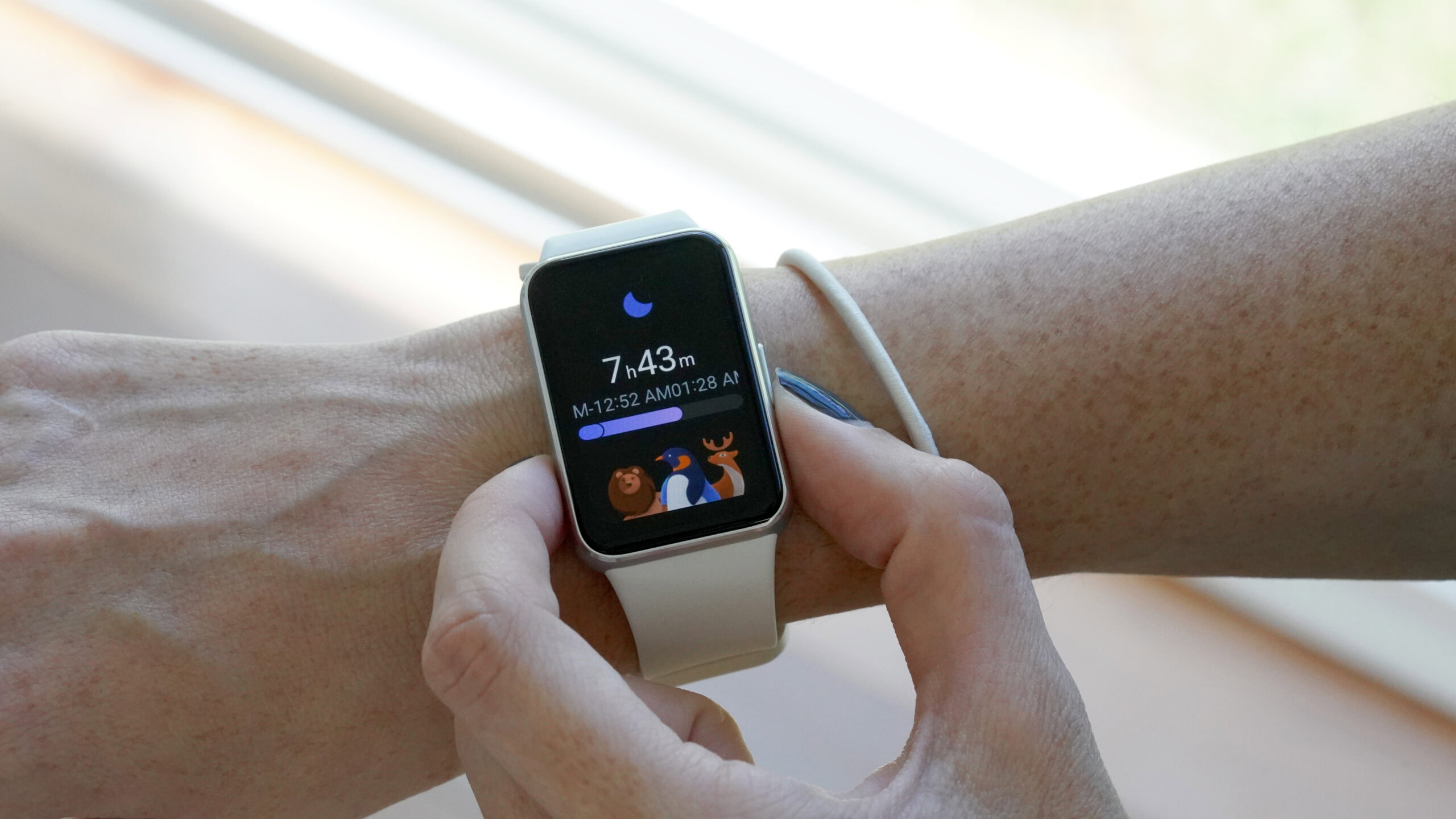
Wear the Band Snugly, But Not Too Tight
While users confirmed the band wasn’t loose, improper fit can still affect sensor accuracy.
Best practices:
– Wear the band 2–3 finger widths above the wrist bone.
– Ensure it’s snug but allows blood flow.
– Avoid wearing it too loose during sleep, as movement creates noise.
Try the Non-Dominant Wrist
Samsung recommends wearing the Fit 3 on your non-dominant hand for more accurate sleep and heart rate tracking. The algorithm is calibrated for less movement on that side. Switch wrists for testing. If sleep logs improve, the original placement may have caused false motion detection.
Report the Issue to Samsung
Use Samsung Members App to Submit Feedback
Since this issue has existed since at least April 2024 without a fix, user reports are critical for driving software updates.
To report:
1. Open Samsung Members app.
2. Tap Community > Posts.
3. Search “Galaxy Fit 3 sleep tracking.”
4. Upvote existing posts or create a new one with your logs.
5. Include:
– Firmware version
– Phone model
– Sample sleep data (screenshot)
– Steps already tried
The more users report, the higher the chance Samsung prioritizes a firmware patch.
Alternative Tracking Methods

Use Manual Sleep Mode as a Workaround
If auto-tracking remains unreliable, use manual sleep mode:
1. Before bed, swipe to Modes on the Fit 3.
2. Select Sleep and tap to start.
3. Stop it when you wake up.
This ensures tracking begins on time, though it lacks convenience. You’ll still get heart rate and SpO2 data during sleep.
Cross-Check with Phone-Based Apps
As a temporary measure, use a phone-based sleep app placed on your mattress. Compare its logs with the Fit 3 over 3–4 nights. Discrepancies help confirm whether the issue is with the device or algorithm.
Prevent Future Tracking Failures
Maintain Regular Maintenance
Keep your device reliable with routine checks:
– Weekly: Force sync and restart the Fit 3.
– Monthly: Clear cache on Galaxy Fit 3 Plugin and Samsung Health.
– After updates: Test sleep tracking for two nights.
Avoid installing beta apps or experimental features that may conflict with sensor performance.
Monitor for Firmware Updates
Samsung may release a patch to refine sleep algorithms. To stay updated:
– Open Galaxy Wearable regularly.
– Check Software update under device settings.
– Enable auto-updates for Samsung apps.
Follow Samsung’s official channels or community forums for announcements.
Frequently Asked Questions About Galaxy Fit 3 Sleep Tracking
Why does my Galaxy Fit 3 start tracking sleep 3–4 hours late?
The auto-detection algorithm requires prolonged stillness before registering sleep. Light sleep movements or tossing may be misinterpreted as wakefulness, causing delayed activation. This has been reported by multiple users since April 2024.
Does the Galaxy Fit 3 sleep tracking issue affect all firmware versions?
The latest known firmware (R390XXU0AXG2) still shows this bug, suggesting the issue persists even on updated software. Resetting without restoring backup may help, though results vary.
Can I use manual sleep mode instead of auto-detect?
Yes. Swipe to Modes on the Fit 3 and start Sleep manually before bed. This ensures tracking begins on time and still records heart rate and SpO2 data during sleep.
How do I fix Galaxy Fit 3 sleep tracking not syncing to Samsung Health?
Force sync in Galaxy Wearable, then open Samsung Health. If data still doesn’t appear, restart both devices and ensure Samsung Accessory Service is updated to v3.1.96.50315 or newer.
Is the Galaxy Fit 3 sleep tracking accurate compared to other bands?
When tested against the Galaxy Watch 5, results matched closely. However, users report that Amazfit and Huawei bands deliver more realistic sleep logs, suggesting Samsung’s algorithm may be overly sensitive to minor movements.
Should I factory reset my Galaxy Fit 3 to fix sleep tracking?
A factory reset without backup restoration has helped some users. Go to Settings > General > Reset, then set up the band as new and test for 3–4 nights before deciding.
Final Thoughts on Fixing Galaxy Fit 3 Sleep Tracking
The Galaxy Fit 3 sleep tracking not working issue affects many users, with delayed detection, false awakenings, and sync problems persisting since April 2024. While firmware is up-to-date for most, bugs in the sleep algorithm or app communication remain. A full reset without backup, plugin reinstallation, and proper wear can help restore accuracy.
If problems continue, report your experience through Samsung Members to push for a long-term fix. Until then, manual sleep mode remains the most reliable workaround for consistent tracking. Start by checking your auto-sleep settings and updating the Fit 3 Plugin tonight.