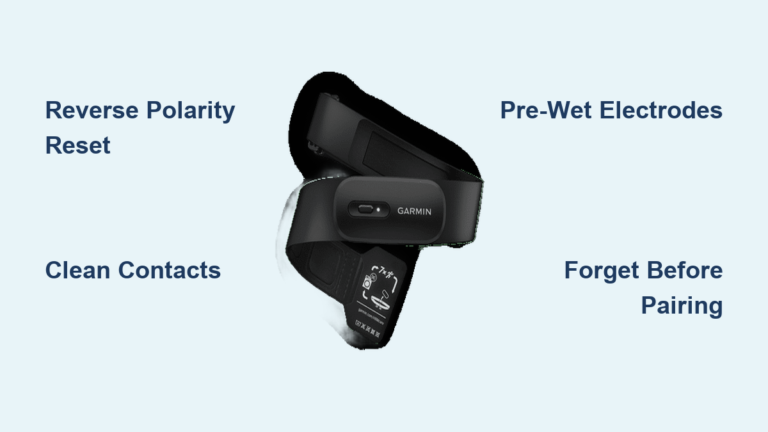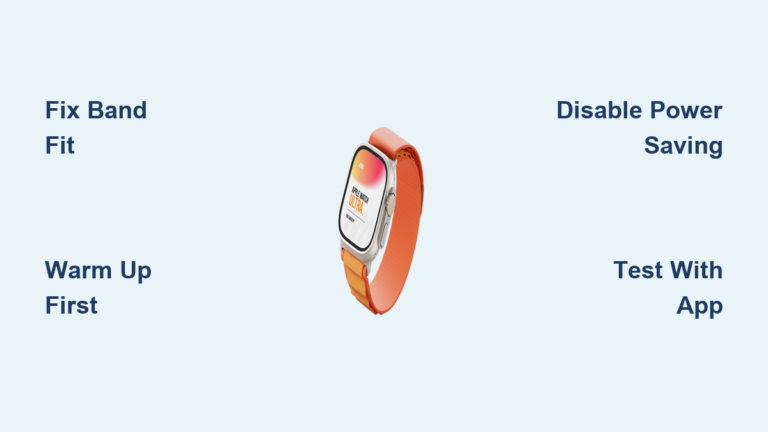
Fix Peloton Heart Rate Monitor Not Working
You’re mid-ride, pushing through a tough interval, but your heart rate stays blank on the screen. Your Apple Watch, usually flawless, refuses to sync. A vague message appears: “Some information may not load.” Everything else works, yet the missing heart rate data breaks your flow and ruins your effort tracking. You’re not alone. Since a recent Peloton software update, many riders have reported the Peloton heart rate monitor not working, even when the bike still detects the device.
The cause is usually a Bluetooth sync error, a software mismatch, or a broken Apple Watch connection after the update. The good news is that you can fix most cases without buying new hardware. In this guide, you’ll learn how to diagnose, troubleshoot, and resolve the Peloton heart rate problem quickly. Whether you use a chest strap, arm band, or Apple Watch, these step-by-step fixes will restore real-time data and get your metrics back.
Restart Devices to Reset Connection
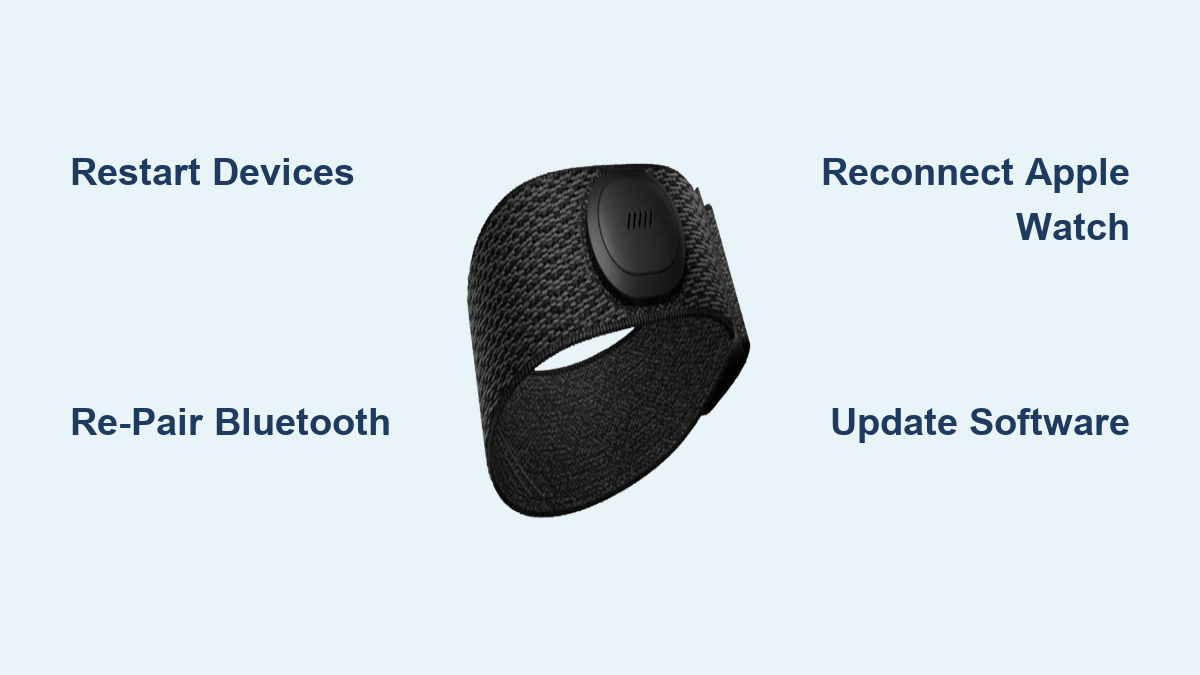
A soft reset clears temporary glitches that block heart rate detection. Updates can leave Bluetooth processes hanging or misaligned on both the bike and your wearable. Restarting forces a clean handshake between devices.
Power Cycle the Peloton Bike
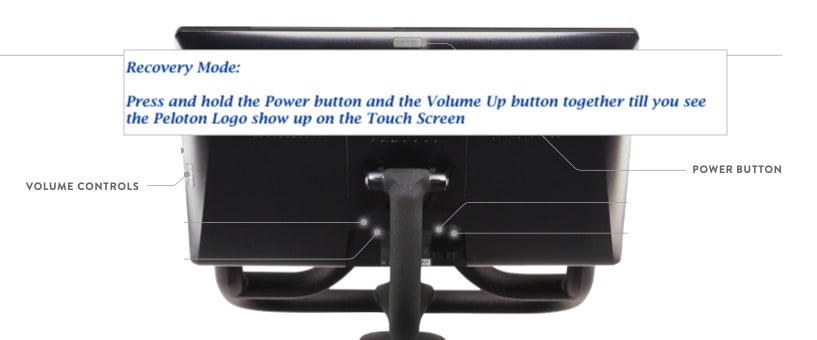
- Press and hold the power button on the back of the touchscreen until the shutdown menu appears.
- Select Shut Down and wait 30 seconds after the screen goes dark.
- Press the power button again to restart the bike.
- Wait for the home screen to fully load before testing heart rate.
Pro Tip: Unplug the bike for 1 minute if the touchscreen feels sluggish. This clears deeper system cache and often resolves hidden errors.
Reboot Your Apple Watch
- Press and hold the side button until the power-off slider appears.
- Swipe to power off and wait 30 seconds.
- Press the side button again to turn the watch back on.
- Wait for the Apple logo to finish cycling before reconnecting.
After both devices reboot, start a ride and check if heart rate appears. Many users see success after this single step, especially right after an update.
Check Bluetooth Pairing Status

The Peloton bike may detect your heart rate monitor but still fail to pull data because of a corrupted or outdated Bluetooth pairing. Checking the pairing list is the fastest way to confirm what’s connected.
View Paired Devices on Peloton
- Tap Settings (the gear icon) on the home screen.
- Select Bluetooth.
- Look for your device in the list:
– Apple Watch
– Polar H10
– Wahoo TICKR
– Other third-party monitors
If your device appears with a checkmark, it’s paired. However, a checkmark does not guarantee active data flow.
Remove and Re-Pair Your Device
Even when paired, a fresh connection often fixes sync issues:
- In Bluetooth settings, tap the device name.
- Select Forget Device or Unpair.
- Turn off the heart rate monitor or Apple Watch Bluetooth temporarily.
- Turn it back on and wait for the device to appear in the Peloton Bluetooth list.
- Tap the device to re-pair.
Visual Cue: A spinning icon means the bike is trying to connect. If it stalls, move the monitor closer to the screen (within 3 feet) and try again.
Reconnect Apple Watch via Peloton App
If you rely on Apple Watch, the Peloton app acts as the bridge between your wearable and the bike. A software update can sever this link even when Bluetooth looks active.
Remove Watch from Connected Devices
- Open the Peloton app on your iPhone.
- Tap your Profile icon in the bottom right corner.
- Go to Connected Devices.
- Find Apple Watch and tap the trash icon or Remove.
Re-Pair Apple Watch
- In Connected Devices, tap Add Device.
- Select Apple Watch.
- Follow the on-screen prompts to re-authorize health data sharing.
- Confirm the connection on your Apple Watch when prompted.
Note: You may need to enable Heart Rate permissions in the Watch app under Privacy settings before data syncs correctly.
Once re-paired, return to the bike and start a ride. Your Apple Watch should now push heart rate in real time.
Clear Bluetooth Cache on Peloton
Over time, Bluetooth cache can fill with outdated device profiles, especially after multiple pairings. Peloton does not offer a dedicated “Clear Bluetooth Cache” button, but you can simulate the reset.
Toggle Bluetooth Off and On
- Go to Settings > Bluetooth on the bike.
- Toggle Bluetooth Off.
- Wait 15 seconds.
- Toggle Bluetooth On.
This forces the system to reload fresh connection data.
Optional: Reset Network Settings
If Bluetooth stays unstable:
- Go to Settings > System > Network Settings > Reset Network.
- Reconnect to Wi-Fi after the reset completes.
Why? Bluetooth and Wi-Fi share radio bands. A weak or congested network can disrupt the Bluetooth LE (Low Energy) signals that heart rate monitors depend on.
Update All Devices and Apps
Outdated firmware is a leading cause of post-update heart rate failures. Even if your bike says it’s up to date, check again. Sometimes updates install only partially.
Update Peloton Bike Software
- Go to Settings > System > Check for Updates.
- Install any available update.
- Restart the bike after installation.
Update Apple Watch OS
- Open the Watch app on your iPhone.
- Tap General > Software Update.
- Install any available update (your watch needs at least 50% battery and to be on the charger).
Update Peloton Mobile App
- Open the App Store on your iPhone.
- Search for “Peloton.”
- Tap Update if a new version appears.
Pro Tip: Update the mobile app after the bike update. This sequence ensures full compatibility with the latest API changes.
Test Alternative Heart Rate Monitors

If Apple Watch still refuses to sync, isolate the problem by testing a different monitor.
Try a Chest Strap or Arm Band
Use a known-working heart rate monitor like:
– Polar H10
– Wahoo TICKR
– Generic Bluetooth chest strap
Steps:
1. Turn on the monitor.
2. Pair it via Settings > Bluetooth on the Peloton bike.
3. Start a ride and watch for heart rate data.
Result Interpretation:
– Heart rate shows → The issue is with Apple Watch or its pairing.
– No heart rate → A broader Bluetooth or system issue exists on the bike.
Warning: Arm bands can lag during rapid heart rate changes. Don’t rely on them if training precision matters.
Check Wi-Fi Signal Strength
Poor Wi-Fi affects more than video streaming. It can block real-time data sync between the Peloton app, the bike, and your Apple Watch.
Diagnose Connection Quality
- Go to Settings > Network on the bike.
- Check signal strength:
– Full bars = Strong
– 1 to 2 bars = Weak (troubleshoot now) - If weak, move your router closer or install a Wi-Fi extender.
Restart Your Router
- Unplug your router.
- Wait 60 seconds.
- Plug it back in.
- Wait for all lights to stabilize.
- Reconnect the Peloton bike to Wi-Fi.
Why it works: A router reboot clears packet congestion and resets DHCP leases, which can resolve silent sync timeouts.
Common Mistakes That Block Sync
Avoid these pitfalls that delay resolution:
- Skipping the reboot. Many users jump straight to re-pairing without restarting devices. This rarely works when the system is stuck.
- Ignoring app updates. The Peloton mobile app must match the bike’s software version.
- Pairing through iPhone Bluetooth. Always pair your heart rate monitor through the Peloton app or bike settings, never your phone’s Bluetooth menu.
- Using outdated third-party apps. Apps like Strava or Apple Health can interfere with data routing. Temporarily disable auto-sync while troubleshooting.
Pro Tip: During rides, avoid using your phone for calls or streaming. This can overload Bluetooth bandwidth and break the heart rate stream.
When to Contact Peloton Support
If you’ve tried every step and the Peloton heart rate monitor is still not working, it’s time to escalate.
What to Tell Support
Be specific and clear:
– “After the latest update, heart rate doesn’t display even though the monitor is detected.”
– “Apple Watch won’t sync despite re-pairing via the app.”
– “Cadence and resistance show 0 in some cases.”
Provide:
– Bike model (Bike, Bike+, or Tread)
– Software version (found in Settings > System)
– A list of steps you’ve already tried
Check Known Issue Reports
Visit Peloton’s Status Page or browse r/Peloton on Reddit. Widespread outages often get patched within days.
Good News: If it’s a known bug, support may fast-track you to a beta fix or temporary workaround.
Prevent Future Heart Rate Sync Issues
Don’t wait for the next update to break things again. Stay ahead with these habits.
Monthly Maintenance Routine
- Re-pair your heart rate monitor every 30 days to remove pairing drift.
- Restart the bike weekly to clear memory leaks.
- Check for updates every Monday.
Optimize Device Placement
- Wear your Apple Watch on your left wrist, closest to the screen.
- Place chest straps snug, just below the pectoral muscles.
- Keep metal objects (like magnetic water bottle holders) away from the signal path.
Use Wired Alternatives (Optional)
For zero sync risk, consider:
– Peloton Heart Rate Armband (direct Bluetooth to the bike)
– ANT+ to Bluetooth adapters (for legacy monitors)
Note: The Peloton bike does not support ANT+ natively. It only works with Bluetooth 4.0+ devices.
Final Fix Checklist
Before calling support, run through this list:
- Restarted Peloton bike and Apple Watch
- Unpaired and re-paired the heart rate device
- Reconnected Apple Watch via the Peloton app
- Cleared Bluetooth by toggling off and on
- Updated all software (bike, watch, app)
- Tested with a different heart rate monitor
- Verified strong Wi-Fi signal
- Avoided phone Bluetooth interference
If every box is checked and heart rate still does not appear, contact Peloton Member Support directly. Mention “post-update heart rate sync failure” to get routed to the right team.
Frequently Asked Questions About Peloton Heart Rate Monitor Not Working
Why is my Peloton heart rate monitor not working after an update?
Software updates can disrupt Bluetooth pairing or break the connection between your wearable and the bike. Restarting both devices and re-pairing through the Peloton app usually restores the link.
How do I fix Apple Watch not syncing heart rate to Peloton?
Open the Peloton app, remove Apple Watch under Profile > Connected Devices, then re-pair it. Confirm Heart Rate permissions in the Watch app, and restart both devices before testing again.
Does Peloton support ANT+ heart rate monitors?
No. Peloton bikes only support Bluetooth 4.0+ heart rate monitors. If you use an ANT+ device, you’ll need a Bluetooth adapter.
Can a weak Wi-Fi signal cause heart rate sync issues?
Yes. Bluetooth and Wi-Fi share radio bands. A weak or unstable network can interrupt the real-time data stream between your devices and the bike.
How long does it take to fix heart rate sync issues?
Most users restore full functionality within 20 minutes by following the steps above. If the issue is a known bug, Peloton often releases a patch within a few days.
Key Takeaways for Fixing Your Peloton Heart Rate Monitor
The Peloton heart rate monitor not working issue is almost always software-related, especially after updates. Hardware failure is rare. Start with a full reboot of both the bike and your wearable, then re-pair through the Peloton app rather than your phone’s Bluetooth menu. Keep your bike firmware, Apple Watch, and mobile app updated, and verify your Wi-Fi signal is strong before each ride.
If the problem persists after these steps, contact Peloton Member Support with your bike model, software version, and a clear list of what you’ve tried. Stay patient, stay synced, and you’ll be back to riding with full metrics in no time.