Fix Apple Watch Ultra Heart Rate Monitor
Your Apple Watch Ultra heart rate monitor suddenly stops reading mid-workout, leaving you with gaps in your training data. This frustrating issue affects runners, cyclists, and everyday users alike, especially during cold weather or high-intensity sessions. The most common culprits include poor band fit, software settings, and environmental factors rather than actual hardware failure.
This guide walks you through every proven fix, from quick band adjustments to advanced reset procedures. You’ll learn how to diagnose the root cause, apply targeted solutions, and determine when professional support is necessary. By the end, you’ll have the tools to restore reliable heart rate tracking on your Apple Watch Ultra.
Check Band Fit and Placement First

Poor skin contact is the leading cause of heart rate failure. The optical sensor requires uninterrupted contact with soft tissue to detect blood flow accurately.
Avoid the Alpine Loop for Workouts
The Alpine Loop band is the most frequently cited culprit for sensor dropouts. While comfortable for casual wear, it tends to loosen during dynamic movement, breaking the optical seal between the sensor and your skin. Switch to a Trail Loop, Ocean Band, or a high-grip third-party rubber band like Spigen for workouts. These options maintain tension even when sweating or moving aggressively.
Wear It Higher on the Forearm
If you have a bony or hairy wrist, move the watch 2–3 inches up your forearm. This area contains more muscle and soft tissue, which improves sensor accuracy. For maximum consistency, try wearing it on the inner forearm with the screen facing inward. The smoother, less pigmented skin in this area often delivers stronger signals than the dorsal wrist.
Position Two Fingers Above the Wrist Bone
Place the watch about two finger-widths above your wrist bone. Too close to the hand increases motion artifacts, while too high reduces blood flow access. This sweet spot balances stability with vascular signal strength.
Fix Cold Weather Heart Rate Failures

Cold temperatures cause the majority of initial tracking failures, especially during winter outdoor workouts.
Understand Vasoconstriction Limits
In cold environments, your body constricts blood vessels near the skin to preserve core heat. This reduces blood flow to the wrist, making it difficult for the optical sensor to detect a pulse. This is human physiology, not a device defect. All optical sensors from Garmin, Suunto, and Fitbit struggle in these conditions.
Warm Up Before Starting
Perform a 5-minute indoor warm-up before launching your workout. Walk, jog in place, or do dynamic stretches to increase circulation. Then open the Heart Rate app and wait for a live reading before starting your session. This pre-heats both the sensor and your physiology.
Keep Your Wrist Covered
Wear gloves with wrist coverage or long sleeves to maintain warmth. Even light insulation helps prevent vasoconstriction and keeps the sensor reading from the start of your workout.
Disable Power Saving and Low Power Mode
These features turn off the heart rate sensor to save battery, making it appear broken when it’s simply disabled.
Turn Off Workout Power Saving Mode
Go to the Watch app on your iPhone, then My Watch, then Workout. Toggle off Power Saving Mode. When enabled, this setting disables the heart rate sensor during workouts, exactly when you need it most.
Exit Low Power Mode
Swipe up on your Apple Watch to open Control Center. Tap the battery icon and disable Low Power Mode. Alternatively, go to Settings, then Battery, then Low Power Mode and turn it off. In watchOS 9 and later, this mode disables background heart rate checks and Always-On Display.
Verify Privacy and Sensor Permissions
Even if the sensor works, incorrect permissions can block data collection entirely.
Enable Fitness and Heart Rate Access
On your iPhone, open the Watch app, then My Watch, then Privacy. Ensure both Fitness Tracking and Heart Rate toggles are on. If either is disabled, the watch won’t collect or share biometric data.
Confirm Wrist Detection Is Active
Go to Settings, then Passcode on the watch, or access it via the iPhone Watch app. Make sure Wrist Detection is enabled. This feature uses the heart rate sensor to determine when the watch is worn. If disabled, the device may lock or stop tracking. Note that tattoos can interfere with Wrist Detection, causing the watch to incorrectly assume it has been removed.
Use Third-Party Apps to Test Hardware
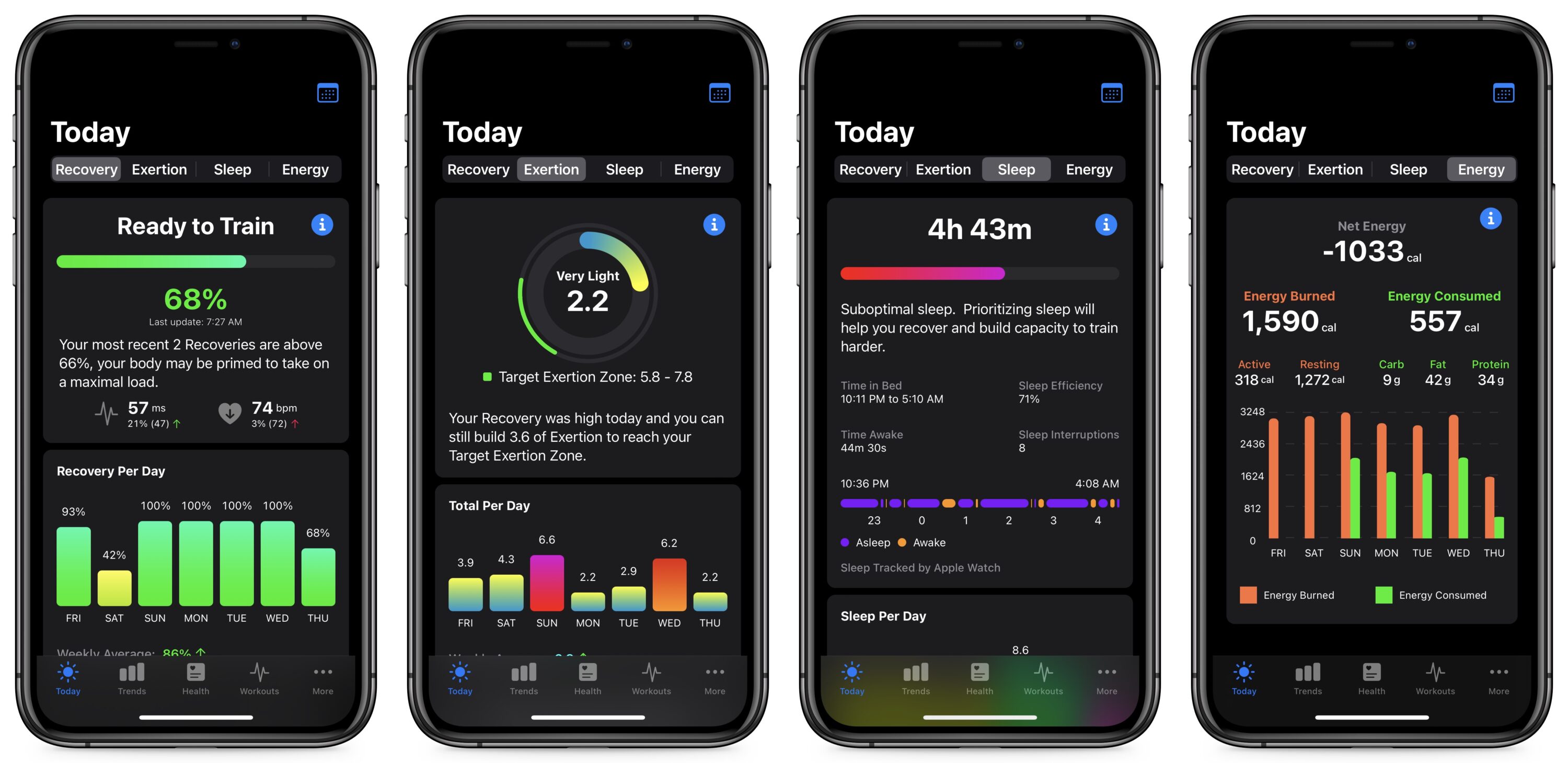
If the native Workout app fails but third-party apps like Athlytics or WorkOutDoors record heart rate correctly, the hardware is working and the issue is software-specific.
Run a Diagnostic Test
Start a workout in a third-party app. If heart rate appears and updates in real time, the problem lies with Apple’s software logic rather than the sensor. Common culprits include zone transition bugs and initialization delays.
Bypass Zone Transition Bugs
During HIIT or interval training, dropouts often happen when switching zones. To avoid this:
- Open the Fitness app on iPhone, then Full History, then Heart Rate Zones.
- Manually set Zone 1 to 240 bpm or your maximum.
- Use only Zone 1 during workouts.
This prevents the software from recalculating zones mid-workout, which is a known trigger for data loss.
Force Sensor Initialization Before Workouts

Skipping warm-up leads to cold start failures in the first 5–10 minutes of activity.
Launch Heart Rate App First
Before opening the Workout app, go to the Heart Rate app on your watch. Wait until it shows a live, updated BPM rather than a stale reading. This forces the sensor to activate and stabilize before logging begins.
Refresh Mid-Workout if Signal Drops
If heart rate disappears during a session:
- Pause the workout.
- Open the Heart Rate app.
- Wait for a fresh reading.
- Resume the workout.
This often restores the data feed instantly without requiring a restart.
Clean the Sensor and Update Software
Dirt, sweat, and outdated firmware can disrupt sensor performance.
Clean the Back Sensors Weekly
Use a lint-free cloth dampened with water or 70% isopropyl alcohol. Gently wipe the back of the watch, focusing on the four raised sensor domes. Avoid soap, abrasives, or submerging the device. Buildup blocks LED light and reduces signal clarity.
Install Latest watchOS and iOS
Apple frequently releases updates that patch heart rate algorithm bugs. On your iPhone, go to Settings, then General, then Software Update. Ensure both iOS and watchOS are current. If an update is available, install it, especially if you’re experiencing zone-related dropouts.
Reset, Restart, and Re-pair as Last Resort
When all else fails, reset the system to eliminate corrupted configuration data.
Perform a Force Restart
Press and hold both the side button and Digital Crown for at least 10 seconds. Release when the Apple logo appears. This clears temporary glitches without erasing your data.
Close Background Apps
On iPhone, swipe up from the bottom and swipe away the Watch, Health, and Activity apps. On Apple Watch, swipe up and clear the Workout, Heart Rate, and Activity apps. Then restart both devices.
Erase and Re-pair the Watch
Go to Settings, then General, then Reset, then Erase All Content and Settings. After erasing, re-pair the watch to your iPhone. This removes deep-seated configuration issues that may be causing persistent problems.
Try a Clean Setup Without Backup
If problems persist, unpair the watch and set it up as a new device without restoring from backup. Test heart rate tracking immediately. If it works, the issue was in your old configuration. You can selectively restore data afterward.
Consider a Chest Strap for Ultimate Reliability
For athletes with persistent issues due to anatomy, motion, or extreme conditions, optical sensors have inherent limitations.
Use a Bluetooth Chest Strap
Devices like the Polar H10 or Garmin HRM-Pro attach directly to the chest and measure electrical heart signals. This makes them immune to motion, cold, tattoos, or band fit issues. Pair it with your Apple Watch via Bluetooth:
- Open Settings, then Bluetooth on the watch.
- Turn on the chest strap.
- Wait for it to appear and connect.
Most third-party fitness apps will prioritize the chest sensor over the wrist sensor.
Trade-Offs to Know
- Accuracy: Chest straps are clinically more accurate, especially during sprints or rapid zone changes.
- Convenience: Requires extra gear and regular charging.
- Integration: Works best with apps like WorkOutDoors, Athlytics, or Strava.
When to Seek Apple Support
If you’ve tried every fix and still get no heart rate data in any app, even after a clean setup, the issue may be a hardware defect.
Run Apple Diagnostics
Contact Apple Support via the Support app or website. They can run remote diagnostics to test sensor output and identify potential failures.
Visit a Genius Bar
In-person technicians use proprietary tools to verify whether the optical sensor is emitting light and receiving feedback properly. If it’s faulty and under warranty or AppleCare+, you’ll receive a replacement.
Know Warranty Limits
Apple may deny service if the issue is linked to tattoos, cold weather use, or loose band fit. These are considered user or environmental factors rather than defects. Be prepared to demonstrate that you’ve ruled them out through proper troubleshooting.
Frequently Asked Questions About Apple Watch Ultra Heart Rate Issues
Why does my Apple Watch Ultra lose heart rate during workouts?
The most common cause is poor skin contact from a loose band, especially the Alpine Loop. Cold weather can also cause dropouts because vasoconstriction reduces blood flow to the wrist. Software bugs during zone transitions are another frequent trigger, particularly during HIIT sessions.
Does the Alpine Loop cause heart rate problems?
Yes, the Alpine Loop is statistically linked to higher failure rates. It tends to loosen during dynamic movement, breaking the optical seal. Switching to a Trail Loop, Ocean Band, or high-tension sport band typically resolves the issue.
How do I fix cold weather heart rate dropouts?
Warm up indoors for 5 minutes before heading out, wear gloves or long sleeves to keep your wrist covered, and open the Heart Rate app before starting your workout. If problems persist, consider a Bluetooth chest strap for winter activities.
Can tattoos prevent the heart rate sensor from working?
Yes, dark or dense tattoos can block the green LED light used by the optical sensor. Reposition the watch to an un-tattooed area on your inner forearm or higher up your arm for consistent readings.
Should I use a chest strap with my Apple Watch Ultra?
A chest strap like the Polar H10 provides 100% reliability regardless of motion, cold, or band fit issues. It’s ideal for athletes with persistent problems or those who need clinical-grade accuracy during high-intensity training.
When should I contact Apple about heart rate issues?
If you’ve tried band adjustments, software updates, and full resets without success, contact Apple Support. If the device is under warranty and the sensor shows no output during diagnostics, you’re likely eligible for a replacement.
Key Takeaways for Fixing Apple Watch Ultra Heart Rate Problems

The vast majority of Apple Watch Ultra heart rate issues stem from configuration and environmental factors rather than hardware defects. Start by switching from the Alpine Loop to a more secure band like the Trail Loop or Ocean Band. Position the watch two finger-widths above your wrist bone, and consider moving it to your inner forearm if you have a bony wrist or tattoos.
Always disable Power Saving Mode and Low Power Mode before workouts, and open the Heart Rate app first to initialize the sensor. In cold weather, warm up indoors and keep your wrist covered. If dropouts continue, test with a third-party app to determine whether the issue is software or hardware related.
Your next step: Apply the band and placement fixes today, then run a test workout with the Heart Rate app pre-initialized. If problems persist, work through the reset sequence before considering a chest strap or Apple Support.