Fix Google Fit Sleep Tracking Not Working
You wear your Wear OS watch to bed, expecting your sleep stats in Google Fit the next morning, only to see “No sleep data available.” Despite correct settings, permissions, and a linked device, your sleep isn’t being recorded. You’re not alone. A growing number of users report Google Fit sleep tracking not working, with zero data syncing even after reboots, updates, and reconnections. This isn’t just a minor glitch. It’s a breakdown in the data pipeline between your watch, phone, and Google’s backend. The good news? Most cases can be resolved with targeted troubleshooting. In this guide, you’ll learn how to diagnose the real cause, apply proven fixes, and restore reliable sleep tracking without losing your health data.
Essential Pre-Checks Before Troubleshooting
Before diving into complex solutions, confirm the basics aren’t the culprit. Many users skip these, assuming they’re already correct, only to miss a simple fix.
Sleep Tracking Is Enabled
Open Google Fit, then tap Profile, Settings, and Sleep. Ensure Track sleep automatically is toggled ON. If it’s off, enable it and wear your watch to bed tonight.
Note: Some Wear OS watches require sleep mode to be started manually if automatic tracking isn’t active.
Permissions Are Fully Granted
On your Android phone, go to Settings, Apps, Google Fit, and Permissions. Verify these are all allowed:
- Body sensors
- Location (required for some sync functions)
- Notifications
- Storage (for local data caching)
If any are denied, tap to enable them. Restart the app afterward.
Watch Is Properly Paired and Synced
Open the Wear OS by Google app and check that your watch shows Connected. If not, restart both devices and re-pair if needed. Then force sync by tapping your watch in the Wear OS app and selecting Sync now.
Fix Google Fit Sleep Data Sync Failure
When sleep tracking fails despite correct setup, the issue usually lies in sync errors, software bugs, or background restrictions. Apply these fixes in order.
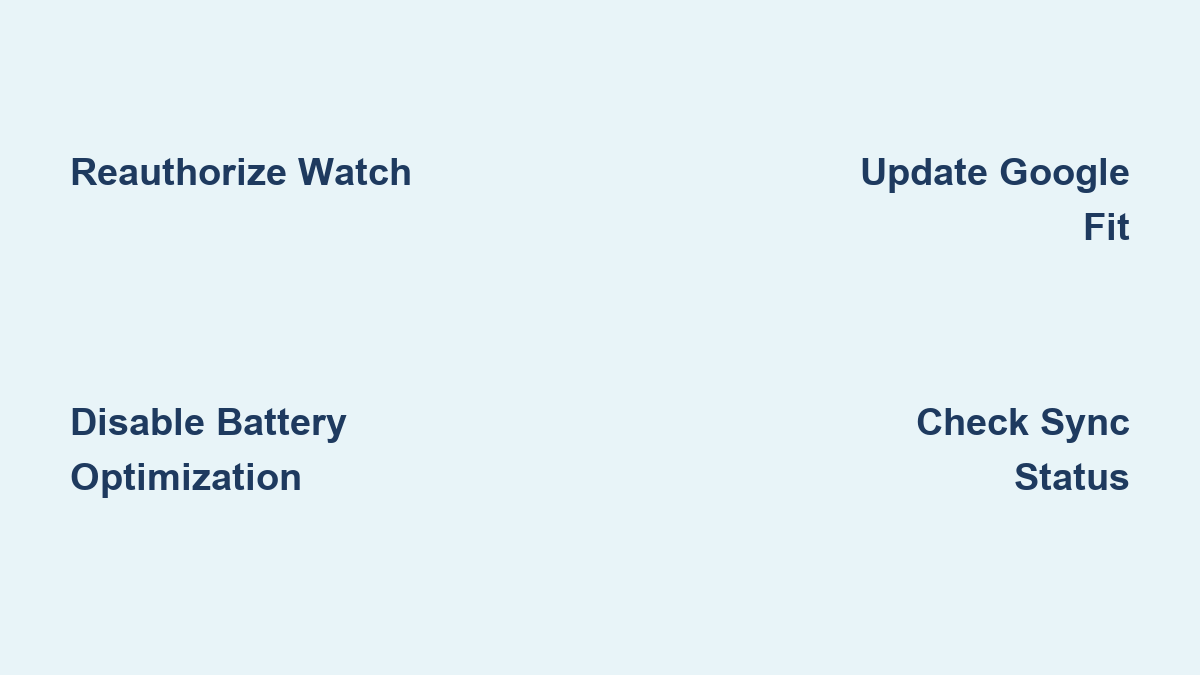
Reauthorize Your Wear OS Connection
A stale authentication token can block data flow, even if your watch looks connected.
- Open Google Fit, then go to Profile, Settings, and Connected apps & devices.
- Find your Wear OS watch or Google Account entry.
- Tap Disconnect or Unlink.
- Wait 30 seconds, then tap Connect again.
- Follow prompts to re-pair your watch.
This forces a fresh data handshake. In related Fitbit and Apple Health cases, reauthorization resolved a significant portion of sync blackouts.
Force Close and Restart Google Fit
A frozen app state can prevent data updates.
- Swipe up from the home screen to open Recent Apps.
- Find Google Fit and swipe it away.
- Reopen the app from your app drawer.
- Pull down to manually sync.
Wait a few minutes, then check if sleep data appears.
Restart Both Devices
A full reboot clears temporary system glitches.
- Power off your Android phone and Wear OS watch.
- Wait 30 seconds.
- Power them back on.
- Open Google Fit once both are connected.
This resolves background service hangs that block sleep data logging.
Eliminate Software Conflicts and Bugs
Recent updates can introduce bugs that break sleep tracking. Even if your app is up to date, a compatibility issue may exist.
Update Google Fit to Latest Version
An outdated app may lack critical sync patches.
- Open Google Play Store.
- Search Google Fit.
- If Update appears, tap it.
- Wait for installation, then reopen the app.
Always check after major Android or Wear OS updates, as Google Fit sometimes lags behind.
Check Wear OS Firmware Updates
Your watch’s OS may have a sleep tracking bug fix pending.
On your phone, open the Wear OS by Google app:
- Tap your watch
- Scroll to About, then System updates
- Install any pending update
On your watch:
- Open Settings, System, and System update
- Tap Check for update
Firmware bugs in older builds have been known to disable sensor logging during sleep mode.
Verify Android OS Is Updated
Outdated phone software can disrupt health data parsing. On your phone, go to Settings, System, and System update. Install any available OS patch.
Android 13 and later introduced stricter background app limits. Updates often include fixes for health app compatibility.
Disable Battery Optimization for Google Fit
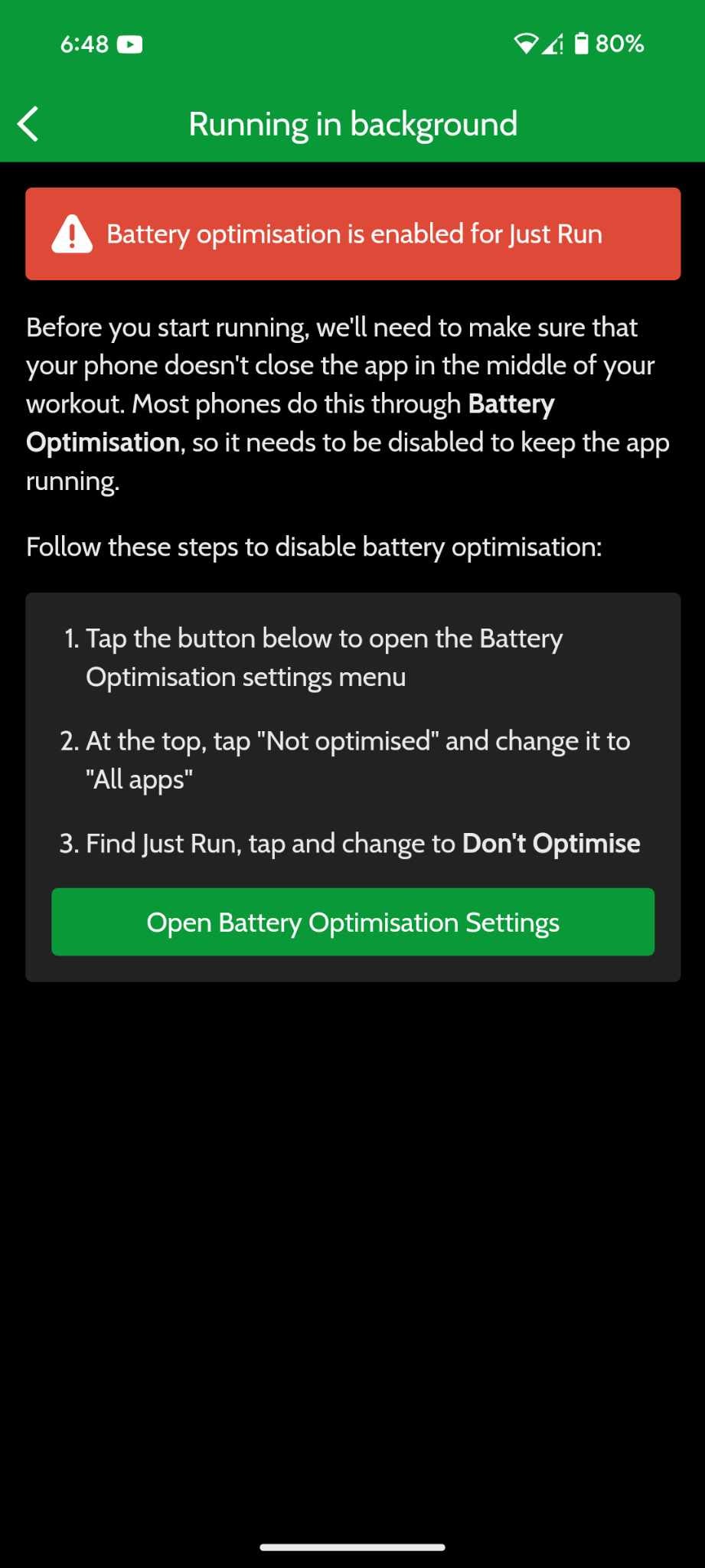
Android’s battery saver may prevent Google Fit from running in the background, killing sleep tracking entirely.
Allow Background Activity
- Go to Settings, Apps, Google Fit, and Battery.
- Select Unrestricted or Don’t optimize.
- Confirm when prompted.
Without this, Android may kill the app’s background service overnight, stopping data collection.
Whitelist in Device Manager Apps
Some phones, including Samsung, Xiaomi, and OnePlus models, have aggressive battery managers. Check your device’s Battery settings for:
- Put unused apps to sleep: Disable for Google Fit
- Optimize battery usage: Set Google Fit to Don’t optimize
- Auto-start: Enable for Google Fit if available
These hidden settings often block health apps from running continuously.
Address Sync Delays and Data Latency
Sometimes, sleep data isn’t missing. It’s just delayed.
Wait 24–48 Hours for Backend Sync
Google’s servers may take time to process and display sleep data. After applying fixes:
- Wear your watch to bed
- Wait two full days before concluding failure
- Check Google Fit each morning
In documented cases, sleep data appeared retroactively after 36 hours due to backend processing delays.
Check Wear OS App for Local Data
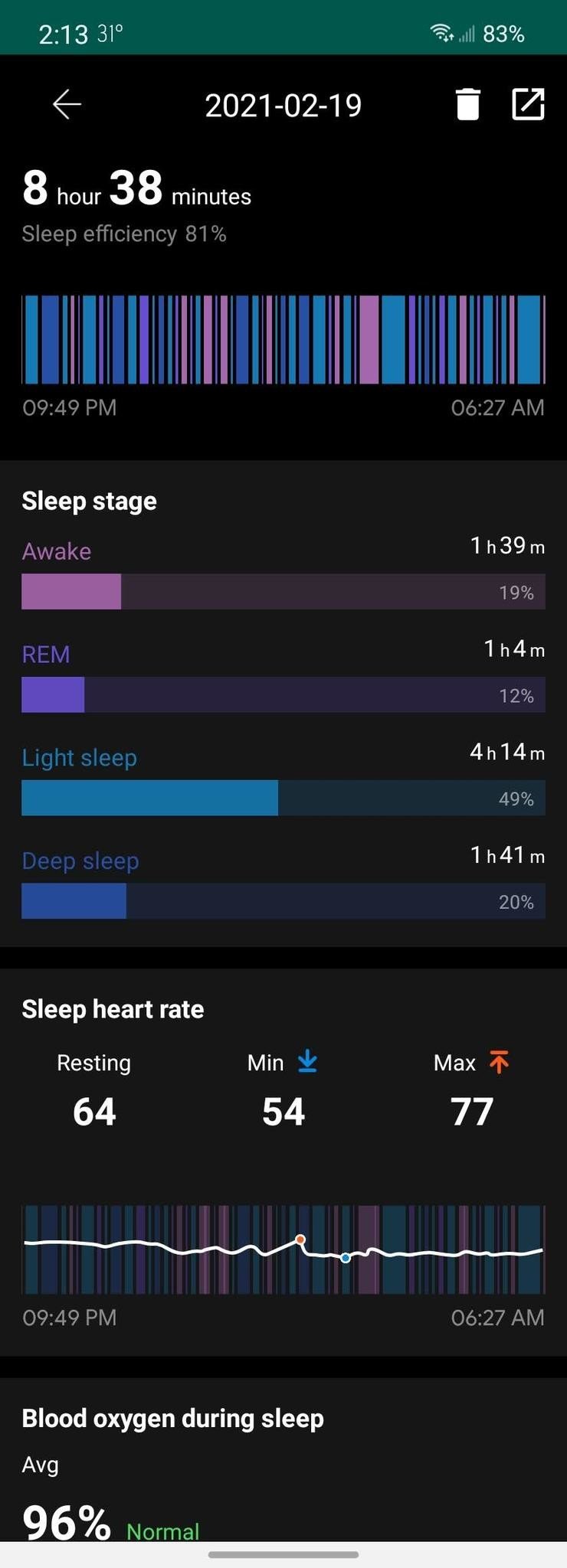
Data might be on your watch but not synced. On your Wear OS app, tap your watch, then Health sensors and Sleep. See if sleep duration is logged locally.
If yes, the issue is sync, not tracking. Proceed to reauthorization or wait for server sync.
Advanced Reset Procedures (Use with Caution)
If all else fails, reset app data, but only if you’re okay with potential data loss.
Clear Google Fit Cache (Safe)
This removes temporary files without deleting your data.
- Go to Settings, Apps, Google Fit, and Storage.
- Tap Clear Cache.
- Reopen the app and sync.
Do this before clearing data. It’s risk-free and often resolves display errors.
Clear Google Fit Data (Last Resort)
This deletes all local Google Fit data. Cloud data should restore, but sleep logs during the outage may be lost.
Only do this if:
- You’ve tried all other steps
- You don’t mind losing recent unsynced activity
- Go to Settings, Apps, Google Fit, and Storage.
- Tap Clear Data.
- Reopen Google Fit and re-link your watch.
Warning: Google advises against this during known sync outages, as it may prevent recovery of pending data.
Monitor for Official Fixes and Updates
This issue often stems from bugs Google is already working to fix.
Check Google Fit Status Page
Visit the Google Workspace Status Dashboard at status.cloud.google.com. Search for Google Fit or Wear OS and look for active incidents related to health data sync or sleep tracking.
No current outage? The problem is likely device-specific.
Follow Community Reports
Join the Google Fit Help Forum on Google’s support site. Search for “sleep tracking not working” and filter by recent dates to see if others report fixes.
User reports often reveal model-specific bugs on devices like the Fossil Gen 6 or Samsung Galaxy Watch 6 running Wear OS 4.
Prevent Future Sleep Tracking Failures
Once fixed, take steps to keep sleep data flowing.
Enable Auto-Sync on Wear OS
On your phone, open the Wear OS app, tap your watch, then Sync. Ensure Sync automatically is ON.
Avoid Third-Party Battery Savers
Apps like Greenify or DU Battery Saver can override system settings. Uninstall them if you rely on health tracking.
Set a Sleep Routine in Google Fit
Go to Google Fit, Sleep, and Sleep schedule. Set your typical bedtime and wake time. This helps the app anticipate sleep windows and improve detection.
Frequently Asked Questions About Google Fit Sleep Tracking
Why does Google Fit show “No sleep data available” even though I wore my watch?
This typically indicates a sync breakdown between your watch and the Google Fit app. It can result from background restrictions, outdated firmware, or authentication token errors. Try reauthorizing your watch connection and disabling battery optimization.
How long does Google Fit take to sync sleep data?
Sleep data can take 24 to 48 hours to appear in some cases due to backend processing delays. If data doesn’t show after two full days, proceed with deeper troubleshooting steps like clearing cache or checking permissions.
Will clearing Google Fit data delete my sleep history?
Clearing app data removes local information, but cloud data should restore once you re-link your account. However, sleep logs recorded during an active sync outage may be permanently lost. Google recommends avoiding this step during known outages.
Does Google Fit track sleep stages like REM and deep sleep?
Google Fit primarily tracks sleep duration rather than detailed sleep stages. Granular stage data (Light, Deep, REM) is more prone to sync failures in comparable ecosystems and may not be available through Google Fit’s interface.
Can a Wear OS update cause sleep tracking to stop working?
Yes. Firmware bugs in older Wear OS builds have been known to disable sensor logging during sleep mode. Always install the latest watch firmware and Google Fit app version to avoid known issues.
Key Takeaways for Fixing Google Fit Sleep Tracking
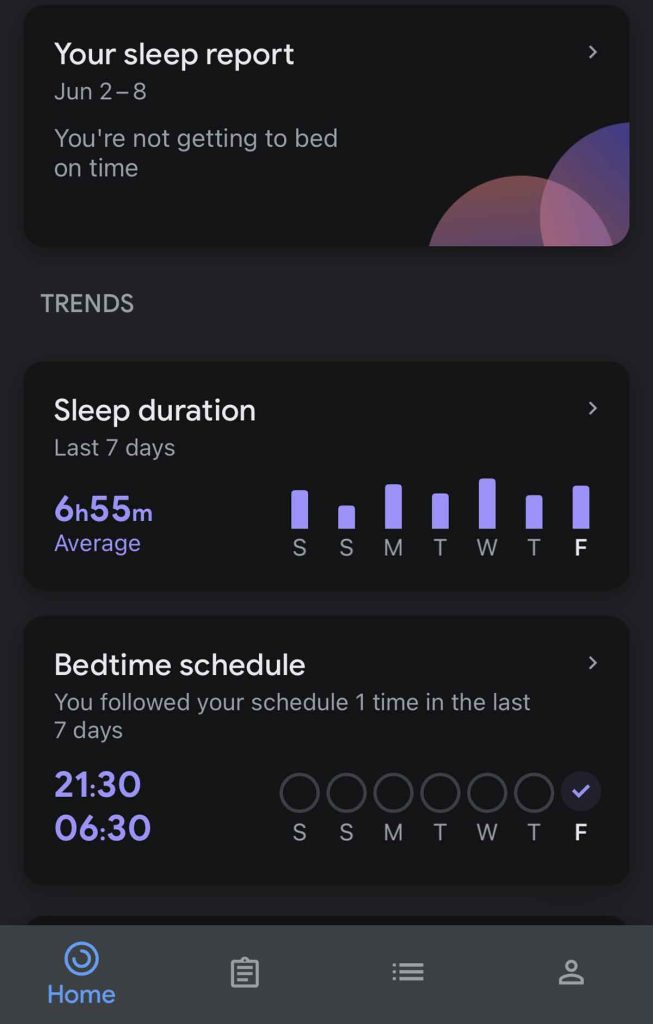
Google Fit sleep tracking not working is a frustrating but often fixable issue. The root cause is typically a sync breakdown, background restriction, or software bug, not hardware failure. By reauthorizing your watch, disabling battery optimization, and verifying updates, most users regain full functionality. Remember that data may be delayed, not lost. Wait 48 hours after applying fixes before assuming failure. If the problem persists, monitor official channels, as Google often rolls out backend fixes without public announcements. Until then, use your watch’s native sleep screen to view nightly results while Google Fit catches up.