Fix Bryton Heart Rate Monitor Not Working
Your Bryton cycling computer shows “–” instead of your heart rate. Or worse, it spikes to 267 bpm mid-ride. A Bryton heart rate monitor not working is one of the most common frustrations cyclists face, especially when relying on real-time data for Zwift sessions or structured training. The disconnect between you and your metrics can derail pacing, ruin interval workouts, and leave you guessing about effort.
This guide covers every proven fix, from electrode activation and battery resets to firmware updates and dual-connection conflicts. Most issues resolve in under 15 minutes once you identify the root cause. You’ll learn diagnostic shortcuts, maintenance habits that extend strap life, and when it’s smarter to replace than repair.
Activate Electrodes Before Every Workout
Dry electrodes cause more heart rate failures than any other factor. Without moisture bridging the gap between sensor and skin, the device cannot detect your heart’s electrical signals.
Pre-Wet the Sensor Pads
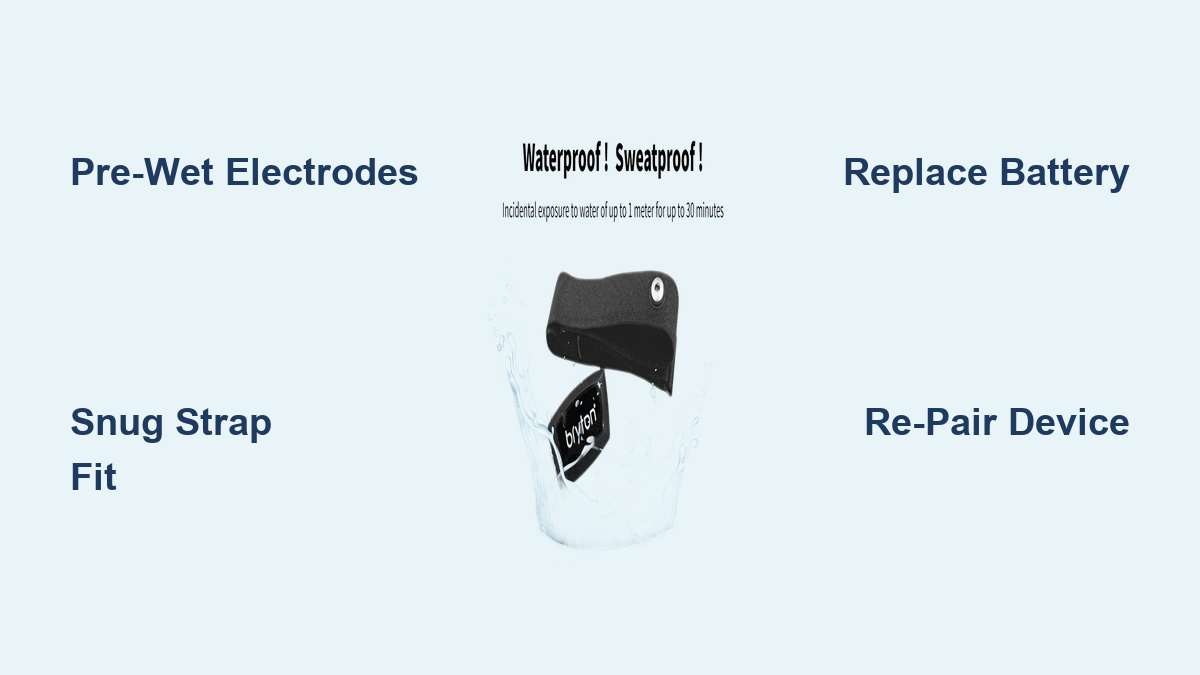
Never put a chest strap on dry and wait for sweat to activate it. That approach costs you 15 to 20 minutes of missing data at the start of every ride. Instead, rinse the inner side of the strap under tap water before strapping it on. Focus on both electrode pads until they glisten with moisture.
Use Saliva or Conductive Gel for Instant Activation
For the fastest signal acquisition, lick the electrodes. It sounds unconventional, but saliva is an effective conductor and widely used by competitive athletes. For dry winter rides or users with naturally dry skin, apply a pea-sized amount of conductive gel such as Buh-Bump cream. Wipe away any excess with your finger; too much gel causes slippage or short-circuits the sensor.
Wear the Strap Directly Against Skin
Always position the strap underneath all clothing. Outer layers, especially synthetic fabrics, flap in the wind and generate static electricity. This static mimics heart signals or blocks transmission entirely. If you notice erratic readings outdoors, tuck loose layers under the strap or switch to a fitted base layer.
Optimize Strap Fit and Sensor Orientation
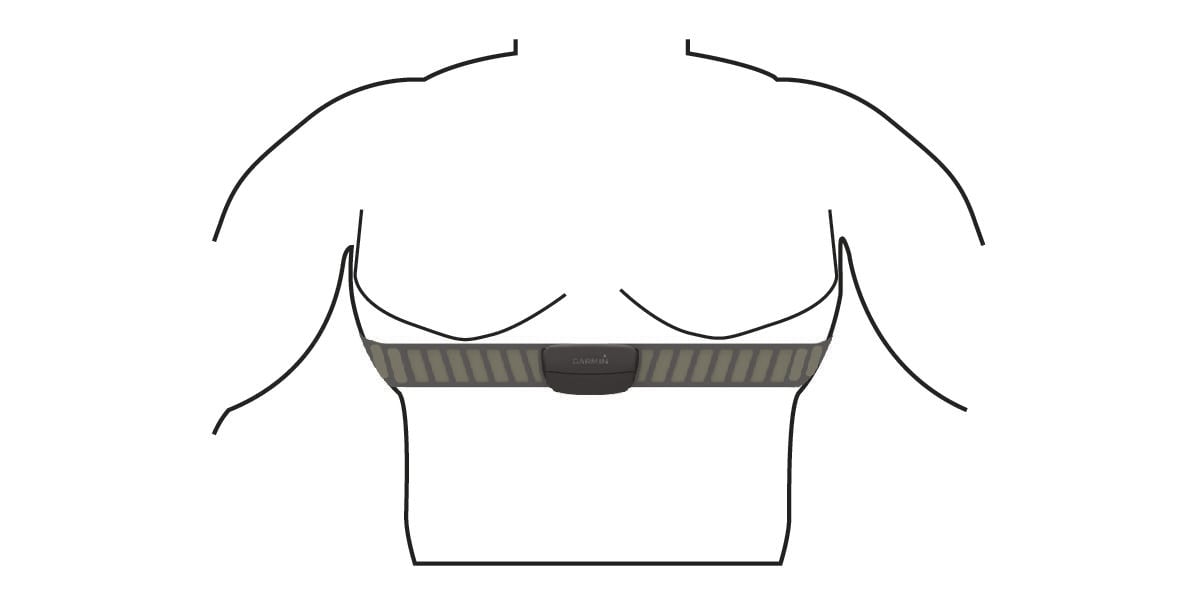
Even perfectly moist electrodes fail if the strap shifts during movement. Consistent contact requires proper fit and correct sensor placement.
Snug Fit Just Below the Pectoral Muscles
Position the strap so it sits just below your chest muscles. It should feel snug without restricting breathing. A loose fit allows the sensor to bounce, breaking skin contact with each pedal stroke. Most users only get reliable readings when the strap stays firmly in place throughout the entire ride.
Align the Sensor Module Correctly
Insert the sensor pod with the logo facing up. Some models malfunction if worn upside down or rotated. Snap it in securely until you hear a click. If the signal drops mid-ride, try flicking the sensor lightly. This can reset a stuck circuit or momentarily break and reform the connection.
Replace the Battery and Reset the Hardware
A weak or improperly seated battery ranks as the second most common cause of failure. Even brand-new devices can ship with partially drained coin cells.
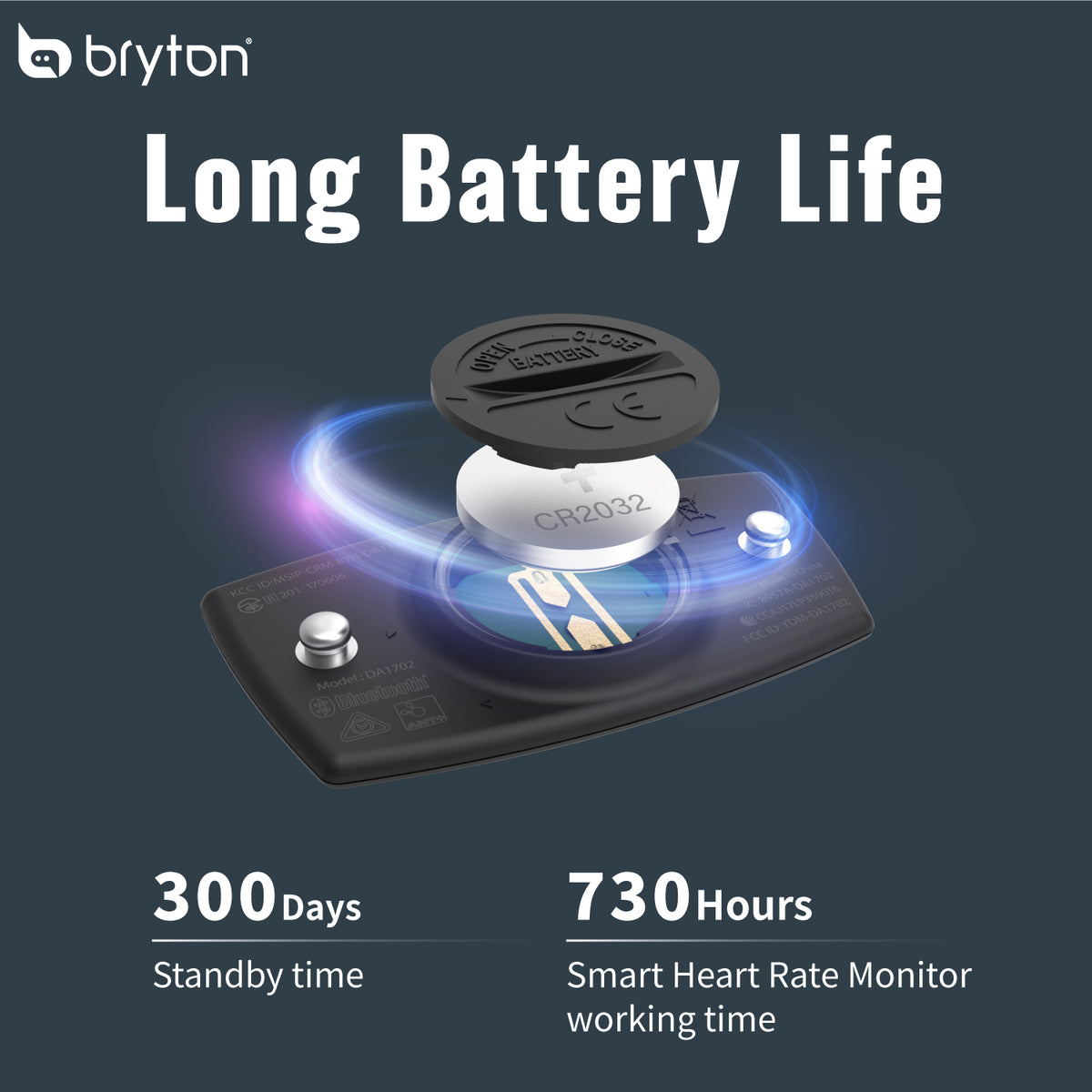
Install a Fresh CR2032 Battery
Replace the battery regardless of the device’s age. Shelf life drains voltage over time, and even batteries that test as “good” may lack the stability needed for consistent Bluetooth or ANT+ transmission. Use a non-coated battery when possible; some coated types have insulating layers that reduce conductivity.
Inspect Contacts for Corrosion and Damage
Open the battery compartment and check the metal springs and terminals. Look for white or green corrosion caused by sweat exposure. Clean gently with a cotton swab dipped in rubbing alcohol. Bent or compressed contacts prevent a secure connection, so straighten them carefully with a small tool if needed.
Perform the Upside-Down Reset
This hardware reset clears residual power from the capacitor and often revives unresponsive units:
1. Remove the battery completely.
2. Reinsert it upside down (negative side up) for 10 seconds.
3. Flip it back to correct polarity and close the case.
Clean the Strap and Sensor Pod Regularly
Sweat contains salts and acids that corrode metal contacts and degrade conductive fabric. Routine cleaning extends both strap life and signal reliability.
Rinse After Every Ride
Remove the sensor pod and rinse the strap under lukewarm water after each workout. This prevents salt deposits from accumulating and stiffening the fabric.
Deep Clean Monthly
Soak the strap overnight in mild soapy water to dissolve body oils and embedded residue. Never machine-wash the strap or submerge the sensor pod. Air-dry completely before reuse.
Wipe the Sensor Pod Carefully
Use a damp cloth to clean the pod’s exterior. Ensure the connection pins where the pod meets the strap are free of dirt and corrosion. A dry toothbrush works well for scrubbing stubborn buildup.
Resolve Dual-Device Pairing Conflicts
Modern heart rate monitors broadcast over both ANT+ and Bluetooth simultaneously. When multiple devices compete for the signal, the result is often a “paired but no data” lockup.
Disconnect Competing Connections
If your chest strap is paired to a smartphone app like Strava, Wahoo Fitness, or Polar Flow running in the background, it may block communication with your Bryton computer. The Bryton might show “paired” but display “–” due to signal lock. Turn off Bluetooth on your phone or close all fitness apps before starting your ride.
Re-Pair from Scratch
A clean handshake often resolves stubborn pairing issues:
1. On your Bryton device, navigate to sensors and “forget” the heart rate monitor.
2. Power off the Bryton computer.
3. Remove the battery from the HRM for 10 seconds.
4. Reinsert the battery and power on the Bryton unit.
5. Re-pair the heart rate monitor as a new device.
Strengthen ANT+ Signal for Indoor Training

If you connect via an ANT+ dongle to a laptop running Zwift or TrainerRoad, weak signal causes dropouts. Coin-cell powered straps transmit at lower power than mains-powered trainers.
Position the Dongle Close to Your Chest
Place the ANT+ dongle within 1 to 2 feet of your chest. Use a USB extension cable to mount it on your handlebars or under the bike frame. Dongles positioned behind monitors or on distant USB ports often pair successfully but fail to receive data packets reliably.
Avoid USB 3.0 and Wi-Fi Interference
USB 3.0 ports and nearby Wi-Fi routers emit radio noise that disrupts ANT+ signals. Move the dongle away from these sources or switch to a USB 2.0 port. Unplugging and replugging the dongle can also reinitialize the driver on your computer.
Update Firmware and Reinstall Apps
Outdated firmware creates compatibility breaks between sensors and receiving devices. Software corruption also blocks sensor recognition.
Check for HRM Firmware Updates
If your heart rate monitor is from Garmin, Polar, Wahoo, or another Bryton-compatible brand, open the manufacturer’s app on your phone. Pair the sensor and check for available firmware updates. Most updates install via Bluetooth in a few minutes.
Reinstall Training Apps
When the HRM works with your Bryton but not with Zwift or TrainerRoad, reinstall the affected app. Corrupted cache files or pairing databases often prevent sensor recognition. A fresh install clears these issues.
Update Your Bryton Computer
Visit the Bryton website and check for firmware updates for your specific model, whether it’s the Rider 540, 760, or another unit. Updated firmware improves sensor compatibility and fixes known bugs.
Diagnose Issues by Display Symptoms

Your Bryton’s display provides specific clues about what’s going wrong. Match the symptom to the solution for faster troubleshooting.
“–” (Dash) on Screen
The HRM is paired but no data is being received. Common causes include dry electrodes, a loose strap, interference from another connected device, or a weak battery. Pre-wet the electrodes, tighten the strap, disconnect other devices, and replace the battery.
“0” BPM Reading
The sensor detects a signal but cannot calculate a heart rate. This points to poor skin contact, corroded strap electrodes, or an internal sensor fault. Clean the strap, reposition the sensor, and test with another receiving device.
Erratic Spikes (200+ bpm)
Sudden, impossible values usually indicate static electricity from clothing, a loose fit, or damaged conductive fabric. Wear the strap under cotton layers, tighten it, or replace the strap entirely.
Delayed Signal Start
No data for the first 15 to 20 minutes means you’re waiting for sweat to activate dry electrodes. Always pre-wet or apply conductive gel before strapping on.
Works on Phone, Not Bryton
If the HRM functions with your smartphone but not your Bryton computer, the Bryton likely has a corrupted sensor list, outdated firmware, or a Bluetooth conflict. Forget the sensor, restart the Bryton, re-pair, and update firmware.
Validate the Sensor Before Replacing
Before spending money on a new unit, confirm the issue isn’t user-related or environmental.
Perform the Ghost Test
Hang the sensor in mid-air, away from your body. If it shows a heart rate, the sensor is faulty. A healthy unit should display “–” or “0” when not worn.
Run a Multi-Device Stress Test
Pair the HRM with your phone, watch, and Bryton simultaneously. If data drops on one device, it confirms dual-connection limitations, a known behavior in many straps.
Test Different Fabrics
Wear the HRM under different tops, such as synthetic versus cotton. If readings fail only with certain clothing, static is the culprit. Switch to low-static fabrics for testing.
Replace the Unit When Troubleshooting Fails
Some units simply wear out or arrive defective. Knowing when to stop troubleshooting saves time and frustration.
Top Replacement Options
- Wahoo Tickr: Reliable, dual-band, works seamlessly with Bryton and Zwift. Often outperforms pricier brands.
- Polar H10: Gold standard for accuracy. Supports heart rate variability and is waterproof for serious training.
- Coospo HRM-1: Budget-friendly, durable, and compatible with ANT+ and Bluetooth. Great as a backup or casual option.
Clear Signs It’s Time to Replace
Replace your unit if battery resets and cleaning don’t help, if electrodes no longer conduct even when wet, if strap fabric is frayed or non-elastic, or if the sensor gives false readings when not worn.
Maintain Long-Term Reliability
Prevent future failures with simple habits built into your post-ride routine.
Rinse After Every Ride
Salt buildup is the enemy of conductivity and hardware longevity. A quick rinse takes seconds and adds months to your strap’s life.
Store Properly
Remove the battery if storing the unit long-term. Keep the strap in a cool, dry place away from direct sunlight.
Test New Units Immediately
Some heart rate monitors are “divas” that malfunction intermittently from day one. Test any new strap right after purchase. Buy from retailers with easy return policies like REI or Amazon to swap faulty units hassle-free.
Cross-Check with Perceived Effort
If your monitor fails mid-race, rely on Rate of Perceived Exertion (RPE). Knowing how hard you feel can keep your pacing on track even without data.
Frequently Asked Questions About Bryton Heart Rate Monitor Issues
Why does my Bryton heart rate monitor show “–” instead of a number?
A dash means the device is paired but receiving no data. The most common causes are dry electrodes, a loose strap, or interference from another connected device. Pre-wet the electrodes, tighten the strap, and disconnect any competing Bluetooth connections before your next ride.
How do I reset my Bryton heart rate monitor?
Perform the upside-down battery reset: remove the CR2032 battery, reinsert it with the negative side up for 10 seconds, then flip it back to correct polarity. This discharges the internal capacitor and often revives unresponsive units without requiring a factory reset.
Can I use a Garmin or Wahoo heart rate monitor with my Bryton computer?
Yes. Bryton cycling computers support both ANT+ and Bluetooth Low Energy sensors, making them compatible with most major brands including Garmin, Wahoo, Polar, and Coospo. Pair the sensor through your Bryton’s sensor menu just like you would a native Bryton accessory.
Why does my heart rate spike to 200+ bpm randomly?
Erratic spikes usually indicate static electricity from synthetic clothing, a loose strap fit, or degraded conductive fabric in the strap. Wear the strap under cotton layers, ensure a snug fit, and replace the strap if fabric elasticity has diminished.
How long should a Bryton heart rate monitor battery last?
A fresh CR2032 coin cell typically provides around 730 hours of active use, with standby time up to 300 days. Replace the battery whenever you notice signal instability, even if the device hasn’t been in use long enough to theoretically drain the cell.
What’s the best heart rate monitor to pair with a Bryton device?
The Wahoo Tickr and Polar H10 are the most recommended options for Bryton users. Both offer dual-band ANT+/Bluetooth transmission, reliable connectivity, and proven compatibility with Zwift, TrainerRoad, and other indoor training platforms.
Key Takeaways for Restoring Your Bryton Heart Rate Monitor
Start with the simplest fixes first. Pre-wet your electrodes before every ride, ensure a snug fit directly against your skin, and replace the CR2032 battery regardless of age. These three steps resolve the majority of Bryton heart rate monitor failures within minutes.
If basic troubleshooting fails, move to digital fixes. Disconnect competing Bluetooth connections, re-pair the sensor from scratch, and check for firmware updates on both the heart rate monitor and your Bryton computer. For indoor training, position your ANT+ dongle close to your chest and away from USB 3.0 interference.
When hardware has clearly degraded, replace rather than repair. The Wahoo Tickr and Polar H10 offer superior reliability at moderate price points, making them smart upgrades for serious cyclists. Test any new unit immediately after purchase to catch defective units while returns are still easy.