Fix iPhone Fitness Tracker Not Working
You’ve walked for hours today, but your iPhone Fitness app shows zero progress. The rings stay frozen, your step count refuses to update, and no amount of movement seems to register. You’re not broken, and neither is your phone. The issue is almost never hardware failure: it’s how Apple’s fitness ecosystem actually works behind the scenes.
If you own an Apple Watch, here’s the truth most users never hear: once paired, your iPhone stops using its own sensors for fitness tracking entirely. The system hands all data collection to the Watch. So if you left it behind, forgot to charge it, or simply aren’t wearing it, your iPhone won’t pick up the slack. That’s by design, not a bug. This guide will show you exactly what’s going wrong and how to fix it, from permission resets to hidden calibration settings that restore your rings.
Why Your iPhone Stops Tracking Activity

Apple Watch Disables iPhone Sensors
When your Apple Watch pairs with your iPhone, the Fitness app switches to Watch-only mode. Even if the Watch sits on a charger across the room, the iPhone won’t tap into its built-in accelerometer or gyroscope to count steps or estimate calories.
This design prevents duplicate entries and keeps data consistent. But it creates dead zones when the Watch isn’t on your wrist. Many users expect their iPhone to “fill in” during these gaps. It won’t, and there’s no setting to override this behavior while the Watch stays paired.
No Native iPhone-Only Mode With Watch Connected
Even with iOS 16 and later making the Fitness app available to non-Watch users, you cannot force the iPhone to track passively while a Watch remains paired. The dependency is binary: either the Watch tracks everything, or nothing does, unless you unpair it.
This means leaving your Watch at home equals zero data, even if you’re walking miles with your iPhone in your pocket.
Fix Missing Steps or Frozen Rings
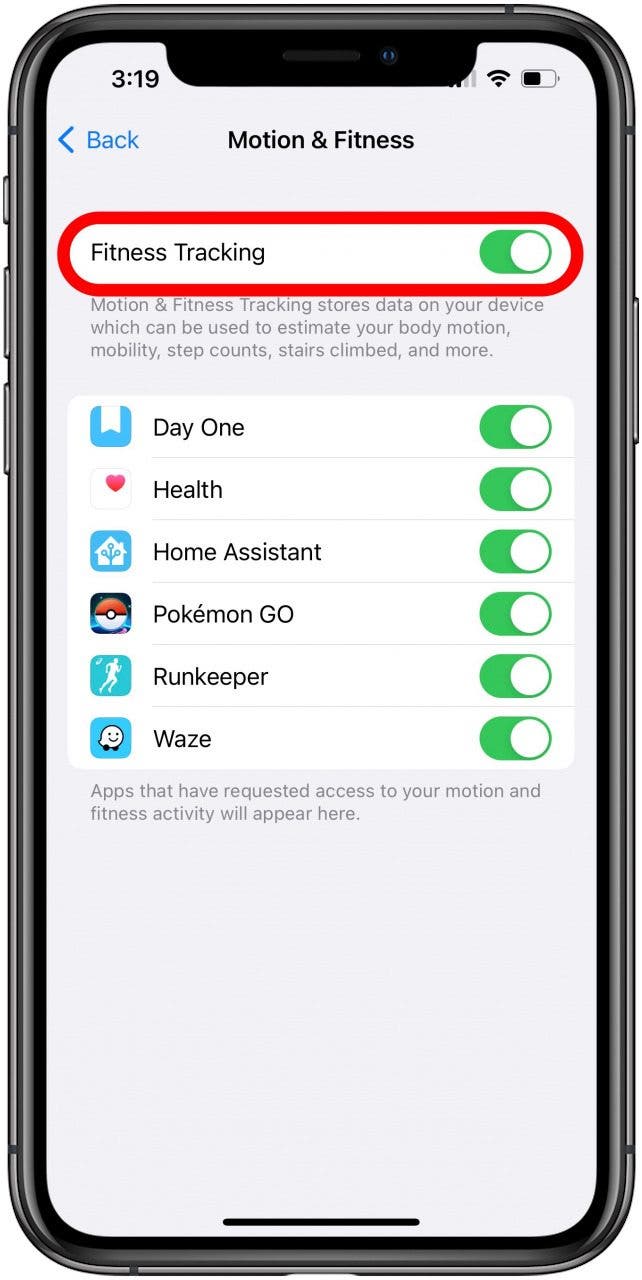
Check Fitness Tracking Permissions
The most common cause of no step count? Disabled permissions. Apple requires explicit access to motion data. If this gets turned off after an update, reset, or accidental toggle, the Fitness app can’t read movement.
How to Enable Motion Access:
1. Open Settings > Privacy & Security > Motion & Fitness
2. Turn on both Fitness Tracking and Health
3. Toggle each off and back on to refresh the sensor handshake
Pro Tip: If permissions are already enabled, toggling them resets the connection. Do this after any iOS update.
Restart iPhone and Apple Watch
A soft reboot clears stuck processes and re-establishes the Bluetooth pairing between devices.
Restart Order Matters:
1. Apple Watch: Hold the Side button, slide Power Off, wait 30 seconds, then power back on
2. iPhone: Use the standard restart method for your model
Wait until both devices fully boot and reconnect. You’ll know sync resumed when the Watch face updates on your iPhone. Then check the Fitness app.
Time required: 2–3 minutes. Best for: sync failures, frozen rings, delayed updates.
Force Quit the Fitness App
Temporary glitches can freeze data display even when activity is being recorded in the background.
Close and Relaunch:
– On iPhone X or later: Swipe up from the bottom, pause, then swipe the Fitness app card away
– On older models: Double-click the Home button, swipe up on the app preview
– Reopen the app from your Home Screen
This clears corrupted cache and forces a fresh data pull from Health.
Solve Syncing and Data Errors
Reset Fitness Calibration Data
If your step count seems wildly off (like 500 steps for a single mile), your calibration is likely skewed. The Watch learns your stride over time. When that data gets corrupted, distance and calorie estimates go haywire.
Reset Calibration:
1. Open the Watch app on your iPhone
2. Tap My Watch tab, then Privacy
3. Scroll down and tap Reset Fitness Calibration Data
4. Confirm the reset
After resetting, take a 20-minute outdoor walk or run. The Watch will relearn your motion patterns and improve GPS accuracy.
Delete Fitness App Data (Safe Reset)
When data refuses to sync or rings won’t close, corrupted app data may be the culprit. This removes only Fitness-specific records, not your full Health history.
How to Clear:
1. Go to Settings > Health > Data Access & Devices
2. Tap Fitness
3. Select Delete All Data from ‘Fitness’
4. Confirm deletion
Relaunch the app afterward. Data will repopulate once sync resumes.
Warning: This removes recent activity logs. Only use this if sync issues persist after other fixes.
Fix Persistent Sync Failures
Unpair and Re-pair Apple Watch
When data refuses to flow between devices, rebuilding the connection often solves deep sync bugs.
Full Re-pair Steps:
1. Open Watch app, then tap All Watches at the top
2. Tap the (i) icon next to your Watch
3. Tap Unpair Apple Watch
4. Enter your Apple ID password to disable Activation Lock
5. Wait for unpairing to complete
6. Pair again as a new device or restore from backup
Time required: 10–15 minutes. Best for: chronic sync issues, missing workouts, delayed rings.
Update iOS and watchOS
Bugs in software versions are frequent causes of tracking failure. Apple regularly patches motion sensor issues and background sync crashes.
Check for Updates:
– iPhone: Settings > General > Software Update
– Apple Watch: Settings > General > Software Update (must be on charger and connected to Wi-Fi)
Install any available updates and restart both devices afterward.
Reset All iPhone Settings
If nothing else works, configuration conflicts may be blocking sensor access. This resets network, Bluetooth, and privacy settings while keeping your apps and personal data intact.
How to Reset:
1. Go to Settings > General > Transfer or Reset iPhone
2. Tap Reset > Reset All Settings
3. Confirm and wait for the reboot
After the reset, re-enable Fitness Tracking permissions and re-pair your Apple Watch if needed.
Note: You’ll need to re-enter Wi-Fi passwords and re-pair Bluetooth devices.
Can You Track Fitness Without an Apple Watch?
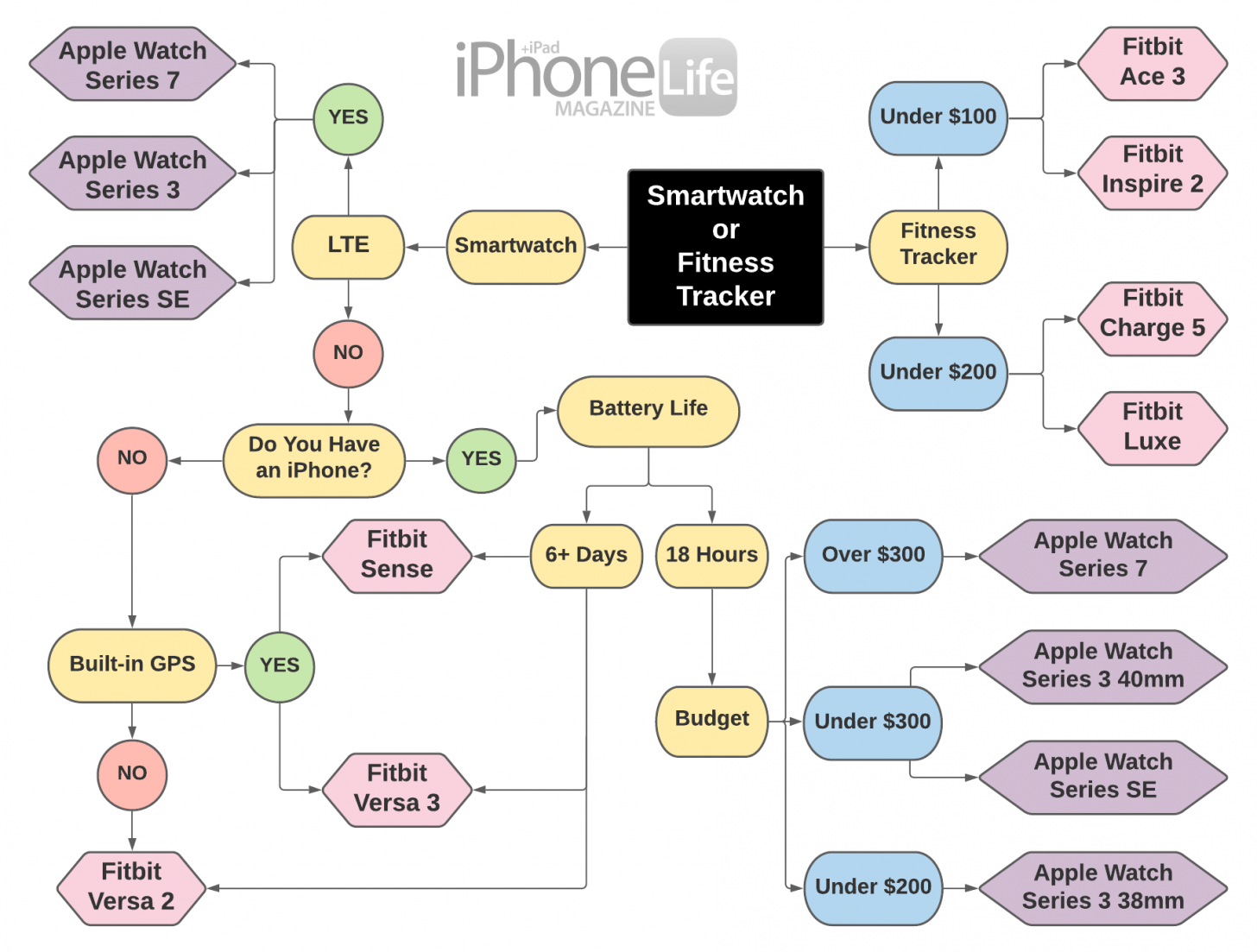
iPhone-Only Tracking Is Limited
With iOS 16 and later, iPhones can track fitness data, but only if no Apple Watch is paired. Once you pair a Watch, iPhone-only tracking shuts off permanently with no toggle or workaround available.
What iPhone Can Track Alone:
– Step count via the accelerometer
– Distance walked
– Active calories (estimated)
– Move ring based on steps
But you’ll lose the Exercise ring, Stand ring, heart rate monitoring, and closed-loop tracking accuracy.
Workarounds for iPhone-Only Use
Option 1: Temporarily Unpair the Watch
To force iPhone sensor use, unpair your Apple Watch through the Watch app. Wait for the iPhone to activate native tracking (this may take a few minutes). Use it as a standalone tracker, then re-pair when needed.
Drawback: This process is cumbersome and breaks the seamless ecosystem experience.
Option 2: Use Third-Party Apps with GPS
Apps like Strava, Nike Run Club, or MapMyRun can record workouts using iPhone sensors even with a paired Watch. They bypass the Apple Watch dependency by starting active sessions.
How It Works:
1. Open Strava
2. Tap the + button and start a Run or Walk
3. The app uses iPhone GPS and motion sensors
4. Data saves to Apple Health and may partially credit your Exercise ring
Limitation: These apps only track during active workouts. They don’t count ambient steps throughout the day like the native system.
Common Symptoms and Quick Fixes
| Symptom | Likely Cause | Solution |
|---|---|---|
| Rings not moving | Watch not worn or disconnected | Wear Watch, restart both devices |
| Steps not counting | Motion permission disabled | Enable in Settings > Privacy > Motion & Fitness |
| Distance way off | Bad calibration | Reset Fitness Calibration Data |
| App crashes on open | Corrupted cache | Force quit, restart, update iOS |
| Data stuck in cloud | Poor internet | Toggle Wi-Fi/Cellular, check sync |
| No data after update | Permission reset | Re-enable Fitness Tracking |
Prevent Future Tracking Failures
Daily Maintenance Tips
- Wear your Watch consistently to maintain data continuity
- Charge both devices nightly, since low battery breaks sync
- Keep iOS and watchOS updated to avoid known bugs
- Check permissions monthly, especially after updates
Weekly Checkup Routine
- Open the Fitness app and verify rings are moving
- Review the Health app for any data gaps
- Confirm Motion & Fitness access is still enabled
- Take a short walk to test live step count
Catching issues early prevents data loss from accumulating over time.
Frequently Asked Questions About iPhone Fitness Tracker Issues
Why does my iPhone stop counting steps when I wear my Apple Watch?
Once your Apple Watch pairs with your iPhone, the Fitness app uses only the Watch’s sensors for activity tracking. The iPhone’s built-in accelerometer and gyroscope are disabled to prevent duplicate entries. If the Watch isn’t on your wrist, no data gets recorded.
Can I force my iPhone to track steps while my Apple Watch is paired?
No. There is no native setting or toggle that allows iPhone-only tracking while a Watch remains paired. Your only options are to wear the Watch, temporarily unpair it, or use third-party apps that initiate their own GPS sessions.
How do I fix frozen activity rings on my iPhone?
Start by force quitting the Fitness app and reopening it. If rings stay frozen, restart both your iPhone and Apple Watch. Check that Fitness Tracking permissions are enabled under Settings > Privacy & Security > Motion & Fitness. As a last resort, reset fitness calibration data through the Watch app.
Will resetting my Apple Watch delete my fitness history?
No. Resetting calibration data or unpairing your Watch does not delete historical fitness records stored in the Health app. Your activity history remains accessible unless you explicitly choose to delete all data.
Do I need an Apple Watch to use the Fitness app on iPhone?
With iOS 16 and later, you can access the Fitness app without an Apple Watch. However, functionality is limited to the Move ring (step-based tracking). The Exercise ring, Stand ring, and heart rate data require a paired Watch.
Why are my distance and calorie numbers inaccurate?
Inaccurate distance and calorie estimates usually point to corrupted calibration data. The Apple Watch learns your stride and motion patterns over time. Reset fitness calibration data in the Watch app, then take a 20-minute outdoor walk to recalibrate the sensors.
Key Takeaways for Restoring Your iPhone Fitness Tracker
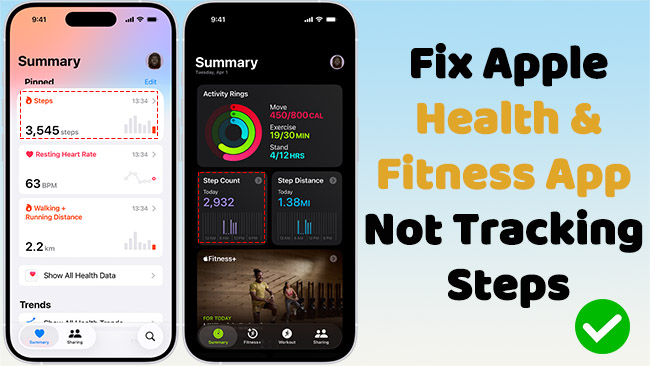
The “iPhone fitness tracker not working” issue is almost never a hardware problem. It’s Apple’s single-source tracking model in action: when a Watch is paired, it becomes the only data source. That means no passive iPhone tracking while the Watch is paired, no automatic fallback when the Watch is off, and no built-in setting to merge sensor data.
Start your fix with the basics: verify permissions, restart both devices, and reset calibration data. If you’re not wearing your Watch, accept that your iPhone won’t track automatically unless you unpair it. Third-party apps can fill gaps during workouts, but they won’t replace all-day ambient tracking.
Your next step: open Settings > Privacy & Security > Motion & Fitness right now and confirm both toggles are enabled. Then put on your Watch and take a short walk. Watch the rings move. You’ll know the system is working again.