How to Track Cycling on Apple Fitness
If you ride a bike and own an Apple Watch, you can turn every ride into a data-rich session without buying a dedicated cycling computer. Apple Fitness captures speed, distance, elevation, heart rate, and even power output when you pair the right sensors. But only if you set things up correctly from the start.
An Apple Watch (Series 2 or later) is essential for outdoor GPS tracking, while Series 3 and up add elevation data through a built-in altimeter. Without a watch, the iPhone Fitness app cannot record ride-specific metrics like speed or distance. With watchOS 10 and newer, you also get customizable workout views, Power Zones, and Live Activities on your iPhone for bigger-screen monitoring.
In this guide, you will learn how to configure your Apple Watch for cycling, pair Bluetooth sensors, start outdoor and indoor rides, use Power Zones, sync with apps like Strava and TrainerRoad, and analyze your data after every ride.
Enable Key Cycling Settings on Apple Watch
Before your first ride, adjust a few default settings that most riders overlook. These tweaks prevent inaccurate data and make your workouts far more efficient.
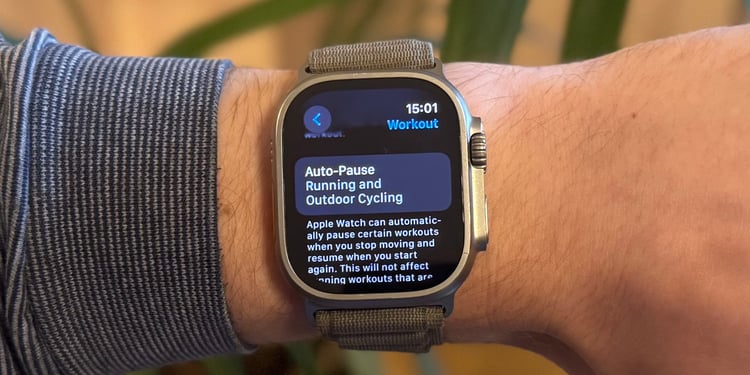
Turn On Auto-Pause for Accurate Metrics
Auto-Pause stops the timer when you stop moving, such as at traffic lights or stop signs. Without it, your average speed and power numbers get dragged down by idle time.
- Open Settings > Workout > Auto-Pause on your watch.
- Toggle it on for Outdoor Cycle.
Pro Tip: Auto-Pause can struggle in heavy traffic or slow group rides. For precise control, pause manually using the side button.
Activate Precision Start for Instant Recording
By default, the Workout app runs a countdown before recording begins. Precision Start removes that delay.
- Go to Settings > Workout > Precision Start.
- Toggle it on.
Now your ride starts the second you tap “Start,” just like a dedicated cycling computer.
Set Up Workout Reminders
These reminders act as safety nets for spontaneous or long rides.
- In Settings > Workout, enable:
- Start Workout Reminder: Alerts you if cycling motion is detected without a workout running.
- End Workout Reminder: Prompts you to end after prolonged inactivity.
Pair Bluetooth Cycling Sensors
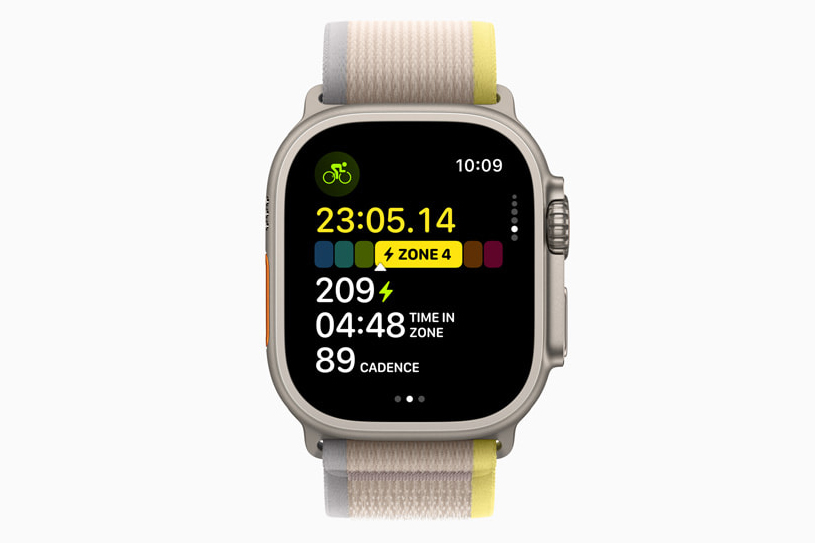
To unlock power, cadence, and speed data, you need to pair Bluetooth sensors directly through the Apple Watch.
Connect Power, Cadence, and Speed Sensors
- Open Settings on your Apple Watch.
- Tap Bluetooth.
- Put your sensor into pairing mode.
- Under “Health Devices,” tap the sensor name to connect.
Once paired, the sensor auto-reconnects during future rides.
Calibrate Sensors for Accuracy
After pairing, enter hardware details for precise readings.
- Tap the (i) icon next to the sensor.
- Enter:
- Crank length (for power meters)
- Wheel size (for speed sensors)
Note: The Apple Watch receives data from sensors but does not control smart trainers. Use your phone app (like Zwift or Wahoo) to adjust resistance or engage ERG mode.
Start Outdoor or Indoor Cycling Workouts
Choosing the correct workout type matters because outdoor and indoor cycling are tracked very differently.
Begin an Outdoor Cycle Ride
For road, trail, or gravel rides with GPS tracking:
- Open the Workout app.
- Scroll to Outdoor Cycle.
- Tap … to set goals (time, distance, or calories) if desired.
- Tap Start (or use Precision Start).
Your watch records distance, speed, elevation (Series 3+), heart rate, and power or cadence if sensors are connected.
Launch an Indoor Cycle Session
For spin bikes, trainers, or gym classes:
- Select Indoor Cycle in the Workout app.
- Start the workout.
Key differences from outdoor mode:
– No GPS is used.
– Distance is estimated from power and cadence, not measured.
– Elevation is not tracked.
– Time, calories, heart rate, and sensor data still record.
Use Apple Watch Ultra’s Action Button
Ultra owners can skip menu navigation entirely.
- Go to Settings > Action Button > Workout > Outdoor Cycle.
- Press and hold the orange button to start instantly.
This is ideal for fast starts or when wearing gloves.
View Real-Time Metrics During Your Ride
Stay informed with live data on your wrist or a mounted iPhone.
Customize Workout Data Screens (watchOS 10+)
Tailor which metrics appear during your ride:
- In the Workout app, tap … next to Outdoor Cycle.
- Select Preferences > Outdoor Cycle Workout Views.
- Toggle pages on or off:
– General (speed, distance, time)
– Power (watts, zone)
– Heart Rate (BPM, zone)
– Elevation Profile
Show only what matters so you can glance quickly.
Use iPhone Live Activities for Big-Screen Viewing
Mount your iPhone on your handlebars and mirror your workout:
- When you start a ride, a Live Activity appears on your iPhone lock screen.
- Tap Allow to activate full-screen view.
- Swipe left or right to cycle through data pages.
- Show different metrics on each screen (for example, speed on your phone and heart rate on your watch).
Track Power and Use Power Zones
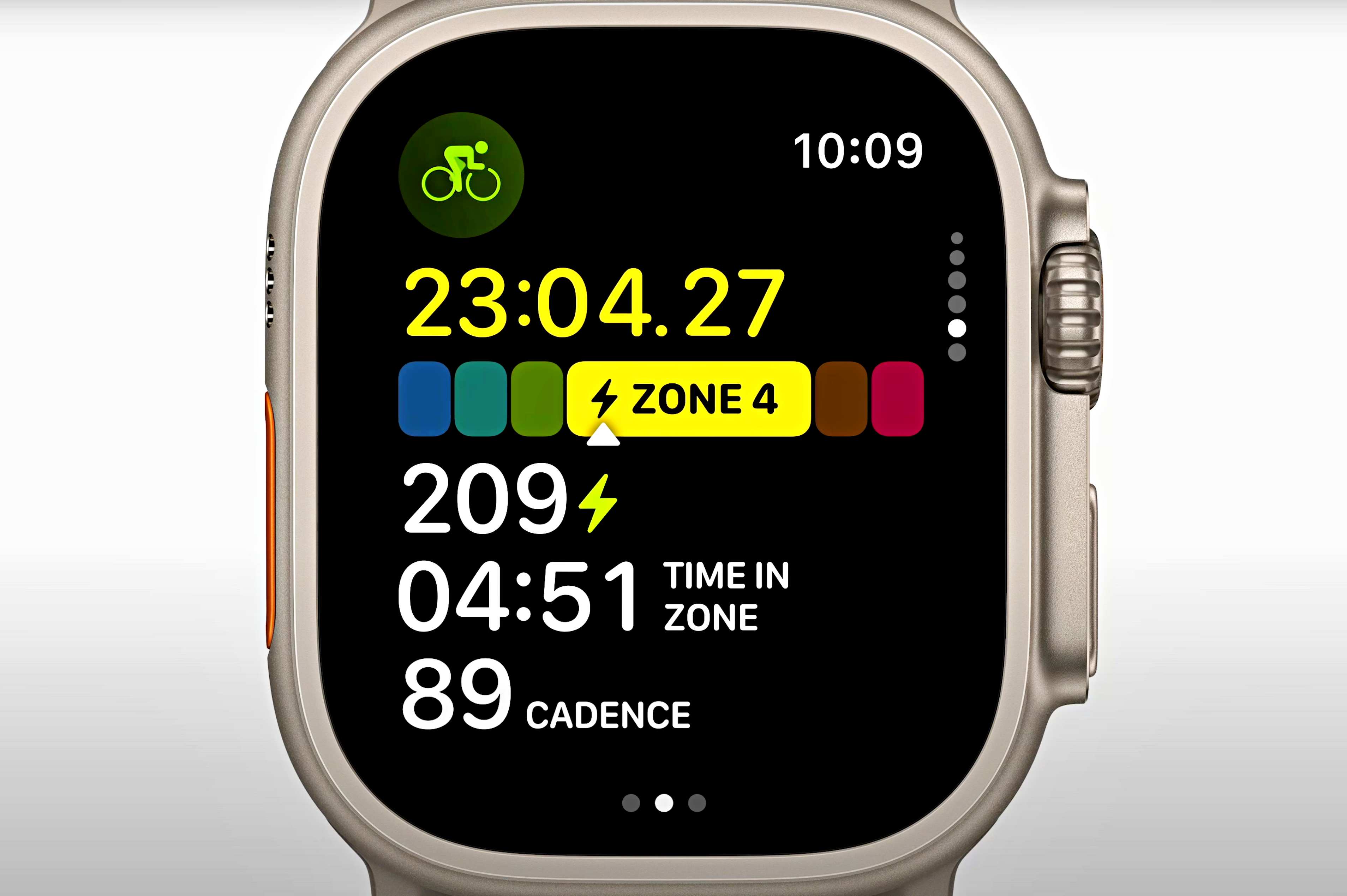
Power Zones help you train at specific intensities based on your Functional Threshold Power (FTP), the maximum power you can sustain for about one hour.
Set Your Functional Threshold Power
To enable Power Zones:
- Enter your Date of Birth, Height, and Weight in the Fitness app on iPhone.
- Pair a Bluetooth power meter.
- On Apple Watch, go to Settings > Workout > Cycling Power.
- Choose:
– Custom: Enter a known FTP value.
– Estimated: Let Apple calculate from your ride data.
Configure Power Zone Levels
Adjust how many zones and their wattage ranges:
- The default is usually 6 zones (Zone 1 = Active Recovery, Zone 6 = Max Effort).
- Tap individual zones to edit lower and upper wattage limits.
- During your ride, view the Power Zone screen to see your current intensity level.
Use Case: During interval training, keep efforts within Zone 4 (Threshold) or Zone 5 (VO2 Max) for optimal adaptation.
Sync with Third-Party Apps Like Strava and TrainerRoad

Extend your data reach by syncing rides to platforms for analysis, sharing, or structured training.
Push Workouts to Apple Watch from TrainerRoad
Follow a TrainerRoad plan directly on your watch:
- Open TrainerRoad on iPhone.
- Tap Profile > Set Up Apple Watch.
- Enable:
– Sync with Health (Read/Write all)
– Push to Apple Watch - Flag workouts as Outdoor in the app to send them to your watch.
Workouts appear in purple at the top of the Workout app list.
Automatically Share Rides to Strava
Post rides to Strava without manual uploads:
- Open Strava > Profile > Settings > Apps & Devices > Health.
- Tap Connect.
- Grant access to workout data, heart rate, power, cadence, and distance.
- Choose to automatically sync all workouts or manually select which rides to share.
Rides sync shortly after you end your session.
Navigate with Apple Watch Turn-by-Turn Directions
Get route guidance while riding, which is helpful for new trails or unfamiliar roads.
Send Cycling Routes from iPhone
The Apple Watch does not plan routes; it mirrors them from your phone.
- On iPhone, open Apple Maps or Google Maps.
- Set your destination and select Cycling mode.
- Tap Start.
Directions appear on your watch with the next turn, distance to the maneuver, and a haptic tap for upcoming turns.
Pro Tip: Use haptics to avoid looking at the screen. A left wrist tap means turn left, and a right tap means turn right.
Analyze Your Ride in Apple Fitness

After your ride, review performance in the Fitness app on iPhone, which is the central hub for all Apple Watch workout data.
View Full Ride Summary
Open the Fitness app > Workouts tab > tap your ride.
You will see:
– Total time, distance, and average speed
– Elevation gained (outdoor rides only)
– Calories burned
– Average and maximum heart rate
– Power and cadence (if sensors were used)
– Route map (for GPS rides)
Scroll down for splits and segment averages.
Access Raw Data in Health App
For deeper inspection:
– Open Health app > Browse > Activity > Workouts.
– Tap a ride to see second-by-second data.
– Export data for third-party analysis on platforms like TrainingPeaks or IntervalsPro.
Limitation: Apple’s native post-ride analysis lacks advanced tools like power curves or training stress scores. Serious athletes should export data to dedicated platforms.
Troubleshoot Common Cycling Tracking Issues
Even with a perfect setup, problems can occur. Here is how to fix the most common ones.
GPS Not Recording Distance Accurately
Common causes include weak satellite signals in urban canyons or tree cover, a loose-fitting watch, or disabled Location Services.
Fixes:
– Turn on Location Services: iPhone Settings > Privacy > Location Services > Apple Watch Workout > While Using.
– Wear the watch snugly on top of your wrist.
– Use a Bluetooth speed sensor to override GPS distance.
Power or Cadence Data Missing
Check the following:
– Sensor is charged and in pairing mode.
– Watch and sensor are within range.
– Sensor appears under Bluetooth > Health Devices.
– Crank length and wheel size are entered in calibration.
Restart both devices if the connection fails.
Live Activity Not Appearing on iPhone
Try these solutions:
– Ensure Background App Refresh is on for the Workout app.
– Check that Do Not Disturb or Focus modes are not blocking notifications.
– Restart Bluetooth on both devices.
– Re-pair your phone and watch if the issue persists.
Frequently Asked Questions About Tracking Cycling on Apple Fitness
Do I need an Apple Watch to track cycling on Apple Fitness?
Yes. An Apple Watch (Series 2 or later) is required for outdoor GPS tracking. The iPhone Fitness app alone cannot record ride-specific metrics like speed, distance, or elevation for cycling.
Can Apple Watch control my smart trainer’s resistance?
No. The Apple Watch receives power and cadence data from smart trainers but cannot control ERG mode or simulate gradients. You must manage resistance through your trainer’s smartphone app, such as Zwift or Wahoo.
How accurate is the Apple Watch GPS for cycling?
GPS accuracy depends on your watch model (Series 2 or later) and environmental conditions. Tree cover, urban canyons, and loose watch fit can reduce accuracy. For the most precise distance data, use a Bluetooth speed sensor.
What is FTP and why does it matter for Power Zones?
FTP (Functional Threshold Power) is the highest power output you can sustain for about one hour. Power Zones are calculated as percentages of your FTP, allowing you to train at structured intensities like threshold or VO2 max.
Can I build custom interval workouts on Apple Watch?
Yes. In the Workout app, tap the three dots next to a cycling type, scroll to the bottom, and select Create Workout. You can define segments by time, distance, or calories and set alerts for heart rate or power zones. Building complex workouts on the small screen can be cumbersome, so many users prefer creating them on third-party platforms.
Will my rides sync automatically to Strava?
Yes, if you connect Strava to Apple Health and enable automatic syncing. Open Strava > Profile > Settings > Apps & Devices > Health > Connect, then choose to sync all workouts automatically or manually select which rides to share.
Key Takeaways for Tracking Cycling on Apple Fitness
Tracking cycling on Apple Fitness works best when you configure your settings, pair the right sensors, and customize your data views before every ride. Enable Auto-Pause and Precision Start to keep your metrics clean, and use Power Zones for structured training once you have a Bluetooth power meter. For deeper analysis or social sharing, sync your rides to Strava or push structured workouts from TrainerRoad.
Set up your Apple Watch once, and every ride becomes a step forward in your fitness journey. Start with a short ride today to test your settings and refine your data screens.