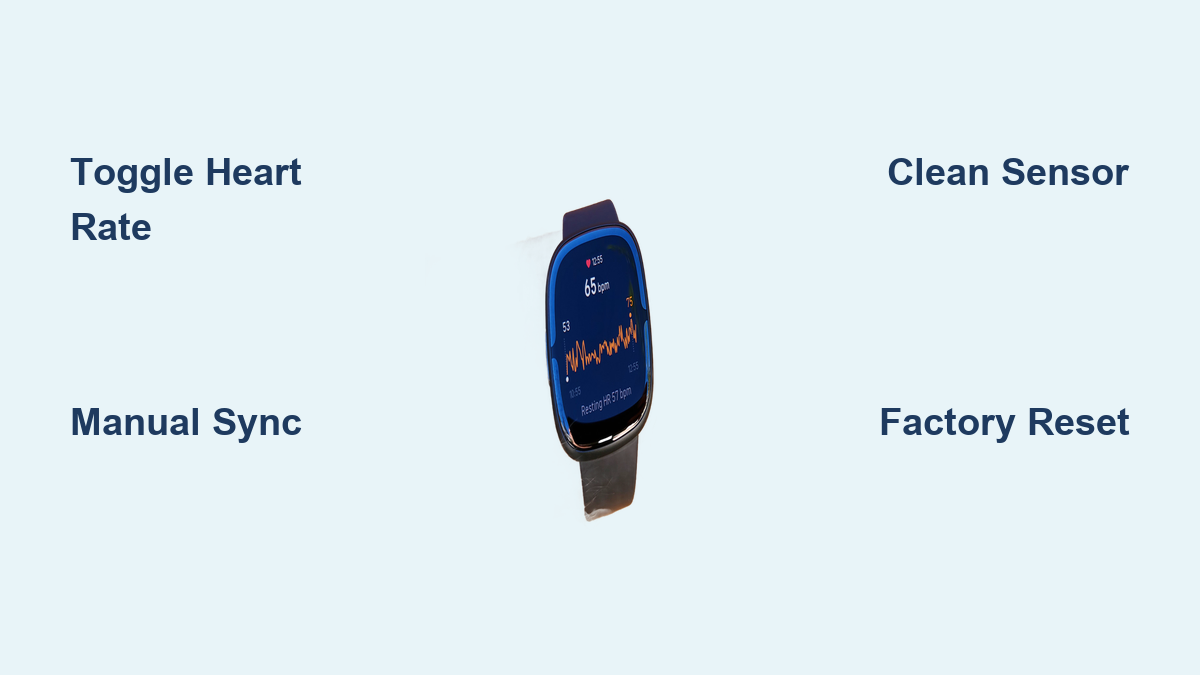
How to Fix Fitbit Heart Rate Monitor
Your Fitbit heart rate monitor suddenly stops working, yet everything else on your watch functions normally. This frustrating issue affects many users, with some seeing a stuck reading like 87 BPM that never changes, while others get no heart rate data at all. Restarting or updating may provide temporary relief, but the problem often returns within days.
The solution is usually simpler than you think. This guide covers ten tested methods to restore your Fitbit heart rate tracking, from quick toggles to factory resets. Most fixes take under five minutes and require no technical expertise.
Restart Heart Rate Settings
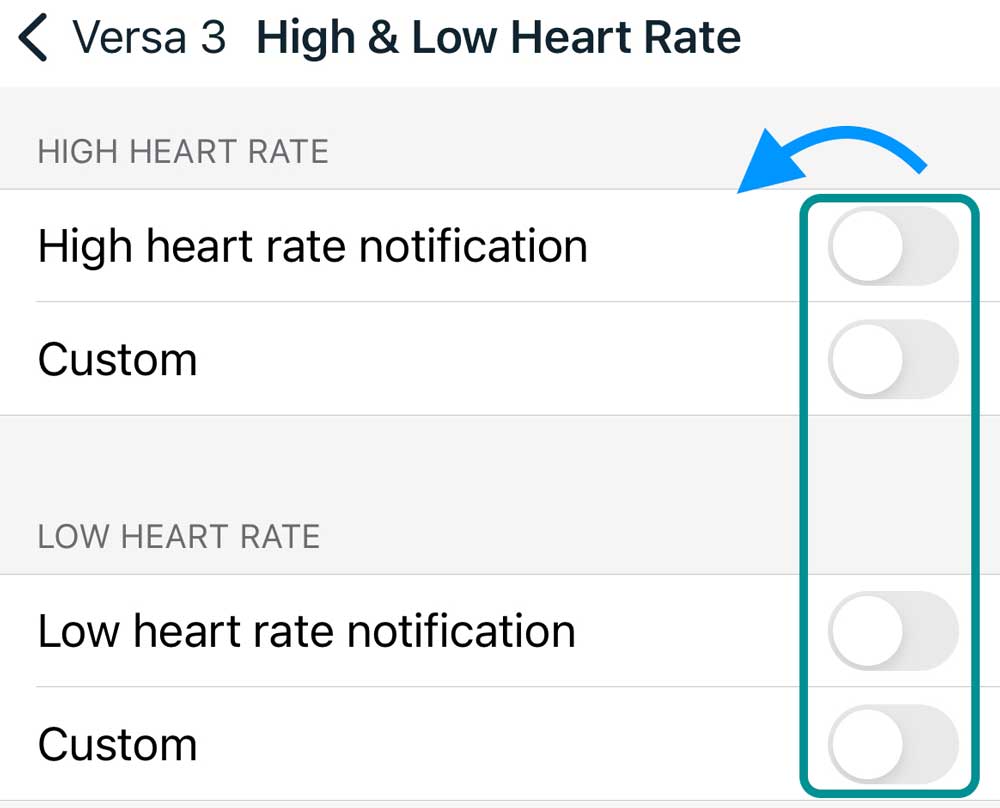
A corrupted setting can prevent the sensor from activating properly. Toggling the heart rate feature forces the system to reinitialize and clear minor software glitches.
Turn Heart Rate Off and On
- Swipe left from the clock face to open Settings
- Scroll up and tap Heart Rate
- Switch the setting to Off
- Wait 10 seconds, then switch it back to On
After re-enabling, check whether real-time heart rate appears on your watch face.
Sync After Toggle
After adjusting the setting, open the Fitbit app on your phone. Tap your device image in the top-left corner, then tap Sync Now. Syncing ensures the new setting applies across both the app and watch. Without this step, changes may not register properly.
Perform Manual Sync
Sometimes your Fitbit fails to communicate sensor data due to a sync backlog. Forcing a manual sync resets the connection between your watch and phone.
Force Immediate Sync
- Wake your Fitbit watch
- Open the Fitbit app
- Pull down on the dashboard to trigger a sync
You can also go to your device profile and tap Sync Now. Wait until the spinning icon completes. If the sync fails, try restarting your phone’s Bluetooth.
Check Sync Status
After syncing, confirm you see a recent timestamp under your device name. Look for heart rate data in the app’s dashboard. If no data appears, the sensor may still be inactive and you’ll need to try additional fixes.
Enable Always-On Display

An unexpected but effective fix involves turning on the Always-On Display setting. This keeps the screen slightly active, which some users report forces the heart rate sensor to stay engaged.
Activate Always-On Mode
- Go to Settings then Display
- Tap Always-On Display
- Select Show Clock or Show Clock + Stats
Retest Heart Rate
Wear the Fitbit snugly and wait 30 seconds. Check if the heart rate value updates. If readings now appear, the sensor is responsive again.
Note: This setting uses more battery, but it serves as a reliable workaround for stuck sensors on Fitbit Versa and Charge models.
Restart Your Fitbit
A full reboot clears temporary system errors that may block sensor operation. This step resolves more issues than most users expect.
Power Off and On
- Press and hold the side button for 10 to 15 seconds
- Swipe to confirm Power Off when the shutdown screen appears
- Wait 10 seconds
- Press and hold the side button again to turn it back on
Let the watch fully boot before checking heart rate.
Wait for Sensor Activation
After restart, keep the watch on your wrist and wait 30 to 60 seconds for the sensor to warm up. Look for the green lights pulsing on the back. If no lights appear, try cleaning the sensor area.
Clean the Sensor Area

Dirt, sweat, and lotions can block the optical sensor and cause failed readings. Regular cleaning prevents this common issue.
Turn Off and Remove Watch
- Power down the device
- Take it off your wrist
- Remove the band if necessary for better access
Use this opportunity to inspect the sensor cluster on the back of the watch.
Wipe with Microfiber Cloth
Dampen a soft, lint-free cloth with water. Gently wipe the metal sensor housing and green LEDs. Avoid using alcohol or abrasive cleaners, as these can damage the sensor lens. Dry thoroughly before wearing.
Check for Obstructions
Ensure no band material covers the sensor, no screen protector overlaps the back panel, and no scuffs or scratches exist on the lens. Even slight blockage can disable readings entirely.
Reset to Factory Settings
When software corruption persists, a factory reset may be necessary. This step erases all data but often resolves stubborn sensor issues.
Erase All Data
- Go to Settings then About then Factory Reset
- Confirm when prompted
This removes all personal data and settings from your device.
Set Up as New Device
After reset, re-pair your Fitbit via the app. Enable heart rate tracking during setup and avoid restoring old settings that may carry the underlying bug. Test heart rate immediately after setup to verify the fix worked.
Check Wrist Placement
Incorrect wear is a common cause of failed readings, even when the sensor functions perfectly. Proper placement ensures consistent blood flow for accurate detection.
Wear Above the Wrist Bone
Position the watch 1 to 2 finger widths above the wrist bone. Avoid wearing it too loose or too high on the forearm, as both positions reduce accuracy.
Snug but Comfortable Fit
Tighten the band so the watch does not rotate freely. You should still be able to slide one finger underneath. A loose fit causes the sensor to lose contact, while an overly tight fit restricts blood flow and skews results.
Test in Different Modes
Some users only notice heart rate issues during exercise. Testing in multiple scenarios helps identify whether the sensor is truly stuck or simply inaccurate.
At Rest
- Sit quietly for 2 minutes
- Open the Exercise app and select Heart Rate
- Wait for a stable reading
A normal resting heart rate falls between 60 and 100 BPM, though this varies by fitness level.
During Activity
- Start a workout such as Outdoor Walk
- Let the watch record for 2 minutes
- Check if BPM rises with effort
If the reading stays flat at a constant value like 87 BPM regardless of activity, the sensor is stuck and requires further troubleshooting.
Update Firmware

Outdated software can cause sensor malfunctions. Ensuring your Fitbit runs the latest firmware eliminates compatibility issues and known bugs.
Confirm Update Status
- Open the Fitbit app
- Tap your device image
- Scroll to Fitbit OS Version
If an update is available, it will download automatically when the watch is charged above 50%, near the phone with Bluetooth on, and idle. Wait for the update icon to disappear before using the device.
Force Update If Stuck
Close and reopen the Fitbit app, restart your phone, and keep the watch on the charger overnight. Delayed updates can take several hours to complete.
Contact Fitbit Support
If all troubleshooting steps fail, the sensor may be physically damaged. Fitbit support can determine whether you qualify for a replacement.
When to Seek Help
Contact support if the green lights don’t turn on, no readings appear after a factory reset, or your device is still under warranty. Fitbit may offer a free replacement for defective units.
Prepare for Support
Have your device model and serial number ready, along with your purchase date and proof of purchase. Prepare a summary of the troubleshooting steps you’ve already tried to speed up the resolution process.
Frequently Asked Questions About Fitbit Heart Rate Monitor
Why is my Fitbit heart rate stuck on one number?
A stuck reading, such as 87 BPM that never changes, typically indicates a software glitch preventing the sensor from updating. Toggling the heart rate setting off and on, then syncing, usually resolves this issue. Always-On Display mode can also help reactivate the sensor.
How do I reset the heart rate sensor on my Fitbit?
Swipe to Settings on your watch, tap Heart Rate, switch it to Off, wait 10 seconds, then switch it back to On. After toggling, open the Fitbit app and tap Sync Now to apply the change.
Can a dirty sensor cause inaccurate heart rate readings?
Yes. Dirt, sweat, lotions, and skin oils can block the optical sensor and prevent accurate detection. Clean the back of your watch with a damp, lint-free cloth regularly to maintain sensor performance.
Does Always-On Display fix heart rate issues?
Many users report that enabling Always-On Display reactivates a stuck heart rate sensor. This setting keeps the screen partially active, which appears to keep the sensor engaged. The tradeoff is reduced battery life.
Will a factory reset fix my Fitbit heart rate?
A factory reset often resolves persistent software corruption that prevents the heart rate sensor from working. After resetting, set up the device as new rather than restoring from backup, since old settings may carry the original bug.
When should I contact Fitbit about heart rate problems?
Contact Fitbit support if the green sensor lights don’t illuminate, if heart rate remains non-functional after a factory reset, or if your device is under warranty. Prepare your serial number and troubleshooting history before reaching out.
Key Takeaways for Fixing Your Fitbit Heart Rate Monitor

Most Fitbit heart rate issues stem from software glitches rather than hardware failure. Start with the simplest fixes: toggling heart rate settings and performing a manual sync. If those don’t work, enable Always-On Display as an unexpected but effective workaround. Cleaning the sensor and adjusting wrist placement resolve many persistent issues without further intervention.
Reserve factory reset as a last resort before contacting support. If your device remains under warranty and no troubleshooting restores functionality, Fitbit often provides free replacements for defective units. Start with the heart rate toggle today, and you’ll likely have your sensor working again within minutes.