How to Charge a Fitness Tracker Watch
You finally unboxed your new fitness tracker, ready to log steps and monitor your sleep, only to find the battery completely drained. That first charge sets the tone for your entire experience. Knowing how to charge a fitness tracker watch correctly protects your device, speeds up the process, and extends battery life for years. Whether you own a Fitbit, Apple Watch, Samsung Galaxy Watch, or Garmin, each model has its own quirks that can make or break your charging routine.
The best part: most fitness trackers fully charge in just 1 to 2 hours using simple magnetic docks, clip-style connectors, or wireless pads. Skip the prep, though, and you risk slow charging, error lights, or even hardware damage. In this guide, you’ll learn exactly how to identify your charging method, connect your device safely, troubleshoot common problems, and apply pro-level battery care tips. Let’s power up your tracker and get you moving.
Identify Your Fitness Tracker’s Charging Method

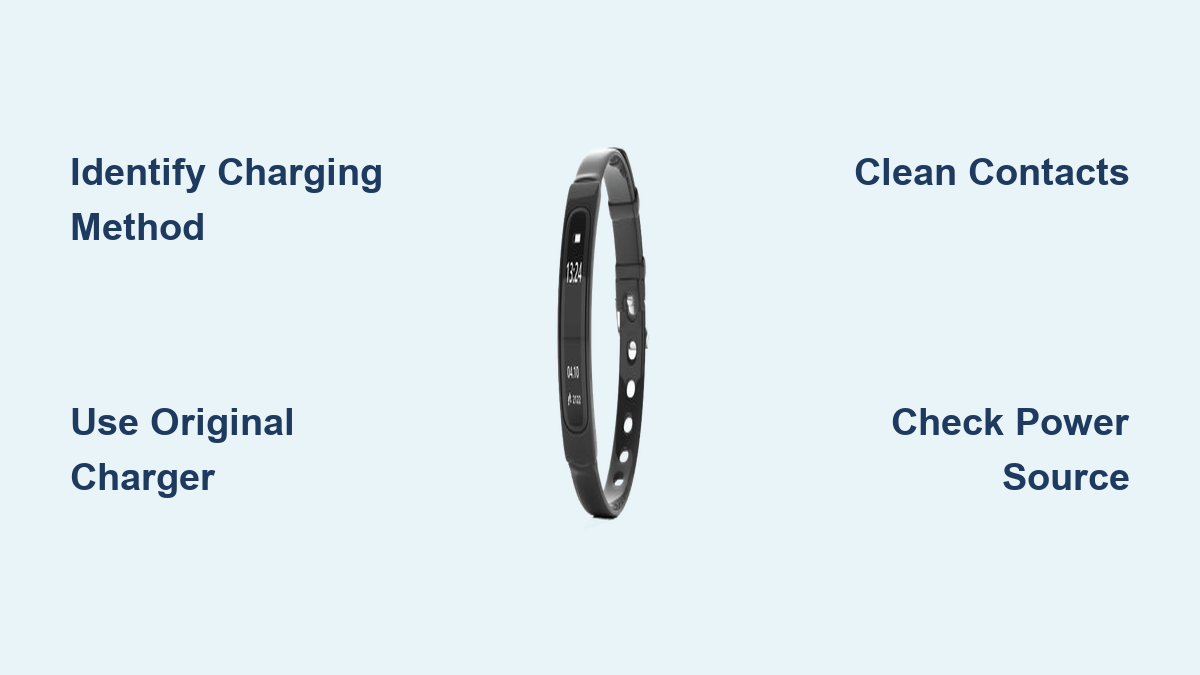
Before plugging anything in, figure out which charging system your device uses. Picking the wrong cable or dock can damage your watch or void your warranty. Most trackers fall into three main categories: magnetic docks, clip-style connectors, and wireless pads.
Magnetic Charging Docks
Magnetic docks are popular with Samsung and Apple models. Built-in magnets automatically align the charger with the contacts on the back of your watch. Just bring the watch close to the dock, and the magnets will snap it into place. This method reduces port wear and keeps the connection secure. The Samsung Galaxy Watch Active 2, for example, uses a vertical stand with a round base. The watch rests with its curved edge on the base and the back against the upright charging arm.
Clip-Style USB Connectors
Fitbit and Garmin devices often use clip-style chargers that physically attach to the tracker. To connect, pinch the back of the clip to open the front, then wrap it around the device. The metal pins inside must align perfectly with the charging contacts on the back of the watch. The Fitbit Charge 4 has an oval opening on the clip that fits around the control button. A gray spot on the bottom of the clip distinguishes it from the older, incompatible Charge 3 version.
Wireless Inductive Charging
Some premium models, including certain Apple Watches, support wireless charging pads. Place the watch face-up on the pad, and charging begins automatically. No cables or clips required, just precise alignment and a compatible pad. The Apple Watch Series 6 uses a concave magnetic port on the back that connects seamlessly to its proprietary charger. You’ll hear a chime when the connection locks in.
Gather and Inspect Your Charging Gear
Using the right equipment matters just as much as using it correctly. A damaged cable or weak power source can ruin an otherwise perfect charging session.
Required Charging Components
You’ll typically need:
– A proprietary charging cable or dock designed for your specific model
– A USB wall adapter for the fastest charging speeds
– Alternative power sources like a computer USB port or power bank for travel
Always use the original cable or a certified replacement. Third-party chargers may lack proper voltage regulation, which can damage your battery over time.
Check for Damage Before Each Use
Take a minute to inspect your gear:
– Look for frayed wires or bent pins on the connector
– Make sure the clip mechanism closes tightly if you use a Fitbit or Garmin
– Verify that dock magnets are still strong and aligned
– Wipe contacts with a dry, lint-free cloth to remove sweat, dust, or corrosion
If the cable feels loose or the connection flickers, replace it right away.
Connect and Start Charging Your Tracker

Once your gear is ready, it’s time to power up. Follow these universal steps for reliable results every time.
Locate the Charging Port
Most fitness trackers have charging contacts on the back, sometimes hidden under the band or behind a small flap. Remove the band if needed to access the port. The Fitbit Versa 3, for instance, uses a square-shaped dock that matches the back of the device. Magnets help guide it into the correct position.
Plug Into a Reliable Power Source
Connect the USB end of your cable to one of these options:
– A wall adapter, which is recommended for fastest charging
– A computer USB port, which is slower due to lower power output
– A power bank, which is handy on the go but may charge less efficiently
Avoid low-power USB hubs or damaged outlets.
Align and Attach the Charger
For magnetic docks, place the watch on the stand and let the magnets guide it into place. On the Samsung Active 2, make sure the round edge rests on the base for stability.
For clip-style chargers, pinch the back of the clip, open the front, and wrap it around the tracker. Confirm the contacts align with the metal pads and the clip fits snugly without wobbling.
For wireless pads, center the watch on the pad. You should hear a chime on Apple Watch or see a charging icon appear on screen.
Confirm Charging Has Started
Look for these signs of a successful connection:
– A red LED light on the dock or watch
– A green lightning bolt on the Apple Watch screen
– An increasing battery percentage on the display
– A chime sound on Apple Watch models
If nothing happens, reseat the connection and double-check your power source.
Monitor the Charging Cycle
Once connected, let your device charge undisturbed. Movement or interference can break the connection and reset the cycle.
Typical Charging Time
Most fitness trackers reach 100% in 1 to 2 hours. Avoid using the watch while it charges, since running apps or syncing data slows the process. For the fastest results, turn the device off or let it sleep.
Watch for Completion
When fully charged, you’ll notice:
– The LED turns solid green
– The screen shows 100% battery or a full battery icon
– Apple Watch may chime again and display a green lightning bolt
Disconnect immediately after reaching full charge to minimize battery stress.
Troubleshoot Common Charging Problems

Even with the right gear, issues can pop up. Here’s how to fix the most frequent ones quickly.
Watch Not Charging
Recheck connection and alignment. Reseat the watch on the dock or reattach the clip. For a Fitbit Charge 4, make sure the gray spot on the clip is visible and the oval opening surrounds the button. On the Samsung Active 2, realign the watch if the LED flashes red.
Clean the charging contacts. Dirt, sweat, and corrosion block electrical flow. Use a dry microfiber cloth to wipe the metal contacts on the back of the watch, the pins inside the clip or dock, and the USB connector. Avoid liquids or abrasive materials.
Test your power source and cable. Try a different wall adapter, USB port, or charging cable. If another device charges fine with the same setup, the issue likely lies with your tracker or its cable.
Charging Too Slowly
Switch to a wall adapter. Computer USB ports typically deliver 0.5A, while wall adapters provide 1A to 2.4A. This switch alone can cut your charging time in half.
Close background apps. On smart trackers like the Fitbit Versa or Apple Watch, running apps drain power while charging. Swipe up to close unused apps or enable Airplane Mode during charging.
Avoid using the device. Scrolling, syncing, or receiving notifications increases power draw. Let the watch rest for the fastest charge.
Overheating During Charging
Charge in a cool, dry place. Avoid direct sunlight, hot cars, or metal surfaces. Heat degrades lithium-ion batteries over time.
Don’t leave it plugged in overnight. Even with overcharge protection, extended charging can cause thermal stress. Unplug once you hit 100%.
Error Indicators Explained
- Flashing red light (Samsung): Connection error. Realign the watch on the stand.
- No screen response (Fitbit Versa 3): Likely misaligned. Adjust position until the battery percentage appears.
- Red lightning bolt (Apple Watch): Battery is critically low. Wait a few minutes for the chime and green icon.
Optimize Battery Health and Longevity
Smart charging habits keep your battery healthy for years instead of months.
Avoid Deep Discharges
Never let your fitness tracker die completely. Lithium-ion batteries degrade faster when drained to 0%. Recharge when the battery drops to 20–30%.
Use Official or Certified Chargers
Third-party cables may lack proper voltage control, leading to inconsistent charging or hardware damage. Stick with manufacturer-approved accessories.
Enable Battery Optimization Features
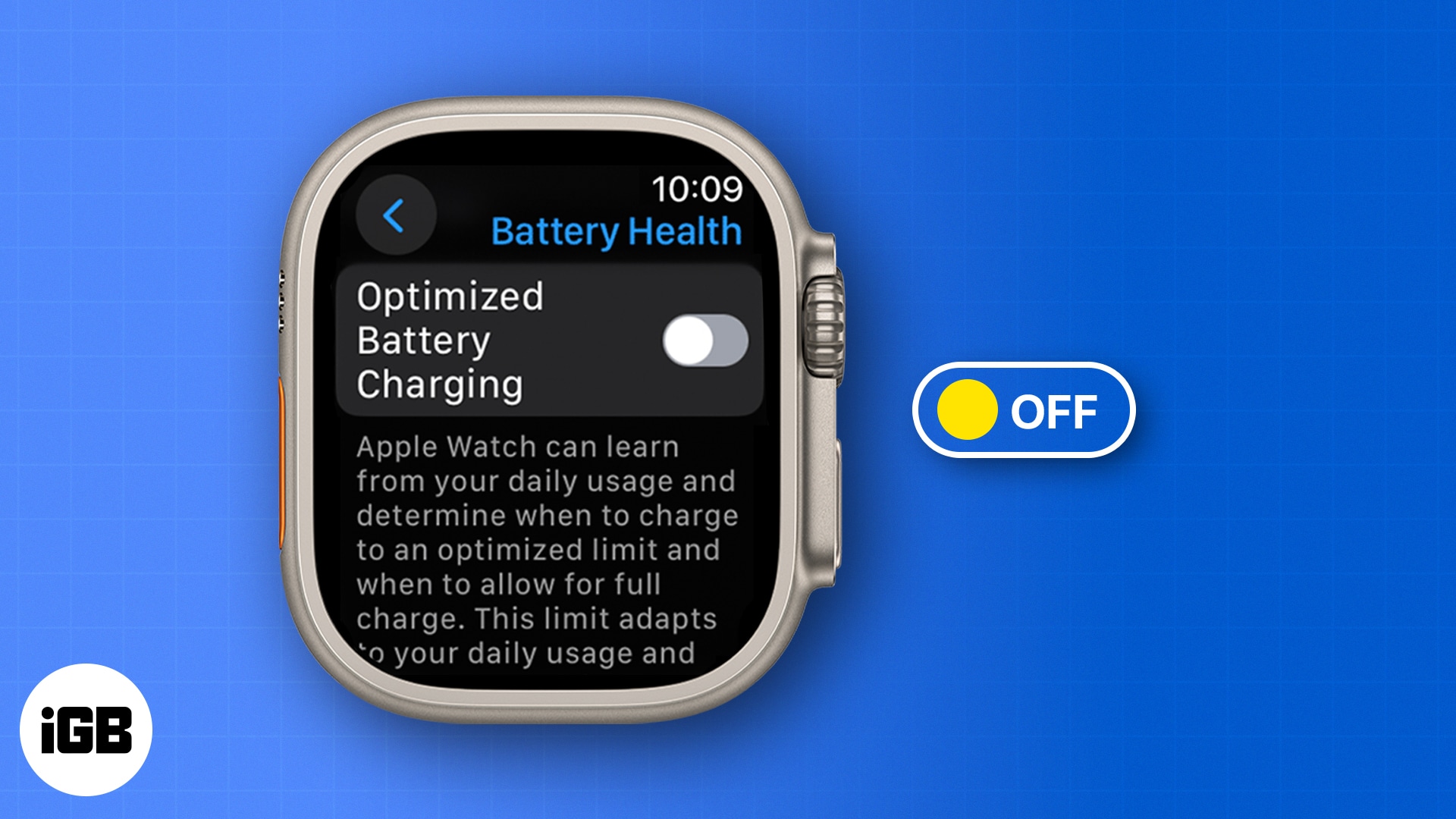
On Apple Watch, go to Settings > Battery > Battery Health and turn on Optimized Battery Charging. This feature learns your routine and delays charging past 80% until you need it, reducing wear.
Keep Software Updated
Manufacturers release firmware updates that improve power management. Check for updates weekly in your companion app, such as Fitbit or Samsung Wearable.
Maintain Your Charging Equipment
Proper care of your charger extends its life and ensures consistent performance.
Clean Contacts Regularly
Wipe the charging pins and watch contacts with a dry cloth every few weeks. Buildup from sweat and oils is a leading cause of charging failures.
Store the Cable Properly
Avoid sharp bends or tangles. Coil loosely and keep it in a dry place. Always pull by the connector, never by the wire.
Replace Worn Parts Promptly
If the clip won’t stay closed, the magnet feels weak, or the wire is frayed, replace the cable immediately. A damaged charger can damage your device.
Frequently Asked Questions About Charging a Fitness Tracker Watch
How long does it take to fully charge a fitness tracker?
Most fitness trackers take 1 to 2 hours to charge from 0% to 100%. Charging speed depends on your power source. Wall adapters charge faster than computer USB ports.
Can I use any USB cable to charge my fitness tracker?
No. Fitness trackers use proprietary cables or docks designed for specific models. Using the wrong cable can result in no charging, slow charging, or hardware damage. Always use the original or a certified replacement.
Why isn’t my fitness tracker charging even when it’s plugged in?
Common causes include misaligned contacts, dirty charging pins, a damaged cable, or a weak power source. Try reseating the connection, cleaning the contacts with a dry cloth, and testing a different wall adapter or USB port.
Is it bad to leave my fitness tracker on the charger overnight?
Modern devices have overcharge protection, but leaving your watch plugged in for hours can still cause thermal stress over time. Unplug once the battery reaches 100% to extend battery lifespan.
Can I charge my fitness tracker with a power bank?
Yes. A power bank works as an alternative power source, though charging may be slower depending on the bank’s output. For best results, use a power bank with at least 1A output.
How do I know when my fitness tracker is fully charged?
Most trackers signal full charge with a solid green LED, a 100% battery icon on screen, or a chime sound (Apple Watch). Disconnect promptly once you see these indicators.
Key Takeaways for Charging Your Fitness Tracker Watch
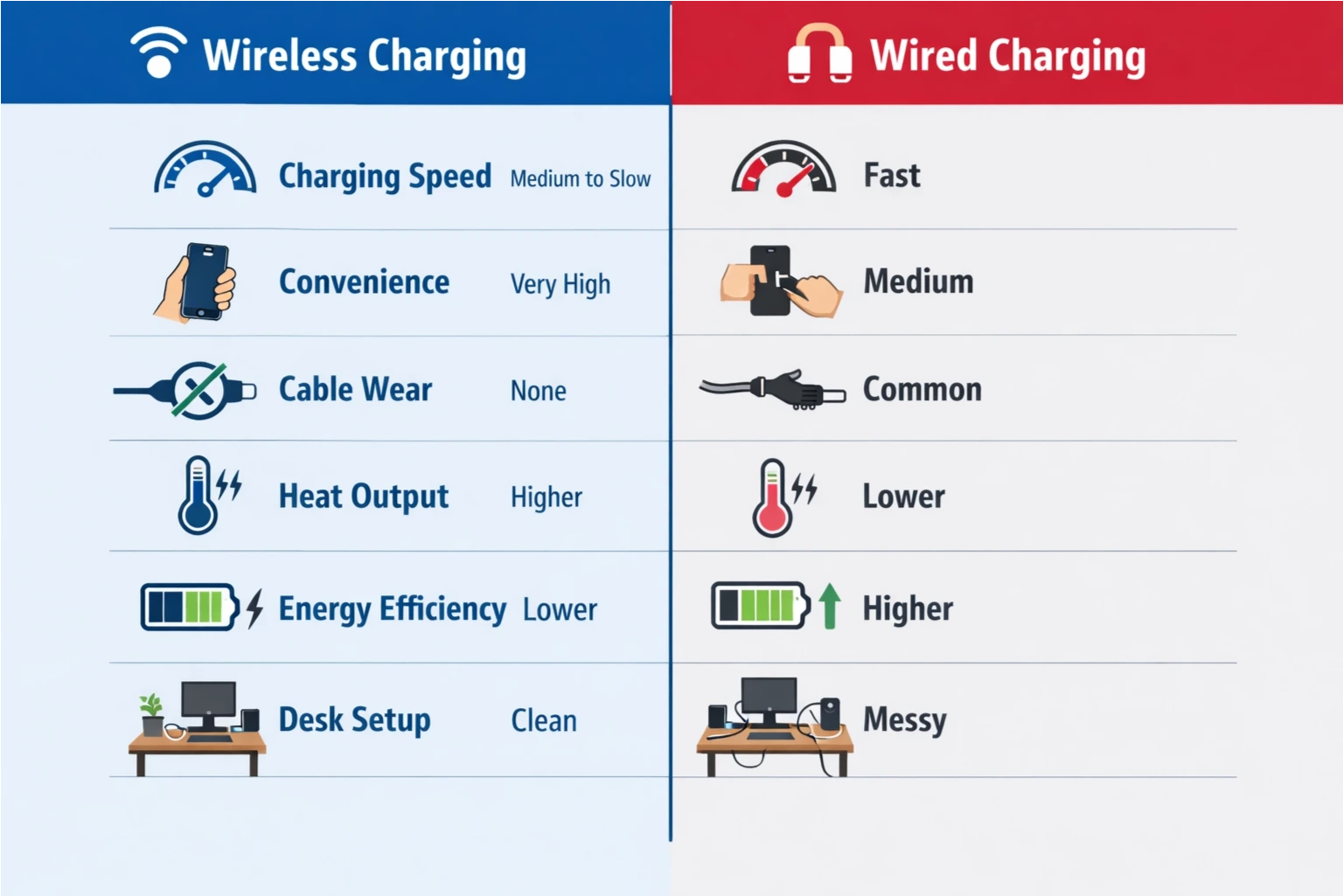
Charging your fitness tracker should be quick, reliable, and stress-free once you understand your model’s requirements. Start by identifying your charging method, whether magnetic, clip-style, or wireless. Use the original cable and a wall adapter for the fastest results, and always confirm the connection with LED lights or on-screen indicators. Clean your contacts regularly, avoid deep discharges, and enable battery optimization features to extend your device’s lifespan.
Your next step: grab your tracker, locate the correct charger, and run through the steps above. In just a couple of hours, you’ll have a fully powered device ready to track every step, heartbeat, and milestone on your fitness journey.