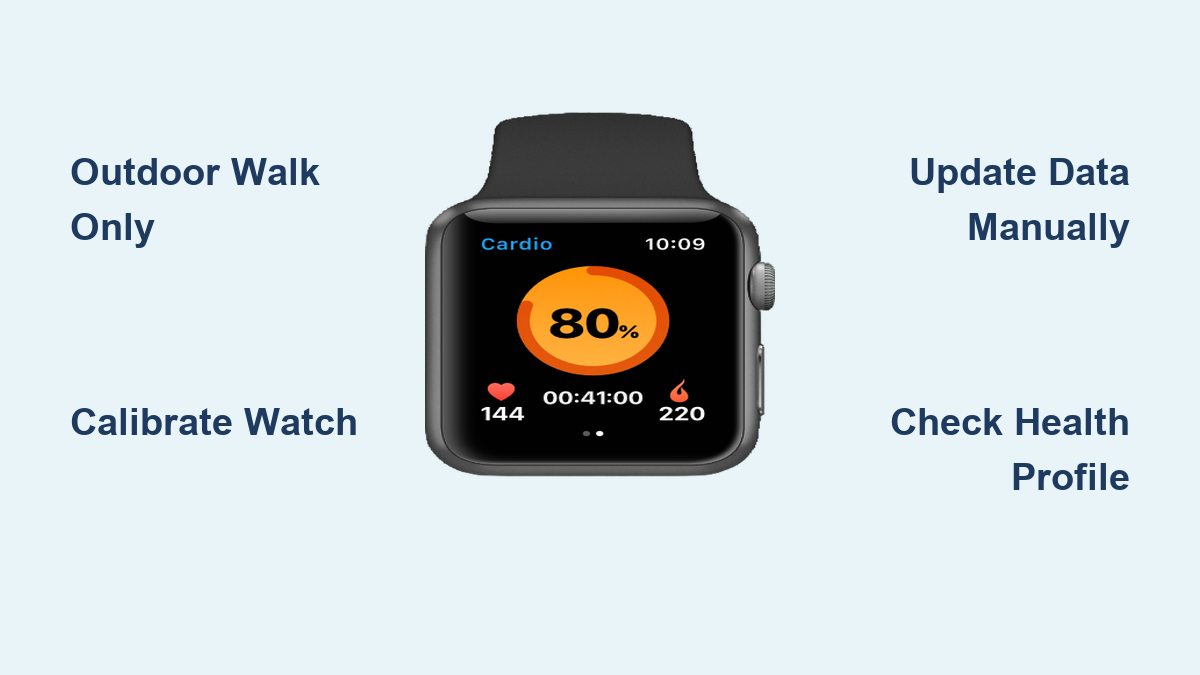
Cardio Fitness Data Not Updating: Quick Fix
You’ve been logging workouts, staying active, and yet your Apple Watch’s cardio fitness score hasn’t changed in weeks. You’re not alone. Many users experience cardio fitness data not updating, even after consistent exercise. This guide cuts through the confusion with precise, actionable steps to diagnose and fix the issue, fast.
Cardio fitness on Apple Watch is more than a simple stat. It’s a scientifically backed estimate of your VO2 max, the maximum oxygen your body can use during intense exercise. This metric helps predict long-term heart health and fitness trends. But unlike step count or heart rate, it doesn’t update in real time. It requires specific conditions: outdoor workouts, proper calibration, and consistent wear. When any of these fail, your data stalls.
In this guide, you’ll learn exactly why cardio fitness data stops updating, how to manually trigger a refresh, and what to avoid so your efforts actually show up in the Health app. Whether you’re a runner, hiker, or walker, these fixes will get your fitness score moving again.
Supported Workouts Only Update Cardio Fitness
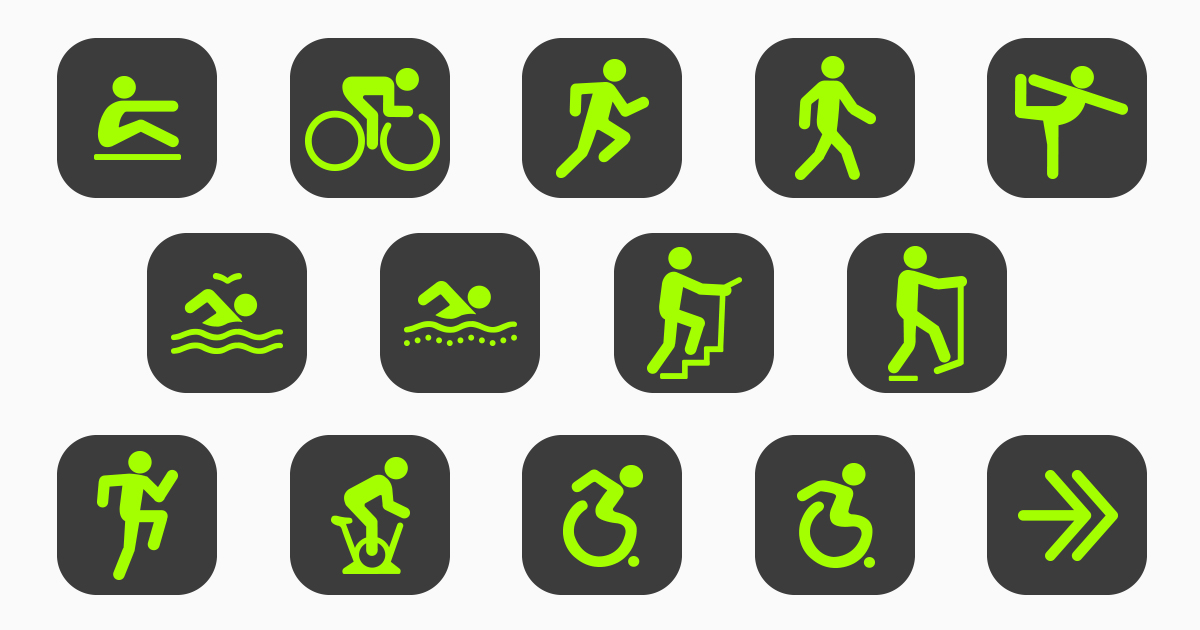
Apple Watch doesn’t use all cardio sessions to calculate fitness levels. Only specific outdoor activities contribute to your VO2 max estimate.
Outdoor Walk, Run, or Hike Required
The algorithm only processes data from three workout types:
- Outdoor Walk
- Outdoor Run
- Hiking
These workouts combine GPS, motion sensors, and heart rate to estimate effort versus movement. Indoor workouts, even if intense, do not count. Treadmill runs, elliptical sessions, or spin classes won’t update your cardio fitness score, no matter how high your heart rate climbs.
Pro Tip: Don’t assume “cardio” means all heart-pumping activity. Apple defines it narrowly: outdoor locomotion only.
Why Indoor Workouts Don’t Count
Indoor environments lack GPS-based terrain and wind resistance data. Without these variables, the algorithm cannot reliably estimate oxygen consumption. Even if your Apple Watch records heart rate and calories, it won’t feed into the cardio fitness metric.
Common Mistake: Users switch to treadmills in winter and wonder why their score drops or stalls. The system sees no qualifying workouts, so no update occurs.
Fix: Resume at least 2–3 outdoor walks or runs per week to maintain data flow.
Apple Watch Model and Age Limits
Not every Apple Watch can generate cardio fitness data. Hardware and user profile requirements must be met.
Series 3 or Later Required
Cardio fitness estimation is unavailable on Apple Watch models older than Series 3. These earlier versions lack the sensor fusion needed for accurate VO2 max estimates.
If you’re using:
- Apple Watch (1st or 2nd gen) → No support
- Apple Watch Series 3 or newer → Supported
Upgrade if necessary. No software patch will enable this feature on unsupported hardware.
User Must Be 20 Years or Older
Even with a compatible watch, users under 20 won’t see age-grouped classifications. While raw data may be collected, the Health app won’t display comparisons or classifications until the user reaches age 20.
Note: Data collection begins earlier, but classification starts at 20.
Initial Setup and Calibration Steps
Before your Apple Watch can generate accurate cardio fitness estimates, it needs baseline data and proper setup.
Wear Watch for 24+ Hours First
The system requires at least 24 hours of continuous wear before it starts processing passive heart rate and movement data. This includes resting heart rate, daily activity patterns, and sleep metrics, all part of the cardio fitness algorithm.
No shortcut: Even if you run 10 miles on day one, no VO2 max estimate will appear without this initial wear period.
Complete Multiple Outdoor Workouts
After the 24-hour threshold, the system needs several supported outdoor workouts to establish a baseline. Testing shows 3–5 sessions are typically required.
Each session should:
- Last 20+ minutes
- Be at moderate intensity with elevated heart rate
- Have clear GPS signal
Short walks or low-effort strolls may not register as sufficient effort.
Calibrate Your Apple Watch
Calibration teaches your watch your stride length and movement patterns, improving GPS and VO2 accuracy.
How to Calibrate:
- Go outdoors with strong GPS signal.
- Open the Workout app.
- Start an Outdoor Run or Outdoor Walk.
- Run or walk for at least 20 minutes, including a warm-up minute and several segments of known distance.
- End the workout manually.
Repeat this process 3–5 times for best results.
Warning: Skipping calibration leads to inaccurate motion data, causing delayed or incorrect cardio fitness updates.
How to Manually Update Stale Data
Sometimes, even with valid workouts, the cardio fitness score doesn’t refresh. That’s when you need to manually trigger an update.
Look for “Update Your Data” Prompt
After logging new outdoor workouts, open the Health app and check the Cardio Fitness section. If the system detects outdated estimates, it may display an “Update Your Data” button. Tap it to force a recalculation.
No Button? Try This Workaround
If no update prompt appears:
- Open Health app on iPhone.
- Tap Browse > Heart > Cardio Fitness.
- Scroll down and tap Show All Cardio Fitness Levels.
- Exit and reopen the screen.
- Wait 24 hours after completing a valid outdoor workout.
The system often queues updates in the background. Patience is key, but only after confirming eligible workouts were logged.
Expert Note: Updates aren’t instant. Apple uses a rolling average model, so changes appear gradually over days or weeks.
Fix Missing Health Profile Settings

Your age, sex, and weight are critical inputs for VO2 max calculations. If missing, data won’t update.
Set Up Health Profile Correctly
- Open Health app and tap your profile picture (top right).
- Select Health Details > Edit.
- Confirm:
– Date of Birth (must be 20+)
– Biological Sex
– Weight (updated regularly)
These fields are used to compare your VO2 max against population norms. Incomplete info means no classification.
Why Sex and Age Matter
Apple’s algorithm compares your performance to others in your demographic. Without this context, it can’t determine if your score is “low,” “average,” or “high.” Notifications about low cardio fitness rely on this comparison.
Example: A 25-year-old male and a 50-year-old female have different VO2 max benchmarks. The system adjusts expectations accordingly.
Troubleshoot Common Update Failures
Even when everything seems correct, issues still arise. Here’s how to fix them.
No Data After Outdoor Runs?
Check these:
- GPS signal was strong during workout
- Workout labeled as Outdoor Run/Walk, not generic “Run” or “Walk”
- Apple Watch had tight wrist fit (poor heart rate contact equals bad data)
- iPhone and Watch are on the latest OS version
Mislabeling is a top cause. If you selected “Indoor Run” by mistake, it won’t count.
Battery Saver Mode Interferes
When Battery Saver Mode is on, background heart rate monitoring and GPS may be limited. This disrupts passive data collection needed for cardio fitness updates.
Fix: Disable Battery Saver Mode during active wear periods.
Medications That Skew Results
Beta-blockers, calcium channel blockers, and other heart-rate-limiting drugs can artificially inflate your cardio fitness score.
Why? The algorithm sees a low heart rate during exercise and interprets it as high efficiency, meaning excellent fitness.
Reality: Your heart just isn’t responding normally due to medication.
Apple warns about this, but the data remains unless you interpret it in context.
Action: Consult your doctor. Don’t rely solely on Apple’s estimate if you’re on cardiac meds.
Access and Read Your Cardio Fitness Data
Knowing where to look helps confirm whether fixes worked.
Navigate to Cardio Fitness in Health App
- Open Health app on iPhone.
- Tap Browse (iPhone) or open sidebar (iPad).
- Go to Heart > Cardio Fitness.
- Use tabs: D, W, M, 6M, Y to view trends.
You’ll see:
- Your current VO2 max estimate (mL/kg/min)
- Color-coded level: Red (Low), Yellow (Below Average), Green (Average+)
- Comparison to peers by age and sex
Compare Against Population Averages
Tap Show information in the top-right corner. This reveals average cardio fitness levels across all ages and genders. Use filters to view female averages, male averages, or all users. This helps contextualize your score, especially after an update.
Prevent Future Data Gaps
Avoid stagnation with proactive habits.
Maintain Consistent Outdoor Activity
Aim for:
- 2–3 outdoor walks or runs per week
- Minimum 20 minutes each
- Moderate to vigorous intensity
Even brisk neighborhood walks help maintain data flow.
Keep Software Updated
Apple occasionally improves the VO2 max algorithm via updates. Ensure your iPhone runs iOS 15 or later and your Apple Watch runs watchOS 7 or later. Older OS versions may lack critical fixes for data syncing bugs.
Wear Watch Daily
Passive heart rate and movement data contribute to resting metrics used in VO2 estimation. Skipping days creates gaps that delay updates.
Tip: Wear your watch while sleeping and during daily routines for best results.
When to Seek Professional Advice
Cardio fitness data is a tool, not a medical diagnosis.
Consult a Doctor If:
- Your score is consistently “Low” despite training
- You’re on heart-rate-affecting medications
- You have arrhythmias such as AFib
- You experience chest pain or shortness of breath
Apple’s estimate can miss nuances. A clinical VO2 max test done in labs provides far more accurate results.
Remember: This feature predicts trends, not diagnoses.
Frequently Asked Questions About Cardio Fitness Data Not Updating
Why is my cardio fitness data not updating after running?
Your cardio fitness data may not update if you ran indoors, used a treadmill, or selected the wrong workout type. Only Outdoor Walk, Outdoor Run, and Hiking workouts count. Also confirm your Apple Watch is Series 3 or later and that you’ve worn it for at least 24 hours.
How long does it take for cardio fitness to update?
Updates aren’t instant. After completing valid outdoor workouts, the system may take several days to weeks to reflect changes. Apple uses a rolling average model, so patience is required after logging qualifying sessions.
Can indoor workouts update cardio fitness?
No. Indoor workouts do not contribute to the cardio fitness estimate. The algorithm requires GPS-based terrain and environmental data, which indoor environments cannot provide. Switch to outdoor activities to see updates.
What does “Update Your Data” mean in the Health app?
This button appears when the system detects that previous estimates could be more accurate based on new workout data or profile changes. Tapping it forces a recalculation and generates a confirmation notification showing how estimates changed.
Does medication affect cardio fitness readings?
Yes. Medications like beta-blockers and calcium channel blockers limit heart rate response. The algorithm may interpret this as higher fitness, causing overestimation. Consult your doctor for accurate interpretation.
What is the valid VO2 max range on Apple Watch?
Apple Watch supports a measurement range of 14–65 mL/kg/min. Readings outside this range may not receive a classification or comparison to population norms.
Key Takeaways for Fixing Apple Watch Cardio Fitness Data
Cardio fitness data not updating usually stems from three core issues: missing outdoor workouts, incomplete health profile settings, or lack of manual refresh. Start by confirming you’re logging Outdoor Walk, Outdoor Run, or Hiking sessions at least 2–3 times weekly. Then verify your Health profile includes accurate age, sex, and weight data.
If your score still feels stale, manually trigger an update through the Health app and wait 24 hours for the system to process new data. For long-term accuracy, calibrate your watch regularly and maintain consistent daily wear.
Your next step: Open the Health app right now, check your Cardio Fitness section, and look for the “Update Your Data” button. If it’s there, tap it. If not, plan an outdoor walk or run this week and log it properly. Your fitness score will follow.