How to Pair a Fitness Tracker
You just unboxed a new fitness tracker, charged it up, and are ready to start logging steps, heart rate, and workouts. Now you need to pair it with your smartphone, but the instructions seem unclear. If that sounds familiar, you are not alone. Millions of users search each year for how to pair a fitness tracker, and while the process is generally quick, it varies by brand and phone setup.
This guide walks you through every step to successfully connect your device to an Android phone. You will learn which apps to download, how to sync data with Google Fit, and what to do when pairing fails.
Download the Required Apps
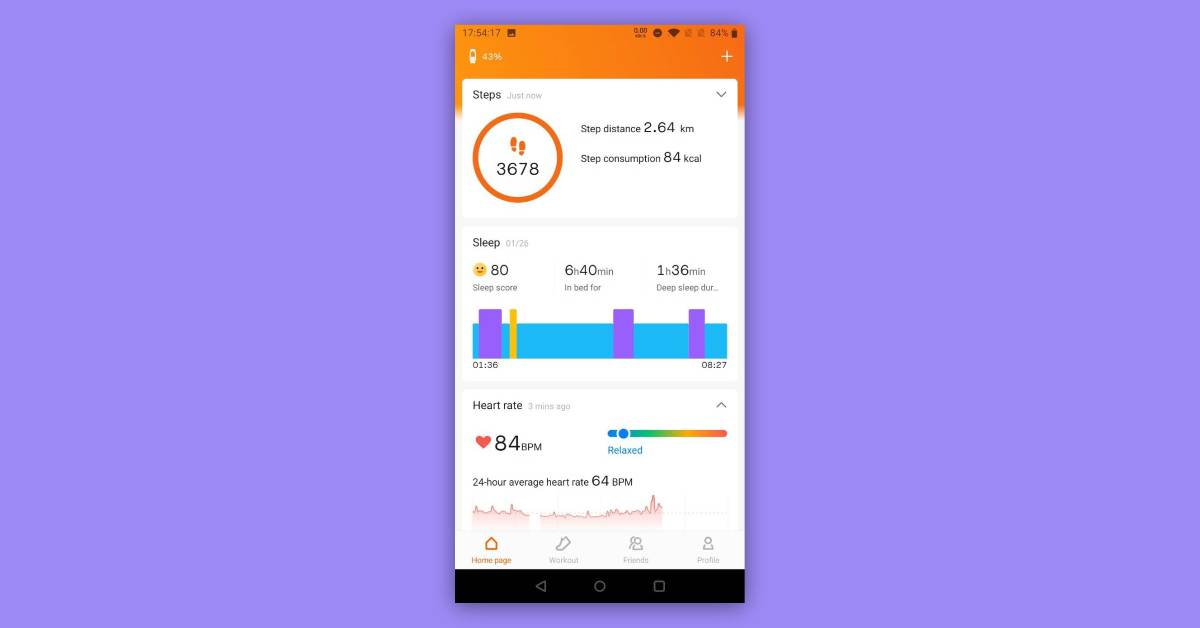
Before pairing begins, you need the right apps installed on your phone. Most fitness trackers rely on a companion app to manage settings, sync data, and enable the initial connection.
Install Google Fit First
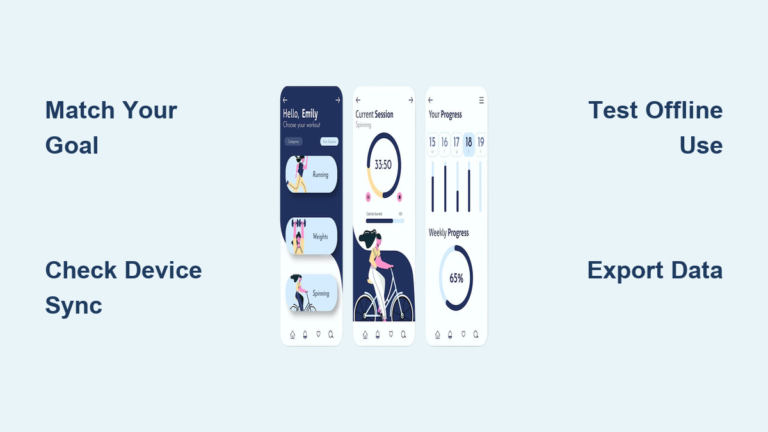
Google Fit acts as a central hub for health data on Android. Download it from the Google Play Store and sign in with your Google account. This app will display your activity summary, steps, and heart points pulled from your connected tracker.
Install Your Tracker Brand App
Each fitness tracker brand uses its own app, and these apps differ by manufacturer. Examples include:
- Xiaomi Mi Band: Mi Fit
- Fitbit devices: Fitbit app
- Samsung wearables: Samsung Health
- Huawei Band or Watch: Huawei Health
Download the correct app from the Play Store and stick with verified developer listings to avoid imitation apps.
Enable Bluetooth and Grant Permissions
Your phone must be ready to detect and connect to the tracker. Without proper settings enabled, pairing will fail.
Turn On Bluetooth
Open your phone’s Settings, go to Connected devices, and make sure Bluetooth is switched on. Some phones disable Bluetooth automatically to save battery, so verify it is active before pairing.
Allow Location and Notification Access
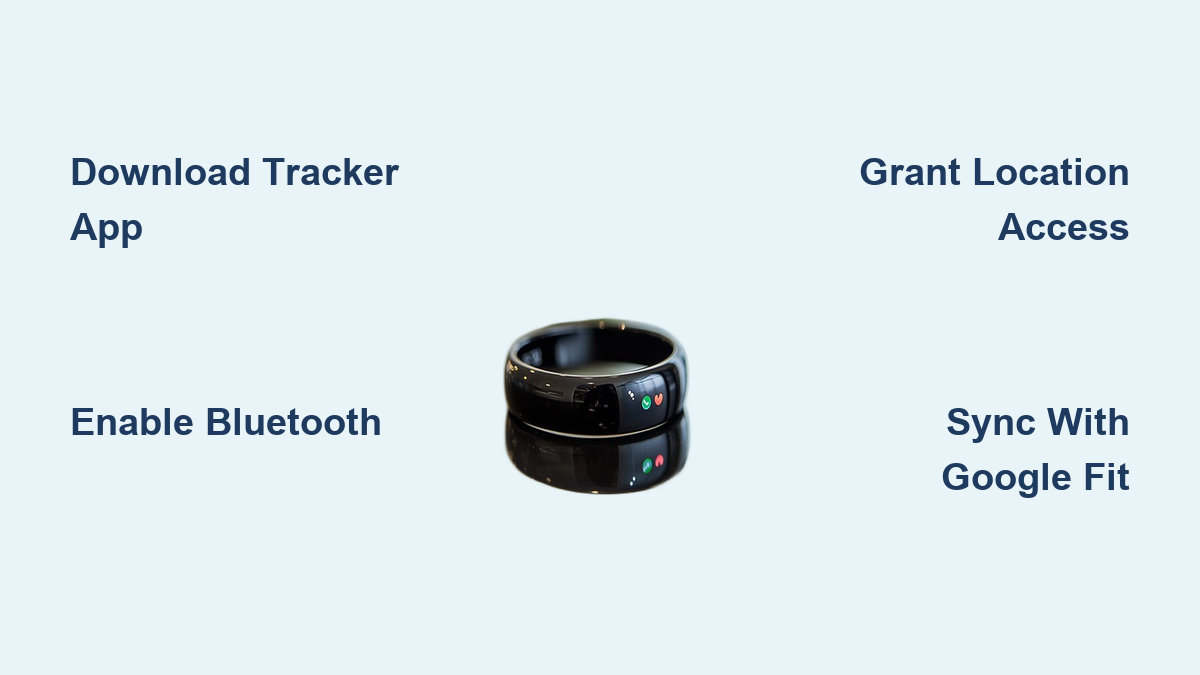
Android requires apps to request access to location, notifications, and sensors. When you open your tracker app for the first time, grant the following:
- Location access for Bluetooth scanning
- Notification access for alerts from the tracker
- Health data access to sync with Google Fit
Denying these permissions can prevent pairing or block data syncing entirely.
Pair the Fitness Tracker
Now it is time to link your device. The core process is similar across brands, though small differences exist.
Open the Tracker App and Start Setup
Launch your brand’s app and sign in or create a new account. Look for an option labeled Add Device or Pair New Tracker and tap it to begin.
Activate the Tracker
Confirm your fitness tracker is charged to at least 50 percent. Press and hold the button if your model has one to power it on. A logo or startup animation should appear on the screen.
Confirm the Pairing Request
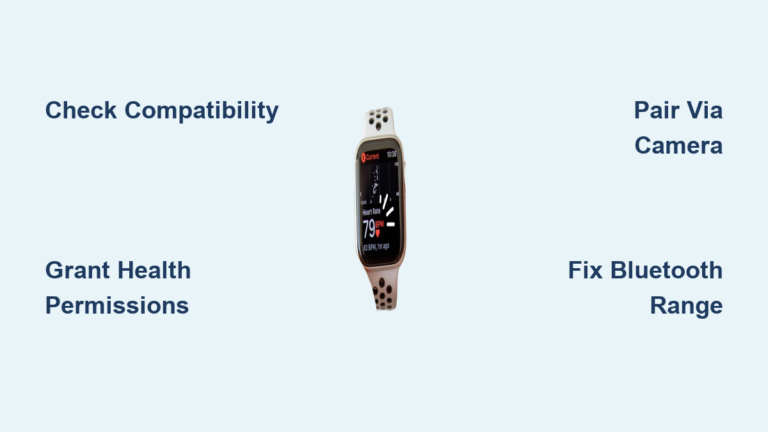
Your phone will scan for nearby devices. When your tracker appears in the list, tap it. A confirmation code may display on both screens. Verify the codes match, then confirm the pairing.
Pro Tip: Keep the tracker within 10 cm of your phone during pairing. Walls, metal objects, and Wi-Fi routers can interfere with the Bluetooth signal.
Sync Data with Google Fit
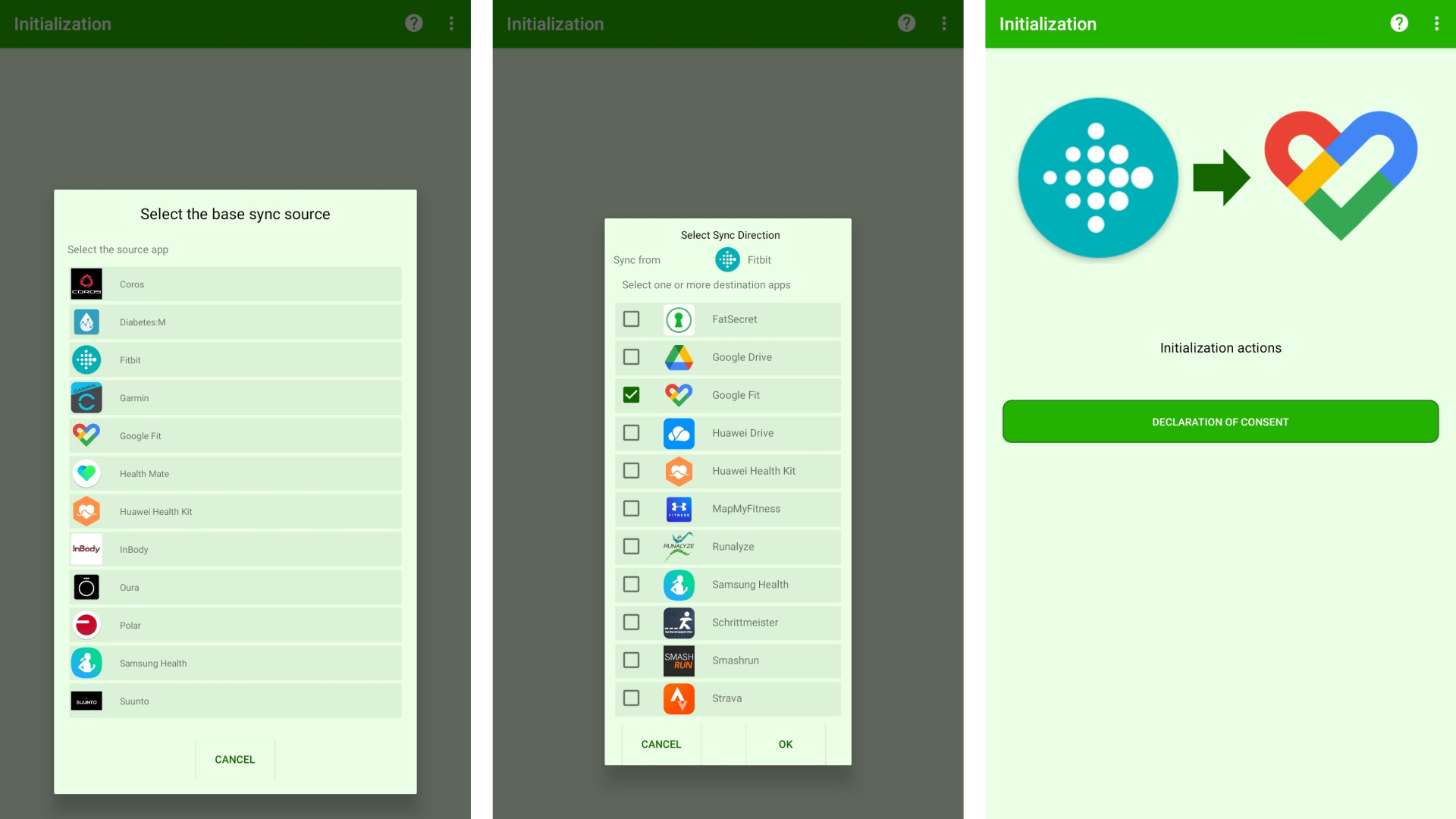
Many users want fitness data centralized in Google Fit. Some trackers sync automatically, while others need manual setup.
Use the Built-In Sync Option
Open your tracker app and navigate to Settings, then Data Sync, then Google Fit. Tap Connect and sign in if prompted. Once linked, your steps, heart rate, and workouts will flow into Google Fit.
Use a Bridge App When Direct Sync Is Unavailable
Some tracker apps do not support direct Google Fit integration. In that case, a third-party bridge app can transfer data between the two. For example:
- Install Health Sync from the Play Store
- Select your tracker app as the source
- Choose Google Fit as the destination
- Enable sync for steps, sleep, and heart rate
- Run the sync manually or set it to automatic
Note: Bridge apps may require a paid upgrade for full features. Read reviews before purchasing.
Troubleshoot Common Pairing Failures

Even with the right steps, pairing can fail. Most issues are fixable with a few quick actions.
Tracker Not Detected
If your phone cannot find the device, try the following:
- Restart both the tracker and your phone
- Make sure the tracker is in pairing mode
- Clear Bluetooth cache in your phone settings
- Forget any old or failed pairings in Bluetooth settings
App Crashes During Setup
Outdated apps or low storage often cause crashes during setup. Update the tracker app to the latest version, free up at least 500 MB of phone storage, and reinstall the app if problems continue.
Sync Stops Working
If data stops flowing to Google Fit, reconnect the Google Fit integration in your tracker app, confirm your internet connection is active, and restart the tracker after a full charge.
Maintain a Stable Connection

Once paired, keep the connection strong to avoid daily disruptions.
Keep Bluetooth Enabled
Leave Bluetooth on even when you are not actively using your phone. Most trackers sync periodically in the background.
Update Firmware Regularly
Manufacturers release updates that fix bugs and improve pairing stability. Open your tracker app weekly to check for available firmware updates.
Reduce Signal Interference
Thick wristbands, metal phone cases, or crowded wireless areas can weaken Bluetooth signals. Move away from routers and microwaves if syncing feels slow.
Prevent Future Pairing Issues
A smooth first setup does not guarantee long-term reliability. Take these preventive steps.
Restart the Tracker Weekly
Power cycling clears minor glitches. Charge the tracker fully, unplug it, wait 30 seconds, then turn it back on.
Re-Pair Occasionally
If sync delays increase over time, remove the device from the app and pair it again. This resets the connection and often restores performance.
Monitor Battery Levels
Low battery can cause disconnects. Charge your tracker when it drops below 20 percent and avoid letting it die completely.
Frequently Asked Questions About Pairing a Fitness Tracker
Which app do I need to pair my fitness tracker?
You need both Google Fit and your tracker’s brand-specific app. The brand app handles pairing and device settings, while Google Fit centralizes your health data.
Why is my phone not detecting my fitness tracker?
Common causes include Bluetooth being off, the tracker not being in pairing mode, or old paired devices interfering. Restart both devices and clear the Bluetooth cache.
Can I sync my fitness tracker with Google Fit directly?
Many modern trackers sync directly through a built-in option in the brand app. Older models may require a bridge app like Health Sync to transfer data.
Do I need to give location permission to pair my tracker?
Yes. Android requires location access for Bluetooth scanning, so denying it will block pairing and syncing.
How long does it take to pair a fitness tracker?
The full process usually takes under 10 minutes, including downloading apps, granting permissions, and completing setup.
Key Takeaways for Pairing Your Fitness Tracker Successfully
Pairing a fitness tracker comes down to three essentials: download both Google Fit and your brand’s app, enable Bluetooth with the right permissions, and follow the on-screen pairing steps. When syncing fails, bridge apps like Health Sync can bridge the gap between your tracker and Google Fit. With your device now connected, you are ready to track activity, sleep, and progress right from your smartphone.