How to Use Apple Watch Heart Rate Monitor with Peloton
You’re mid-ride on a Peloton class, pushing through the final climb, but you have no idea what your heart rate is doing. Without real-time BPM data, you’re training blind, guessing whether you’re in the fat-burning zone or overdoing it. The good news: your Apple Watch heart rate monitor with Peloton delivers live tracking across cycling, strength, running, and treadmill workouts, all without buying a separate chest strap.
In this guide, you’ll learn exactly how to connect your Apple Watch to Peloton hardware and the Peloton app, fix common sync failures, and keep your data flowing accurately into Apple Health. No fluff. No technical jargon. Just clear steps to get your devices talking to each other.
Verify Device Compatibility Before Setup
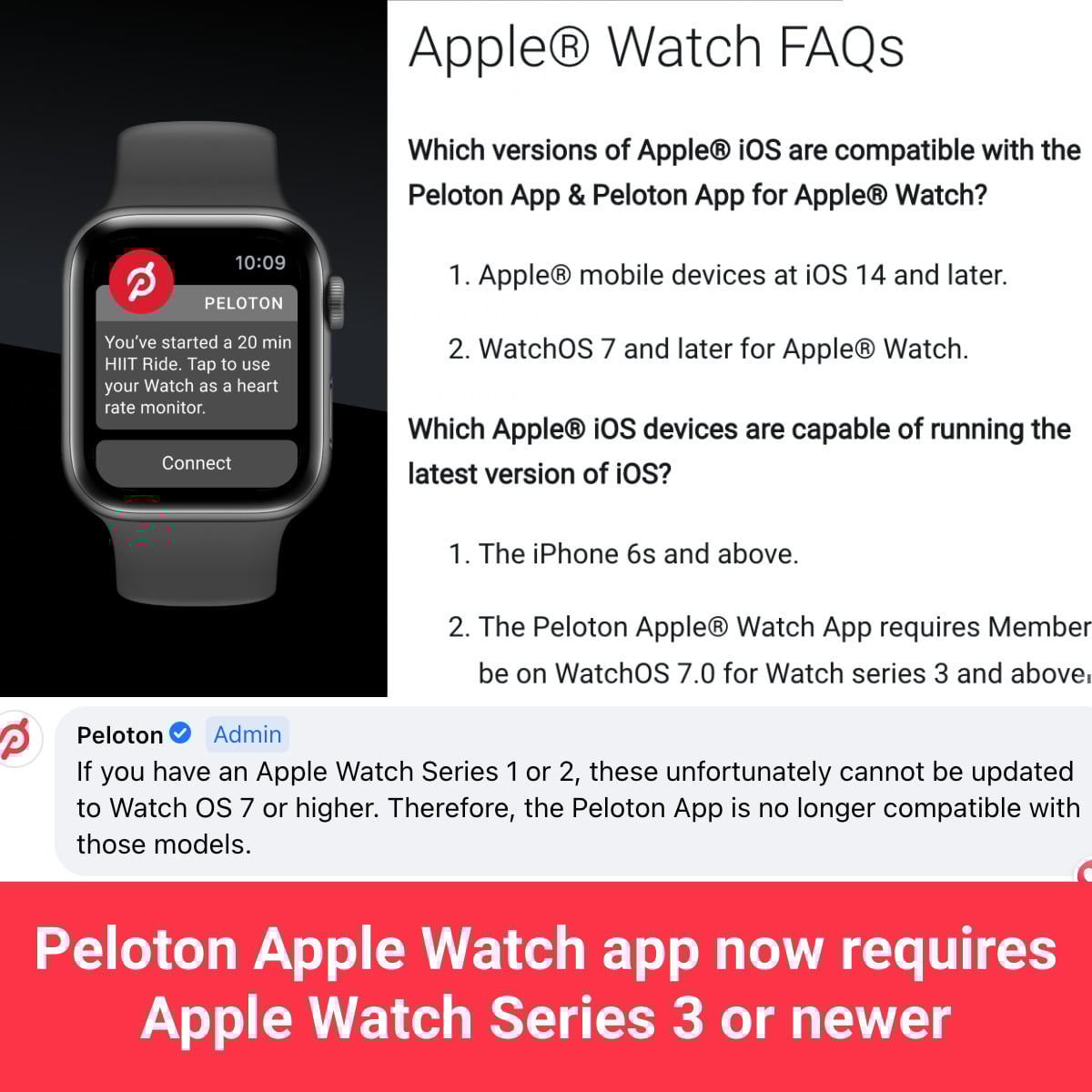
Skipping this step is the number one reason connections fail. Confirm everything is ready before you start.
Check Hardware and Software Requirements
Your devices must meet these minimum standards:
– Apple Watch Series 3 or later running watchOS 7 or higher
– iPhone with iOS 14 or newer
– Active Peloton All-Access Membership
– Bluetooth and Wi-Fi enabled on your iPhone
– Same Apple ID signed in on both iPhone and Watch
Mismatched Apple IDs or outdated software will silently block data sharing without showing an error.
Install the Peloton App on Both Devices
You need Peloton installed on your iPhone and Apple Watch:
1. Download the Peloton app from the App Store on your iPhone.
2. Open the Watch app on your iPhone.
3. Scroll to Available Apps and tap Install next to Peloton.
4. Wait for the app icon to appear on your Watch face.
If the app doesn’t sync automatically, toggle Show App on Apple Watch manually in the Watch app settings.
Grant Apple Health Permissions
Without proper permissions, heart rate data won’t transmit to Peloton, and workouts won’t sync back to Apple Health.
Connect Peloton to Apple Health
Follow these steps to authorize full data access:
1. Open the Peloton app on your iPhone.
2. Tap More in the bottom-right corner.
3. Select Apple Watch > Set Up > Connect to Health app.
4. Tap Turn on All to grant read and write permissions.
This allows Peloton to read your real-time heart rate and write workout metrics like calories, distance, and duration.
Enable Motion and Fitness Tracking
Apple Watch needs motion access for accurate metrics:
1. Go to Settings > Privacy & Security > Motion & Fitness on your iPhone.
2. Toggle on Fitness Tracking and Health.
3. Confirm Bluetooth is enabled under Privacy & Security.
These settings keep the optical sensors communicating continuously during workouts.
Pair Apple Watch with Peloton Bike or Tread
When using Peloton hardware, you have two connection options: automatic camera detection or manual pairing.
Use Camera Detection for Instant Pairing
The Peloton touchscreen can recognize your watch visually:
1. Start any live or on-demand class on the Peloton screen.
2. Wave your Apple Watch in front of the screen’s camera.
3. The system detects your watch and pairs automatically.
Look for the heart icon in the top-right corner of the screen to confirm a successful connection.
Connect Manually if Camera Pairing Fails

Sometimes the camera doesn’t recognize the watch. Use this backup method:
1. Open the Peloton app on your Apple Watch.
2. Tap Connect when the workout begins.
3. Heart rate should stream to the Peloton screen within seconds.
This method works reliably even when camera detection struggles.
Connect Apple Watch to the Peloton App Without Hardware
No Bike or Tread? You can still track heart rate using the Peloton app on your phone, iPad, or Apple TV.
Start a Workout on Your Phone or Tablet
- Launch the Peloton app on your iPhone or iPad.
- Choose a class (cycling, running, strength, yoga, etc.).
- Tap Start when prompted.
- Open the Peloton app on your Apple Watch and tap Connect.
Your heart rate displays in real time within the app interface.
Sync with Apple TV for Bigger Screens
For a more immersive experience:
1. Open Peloton on Apple TV and launch your class.
2. Start the session using your remote.
3. On your iPhone or iPad, open the Peloton app.
4. Tap Join This Class.
5. Connect your Apple Watch through the mobile app.
Your watch transmits heart rate data through the phone to the TV session.
Troubleshoot Common Connection Failures
Even with correct setup, syncing issues happen. Here’s how to fix them fast.
Fix a Loose Watch Fit
A loose watch causes inaccurate or missing readings:
– Wear the watch snugly, about one finger’s width above your wrist bone.
– Avoid wearing it over clothing or loose sleeves.
– Clean the back sensors with a dry, soft cloth after every workout.
Sweat, dirt, or air gaps reduce optical sensor accuracy significantly.
Maintain Proper Bluetooth Range
Apple Watch relies on Bluetooth to relay data to your iPhone:
– Keep your iPhone within 1 foot of your Watch during workouts.
– Avoid leaving your phone in another room or inside a closed bag.
– Disable Airplane Mode and Do Not Disturb if connectivity drops.
Other Bluetooth devices can also cause interference, so minimize active connections when possible.
Resolve Apple ID Mismatch Issues
Different Apple IDs on your devices will block all data sharing:
1. On your iPhone, go to Settings > [Your Name].
2. Scroll down to view signed-in devices.
3. Confirm the same Apple ID is used on both iPhone and Watch.
4. Restart both devices after making changes.
This is a frequent cause of silent failures with no error message, just missing data.
Audit Health App Permissions After Updates
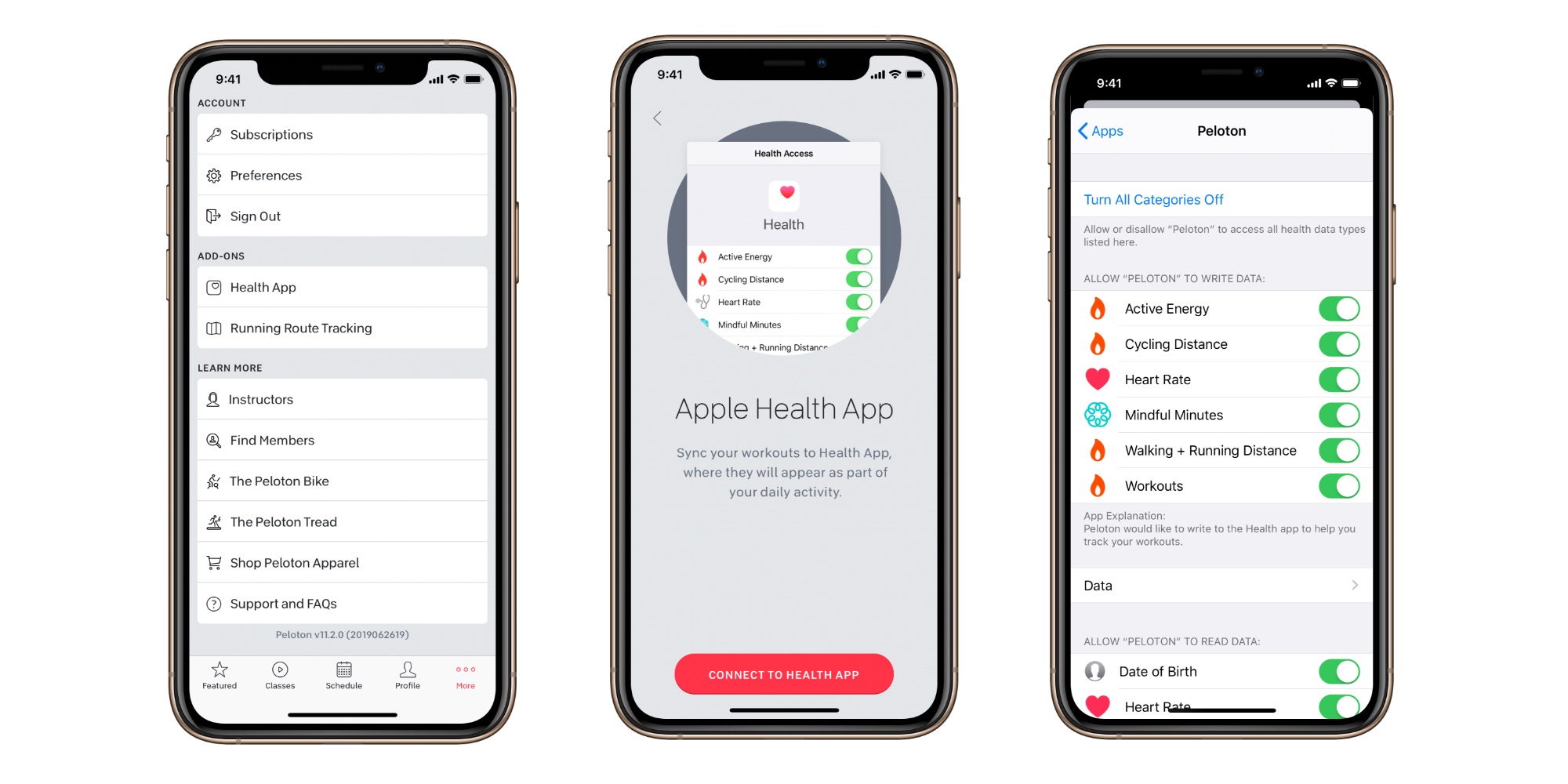
iOS updates sometimes reset permissions without warning. Re-verify access if syncing suddenly stops.
Check Peloton’s Write Access in Apple Health
- Open the Health app on your iPhone.
- Tap Browse > Apps > Peloton.
- Under Allow Peloton to Write, confirm these are enabled:
– Heart Rate
– Active Energy Burned
– Cycling Distance
– Workout
– Distance
Missing any toggle, especially Heart Rate, will block live monitoring entirely.
Test with a Quick Workout
After re-enabling permissions:
1. Start a 5-minute Peloton class.
2. Open the Watch app and tap Connect.
3. Watch for heart rate to appear within 10–15 seconds.
If it shows up, the fix worked.
Optimize Performance for Accurate Tracking
A few simple habits keep your heart rate data reliable and consistent.
Keep Sensors Clean
Sweat and grime interfere with optical readings:
– Wipe the back of your Watch with a microfiber cloth after every session.
– Avoid alcohol or harsh cleaners that may damage coatings.
– Let the Watch dry completely before putting it back on.
Clean sensors mean consistent BPM tracking throughout your workout.
Update Software Regularly
Apple and Peloton release updates that improve compatibility:
– Enable automatic updates for the Peloton app.
– Keep watchOS and iOS on the latest version.
– Check monthly via Settings > General > Software Update.
Outdated software is a leading cause of sync failures and missing metrics.
Manage Battery Life During Long Workouts
Continuous heart rate monitoring drains battery quickly:
– Charge your Apple Watch fully before endurance sessions.
– Close unused apps on the Watch to conserve energy.
– Consider enabling Power Saving Mode for longer classes if available.
A dead Watch mid-workout breaks your data stream and leaves gaps in your history.
Understand What Data Gets Tracked
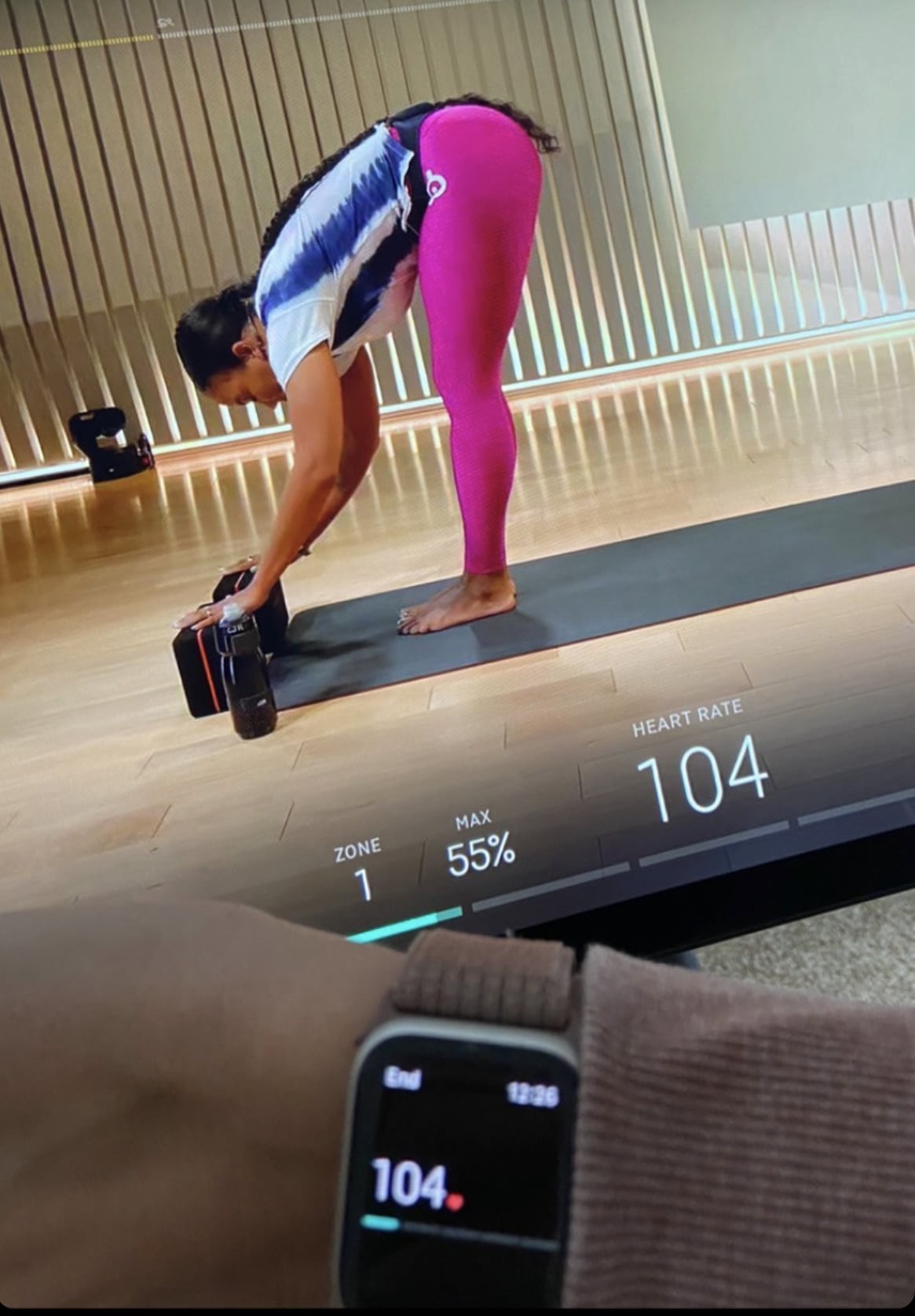
Knowing what’s captured helps you use the metrics effectively.
Real-Time Metrics During Workouts
During a Peloton class, you’ll see:
– Current BPM (beats per minute)
– Heart rate zone based on your max HR
– Active calories burned
– Workout duration and status
These display on the Peloton screen or within the app interface.
Post-Workout Sync to Apple Health
After ending your session:
– Tap End Workout on the Peloton app or hardware.
– Data syncs automatically to Apple Health, including:
– Workout type
– Heart rate history
– Distance (if applicable)
– Active calories
You can review trends, weekly summaries, and long-term progress in the Health app.
Avoid These Common Mistakes
Small oversights can wreck your data. Steer clear of these pitfalls.
Always End Your Workout Properly
If you leave a class without tapping End Workout:
– Data may not save correctly.
– Heart rate history could be incomplete.
– Apple Health sync might fail entirely.
Your Watch will vibrate and notify you. Always confirm the prompt.
Don’t Ignore Network Quality
Wi-Fi interference disrupts data flow:
– Use a 5GHz band when possible for faster, less crowded connections.
– Position your router close to your workout area.
– Pause streaming or large downloads during sessions.
Stable internet keeps your metrics flowing without interruption.
Frequently Asked Questions About Apple Watch and Peloton
Does Apple Watch heart rate work with Peloton without a chest strap?
Yes. The Apple Watch’s built-in optical sensor transmits heart rate data directly to Peloton when properly connected. No chest strap is required for most users, though straps offer slightly higher accuracy for serious athletes.
Why is my heart rate not showing on the Peloton screen?
This usually means permissions are missing or Bluetooth is out of range. Check that Apple Health has granted Peloton access to heart rate data and keep your iPhone within one foot of your Watch during workouts.
Can I use Apple Watch with Peloton on Apple TV?
Yes. Start the class on Apple TV, then use your iPhone or iPad to join the session and connect your Apple Watch. Heart rate data flows from the watch through the phone to the TV.
How do I fix an “Invalid Connection” error on Peloton?
This error indicates a network verification failure. Check your Wi-Fi security settings, confirm your network allows connections to Peloton servers, and restart your router if needed.
Will my workout data sync to Apple Health automatically?
Yes, once permissions are granted and you tap End Workout at the end of each session. Your heart rate, calories, distance, and workout type will appear in the Apple Health app.
How accurate is Apple Watch heart rate during intense cycling?
The Apple Watch performs well for steady-state efforts but may lag during rapid interval changes. For maximum precision during high-intensity training, consider a chest strap, though the watch is sufficient for general fitness tracking.
Key Takeaways for Connecting Apple Watch to Peloton
Pairing your Apple Watch heart rate monitor with Peloton unlocks real-time BPM tracking across every workout modality without extra hardware. Start by verifying compatibility, installing the Peloton app on both devices, and granting full Apple Health permissions. Use camera detection for instant pairing on Peloton hardware, or connect manually through the Watch app when using the mobile or TV experience.
If syncing fails, check your watch fit, Bluetooth range, and Apple ID consistency first. Re-audit Health app permissions after any iOS update, and keep both your software and sensors clean for reliable data. Once connected, your heart rate, calories, and workout metrics flow seamlessly into Apple Health for long-term progress tracking.
Your next step: Open the Peloton app on your iPhone right now and run through the permission setup. A 5-minute test class will confirm everything works before your next serious training session.