How to Use NordicTrack Heart Rate Monitor
Your NordicTrack machine is capable of far more than logging miles or counting calories. When paired with the right heart rate monitor, it becomes an intelligent training partner that adjusts speed, incline, and resistance in real time based on your actual effort. This responsiveness is powered by a feature called ActivePulse™, and learning how to use NordicTrack heart rate monitor technology unlocks it fully.
This guide covers everything you need: choosing compatible hardware, pairing it correctly, enabling ActivePulse, and fixing common issues when your heart rate shows zero or behaves erratically.
Activate ActivePulse With Heart Rate Monitoring
Start an ActivePulse Workout
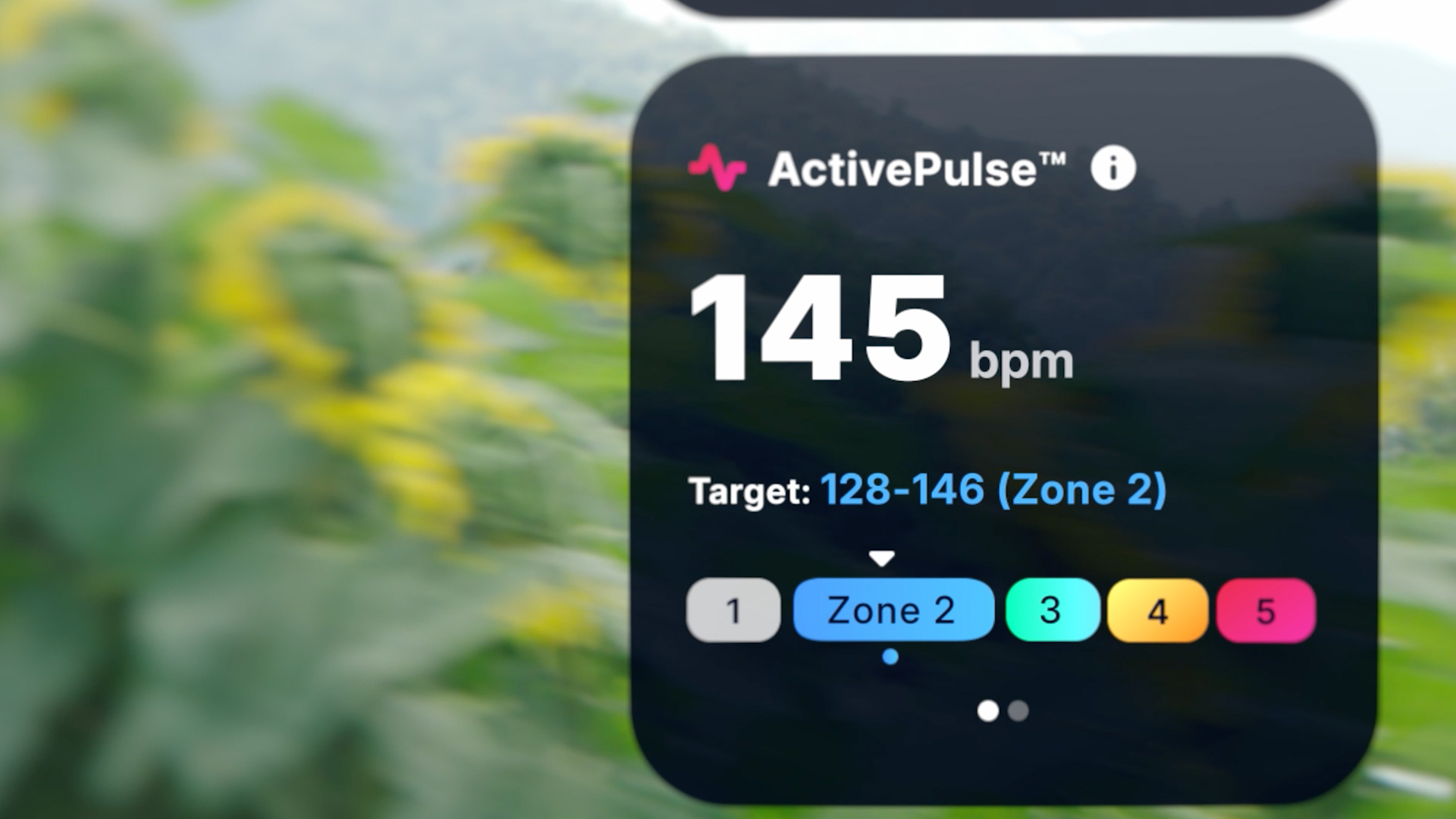
ActivePulse is the feature that makes your NordicTrack equipment respond to your body. It reads your heart rate continuously and shifts intensity up or down to keep you in your target zone.
- Tap “Browse” on your NordicTrack console.
- Select “ActivePulse Training” from the workout categories.
- Choose a session and tap “Play”.
- Skip or complete the warm-up by tapping “End Warmup”.
- When your heart rate appears on screen, tap “Enable”.
Once enabled, the machine takes over. If your heart rate drops, intensity rises. If your heart rate spikes, intensity eases back.
Pro Tip: ActivePulse only works during iFIT workouts, not manual sessions. Confirm your equipment is online and your iFIT membership is active before starting.
Pair a Compatible Heart Rate Monitor

Check Device Compatibility
Not every monitor works with NordicTrack consoles. Your device must support Bluetooth Smart (BLE) or ANT+ and broadcast heart rate data publicly.
Verified Compatible Models:
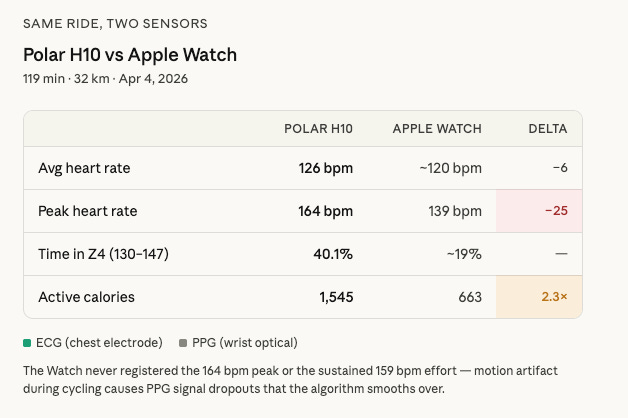
– Polar H10 (Chest Strap): most accurate option
– Wahoo TICKR X: dual ANT+ and BLE connectivity
– Garmin HRM-200 / HRM-600: reliable for runners
– Scosche Rhythm+ 2.0: optical armband
– CooSpo H6 / HW807: budget-friendly chest straps and armbands
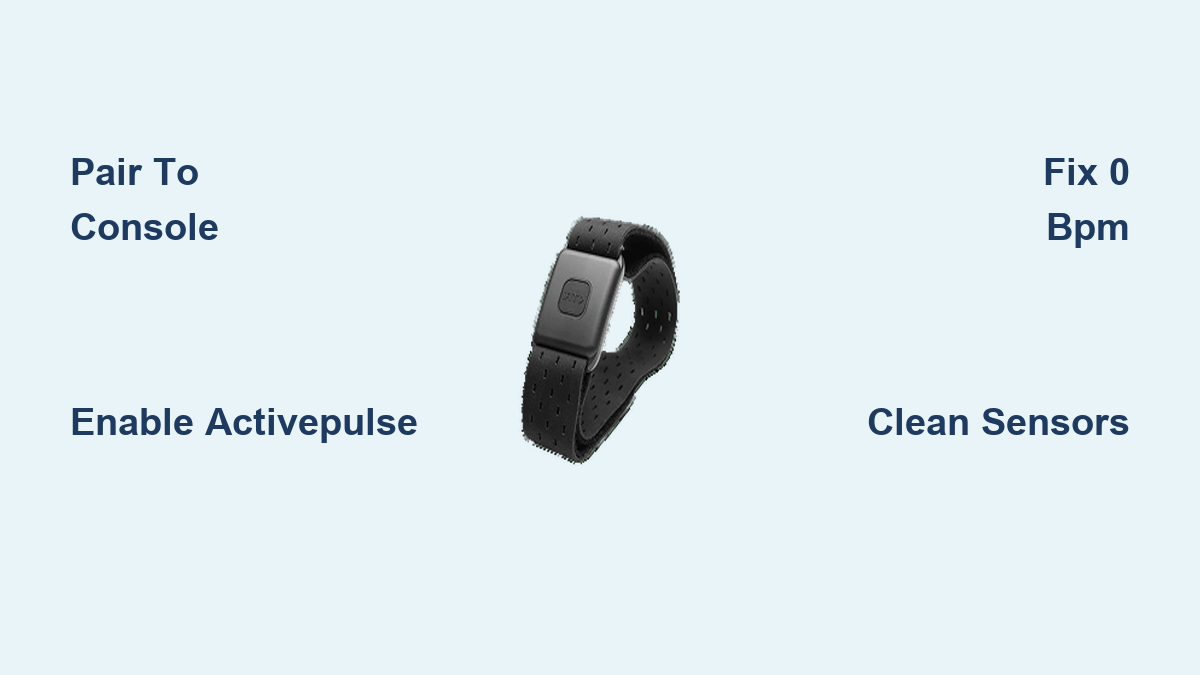
– NordicTrack SmartBeat™: built for full iFIT integration
Avoid standard Bluetooth-only devices (non-BLE) or fitness trackers that do not broadcast to gym equipment.
Connect Your Monitor to the Console
Follow these steps to pair any compatible monitor:
- Turn on your heart rate monitor by wearing it or pressing the power button.
- Power on your NordicTrack machine and wait for the home screen.
- Navigate to Settings > Heart Rate Monitor > Pair New Monitor.
- Wait 30 to 40 seconds while the console scans.
- Select your device when it appears in the list.
- Confirm live BPM shows on the dashboard.
Many newer NordicTrack models auto-detect BLE monitors during workouts, so manual pairing may not be required.
Set Up the NordicTrack SmartBeat™ Monitor
Configure SmartBeat™ for First Use
The SmartBeat™ is NordicTrack’s proprietary optical wristband, designed for seamless iFIT syncing and 24/7 heart rate tracking.
What’s in the Box:
– SmartBeat™ unit
– Charging cable
– Quick Start Guide
– Warranty card
Setup Steps:
1. Charge the device fully using the included cable.
2. Wear it snugly on your wrist, similar to a watch.
3. Start an iFIT workout on your console.
4. The system should detect SmartBeat automatically via Bluetooth 5.2.
5. Tap “Enable” when your heart rate displays.
SmartBeat Specifications:
– 14-day battery life
– Water resistant up to 50 meters (5ATM)
– Color touchscreen with customizable faces
– Continuous 24/7 heart rate tracking
– Syncs long-term trends to the iFIT app
Care Tips:
– Wipe the sensor with a damp cloth after workouts.
– Avoid extreme heat and harsh chemicals.
– Use only the original charging cable.
Fix Apple Watch Heart Rate Issues
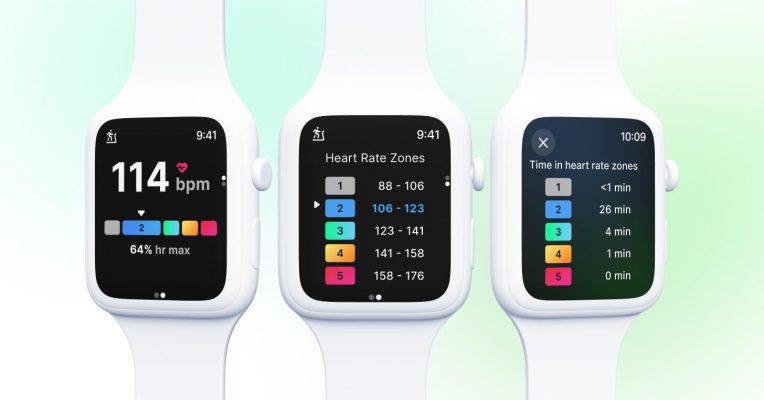
Apple Watch Shows 0 BPM? Use the ECHO App
Apple Watches typically fail to send heart rate data directly to NordicTrack consoles because of restricted broadcast protocols. The workaround is the ECHO app by PK Fitness.
Install ECHO to Transmit Heart Rate Data
- Download ECHO from the App Store on both your iPhone and Apple Watch.
- Open the app and grant Bluetooth and Health permissions.
- Start your iFIT workout on the NordicTrack console.
- Launch ECHO on your Apple Watch and tap “Tap to Start”.
- Within 40 seconds, your heart rate should appear on the console.
Your iPhone must stay nearby (within 10 feet) because ECHO uses it as a Bluetooth bridge.
Match Maximum Heart Rate Settings
For accurate zone feedback:
– Open ECHO app settings.
– Set your maximum heart rate to match your iFIT profile.
– This ensures color-coded zones align with NordicTrack’s display.
Optimize Your Heart Rate Settings
Calibrate Personal Data for Accurate Zones
ActivePulse relies on your personal metrics to determine effort levels. Update them in the iFIT app or console:
- Go to Personalized Training > In-Workout Settings.
- Adjust the following:
– Max Heart Rate (default: 220 minus your age; a manual test is more accurate)
– Resting Heart Rate (best measured in the morning) - Customize heart rate zones if you follow a specific training plan.
ActivePulse uses these values to define what “moderate” or “high” effort means for you.
Enable SmartAdjust With ActivePulse
When ActivePulse is on, SmartAdjust™ activates automatically. SmartAdjust learns your past workout preferences (such as favoring higher inclines) and personalizes future sessions. You cannot disable SmartAdjust independently, but you can reset historical data in the iFIT app to start fresh.
Troubleshoot Common Heart Rate Problems
No Heart Rate Detected (0 BPM)
Replace the Monitor Battery
Low battery is the leading cause of signal loss.
- Chest straps: Replace the CR2032 coin cell every 6 to 12 months.
- Rechargeable devices: Fully charge before each session.
If your monitor blinks erratically or will not turn on, charge or replace the battery first.
Reduce Bluetooth Interference
Wireless congestion can block the signal.
- Turn off Bluetooth on phones, tablets, and headphones near the machine.
- Keep your heart rate monitor within 3 to 6 feet of the console.
- Remove large metal objects between the monitor and console.
Switch to Broadcast Mode
Some monitors (like the Polar H10) have multiple modes:
– Phone pairing mode: connects only to apps
– Gym/Broadcast mode: sends signal to gym equipment
Use the Polar Beat or Polar Flow app to switch modes, then restart the monitor.
Data Not Saving to iFIT App
Repair Monitor to Console Instead of Phone
If BPM shows on the console but does not sync to iFIT history, your monitor may be paired to your phone instead of the console.
Fix It:
1. On your phone, go to Bluetooth settings and forget the heart rate monitor.
2. On the NordicTrack console, go to Settings > Heart Rate Monitor > Pair New Monitor.
3. Reconnect directly to the machine.
4. Restart the iFIT app and phone.
5. Confirm iFIT has Bluetooth and Location permissions enabled.
The console, not your phone, must receive the heart rate signal for it to log in your workout history.
Erratic Readings or Signal Drops
Clean Sensors Regularly
Dirty sensors cause false readings.
- Chest straps: Rinse the electrode area with water after sweaty workouts and let air dry.
- Optical monitors: Wipe the back sensor with a soft, damp cloth.
- Avoid lotions or oils near the sensor area.
Wear Devices Correctly
- Chest straps: Lightly wet the electrodes for better conductivity. Position just below the pectoral muscles.
- Armbands: Wear snug (not tight) on the forearm, about 1 to 2 inches below the bicep.
- Wrist devices: Wear two finger widths above the wrist bone. Tighten during high-motion activities.
A loose fit produces inaccurate data. Tighten as needed when sweat creates gaps.
Choose the Best Monitor for Your Needs
Compare Top Options
| Feature | NordicTrack SmartBeat | Polar H10 | CooSpo H6 | Apple Watch + ECHO |
|---|---|---|---|---|
| Type | Optical wristband | Chest strap | Chest strap | Smartwatch |
| Connectivity | BLE | ANT+ and BLE | BLE | BLE via ECHO |
| Accuracy | High (steady-state) | Medical-grade | High | High |
| Battery Life | 14 days | ~400 hours | 300+ hours | Daily charge |
| Water Resistance | 5ATM (50m) | Waterproof | IPX7 | Varies |
| Price | $$$ | $$ to $$$ | $ | $$$$ |
| Best For | All-day wear, iFIT sync | HIIT, precision | Budget, reliability | Apple users |
Pick Based on Your Goals
- For Accuracy: Choose Polar H10 or Garmin HRM-600.
- For Comfort: Go with SmartBeat or Scosche Rhythm+.
- For Budget: Try CooSpo H6 (~$25) or POWR LABS strap.
- For Apple Users: Use ECHO app with Apple Watch or pair a Polar H10 directly.
Maintain Your Equipment for Long-Term Use
Extend Monitor Lifespan
- Chest straps: Hand wash monthly. Replace the battery annually.
- Optical sensors: Clean the lens weekly. Avoid drops.
- Rechargeable units: Charge before fully drained. Store at 50% if unused for long periods.
Update Firmware Regularly
Outdated firmware can break connectivity.
- Open the iFIT app.
- Go to Devices > Your Equipment.
- Check for updates and install them.
Run this check monthly for peak performance.
Frequently Asked Questions About NordicTrack Heart Rate Monitors
Does NordicTrack have a built-in heart rate monitor?
NordicTrack machines include contact grips on the handlebars, but these are less accurate than wireless monitors. For full ActivePulse functionality, a Bluetooth chest strap or armband is recommended.
Why does my NordicTrack heart rate monitor say 0?
A “0 bpm” reading usually means the console is not receiving a signal. Common causes include a dead battery, Bluetooth interference, or the monitor being paired to your phone instead of the console.
Can I use an Apple Watch with NordicTrack ActivePulse?
Yes, but you need the ECHO app to broadcast heart rate data. Native Apple Watch protocols do not transmit directly to NordicTrack consoles.
What heart rate monitor works best with NordicTrack?
The Polar H10 is widely regarded as the most accurate option, with a 4.2/5 star rating from over 26,000 reviews. For all-day comfort and iFIT integration, the NordicTrack SmartBeat is the top proprietary choice.
Do I need iFIT to use a heart rate monitor on NordicTrack?
You need iFIT for ActivePulse workouts. Without an active membership, you can still view heart rate on the console, but automated intensity adjustments will not work.
How do I reset my heart rate monitor on NordicTrack?
Go to Settings > Heart Rate Monitor > Pair New Monitor and follow the prompts. If issues persist, forget the device in your phone’s Bluetooth settings and restart both the console and the monitor.
Key Takeaways for Using Your NordicTrack Heart Rate Monitor
Pair your monitor directly to the console, not your phone, to ensure data saves to your iFIT history. Use ActivePulse-enabled workouts to unlock real-time intensity adjustments based on your heart rate. Calibrate your max and resting heart rate for accurate zone feedback, and clean sensors regularly to avoid erratic readings.
Set up your monitor correctly today, and every workout becomes smarter, safer, and more aligned with your fitness goals.