How to Use Wahoo Heart Rate Monitor
You’ve just unboxed your Wahoo TICKR X, and the screen is blank. No buttons, no display, just a strap and a small sensor. If you’re staring at it wondering where to start, this guide will turn confusion into confidence in under 10 minutes.
This article covers everything you need to know about how to use Wahoo heart rate monitor devices, from initial setup to advanced training features. You’ll learn proper wearing technique, app pairing, offline workouts, third-party app connections, battery replacement, and troubleshooting tips.
Snap the Sensor Into the Strap Properly
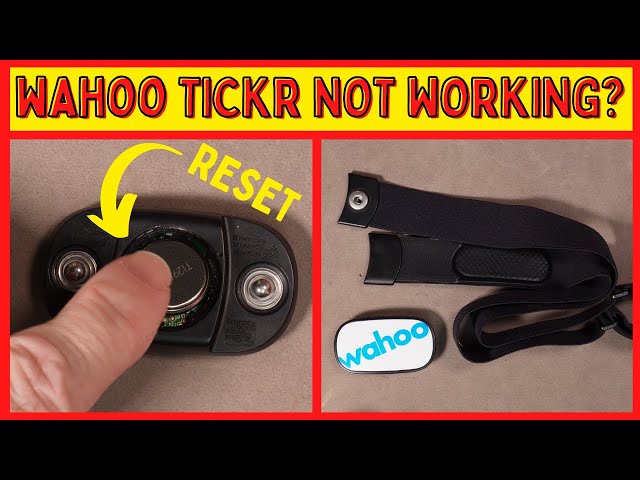
Before anything else, you need to physically assemble your TICKR X. The sensor module clicks into one end of the adjustable soft strap included in the box. Press firmly until you hear a click.
The sensor should sit flat against your chest with the Wahoo logo facing outward. This orientation ensures the LED indicators remain visible during workouts.
Position the Strap for Accurate Readings

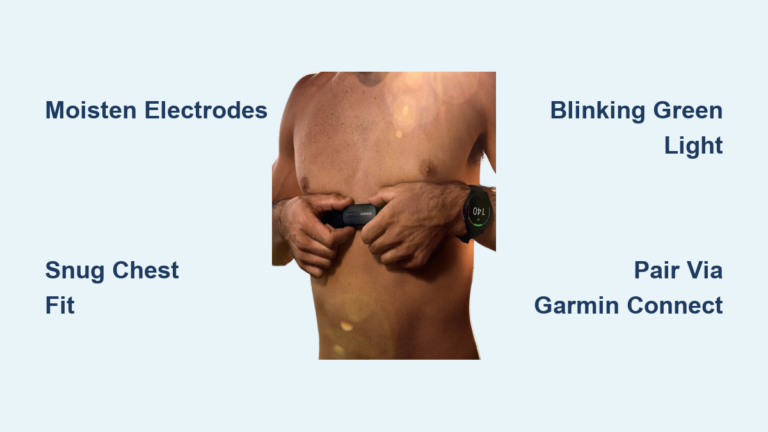
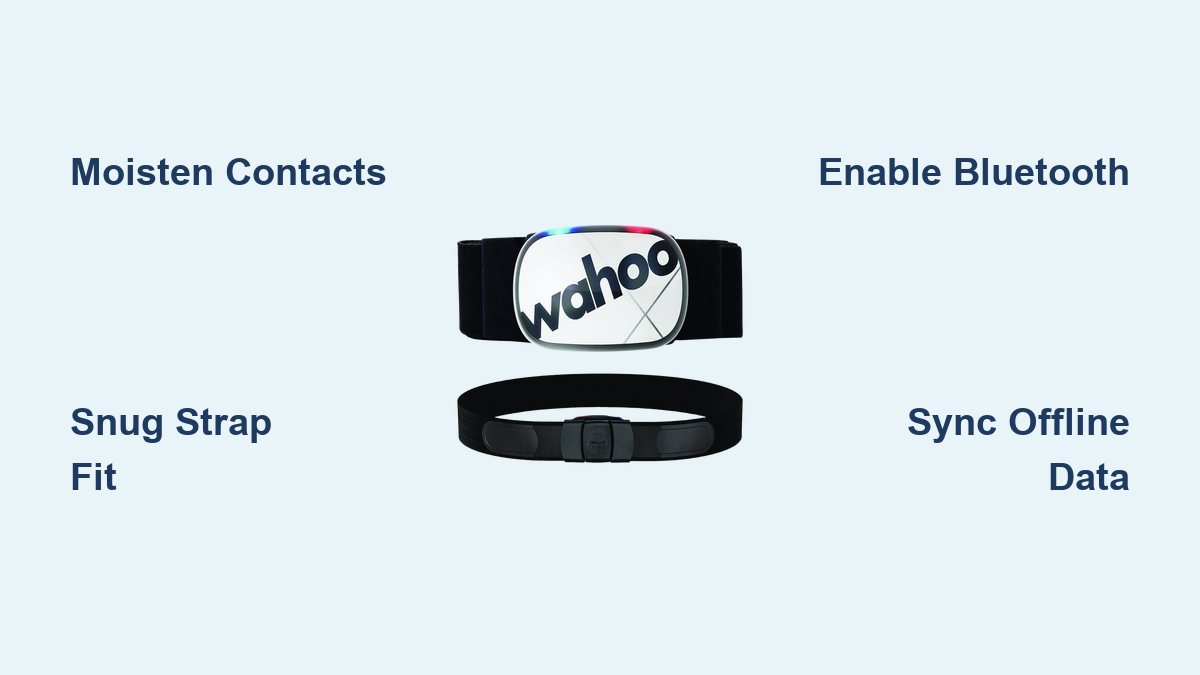
Place the strap around your chest, just below the pectoral muscles. The fit should feel snug but never restrictive. You want enough tension to prevent bouncing during running, yet comfortable enough for normal breathing.
A loose strap causes signal drops and erratic heart rate data. If the sensor shifts while you move, tighten it slightly and test again.
Moisten the Contact Points Before Every Workout

This step is critical and often overlooked. The two rubber contact points on the back of the strap need moisture to conduct your heartbeat signal properly. A quick dab of water or saliva works well.
Dry contacts are the number one cause of pairing failures and missing heart rate data. Make this part of your pre-workout routine every single time.
Enable Bluetooth on Your Smartphone
The TICKR X uses both Bluetooth 4.0 and ANT+ technology, but the Wahoo Fitness app relies on Bluetooth for setup. Head to your phone’s settings and confirm Bluetooth is turned on before opening the app.
The Wahoo Fitness app requires iOS 11 or newer on Apple devices, or Android 6 or newer. Download it from the App Store or Google Play Store if you haven’t already.
Wake Up the TICKR X Sensor
The TICKR X doesn’t have a power button. It wakes automatically when it detects a heartbeat. Put the strap on, or simply touch both metal buckle terminals with your fingers to simulate a signal.
Once awake, you’ll see the red LED flash once per detected beat. The blue LED will begin a slow blink, indicating the device is ready to pair.
Pair Through the Wahoo Fitness App
Open the Wahoo Fitness app and tap the Settings tab in the bottom right corner. Select Sensors from the menu, then choose your TICKR X from the available device list.
The app will prompt you to install any available firmware updates. Always complete these updates for peak performance and compatibility. Once finished, tap Finish Setup to complete pairing.
The app remembers your sensor, so future workouts only require waking the device and opening the app.
Choose Your Workout Type
In the Wahoo Fitness app, use the workout slider to select your activity. Options include running, cycling, gym sessions, and more. On iOS, tap the audio settings to enable voice announcements for heart rate zones, pace, or time intervals.
On Android, use the pencil icon to edit workout preferences before starting. Customizing these settings ensures you get the metrics that matter most to your training.
Confirm Sensor Connection Before Starting
Check that your TICKR X appears under Linked Sensors with strong signal bars on the right side. If the sensor isn’t listed, tap the sensor name to re-pair before proceeding.
This quick check prevents the frustration of starting a workout only to realize no data is being recorded.
Begin Recording Your Workout
Tap the green Start button on iOS or Play > Start on Android. Your heart rate appears instantly on screen, and the app begins recording time, calories, distance (with GPS), and advanced metrics.
For runners, the TICKR X also captures cadence, vertical oscillation, and ground contact time when paired with the Wahoo Fitness app. These running dynamics help you refine form and reduce injury risk.
Start an Offline Workout Without Your Phone
The TICKR X features built-in memory for phone-free training. Simply put on the strap and start moving. Recording begins automatically when the sensor detects a heartbeat.
The device stores up to 16 hours of workout data internally. This feature is perfect for trail runs, poolside swims (water-resistant up to 2 meters), or any session where carrying a phone feels impractical.
Check Status During Offline Sessions
Double-tap the sensor at any time to trigger the LEDs. A flash confirms the device is still recording your session.
Each tap creates a marker in your workout history, so avoid tapping repeatedly. Use this feature sparingly to check status only.
Sync Offline Data After Your Workout
Open the Wahoo Fitness app and navigate to Workout History. Tap the Sync offline workouts button in the top right corner, then select Continue to download stored data.
Workouts shorter than 5 minutes won’t sync automatically. Retrieve these manually through Sensors > TICKR X > Device Free Workouts.
Connect to Third-Party Fitness Apps
Your TICKR X works seamlessly with popular platforms like Strava, Zwift, Peloton, MyFitnessPal, Garmin Connect, and Apple Health. It sends real-time heart rate data to any app supporting Bluetooth 4.0 or ANT+ sensors.
Each app must connect to the sensor independently. Open your target app, navigate to settings, and look for “Add Sensor,” “Connect Heart Rate Monitor,” or similar options. Select your TICKR X when it appears.
Bluetooth allows only one active connection at a time. Always close background apps using the sensor before switching. For example, quit Wahoo Fitness before launching Zwift to avoid conflicts.
Understand the LED Indicator Patterns

The TICKR X uses two LEDs to communicate status. The red LED flashes with each detected heartbeat. If you don’t see flashes while wearing the strap, check contact moisture, fit, or battery level.
The blue LED shows connection status with three distinct patterns:
- Slow blink (once per second): Device is awake but not paired
- Four quick flashes: Connection just established
- Fast blink (twice per second): Paired and transmitting data
LEDs turn off after 30 seconds to conserve battery. Double-tap the sensor to reactivate them temporarily.
Replace the Battery When Needed

Battery life lasts approximately 2 years with regular use. When replacement becomes necessary, use a coin to turn the back cover counterclockwise until it unlocks. Gently pry off the cover to access the CR2032 battery compartment.
Slide out the old battery and insert a fresh CR2032. Wahoo recommends name brands like Panasonic, Duracell, or Energizer. Avoid batteries with bitter coatings, as these can interfere with conductivity.
Snap the cover back on and turn clockwise to lock. Confirm the red LED flashes with each heartbeat to verify proper installation.
Troubleshoot Common Connection Issues
When your TICKR X isn’t working correctly, work through these solutions systematically:
- No heart rate signal: Re-wet the contact pads, tighten the strap, re-pair the sensor in Bluetooth settings, or replace the battery
- Intermittent connection: Close other fitness apps using Bluetooth, remove phone cases blocking the signal, and update both app and firmware
- Offline data not syncing: Open the app immediately after your workout, manually sync through Sensors > TICKR X > Device Free Workouts, and confirm your workout exceeded 5 minutes
For persistent issues, visit the Wahoo TICKR X Support Page or use Settings > Info + Help > Send support email in the app to attach diagnostic logs.
Clean and Store Your TICKR X Correctly
Rinse the strap with warm water and mild soap after every use. Never use alcohol, bleach, or harsh solvents, as these degrade the fabric and rubber components. Hang the strap to dry completely before storing.
Unbuckle at least one end of the strap when not in use. This breaks the circuit and prevents the sensor from waking accidentally, which saves battery life over time.
Store your TICKR X in a cool, dry place away from direct sunlight, extreme heat, or humidity. Avoid leaving it in cars or gym bags for extended periods.
Frequently Asked Questions About Wahoo Heart Rate Monitor
How do I know if my TICKR X is recording during a workout?
Watch for the red LED flashing with each heartbeat. During offline sessions, double-tap the sensor to trigger the LEDs temporarily. Each flash confirms the device is actively recording your data.
Can I use my TICKR X in the rain or pool?
The TICKR X is water-resistant up to 2 meters, making it suitable for rain and swimming sessions. However, Bluetooth signals don’t transmit well through water, so offline mode works best for pool workouts. Sync your data afterward through the Wahoo Fitness app.
Why won’t my TICKR X pair with my phone?
The most common causes are dry contact points, a loose strap fit, or low battery. Moisten the pads, adjust the strap snugness, and replace the CR2032 battery if needed. Also confirm Bluetooth is enabled and no other apps are currently connected to the sensor.
How long does the TICKR X battery last?
With regular use, the CR2032 battery lasts approximately 2 years. The device features battery-saving functions like LED auto-off after 30 seconds and circuit-breaking when unbuckled. Replace promptly when you notice signal drops or pairing failures.
Do I need my phone to track workouts?
No. The TICKR X has built-in memory that stores up to 16 hours of workout data independently. This makes it ideal for runs, rides, or swims where carrying a phone isn’t practical. Simply sync your data through the Wahoo Fitness app afterward.
Which third-party apps work with the TICKR X?
The TICKR X connects to Strava, Zwift, Peloton, MyFitnessPal, Garmin Connect, Apple Health, and any app supporting Bluetooth 4.0 or ANT+ sensors. Remember that Bluetooth allows only one active connection at a time, so close other apps before switching.
Final Tips for Getting the Most From Your TICKR X
Your Wahoo heart rate monitor delivers reliable, real-time insights when properly maintained. Always moisten the contacts before use, update firmware regularly through the Wahoo app, and wear the strap under your clothing for better signal quality.
Use name-brand CR2032 batteries for consistent tracking performance. Let the app auto-detect workouts if you forget to start manually. These small habits extend your device’s lifespan and improve data accuracy.
Now that you understand how to use Wahoo heart rate monitor devices from setup through advanced training, it’s time to put this knowledge into action. Lace up your shoes, strap on your TICKR X, and start training smarter with data you can trust.