How to Use a Garmin Heart Rate Monitor
You just unboxed your Garmin heart rate monitor and you’re ready to train with precision. Chest strap monitors like the HRM-Pro, HRM-Tri, and HRM-Swim measure electrical signals close to the heart, delivering accuracy that wrist sensors often miss. Whether you run, cycle, swim, or lift, learning how to use a Garmin heart rate monitor correctly unlocks reliable data for smarter training.
This guide covers pairing, wearing, syncing, and maintaining your device. You’ll also learn how to read LED signals, access advanced metrics, and avoid common setup mistakes that block data transmission.
Pair Your Garmin Heart Rate Monitor to a Device

Garmin heart rate monitors connect via Bluetooth and ANT+ to watches, phones, and training apps. Proper pairing is the first step to accurate tracking.
Activate the Heart Rate Monitor
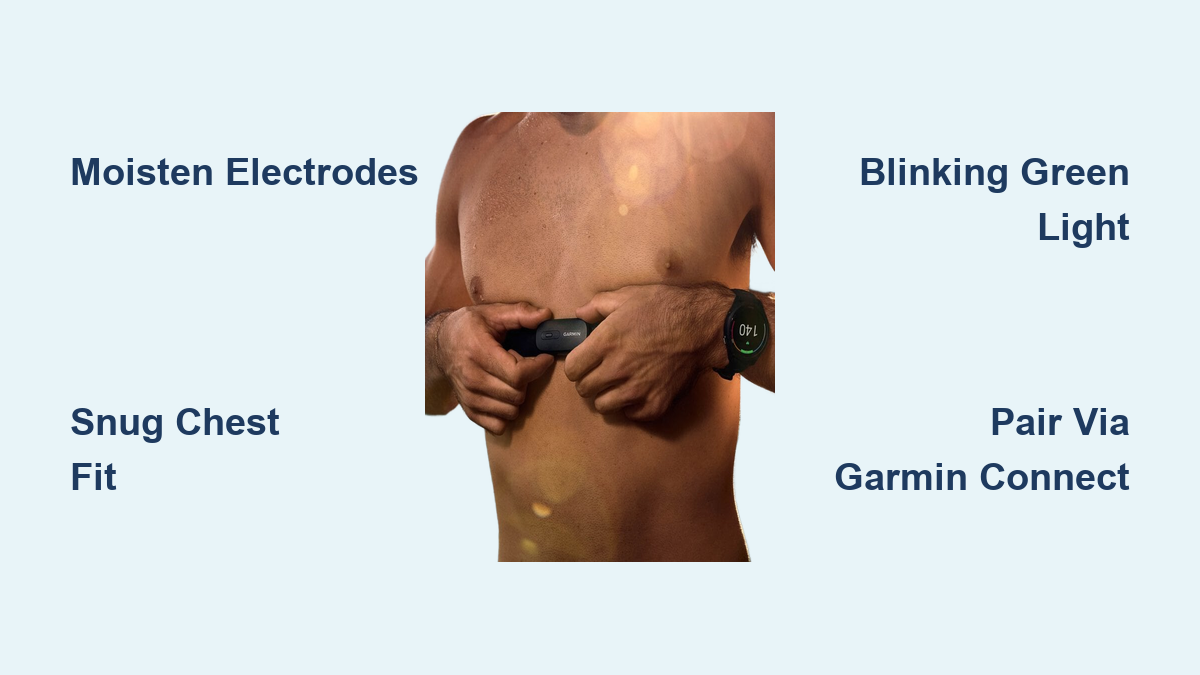
To turn on your Garmin HRM, wet the electrode pads under the sensor or moisten them with water. Then firmly press the sensor module until the LED blinks. Most models activate automatically when worn and detect movement. Look for a blinking green or blue light to confirm the device is powered and searching for a connection.
Pro Tip: Dry skin or a loose fit can prevent activation. Always ensure the strap is snug and the electrodes are damp for reliable signal transmission.
Pair With a Garmin Watch
- Power on your Garmin watch.
- Go to Settings > Sensors & Accessories > Add New Sensor.
- Select Heart Rate.
- Wait for the device to search. When “HRM-XXX” appears, select it.
- Confirm pairing. A steady green light on the sensor means successful connection.
Once paired, your watch displays real-time heart rate during activities.
Connect to Garmin Connect or Third-Party Apps
To sync data to your phone:
1. Open the Garmin Connect app.
2. Tap Devices > Add Device.
3. Wear the HRM and ensure it’s active.
4. Follow prompts when your monitor appears in the list.
For apps like Zwift, TrainerRoad, or Strava, open the app, go to sensor settings, enable Bluetooth, and select your HRM when detected.
Common Mistake: Trying to pair via phone Bluetooth settings instead of the app. Always pair through the app or watch, not your phone’s general Bluetooth menu.
Wear Your Garmin Heart Rate Monitor for Accurate Readings

Even the best sensor fails if worn incorrectly. Proper placement ensures consistent data.
Position the Strap Correctly
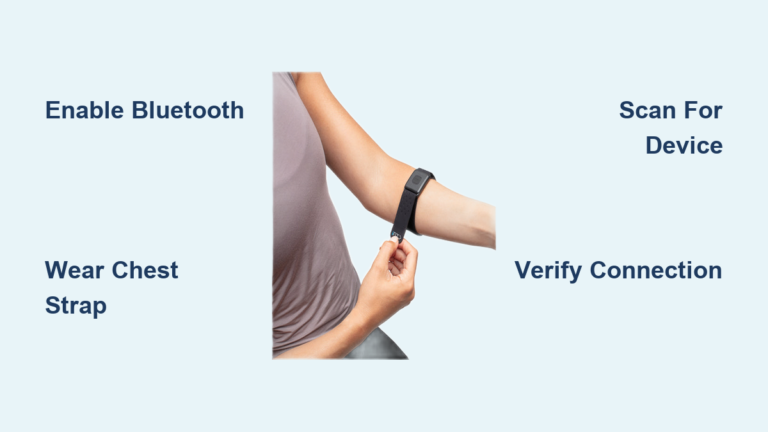
Place the heart rate monitor snugly around your chest, just below the pectoral muscles. The sensor module should sit centered and upright, not flipped or twisted. The Garmin logo or arrow must face upward.
Visual Cue: If you can easily slide two fingers under the strap, it’s too loose. It should stay in place during motion without restricting breathing.
Prepare the Electrodes
Moisten the two silicone electrode pads on the back of the sensor. Sweat helps conductivity, but for initial use or dry conditions, dampen them with water. Avoid gels or lotions, as they can damage the sensors.
Warning: Never wear the strap over clothing. Skin contact is required for accurate readings.
Read the LED Light Signals on Your Garmin HRM
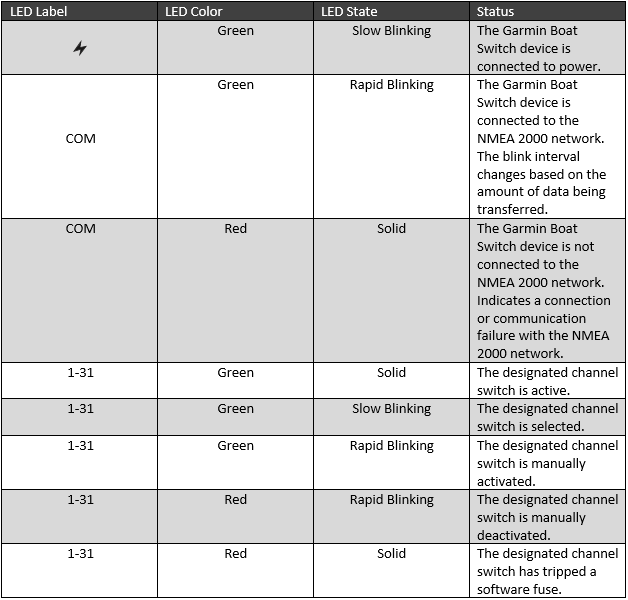
Garmin HRMs use colored LED blinks to communicate status. Learning these signals helps you troubleshoot instantly.
Green Light: Connected and Recording
A blinking green LED means the monitor is paired and sending data. It blinks once every second during activity. A steady green light indicates the device is connected but idle.
Red Light: Low Battery or Error
A blinking red light signals low battery. Replace the CR2032 battery soon. Rapid flashing may indicate a hardware fault or failed pairing attempt.
Note: Some models blink red briefly at startup. This is normal behavior.
Blue Light: Pairing Mode
A blinking blue LED means the monitor is in pairing mode and ready to connect. If it won’t pair, reset by removing the battery for 10 seconds and reinserting it.
Access Advanced Metrics on Compatible Garmin HRMs
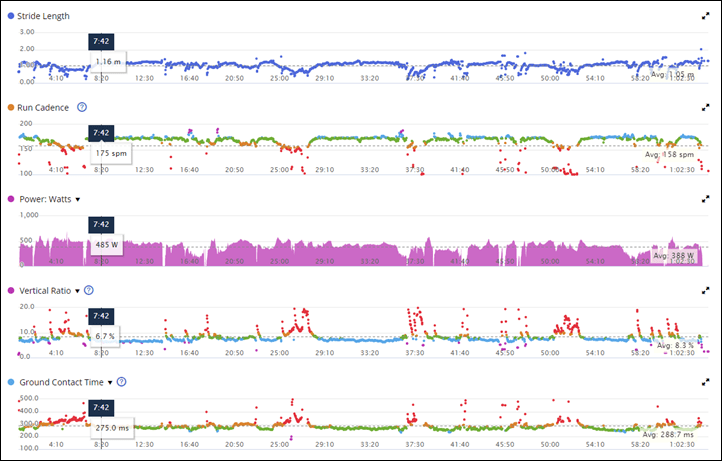
Higher-end models capture running dynamics, HRV, and underwater data when paired with compatible devices.
View Running Dynamics
With an HRM-Pro or HRM-Tri paired to a compatible Garmin watch, you can view ground contact time, vertical oscillation, stride length, and cadence. These metrics appear post-activity in Garmin Connect under Training Status > Running Dynamics.
Requirement: Running dynamics only record when paired with a compatible watch, not via phone.
Track Heart Rate Variability (HRV)
Garmin uses HRV to calculate Body Battery and Sleep Score. The HRM captures subtle heart interval changes during rest or sleep. For best results, wear the strap overnight and enable Sleep Tracking and Body Battery in your watch settings.
Tip: HRV data is most accurate during rest. Avoid relying on it during high-intensity intervals.
Record Data While Swimming
Swim-specific models like the HRM-Swim and HRM-Tri store heart rate data during laps when Bluetooth connection isn’t possible. Activate the HRM before swimming, wear it during your session, and sync with your watch afterward. The stored data uploads automatically.
Note: Your watch won’t display real-time heart rate in the pool, but the data is saved for later review.
Replace the Battery in Your Garmin Heart Rate Monitor
Garmin HRMs use a user-replaceable CR2032 battery that typically lasts 2–4 years depending on use.
Remove the Old Battery
- Use a coin to twist the sensor module counterclockwise.
- Open the battery tray carefully.
- Remove the old CR2032, noting the + side facing up.
Critical: Inspect the rubber gasket. If cracked or missing, replace it to maintain water resistance.
Insert the New Battery
- Place the new CR2032 with the + side up.
- Reinsert the tray and twist clockwise until snug.
- Do not overtighten.
Warning: Use only lithium CR2032 batteries. Alkaline types may leak and damage the unit.
Clean and Maintain Your Garmin HRM Strap
Sweat, salt, and chlorine degrade materials over time. Regular cleaning extends strap life and sensor accuracy.
After Every Workout
Rinse the strap with fresh water, especially after intense sweating or swimming. Wipe the sensor module with a damp cloth. Never submerge the module.
Deep Clean Monthly
- Hand-wash the strap with mild soap and water.
- Air-dry flat, away from direct sunlight.
- Store loosely coiled. Never fold or compress the strap.
Never: Machine wash, tumble dry, or use harsh chemicals on the strap.
Troubleshoot Common Garmin Heart Rate Monitor Issues
Even reliable devices can glitch. Here’s how to fix frequent problems quickly.
Monitor Won’t Turn On
- Check the battery and replace if the red light blinks or there’s no response.
- Moisten the electrodes, since dry pads prevent activation.
- Reset by removing the battery for 10 seconds, then reinserting it.
Intermittent Heart Rate Data
- Tighten the strap. A loose fit breaks skin contact.
- Reposition the sensor to ensure it’s centered and upright.
- Avoid interference from power lines, treadmills, or other chest straps.
Can’t Pair With Device
- Forget the sensor from your watch or app.
- Reset the HRM by removing the battery briefly.
- Reactivate and retry pairing.
- Ensure ANT+ and Bluetooth are enabled on the receiving device.
Note: Some older phones lack ANT+ support. Use a Garmin watch as a bridge if needed.
Maximize Accuracy and Extend Your HRM’s Lifespan
Get the most from your investment with these pro habits.
Calibrate With GPS Outdoors
For running, pair your HRM with GPS to improve pace and distance accuracy. Indoor workouts on treadmills or ellipticals benefit from manual calibration.
Pair Only When Needed
Leave the sensor unpaired when not in use to preserve battery life. You don’t need it for sleep tracking unless measuring HRV.
Rotate Usage if You Have Multiple Straps
If you train daily, consider a backup strap to allow each one to dry fully and reduce wear over time.
Frequently Asked Questions About Garmin Heart Rate Monitors
How do I turn on a Garmin heart rate monitor?
Moisten the electrode pads and press the sensor module against your chest. The LED will blink to confirm activation. Most models also turn on automatically when worn and detect movement.
Why won’t my Garmin HRM pair with my watch?
Ensure the strap is moist and snug. Reset the HRM by removing the battery for 10 seconds. On your watch, go to Settings > Sensors & Accessories and search for new sensors. Make sure ANT+ or Bluetooth is enabled.
Can I wear my Garmin heart rate monitor in the pool?
Yes, but only swim-specific models like the HRM-Swim and HRM-Tri store data underwater. Standard HRMs don’t transmit Bluetooth through water. After swimming, sync the stored data to your watch or phone.
How long does the battery last in a Garmin HRM?
A CR2032 battery typically lasts 2–4 years depending on usage frequency. Replace it when you see a blinking red LED or if the monitor stops activating.
Do I need to wear the strap against my skin?
Yes. Skin contact is required for the electrodes to detect electrical signals. Wearing the strap over clothing will result in no data or highly inaccurate readings.
What’s the difference between HRM-Pro, HRM-Tri, and HRM-Swim?
The HRM-Pro offers advanced running dynamics and multi-device connectivity. The HRM-Tri is optimized for triathletes with underwater data storage. The HRM-Swim focuses specifically on pool and open water heart rate recording.
Key Takeaways for Using Your Garmin Heart Rate Monitor
Learning how to use a Garmin heart rate monitor comes down to three essentials: proper pairing, correct wearing technique, and consistent maintenance. Always moisten the electrodes, position the strap snugly below your pectoral muscles, and learn the LED signals to diagnose issues quickly. Advanced models unlock running dynamics, HRV tracking, and underwater recording when paired with compatible devices.
Your next step: pair your HRM today, run a short test session, and review your data in Garmin Connect. The more consistently you wear and maintain your monitor, the more reliable your training insights become.