How to Use Samsung Heart Rate Monitor
You just got your new Samsung Galaxy Watch or Fit band and want to track your heart rate, but the settings feel overwhelming. Whether you want to check your resting pulse, monitor heart rate during workouts, or set up alerts for unusual spikes, the Samsung heart rate monitor delivers powerful cardiovascular insights. The system uses optical sensors and integrates with the Samsung Health app across watches, bands, and select smartphones. In this guide, you will learn exactly how to use Samsung heart rate monitor features step by step across all supported devices.
We will cover manual and automatic tracking, alert setup, data analysis, and troubleshooting tips. You will also discover best practices for accuracy and avoid the most common user mistakes. By the end, you will be able to get reliable, real-time heart rate data and use it to improve fitness, sleep, and overall wellness.
Set Up Your Device for Heart Rate Tracking

Before using the heart rate monitor, ensure your device is properly configured and paired.
Pair Your Watch or Band to Your Phone
To sync heart rate data, your wearable must connect to a smartphone through the Galaxy Wearable app:
1. Download Galaxy Wearable from Google Play or Galaxy Store.
2. Turn on your Galaxy Watch or Fit device.
3. Follow the on-screen pairing instructions.
4. Sign in with your Samsung account to enable cloud syncing.
🔋 Tip: Keep both devices charged and Bluetooth enabled during setup.
Update Software for Full Feature Access
Outdated firmware causes errors and missing features. Always check for updates:
– Open the Galaxy Wearable app.
– Tap Software Update.
– Install any pending watch or app updates.
– Update Samsung Health from the app store.
Without the latest software, features like auto-monitoring or alerts may not appear.
Take a Manual Heart Rate Reading
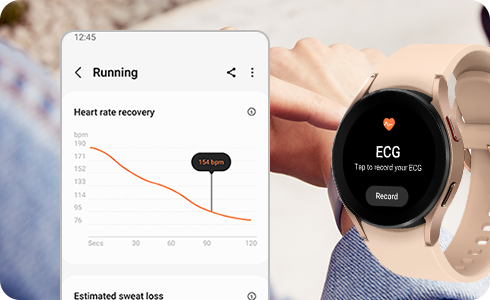
Use manual mode to instantly check your pulse whenever you want.
On Galaxy Watch (All Models)
- Tap the Samsung Health app on your watch.
- Swipe to Heart rate.
- Tap Measure.
- Hold still and avoid talking or moving your wrist.
- Wait 10 to 15 seconds for the result.
🕒 Best time: After sitting quietly for 2 minutes.
If “Always” tracking is enabled, the current reading displays automatically without tapping Measure.
On Galaxy Fit2
- Swipe to the Heart rate widget.
- Tap Measure.
- Stay still until the reading completes.
❌ Note: The original Galaxy Fit does not support manual measurement and only uses auto-tracking.
On Samsung Smartphones with Built-in Sensor
Some Galaxy phones have a heart rate sensor on the back panel.
- Open the Samsung Health app.
- Tap Heart rate, then Measure.
- Place your index finger gently over the sensor (below the camera, right of the flash).
- Keep still for approximately 10 seconds.
- Remove your finger when done.
⚠️ Caution: Do not press hard. Light contact only works best. Pressing cuts off blood flow and skews results.
Enable Automatic Heart Rate Monitoring
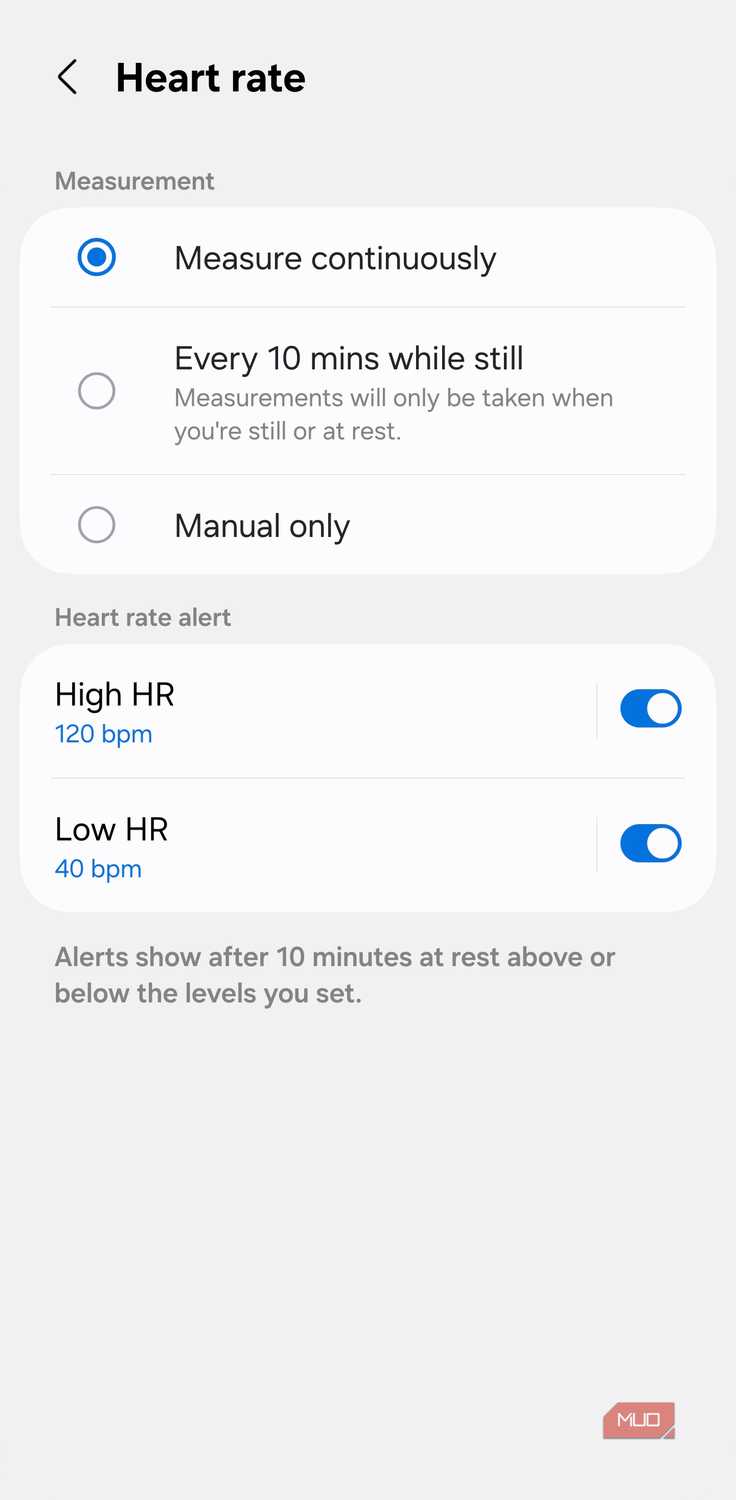
Get 24/7 tracking without lifting a finger.
On Galaxy Watch (Wear OS – Watch 4 and Newer)
- Open Samsung Health on your watch.
- Scroll to the bottom and tap Settings.
- Tap Heart rate.
- Choose your preferred frequency:
– Always – Continuous tracking with the highest accuracy and lower battery life.
– Every 10 mins while still – Saves power and measures when at rest.
– Manual only – Turns off auto-tracking completely.
On Older Galaxy Watches (Tizen OS)
- Press the Power or Home key.
- Open Samsung Health, then tap Heart rate.
- Scroll down and tap HR and stress measurement or Auto HR settings.
- Select your desired interval.
On Galaxy Fit and Fit2
- Open the Galaxy Wearable app on your phone.
- Tap Health settings, then Auto heart rate settings.
- Choose your tracking mode.
🔋 Battery Tip: Use “Every 10 mins” if you want all-day data without draining battery quickly.
Set Heart Rate Alerts for Resting Spikes

Get notified if your heart rate goes too high or too low while at rest.
Supported Devices
- Galaxy Watch Active2, Watch Active, standard Galaxy Watch
- Galaxy Watch 8, 7, Ultra, and Classic
- Galaxy Fit and Fit2 (high HR only)
Configure High and Low Alerts on Wear OS
- From your watch, swipe up and open Samsung Health.
- Go to Settings, then Heart rate.
- Ensure auto-tracking is not set to Manual.
- Scroll to Heart rate alert.
- Toggle High HR or Low HR on.
- Tap each alert to set your BPM threshold:
– Default High: 100 to 120 BPM
– Default Low: 50 to 60 BPM - Adjust based on your fitness level. Athletes may set lower high thresholds.
⏱️ Trigger Condition: Alerts activate only if heart rate stays above or below the threshold for 10 consecutive minutes while resting.
On Older Watches (Tizen)
- Open Samsung Health, then Settings.
- Tap HR and stress measurement.
- Tap More options (three dots), then HR alert settings.
- Enable and customize your thresholds.
On Galaxy Fit and Fit2 (Phone App Only)
- Open Galaxy Wearable.
- Go to Samsung Health settings, then High heart rate alerts.
- Set your BPM limit.
❗ Important: Low HR alerts are not available on Galaxy Fit models.
View and Analyze Your Heart Rate Data
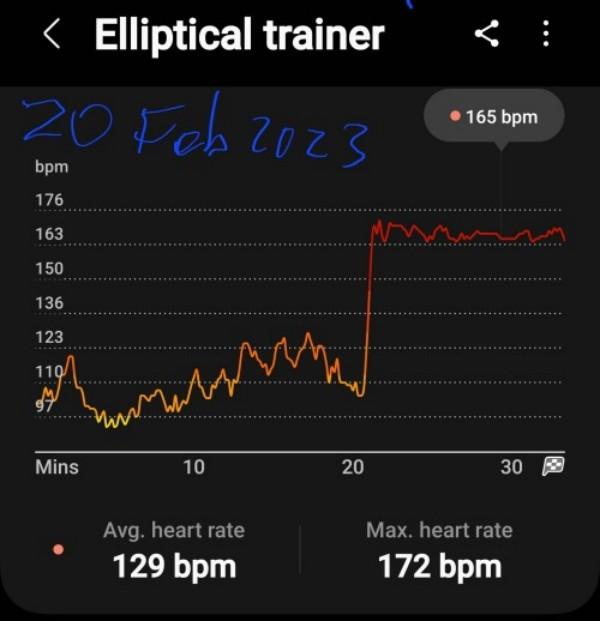
Turn raw numbers into meaningful health insights.
On Your Phone (Samsung Health App)
- Open Samsung Health.
- Tap Heart rate.
- View the trend chart:
– Swipe left or right to see past days.
– Tap a date to view the hourly breakdown. - Check activity tags for context:
– Resting – During inactivity.
– General – Daily background tracking.
– Workout – During exercise.
📈 Pro Tip: Compare morning resting heart rate over time. Drops indicate improved fitness.
On Your Watch
- From the watch face, swipe left to the Heart rate widget.
- Tap to expand the view.
- Swipe up to scroll through weekly trends.
Data syncs automatically through your Samsung account, so no manual upload is needed.
Optimize Your Device for Accurate Readings

Even the best technology fails without proper use. Follow these steps to avoid false readings.
Wear It Correctly
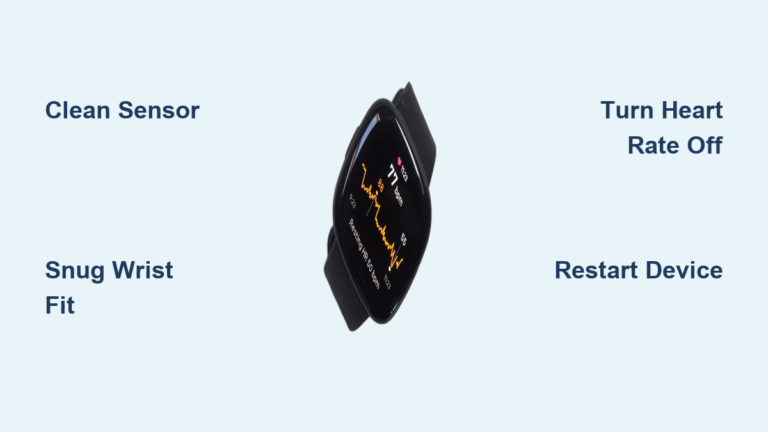
- Snug fit: Two fingers should just fit under the band.
- Position: Wear one to two finger widths above the wrist bone.
- Clean sensor: Wipe the back of the watch with a dry cloth before measuring.
Avoid These Common Mistakes
- Loose band – Tighten slightly so it does not slide around.
- Dirty sensor – Clean with a soft, dry cloth.
- Cold environment – Warm up indoors before measuring.
- Talking during scan – Stay silent and still.
- Excessive wrist hair – Trim hair under the sensor area.
- Pressing phone too hard – Use gentle finger contact only.
❄️ Cold hands reduce blood flow. Warm them first for better accuracy.
Best Times to Measure
- Resting HR: First thing in the morning, before getting out of bed.
- Post-workout recovery: Wait 1 to 2 minutes after exercise, then measure.
- Stress check: During calm moments for baseline comparison.
Troubleshoot Common Heart Rate Issues
Fix problems fast when your heart rate monitor stops working correctly.
Inaccurate Readings or No Data
Check these common causes and fixes:
– Sensor dirty? Clean with a dry cloth.
– Band loose? Adjust for a snug fit.
– Cold hands? Warm up before measuring.
– Talking or moving? Stay still and silent.
– Wrist too thin? Try wearing the watch higher on the forearm if supported.
🧊 If the watch feels hot, remove it. Overheating disables sensors temporarily.
“Upgrade Required” Error
This message means there is a software mismatch between your watch and phone.
Fix:
1. Open the Galaxy Wearable app.
2. Tap Software Update and install watch firmware.
3. Update Samsung Health through the app store.
4. Restart both devices.
5. Clear app cache: Phone Settings > Apps > Samsung Health > Storage > Clear Cache.
No Auto-Tracking
If heart rate is not logging automatically:
– Check that Auto HR is enabled and not set to Manual.
– Confirm your Samsung account is logged in.
– Ensure permissions are granted in the Galaxy Wearable app.
🔋 Battery saver modes may disable background tracking. Turn them off if you need continuous monitoring.
Use the Blood Pressure Feature (Watch Only)
Some Galaxy Watches include blood pressure estimation, but it requires setup.
Requirements
- Compatible Galaxy Watch (Watch 4 and newer, depending on region)
- Samsung Health Monitor app installed on your phone
- Traditional cuff monitor for calibration
Calibrate Every 28 Days
- On your watch, open the Blood Pressure widget.
- Tap Learn More, then Open phone app.
- Follow prompts to measure with a cuff and sync.
- Recalibrate every 28 days to maintain accuracy.
Take a Reading
- Open the Blood Pressure app on your watch.
- Tap Measure.
- Sit still and avoid talking.
- Wait 30 seconds.
- Tap Done.
⚠️ Disclaimer: This is not a medical device. Do not use it for diagnosis. Availability varies by country.
Maximize Battery Life and Accuracy
Balance performance with device longevity using these practical tips.
Battery-Saving Settings
- Auto HR: Every 10 mins – Saves 20 to 30% battery compared to Always mode.
- Disable alerts if unused – Reduces background checks.
- Clean sensor weekly – Prevents failed retries.
- Use phone sensor when watch is charging – Maintains data continuity.
🕒 Manual phone checks take just 10 seconds and are great for quick updates.
Accuracy Checklist
- Watch snug, not loose
- Skin clean and dry
- Sensor lens wiped
- No hair under the band
- Warm environment
- Stay still and silent
- Not right after caffeine or alcohol
Frequently Asked Questions About Samsung Heart Rate Monitor
How accurate is the Samsung heart rate monitor?
The Samsung heart rate monitor uses optical PPG technology and provides reliable readings for fitness and wellness tracking. Accuracy depends on proper fit, clean sensors, stillness, and warm conditions. It is not a medical device and should not be used for clinical diagnosis.
Can I use Samsung heart rate monitor without a phone?
Yes, Galaxy Watches and Fit bands can take manual readings independently. However, you need a paired phone with the Galaxy Wearable app for initial setup, software updates, and data syncing to Samsung Health.
Why does my Galaxy Watch heart rate monitor stop during workouts?
The sensor may lose contact due to sweat, movement, or a loose band. Tighten the fit, clean the sensor, and pause briefly before taking mid-workout readings to allow the sensor to stabilize.
Does the original Galaxy Fit support manual heart rate measurement?
No, the original Galaxy Fit does not support manual measurement. It relies entirely on auto-tracking if enabled through the Galaxy Wearable app.
How do I fix the “Upgrade Required” error on my Samsung heart rate monitor?
Update your watch firmware through Galaxy Wearable, update Samsung Health on your phone, restart both devices, and clear the app cache in your phone settings. This resolves most version mismatch issues.
Can I set low heart rate alerts on Galaxy Fit?
No, Galaxy Fit and Fit2 models only support high heart rate alerts. Low HR alerts are available on compatible Galaxy Watch models.
Key Takeaways for Using Samsung Heart Rate Monitor
You now know exactly how to use Samsung heart rate monitor features across Galaxy Watches, Fit bands, and smartphones. From taking instant manual readings to enabling 24/7 auto-tracking and setting up personalized alerts, you can stay in tune with your heart health every day. Remember that clean sensors, proper fit, and stillness are essential for accuracy. Use the Samsung Health app to spot trends, track fitness progress, and catch anomalies early.
While this tool provides excellent wellness insights, it is not a substitute for medical care. Always consult a healthcare provider for clinical concerns. Start by enabling auto-tracking at the “Every 10 mins” setting today, then review your weekly trends in Samsung Health to build a clearer picture of your cardiovascular fitness.