How to Connect Garmin Heart Rate Monitor to Rouvy
If you’re trying to connect your Garmin HRM-Dual to Rouvy and seeing “No Signal” or no heart rate data at all, you’re not alone. Many users report successful pairing with their Garmin devices but fail to get heart rate data through training apps like Rouvy, Zwift, or Wahoo on iPhone. The issue often isn’t the heart rate monitor itself. It’s the connection path between the sensor, phone, and app.
This guide walks you through a proven step-by-step process to successfully connect your Garmin HRM-Dual to Rouvy, troubleshoot common failures, and avoid device-specific conflicts, especially on iPhone models like the XS. You’ll learn why pairing doesn’t always mean data transmission, how to reset hidden connection blocks, and what to do when your sensor works on one phone but not another.
Whether you’re setting up for the first time or fixing a sudden loss of signal after weeks of use, this guide delivers actionable fixes based on real-world troubleshooting from users with identical setups (Garmin Edge 530, HRM-Dual, Wahoo KickR, iPhone XS).
Pair HRM-Dual Correctly in Rouvy
Open Sensor Search in Rouvy
Launch Rouvy and go to your workout screen or sensor settings. Tap “Add Sensor” or “Heart Rate Monitor” to begin scanning. Make sure Bluetooth is enabled on your iPhone and Rouvy has permission to access it.
Wait 10 to 15 seconds for the app to detect nearby devices. Look for either:
HRM-DualGarmin HRM-Dual- A device starting with
ANT+orBluetooth
Note: The HRM-Dual broadcasts via both ANT+ and Bluetooth. Rouvy may connect via one or both. Ensure Bluetooth is prioritized on iPhone since ANT+ requires a separate bridge (like a Garmin Edge).
Select and Confirm Connection
Tap the correct device name when it appears. If multiple sensors show up, pick the one that matches your HRM-Dual’s last paired ID if known. Once selected, wait for confirmation, usually a checkmark or “Connected” status.
Do not exit the screen until the connection stabilizes. Some users report false positives: the app says “paired,” but no data flows.
Verify Heart Rate Data Display
After pairing, check for live heart rate numbers in the app. Stand still, then tap your chest gently to create a small spike. If the number updates, the connection is working.
If the screen stays blank or shows “0,” proceed to troubleshooting. Even a “paired” status doesn’t guarantee data transmission.
Fix “No Signal” Despite Pairing
Why Paired Doesn’t Mean Working
The Garmin HRM-Dual can show as paired in Rouvy while still failing to send data. This happens because:
- The Bluetooth handshake completes, but data streaming fails
- Another device (like your Edge 530 or Fenix 6S) is actively receiving data via ANT+
- iPhone caches old connections, blocking fresh data flow
Even if the icon shows connected, Rouvy won’t display heart rate unless the sensor is actively transmitting usable data.
Force Data Through Bluetooth Only
Since iPhones don’t support native ANT+, your HRM-Dual must transmit via Bluetooth Smart (BLE).
To force this:
- Turn off Bluetooth on all nearby Garmin devices (Edge 530, Fenix 6S)
- Power off any Garmin watches within range
- Wait 30 seconds to prevent the HRM-Dual from defaulting to ANT+ transmission
When no ANT+ receivers are active, the HRM-Dual will switch to Bluetooth-only mode, increasing chances of data reaching Rouvy.
✅ Pro Tip: Wear the strap during this process. The sensor activates when moisture and motion are detected, so dry straps may not transmit.
Clear iPhone Bluetooth Conflicts
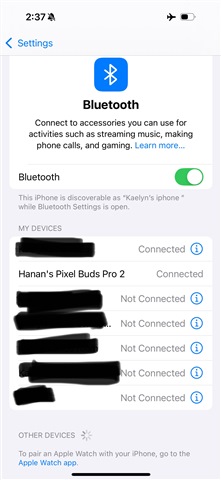
Remove All Paired Devices
Go to Settings > Bluetooth on your iPhone XS. Find any entries for:
- Garmin HRM-Dual
- Edge 530
- Wahoo devices
- Unknown heart rate monitors
Tap the “i” icon next to each and select Forget This Device.
Even if not currently connected, cached profiles can interfere with active data flow.
Reset Network Settings
Go to Settings > General > Transfer or Reset iPhone > Reset > Reset Network Settings.
This clears:
- Saved Wi-Fi networks
- Bluetooth pairings
- VPN and APN settings
It’s more effective than toggling Airplane Mode because it erases deep-level connection memory.
After resetting:
- Re-enable Bluetooth
- Reopen Rouvy
- Start sensor search again
⚠️ Warning: You’ll need to reconnect to Wi-Fi and re-pair other devices (like headphones), so do this when you have 5 to 10 minutes free.
Prepare the HRM-Dual for Reconnection

Replace Battery and Clean Contacts
Even if the battery is new, remove it and inspect the contacts:
- Use a dry cloth to wipe the battery compartment
- Clean the metal connectors on the sensor pod
- Insert a fresh CR2032 battery (Garmin-branded preferred)
A weak or oxidized contact can cause intermittent signals, especially after two weeks of use.
Activate the Sensor Properly
Wet the textile areas of the strap with water or saline solution. Moisture helps conduct the electrical signal needed for heart rate detection.
Then:
- Fasten the strap snugly around your chest (just below pectorals)
- Tap the sensor pod gently. It should blink red once when active
- Wait 5 seconds before starting app scan
❌ Don’t rely on the blinking light alone. A red flash means power, not successful transmission.
Test Across Devices to Isolate the Problem
Confirm Sensor Works Elsewhere
As noted in user reports, the same HRM-Dual worked on a wife’s iPhone XS but not the primary device, proving the sensor isn’t faulty.
To replicate:
- Pair the HRM-Dual with another smartphone using Rouvy or Zwift
- Check if heart rate data appears
If yes, the sensor is fine. The issue is isolated to your iPhone’s software or pairing history.
Rule Out App Corruption
Even reinstalling apps may not clear corrupted cache files.
To fix:
- Delete Rouvy completely
- Restart your iPhone
- Reinstall Rouvy from the App Store (don’t restore from backup)
- Do not restore app data if prompted
This ensures a clean install without legacy pairing rules.
Prevent Interference from Other Apps
Close Background Fitness Apps
Zwift, Wahoo, Strava, and Garmin Connect can all try to grab the HRM-Dual signal in the background.
Before starting Rouvy:
- Swipe up from the bottom (or double-press Home) to open the app switcher
- Swipe away Zwift, Wahoo, Garmin Connect, and any fitness apps
- Disable Bluetooth in those apps’ settings if possible
Some apps auto-reconnect to known sensors, even when closed.
Disable Auto-Connect in Garmin App
Open the Garmin Connect app:
- Go to More > Settings > Sensors & Accessories
- Find your HRM-Dual
- Tap it and select Forget or Remove
Even if you don’t use Garmin Connect during rides, it may hold a background lock on the sensor.
✅ Expert Note: The HRM-Dual can only send data to one Bluetooth device at a time. If Garmin Connect grabs it first, Rouvy gets “No Signal.”
Use Diagnostic Tools to Verify Signal
Check with Apple Health (Indirect Method)
Although Rouvy doesn’t pull from Apple Health directly, you can test Bluetooth transmission:
- Open Settings > Privacy > Health > Data Access & Devices
- Start pairing a new device
- Put on the HRM-Dual and wait
- See if
Garmin HRM-Dualappears
If it shows up and sends heart rate data to Apple Health, the sensor and iPhone Bluetooth are functional. The issue is within Rouvy’s sensor handling.
Try a Third-Party Heart Rate Tester App
Download Heart Rate Monitor – HRM (by Azumio) or SensorLog from the App Store.
These apps display raw heart rate data from connected sensors.
Steps:
- Open the app
- Start scan
- Put on the HRM-Dual
- Watch for live BPM readings
If data appears here but not in Rouvy, the problem is app-specific, not hardware.
Final Fixes When Nothing Works
Factory Reset iPhone (Last Resort)
If all else fails:
- Back up your iPhone to iCloud or computer
- Go to Settings > General > Transfer or Reset iPhone > Erase All Content and Settings
After reset:
- Set up as new (don’t restore from backup immediately)
- Update iOS
- Install only Rouvy
- Pair HRM-Dual
This eliminates deep software conflicts, corrupted profiles, or OS-level Bluetooth bugs.
✅ Success Case: One user reported that after a full factory reset (including no immediate Garmin app restore), the HRM-Dual connected to Rouvy instantly.
Consider Sensor Replacement (If Isolated Failure)
Despite no visible damage, internal circuitry in the HRM-Dual can degrade, especially after exposure to sweat and moisture.
If:
- The sensor works on other phones
- All iPhone fixes fail
- Multiple apps show “No Signal”
Then the issue may be a subtle hardware fault that only surfaces under specific connection conditions.
A new HRM-Dual typically resolves it. Many users report immediate success with replacements.
Best Practices for Reliable Connection
Start Sensors Before Apps
Always follow this order:
- Put on HRM-Dual (wet the strap)
- Power on bike trainer (KickR)
- Open Rouvy and start sensor search
- Begin workout
This ensures Rouvy is the first app requesting data.
Avoid Dual-Device Conflicts
Never leave your Edge 530 or Fenix watch on and nearby during Rouvy sessions. They may silently snatch the ANT+ signal, leaving Bluetooth idle.
✅ Pro Tip: Store Garmin devices in another room during indoor training.
Update Everything Regularly
Check:
- Rouvy app (App Store)
- iPhone OS (Settings > General > Software Update)
- Garmin firmware (via Garmin Express or Connect)
Outdated software can break BLE compatibility.
Frequently Asked Questions About Connecting Garmin HRM to Rouvy
Why does my Garmin HRM-Dual pair with Rouvy but show no heart rate data?
Pairing only confirms a Bluetooth handshake completed. The HRM-Dual may still fail to stream data if another device (like an Edge 530 or Fenix 6S) holds the ANT+ connection, or if iPhone has cached old pairing profiles blocking fresh data flow.
How do I force my HRM-Dual to transmit via Bluetooth only on iPhone?
Turn off Bluetooth on all nearby Garmin devices, power off any Garmin watches within range, and wait 30 seconds. With no ANT+ receivers active, the HRM-Dual defaults to Bluetooth-only mode, which iPhone supports natively.
Will resetting network settings on my iPhone fix the “No Signal” issue?
Yes, this often resolves deep Bluetooth conflicts. It clears saved Wi-Fi networks, Bluetooth pairings, VPN, and APN settings. It’s more thorough than toggling Airplane Mode because it erases connection memory at a system level.
How can I tell if the problem is my iPhone or the HRM-Dual sensor?
Pair the HRM-Dual with another smartphone using Rouvy or Zwift. If heart rate data appears on the second device, your sensor is fine and the problem is isolated to your iPhone’s software or pairing history.
Should I factory reset my iPhone if nothing else works?
A full factory reset is a last resort that eliminates corrupted profiles and OS-level Bluetooth bugs. One user reported immediate success after erasing all content and setting up the phone as new without restoring from backup.
Can other fitness apps interfere with Rouvy’s heart rate connection?
Yes. Zwift, Wahoo, Strava, and Garmin Connect can all grab the HRM-Dual signal in the background. The HRM-Dual can only send data to one Bluetooth device at a time, so close competing apps and forget the sensor in Garmin Connect before starting Rouvy.
Key Takeaways for Connecting Your Garmin HRM to Rouvy
- The Garmin HRM-Dual can pair but not transmit data. Look for live BPM, not just “connected” status
- iPhone XS models can develop deep Bluetooth conflicts. Reset network settings or factory reset if needed
- Other Garmin devices (Edge, Fenix) interfere by holding the ANT+ connection. Turn them off during indoor sessions
- Always forget old pairings in iOS Bluetooth settings before reconnecting
- Test with third-party HR apps to verify sensor functionality before assuming hardware failure
- A factory reset of the iPhone often fixes unexplained “No Signal” issues when other steps fail
- If the sensor works on another phone, the problem is your device, not the sensor, but replacement may still be the fastest fix
By following these steps, most users restore heart rate data in Rouvy, even after weeks of failure. The key is understanding that pairing does not equal data flow, and iPhone caching can silently block transmission despite perfect hardware.
Now that your Garmin heart rate monitor is connected and sending data, enjoy more accurate training zones, better workout feedback, and a fully immersive Rouvy experience.