Fix Samsung Heart Rate Monitor Not Working
A frozen heart rate reading on your Galaxy Watch can derail your fitness tracking and leave you wondering if your device is broken. The truth is, most Samsung heart rate monitor issues come down to a simple settings tweak or a dirty sensor lens. But some symptoms—like a green LED that never stops flashing or an altimeter reading 44,000 meters indoors—point to hardware failure that no software fix can repair. This guide breaks down every cause, from quick configuration changes to knowing when to demand a replacement.
Fix Heart Rate Settings First

Before assuming your sensor is damaged, check your monitoring mode. Many users discover their “broken” heart rate monitor is simply set to update every 10–15 minutes instead of continuously.
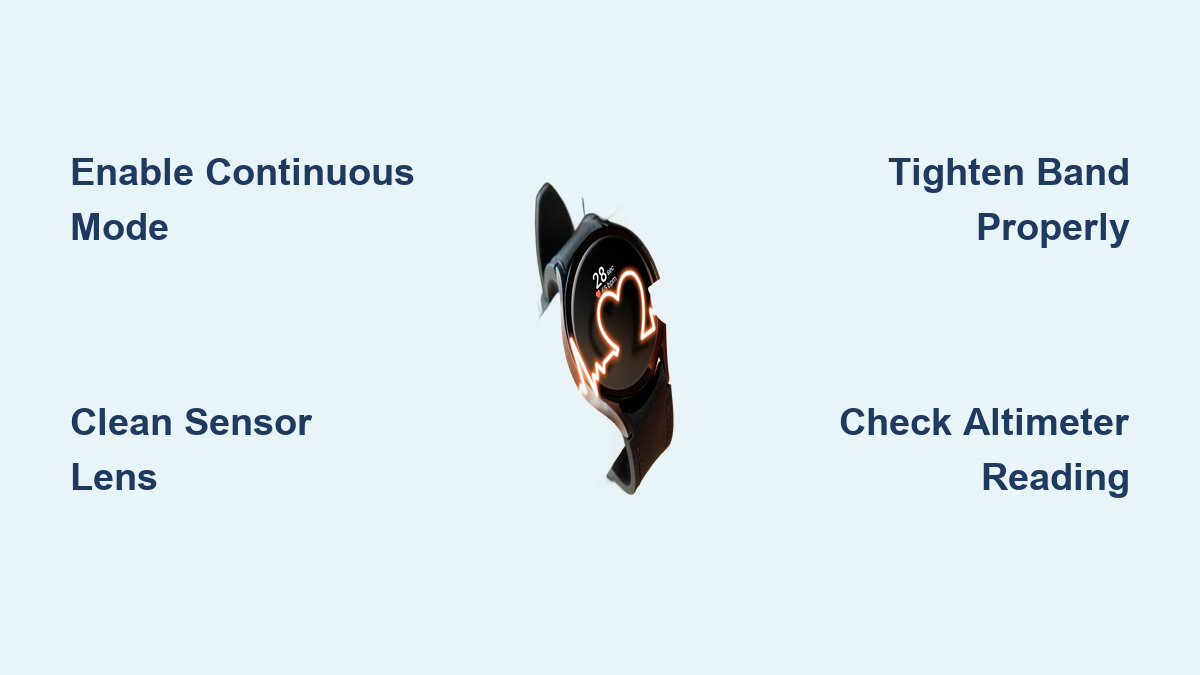
Enable Continuous Monitoring Mode
By default, some Samsung watches use interval-based heart rate checks rather than real-time tracking. This means your watch face only refreshes every 10 to 15 minutes, not in the moment.
To switch to continuous mode:
1. Open Settings on your Galaxy Watch.
2. Tap Health > Heart Rate.
3. Select Continuous instead of “Every 10 minutes” or “Manual.”
Pro Tip: Stock watch faces won’t display live data if this setting is off. Don’t blame a third-party face until you’ve verified this setting first.
This single change resolves the issue for many users who thought their sensor had failed. If your green LED still doesn’t blink during normal wear, move on to deeper checks.
Test With a Default Watch Face
Third-party watch faces—especially those made with Galaxy Watch Face Studio—have documented bugs that prevent sensor data from populating.
To rule this out:
– Switch immediately to a default Samsung watch face.
– Wait several minutes to see if heart rate updates appear.
If it works on the stock face but not yours, the issue is face-specific, not hardware-related. However, note that some users have experienced the same problem on default faces included in the box, so the issue isn’t exclusively third-party related.
Check Sensor Contact and Placement

Even perfect settings won’t help if the sensor can’t read your pulse. Optical heart rate monitors depend on clean, stable contact with your skin.
Clean the Sensor Lens
Dirt, sweat, or lotion residue blocks the green LEDs from penetrating the skin properly.
Do this:
– Remove the watch.
– Wipe the back with a soft, dry cloth.
– For stubborn grime, lightly dampen the cloth (never submerge the device).
Avoid alcohol or harsh cleaners, as they can degrade anti-reflective coatings over time.
Tighten the Band Properly
A loose band creates gaps between the sensor and your skin, breaking the light signal.
Fix:
– Wear the watch snugly, about one finger width above the wrist bone.
– Tighten by one clasp notch if needed.
– Ensure it stays in place during movement.
One user resolved erratic readings simply by adjusting band tension, with no software changes required.
Remove Interference Sources
Certain physical conditions disrupt optical sensing accuracy.
Watch for:
– Wrist hair: Can scatter light. Shaving the area often restores accuracy.
– Tattoos: Dark ink absorbs light. Try wearing the watch higher up the arm.
– Sweat or moisture: Blurs the lens. Dry your wrist before measuring.
– Cold temperatures: Constricts blood vessels. Warm your hand indoors first.
Try repositioning the watch slightly up or down your wrist to find a pulse-friendly spot with better blood flow.
Restart and Update Your Devices
When physical checks fail, move to software fixes. Outdated firmware or app glitches often mimic hardware failure.
Reboot Both Devices
A soft restart clears temporary errors that may be blocking sensor communication.
Steps:
1. Restart your Galaxy Watch: Hold the power button > Tap Restart.
2. Restart your phone: Power off completely, wait 10 seconds, turn back on.
Test heart rate immediately after reconnecting.
Install Latest Firmware
Samsung regularly releases patches for sensor bugs and driver issues.
Check for updates:
1. Open the Galaxy Wearable app on your phone.
2. Tap your watch > Software update > Check now.
3. If available, install and wait for completion.
One user reported full restoration of heart rate function after a delayed update, proving some issues are purely software-based.
Clear App Cache and Data
Corrupted cache in the wearable app can block sensor communication.
On Android:
1. Go to Settings > Apps > Galaxy Wearable.
2. Tap Storage > Clear Cache, then Clear Data.
3. Reconnect the watch when prompted.
This forces a fresh sync and often resolves stuck sensors or failed measurements.
Diagnose Hardware Failure Signs
If settings, cleaning, and updates don’t help, look for red flags of hardware collapse. Some failures are irreversible and require replacement.
Watch for Continuous Green Light Flashing
The optical sensor blinking nonstop, even when off your wrist, is a hallmark of hardware breakdown.
What it means:
– Sensor stuck in permanent read mode
– Fails to detect a valid signal
– Drains battery rapidly
This “green light loop” was widely reported in the 2018 Galaxy Watch (SM-R800) and Gear Fit Pro 2. Software resets rarely fix it.
Run the Altimeter Test
Here is a fast diagnostic trick: check your altitude reading indoors.
- Open the Barometer or Weather app.
- Note the elevation.
If it shows 44,000 meters, -200m, or wildly fluctuating numbers while you’re at home, your environmental sensor suite is damaged.
This isn’t just a glitch. That same sensor module houses the heart rate driver. An erratic altimeter equals a high probability of HR hardware failure.
Look for System-Wide Sensor Collapse
In severe cases, multiple functions fail together:
– No step counting
– Sleep tracking stops
– Workout detection disabled
– Stair climbing unrecorded
Only basic metrics like BMR remain. This pattern confirms a sensor array failure, not a software hiccup. Stop troubleshooting and start the replacement process.
Avoid Ineffective Fixes
Not all advice works. Some steps are overused and rarely effective for true hardware issues.
Skip the Factory Reset If Hardware Is Suspected
A factory reset wipes your data but often fails to fix dead sensors.
Only do this before contacting support, and only if settings and updates haven’t worked.
Remember:
– You’ll lose all workout history
– It won’t revive a broken LED or corrupted sensor chip
Save this as a last software step, not a cure-all.
Don’t Waste Time on RAM Clearing
Some forums suggest clearing RAM via developer options.
Reality:
– Modern Wear OS manages memory automatically
– No verified cases of RAM clearing fixing heart rate issues
Focus on real causes instead.
Replace Defective Units Immediately
When hardware fails, persistence won’t help. The best move is swift replacement.
Know When to Stop Troubleshooting
Abandon DIY fixes if you see:
– Continuous green light flashing
– Impossible altimeter readings
– Multiple sensors offline
– Issue persists across all watch faces and after updates
These are not user-fixable. Samsung’s own support threads confirm replacement is the only solution.
Navigate Support Efficiently
Users report frustrating experiences:
– Long hold times
– Scripted responses
– Premium-rate phone numbers (e.g., UK 03300)
Workaround:
– Use the Samsung Members app
– Submit a diagnostic report first
– Request pickup or mail-in repair directly
If told to “wait for a software fix” but your altimeter reads 40,000m, push for hardware replacement. Cite known defect patterns.
Consider Model Reliability Trends
Not all watches are equally affected:
– Galaxy Watch 6: Most stable; continuous tracking works when enabled
– Galaxy Watch 8: Emerging reports of low BPM during workouts, pointing to possible early firmware bugs
– Galaxy Watch (2018): High failure rate with known hardware defect clusters
If you own an affected model, act fast. Don’t wait for degradation to worsen.
Prevent Future Issues
Once working, keep your heart rate monitor reliable with simple habits.
Schedule Monthly Maintenance
- Clean the sensor weekly
- Check for updates monthly
- Re-tighten the band if it stretches
Use Trusted Watch Faces
Avoid Galaxy Watch Face Studio creations unless updated for current firmware. Stick to Samsung-certified designs for critical health data.
Monitor Battery Impact
Continuous HR mode uses more power. Balance accuracy with battery life:
– Use “Every 10 minutes” during low-activity days
– Switch to Continuous only during workouts or health monitoring periods
Frequently Asked Questions About Samsung Heart Rate Monitor Issues
Why is my Samsung heart rate monitor not updating on the watch face?
Your monitoring mode is likely set to “Every 10 minutes” instead of “Continuous.” Go to Settings > Health > Heart Rate and select Continuous. This is the most common cause of non-updating readings.
How do I know if my Galaxy Watch heart rate sensor is broken?
Look for these hardware failure signs: continuous green LED flashing even when off your wrist, an altimeter reading impossible values like 44,000 meters indoors, or multiple sensors (step counter, sleep tracking) failing simultaneously. These indicate hardware defects that software fixes cannot resolve.
Can a software update fix Samsung heart rate monitor problems?
Yes, in some cases. One user reported complete restoration of heart rate function after installing a delayed firmware update. Always check for pending updates in the Galaxy Wearable app before assuming hardware damage.
Why does my Galaxy Watch 8 show low heart rate during workouts?
Reports indicate the Galaxy Watch 8 may show readings 10–12 BPM lower than expected during brisk walking or high-intensity intervals. This appears to be an early firmware issue. Compare with a chest strap monitor, and install all available updates.
Should I factory reset my Galaxy Watch if the heart rate monitor stops working?
Only as a last resort before contacting support. Factory resets erase all workout history and rarely fix dead sensors. If you’ve already tried settings adjustments, cleaning, and updates, skip the reset and pursue replacement instead.
Does tightening the watch band improve heart rate accuracy?
Yes. A loose band creates gaps between the sensor and skin, breaking the optical signal. Wear the watch snugly, about one finger width above the wrist bone. One user resolved erratic readings simply by tightening the band by one notch.
Key Takeaways for Fixing Your Samsung Heart Rate Monitor
Start with the simplest fix: switch to Continuous monitoring mode in Settings > Health > Heart Rate. If that doesn’t work, clean the sensor, tighten your band, and test with a default Samsung watch face to rule out third-party bugs. Install any pending firmware updates before assuming hardware damage.
When you see a continuously flashing green LED or an altimeter showing 44,000 meters indoors, stop troubleshooting and pursue replacement immediately. These symptoms confirm hardware failure that no reset can fix. Use the Samsung Members app for faster support, and cite known defect patterns if you encounter resistance.
Your health data deserves reliability. Don’t waste hours on resets when a replacement unit will solve the problem permanently.