How to Connect Heart Rate Monitor to iFit
You’ve just signed up for an iFit membership and want to take your workouts to the next level with ActivePulse, iFit’s heart rate–driven training feature. But first, you need to connect your heart rate monitor. If you’re wondering how to connect a heart rate monitor to iFit, you’re not alone. Many users hit snags during setup. The good news? Once you know the right steps and compatible devices, pairing your monitor is quick and seamless.
Connecting your heart rate monitor unlocks real-time intensity adjustments during workouts. With ActivePulse enabled, your treadmill automatically speeds up or slows down to keep you in the ideal heart rate zone. This applies whether you’re in recovery, endurance, or high-intensity intervals. But this only works if your heart rate monitor is properly paired. In this guide, you’ll learn exactly how to connect your device, troubleshoot common issues, and optimize your settings for a personalized training experience.
Verify Equipment Compatibility
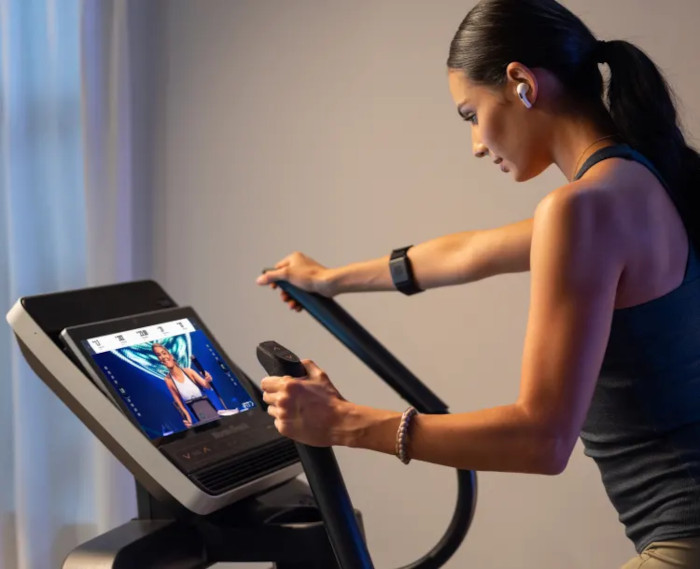
Before pairing, confirm your setup supports ActivePulse and heart rate integration.
Check Your Treadmill Model
ActivePulse only works on iFit-enabled treadmills or machines connected to a tablet via the iFit app. Smartphones do not support this feature.
Supported brands include:
– NordicTrack
– ProForm
– Freemotion
Ensure your treadmill is linked to an iFit-connected tablet or built-in console. If using a standalone tablet, download the latest iFit app version from the App Store or Google Play.
Confirm Heart Rate Monitor Type
iFit requires a Bluetooth-capable heart rate strap or armband that broadcasts data publicly.
Acceptable devices:
– Chest straps (e.g., Polar H10, Wahoo TICKR)
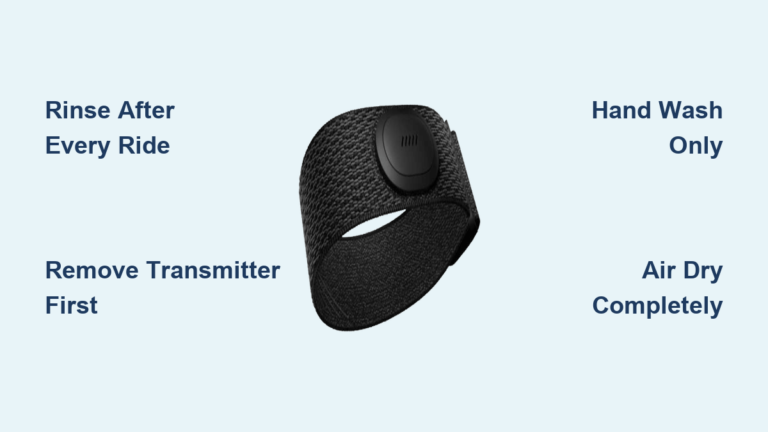
– iFit SmartBeat armband
– Any Bluetooth heart rate monitor that connects to your fitness equipment
Avoid optical wrist-based monitors like smartwatches. They often fail to pair or deliver inconsistent data. If your current heart rate monitor connects directly to gym equipment, it will likely work with iFit.
Prepare Your Heart Rate Monitor

Power up and make your device discoverable before starting a workout.
Turn On and Wear Correctly
For chest straps, wet the sensor pads for better conductivity. Wear the strap snugly, just below the pectoral muscles.
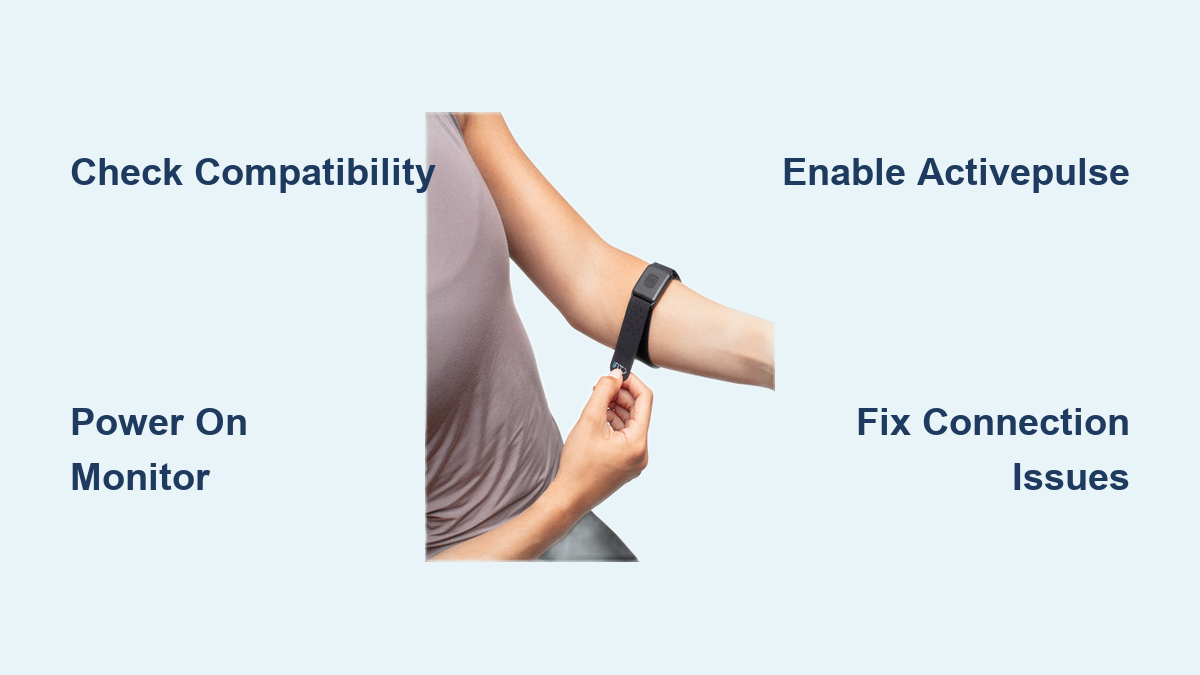
For armbands like the iFit SmartBeat, place it on bare skin above the elbow. Tap the center button to power it on.
Wait 10 to 15 seconds for the device to detect your resting pulse. A blinking LED indicates it’s active.
Enable Bluetooth Discovery Mode
Most monitors auto-enter pairing mode when powered. For iFit SmartBeat, put the armband on and tap the center button until the light flashes blue and red. It is now discoverable.
Other models may require a long press or pairing via a fitness app first. Check your user manual for specific instructions.
Start an ActivePulse Workout
The pairing process begins inside an iFit session.
Navigate to ActivePulse Training
- Open the iFit app on your tablet or console
- Tap “Browse”
- Scroll to the “ActivePulse Training” section in the Library
You can also use ActivePulse with other workouts in the Library beyond this dedicated section.
Launch Your Workout
Select your desired workout and tap the play button. Go through the warm-up phase and do not skip ahead yet.
After tapping “End Warmup,” iFit automatically begins scanning to connect to your Bluetooth-enabled heart rate monitor.
Pair the Monitor During Workout
iFit scans for Bluetooth heart rate devices once the main workout starts.
Wait for Auto-Detection
The system searches for up to 30 seconds. When found, your current BPM will appear on-screen.
If your device doesn’t connect:
– Ensure it’s powered and worn correctly
– Move closer to the tablet or console
– Restart the monitor and re-enter discovery mode
Pro Tip: Pair your monitor before starting the workout. Wear it during warm-up to increase detection speed.
Enable ActivePulse After Connection
Connection does not equal activation. You must manually enable the feature.
Tap “Enable” to Activate
Once your heart rate displays:
1. Tap the “Enable” button on-screen
2. ActivePulse activates with SmartAdjust for automatic intensity adjustment
Your treadmill will now slow down if your heart rate exceeds the target zone and speed up if you’re under the target.
This keeps you training at optimal intensity without manual input. Note that ActivePulse only works in guided workouts. Manual runs do not support this feature.
Adjust ActivePulse Settings
Personalize how iFit responds to your heart rate.
Access In-Workout Settings
During any session:
1. Tap the settings icon
2. Go to “Personalized Training”
Available options:
– Heart Rate Zones: Customize target zones based on fitness goals
– Max Speed: Set a cap to prevent unsafe acceleration
– Starting States: Choose whether ActivePulse and SmartAdjust turn on automatically
Set or Update Max Heart Rate
iFit estimates max heart rate using your age and profile data, but you can improve accuracy.
Options include:
– Manual Input: Enter known max HR from a stress test or field test
– In-App Test: Take iFit’s max heart rate test under Personal Metrics
Accurate max HR ensures zones are tailored to your physiology.
Troubleshoot Connection Issues
Even with the right gear, pairing can fail. Here’s how to fix common problems.
No Heart Rate Detected
Run through this checklist:
– Is the monitor powered and blinking?
– Is it worn on bare skin with good contact?
– Is the battery charged?
– Is Bluetooth enabled on the tablet or console?
Quick Fix: Restart both the monitor and tablet.
Monitor Found But Not Stable
Intermittent readings often stem from poor chest strap placement, dry sensor pads, or device interference from other Bluetooth devices nearby.
Solution: Re-wet the electrodes and ensure no other fitness trackers are broadcasting nearby.
ActivePulse Won’t Enable
If your heart rate shows but the “Enable” button is grayed out:
– Confirm you’ve ended the warm-up
– Ensure you’re in a guided workout, not manual mode
– Verify your treadmill model supports ActivePulse
Update your iFit app if issues persist.
Optimize for Future Workouts
Make every session smoother with these prep steps.
Pre-Pair Before Every Workout
Don’t wait for iFit to scan. Wear your monitor early.
Best Practice:
– Put on the strap or armband during stretching
– Power it on before launching the app
– Begin the workout only after seeing a steady HR reading
This cuts pairing delays and gets you into zone faster.
Keep Firmware Updated
Manufacturers release updates to improve Bluetooth stability.
Check for updates regularly on:
– The iFit app
– Your treadmill firmware via the console
– Your heart rate monitor via its companion app
Maximize Your Training with ActivePulse
Now that your heart rate monitor is connected, use ActivePulse effectively.
Train Smarter, Not Harder
ActivePulse removes guesswork. Instead of pushing too hard or slacking off, the system adjusts your pace so you stay in the right zone.
Use it for:
– Fat-burning workouts in moderate zones
– Cardio endurance at aerobic threshold
– HIIT recovery phases to ensure proper rest
You’ll train more efficiently and avoid overexertion.
Combine with SmartAdjust
SmartAdjust works hand in hand with ActivePulse. If you manually lower incline, SmartAdjust reduces speed to maintain intensity. If you raise speed, it adjusts incline to keep challenge level consistent.
Together, they create a dynamic, responsive workout that adapts to your real-time effort.
Frequently Asked Questions About Connecting a Heart Rate Monitor to iFit
Can I use a smartwatch with iFit ActivePulse?
Optical wrist-based monitors like smartwatches are not recommended. They often fail to pair or deliver inconsistent data. Use a Bluetooth chest strap or armband instead.
Does ActivePulse work on smartphones?
No. ActivePulse is not available on smartphones. You need an iFit-enabled treadmill or a machine connected to a tablet via the iFit app.
How long does it take to connect a heart rate monitor to iFit?
The automatic scan can take up to 30 seconds after you end the warm-up. Wearing and powering on your monitor before starting the workout speeds up detection.
Which heart rate monitors are compatible with iFit?
Any Bluetooth-capable heart rate strap or armband that broadcasts data publicly should work. This includes chest straps like the Polar H10, Wahoo TICKR, and the iFit SmartBeat armband.
Can I use ActivePulse during manual workouts?
No. ActivePulse is not currently available for manual workouts. It only works during guided iFit sessions.
Do I need to enable SmartAdjust separately?
No. SmartAdjust is automatically enabled on your treadmill when you use ActivePulse. You can adjust its starting state in the Personalized Training settings.
Key Takeaways for Connecting Your Heart Rate Monitor to iFit
Connecting a heart rate monitor to iFit is simple when you follow the right steps. Verify compatibility, power on your device, start an ActivePulse workout, wait for auto-detection, and tap “Enable.” With your monitor paired, you unlock personalized, adaptive training that evolves with your fitness level.
For best results, use a chest strap or iFit SmartBeat armband. Keep your app updated and calibrate your max heart rate for accurate zone targeting. If pairing fails, double-check placement, battery, and Bluetooth status.
Now that your heart rate monitor is connected, dive into the ActivePulse Training library and feel the difference of a workout that truly listens to your body.