How to Connect Garmin Heart Rate Monitor to Watch
You’ve just unboxed your new Garmin heart rate monitor, charged your Garmin watch, and are ready to track your workout with precision. But when you go to start your activity, your watch isn’t reading your heart rate. The culprit? Your heart rate monitor isn’t connected. Don’t worry, this is a common issue, and pairing your Garmin HRM to your watch is quick and straightforward once you know the steps.
Whether you’re using a chest strap like the Garmin HRM-Pro, HRM-Dual, or a newer model, connecting it to your Garmin watch, be it a Forerunner, Fenix, Epix, or Venu, follows the same reliable process. This guide walks you through every step to successfully pair your heart rate monitor, troubleshoot connection issues, and ensure accurate readings during workouts.
By the end, you’ll know how to pair, verify, and maintain your connection so you can focus on performance, not tech glitches.
Pair Your HRM to Your Watch
Garmin devices use Bluetooth and ANT+ to communicate with sensors. Most modern Garmin watches support both, so your heart rate monitor should connect seamlessly if set up correctly.
Enable Sensor Search Mode
Before pairing, make sure your heart rate monitor is ready. For chest-based models like the HRM-Pro or HRM-Dual:
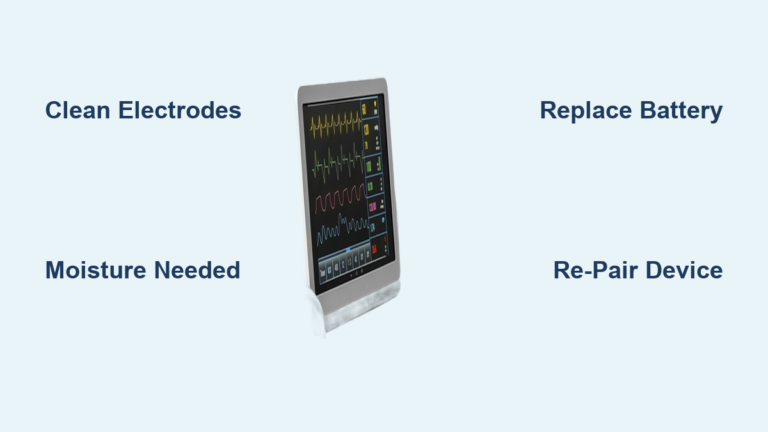
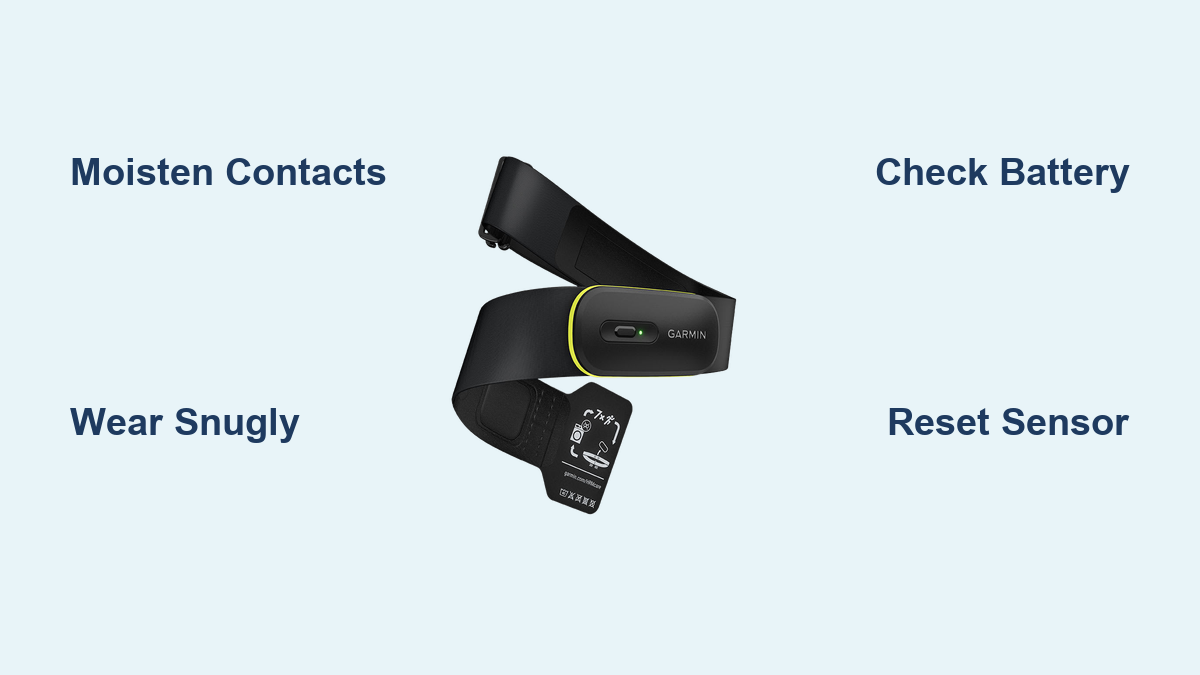
- Moisten the sensor contacts on the back of the strap. This improves conductivity.
- Wear the strap snugly around your chest, just below the pectoral muscles.
- Press the button on the sensor if available, or simply wait. Most Garmin HRMs activate automatically when moisture is detected and movement occurs.
Your sensor is now broadcasting a signal.
Access Sensor Settings on Watch
Now, navigate your Garmin watch to pair the device:
- Press the Menu button on your watch.
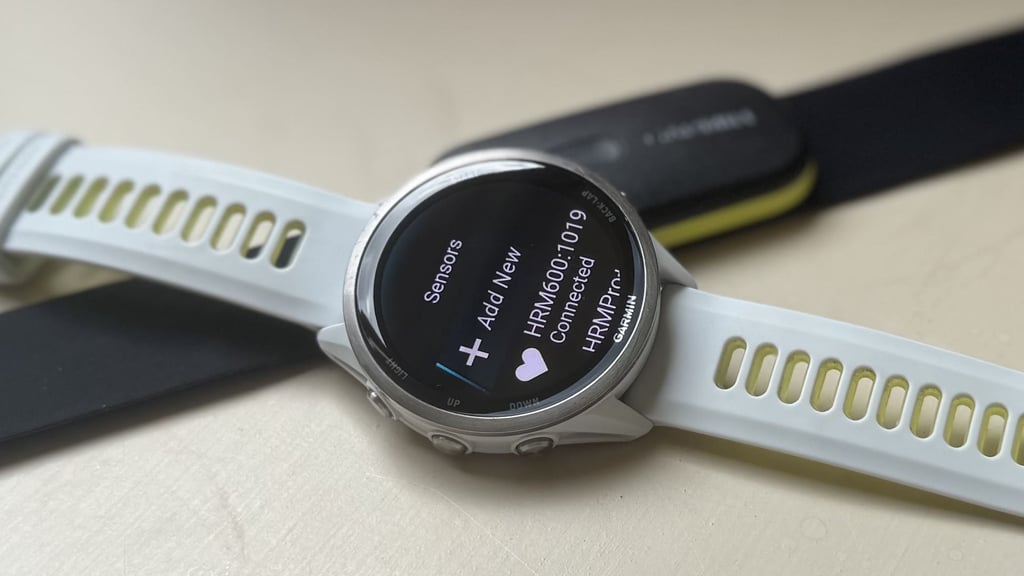
- Go to Settings, then Sensors & Accessories, then Add New, then Heart Rate.
- Your watch will begin scanning for available transmitters.
Wait 10 to 15 seconds. If your HRM is on and within range (up to 10 meters), it should appear on the screen.
Note: Some models list the device as “HRM-Pro,” “HRM-Dual,” or show a generic ID. Match it to your model if possible.
Once detected, select it to pair. You’ll see a confirmation message, and your watch is now connected.
Verify the Connection
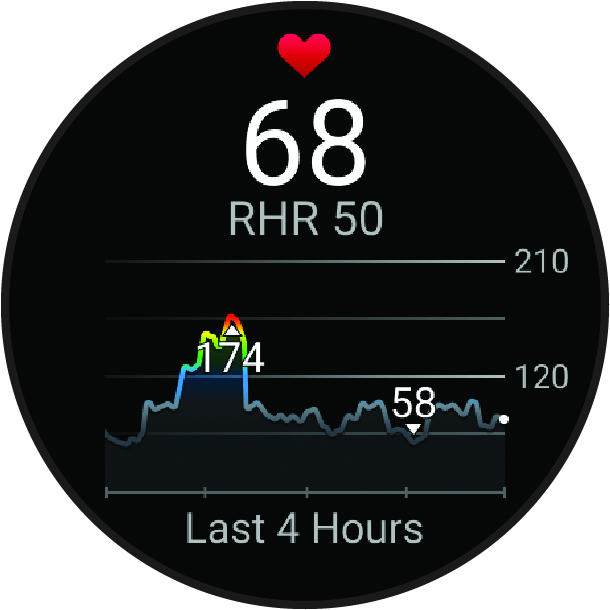
After pairing, test the connection to ensure real-time data is being received.
Check Real-Time Heart Rate Reading
- Return to the watch face or open the Heart Rate widget.
- Wait 10 to 20 seconds. You should see your current heart rate value updating.
- Tap your chest gently. Your heart rate should rise slightly, confirming live feedback.
If the value appears and updates, the connection is solid.
Confirm During a Workout
Start a test activity:
- Select Start Activity, then choose any sport mode (e.g., Run or Cardio).
- Wait for GPS lock if applicable, then begin.
- Swipe to the heart rate data screen.
You should see continuous heart rate data. If it reads “0” or shows dashes, the sensor may have disconnected or failed pairing.
Pro Tip: Wear the HRM strap damp and centered. A loose or dry strap is the number one cause of failed readings.
Troubleshoot Pairing Issues

Even with correct steps, pairing can fail. Here’s how to fix common problems.
No Sensors Detected
If your watch doesn’t find the HRM:
Test the Battery
- Remove the sensor module from the strap.
- Check the battery compartment for corrosion or debris.
- Ensure the CR2032 battery is seated correctly and has charge.
- Replace with a fresh battery if over a year old.
A dead battery is the most common reason for no signal.
Reset the Sensor
- Remove the battery.
- Wait 30 seconds.
- Reinsert the battery.
- Moisten contacts and wear the strap.
This resets the sensor’s Bluetooth and ANT+ module.
Clear Old Pairings
Your watch may be trying to reconnect to a previous sensor.
- Go to Settings, then Sensors & Accessories.
- Find the old HRM entry and select Remove or Forget.
- Restart the Add New process.
Now try pairing again.
Intermittent or Dropping Signal
If heart rate drops during a workout:
Avoid Signal Interference
- Don’t wear multiple chest straps simultaneously.
- Keep smartphones, tablets, or other Bluetooth devices away from the chest area.
- Avoid crowded gym environments with many ANT+ sensors active.
Ensure Proper Strap Fit
- The sensor must sit flat against your skin.
- The strap should be tight enough to stay in place but not restrict breathing.
- Rotate the sensor so the Garmin logo is upright and centered.
A misaligned sensor can lose contact during movement.
Use the Garmin Connect App (Optional)
While direct watch pairing is standard, you can also manage sensors via the Garmin Connect app.
Pair via Smartphone
- Open Garmin Connect on your phone.
- Tap More, then Devices, then select your watch.
- Go to Sensors, then Add New Sensor.
- Wear and activate the HRM.
- Tap the heart rate option when it appears.
The sensor will sync to your watch automatically if both are connected to the same account.
Note: This method is useful for viewing firmware updates or checking sensor status remotely.
Switch Between Wrist and Chest HR
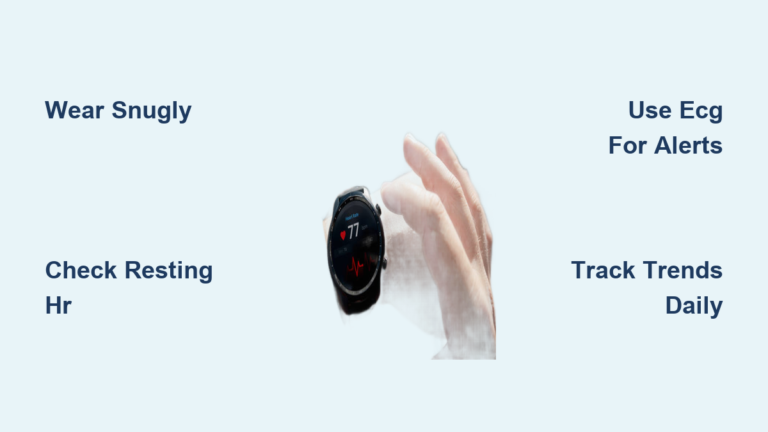
Garmin watches use both optical wrist-based heart rate and external chest sensors. When a chest strap is paired, the watch automatically disables wrist HR during activities to prioritize chest data.
Confirm Chest HR Is Active
- Start an activity.
- Swipe to the heart rate screen.
- Look for a small chest icon next to the BPM number.
If you see a wrist icon, the chest sensor isn’t connected, so return to pairing steps.
Revert to Wrist HR
Want to use wrist-based tracking again? Simply:
- Stop and save your current activity.
- Remove the chest strap.
- Start a new activity. The watch will default back to optical HR.
No unpairing needed unless you plan to use a different chest sensor later.
Compatible Garmin HRM Models

Not all heart rate monitors work with every watch. Here are the most common compatible models:
- Garmin HRM-Pro Plus: Advanced running dynamics, ANT+ and Bluetooth
- Garmin HRM-Pro: Running metrics, ANT+ and Bluetooth
- Garmin HRM-Dual: Basic HR, ANT+ and Bluetooth
- Garmin HRM-Run: Running dynamics, ANT+ only
- Garmin HRM-Tri: Triathlon-friendly, ANT+ and Bluetooth
Check Watch Compatibility
- Forerunner 255, 265, 955, 455, Fenix 7, Epix Gen 2, and Venu 3 support all modern HRMs.
- Older models like Forerunner 235 or Fenix 5 may lack Bluetooth sensor support. Verify on Garmin’s site.
Rule of Thumb: If your watch supports running dynamics or advanced running metrics, it likely works with HRM-Pro or HRM-Pro Plus.
Maximize Battery Life and Performance
Keep your heart rate monitor reliable with simple maintenance.
Replace Battery Proactively
- Most Garmin HRMs use a CR2032 battery.
- Expected life is about 1 year with regular use (3 to 5 workouts per week).
- Replace annually, or immediately if pairing fails and contacts are clean.
Clean After Every Use
- Rinse the sensor module with fresh water after sweaty workouts.
- Wipe the elastic strap with a damp cloth. Avoid bleach or detergents.
- Air dry completely before storage.
A dirty sensor can cause poor skin contact and inaccurate readings.
Store Properly
- Keep the HRM in a cool, dry place.
- Remove the battery if storing for over a month.
- Avoid folding or creasing the strap.
Frequently Asked Questions About Connecting Garmin HRM
Why won’t my Garmin watch find my heart rate monitor?
The most common cause is a dead or weak CR2032 battery in the HRM. Other reasons include the strap being dry, the sensor not being worn, or old pairings interfering with new ones. Replace the battery, moisten the contacts, and clear old pairings before retrying.
Do Garmin heart rate monitors work with all Garmin watches?
Most modern Garmin watches support both ANT+ and Bluetooth chest straps. However, older models like the Forerunner 235 or Fenix 5 may only support ANT+. Check your watch specifications on Garmin’s website to confirm compatibility before purchasing.
How do I know if my chest strap is connected during a workout?
Start an activity and swipe to the heart rate data screen. Look for a small chest icon next to your BPM. If you see a wrist icon instead, the chest sensor is not active, and the watch is using optical wrist-based heart rate.
Can I connect my Garmin HRM to my phone instead of my watch?
Yes. Open Garmin Connect, go to Devices, select your watch, then tap Sensors and Add New Sensor. This method works well for checking firmware updates or sensor status, though direct watch pairing is faster for workouts.
How long does the battery last in a Garmin heart rate monitor?
A CR2032 battery typically lasts about 1 year with regular use (3 to 5 workouts per week). Heavy users or those training daily may need to replace it sooner. Always keep a spare battery on hand.
Do I need to unpair my HRM to use wrist heart rate again?
No. Simply stop your activity, remove the chest strap, and start a new workout. The watch will automatically switch back to optical wrist heart rate when no chest sensor is detected.
Key Takeaways for Connecting Your Garmin HRM Successfully
Pairing your Garmin heart rate monitor to your Garmin watch takes just a few minutes when you follow the right sequence: moisten the strap contacts, wear the sensor, and navigate to Settings, then Sensors & Accessories, then Add New. Always verify the connection with a real-time reading and a short test workout before relying on it for serious training.
If pairing fails, start with the simplest fix: replace the CR2032 battery. From there, reset the sensor, clear old pairings, and check strap fit. Most connection problems resolve with these three steps.
Your next step is simple: grab your HRM, wet the contacts, and run through the pairing process on your watch right now. Once connected, you’ll have the accurate, real-time heart rate data you need to train smarter and track progress with confidence.