How to Use Apple Watch for Fitness Tracking
Staring at a fitness goal without feedback feels like driving with no dashboard. Most people abandon exercise routines within weeks because progress stays invisible. The Apple Watch changes that by turning your wrist into a real-time fitness coach, with the Activity Rings at the center of the experience. These three colorful circles turn movement, exercise, and standing into a daily game you can actually win. Whether you walk, run, swim, hike, or roll in a wheelchair, the watch adapts to your lifestyle.
This guide walks you through setup, daily navigation, workout tracking, long-term analytics, and ecosystem syncing. By the end, you will know how to use Apple Watch for fitness tracking in a way that builds lasting habits and measurable results.
Set Up Activity Tracking on Apple Watch
Activate the Three Rings
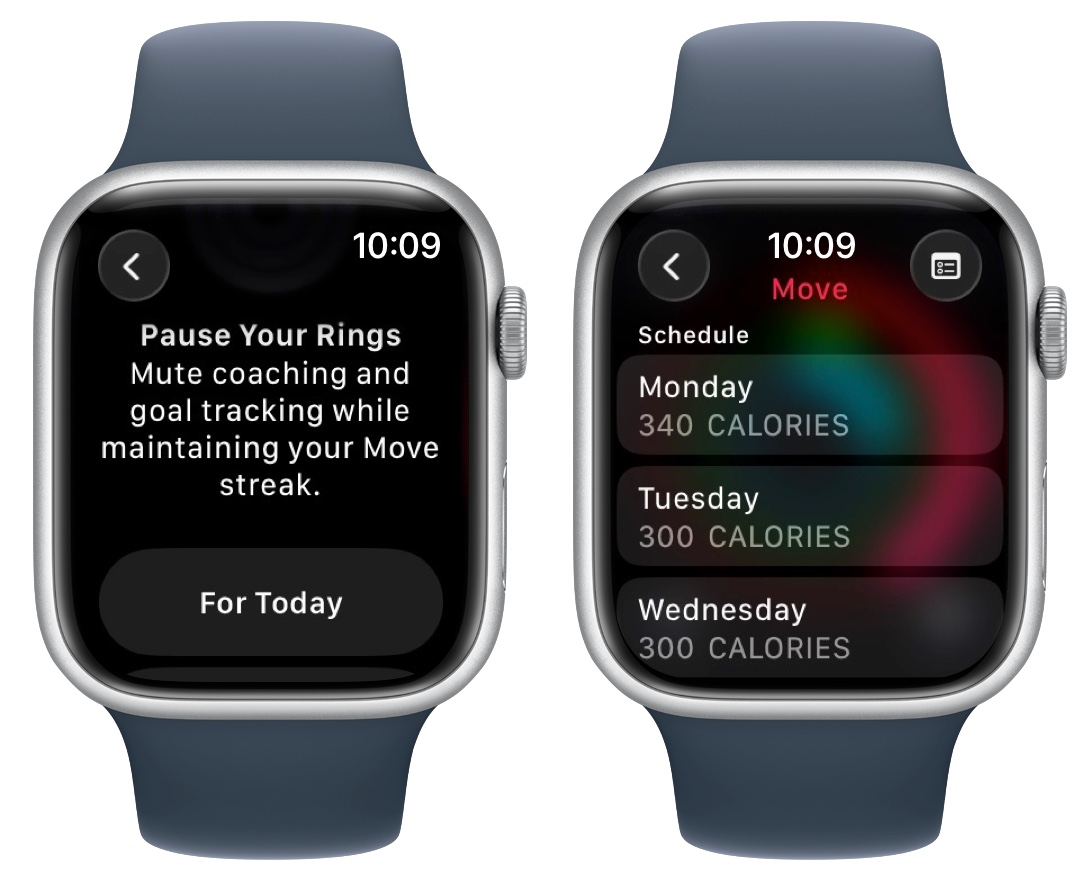
Start by enabling the Activity app. When you first pair your Apple Watch, the system prompts you to configure the Activity Rings. If you skipped this step, open the Activity app directly on the watch. Rotate the Digital Crown to read descriptions of Move, Exercise, and Stand, then tap Get Started. This activates the core tracking engine that follows your movement all day.
Customize Goals and Coaching
Tailor the experience in the Apple Watch app on your iPhone under My Watch > Activity. Set your Move goal (active calories burned) based on your current fitness level, starting realistically so early wins feel achievable. Toggle Daily Coaching on or off depending on how much motivation you want. When enabled, the watch nudges you when you fall behind and celebrates when you stay on track. Turn it off if reminders feel intrusive.
Enable Accessibility Features
For wheelchair users, the Apple Watch adapts automatically. During setup, choose Wheelchair Mode to convert the Stand ring into the Roll ring. This tracks at least one minute of rolling in 12 different hours, ensuring inclusive and accurate fitness tracking regardless of mobility.
Navigate Daily Activity Data on Your Wrist
Scroll Through Real-Time Metrics
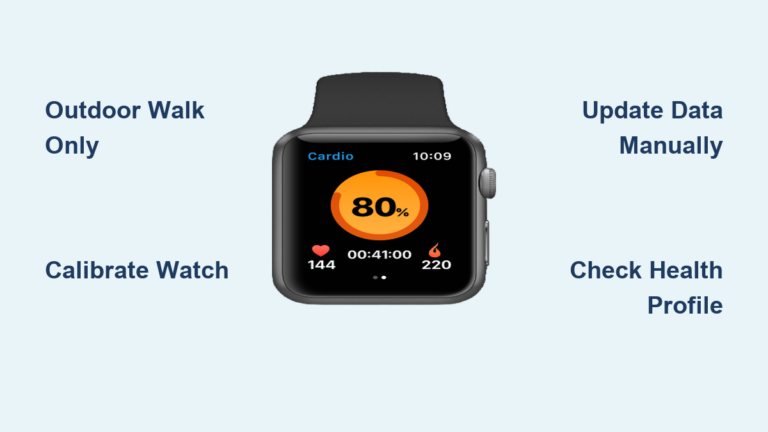
Open the Activity app and rotate the Digital Crown to scroll through live stats. You will see active calories, exercise minutes, stand hours, total steps, distance traveled, and flights climbed. A quick glance tells you whether you are on pace to close your rings before bedtime.
View Weekly Summary
Tap the Summary icon (list or chart symbol) inside the Activity app to access weekly performance. The screen displays your daily average and weekly total for each ring across the past seven days. Use this view to spot patterns, like low activity midweek, and adjust your routine accordingly.
Track Awards and Streaks
Gamification keeps motivation high. Tap the Summary icon, then select Awards to view milestones such as 7-day streaks, personal records, or competition wins. Tap any badge to see how close you are to the next achievement.
Start and Monitor Workouts
Choose the Right Workout Type
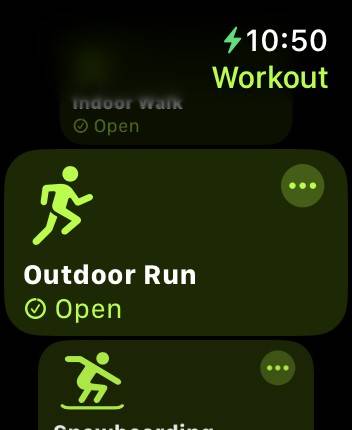
Press the Digital Crown from the watch face to open the app grid, then tap Workout. Scroll through options like Outdoor Run, Indoor Walk, HIIT, Yoga, or Swim. Selecting the correct type ensures accurate calorie burn, heart rate zone tracking, and distance measurement.
Use Running-Specific Tools
Runners get advanced insights. During a run, view Heart Rate Zones in real time to stay in fat-burn or cardio zones. Use the Pacer feature to maintain a target pace. For interval training, build Custom Workouts in the Workout app on your iPhone, then sync them to the watch.
Train Hands-Free with AirPods
Pair your AirPods for a phone-free session. Once connected, music, coaching, and notifications stream directly to your ears. You can respond to messages or take calls through Siri without carrying your iPhone, ideal for long runs or trail hikes.
Analyze Long-Term Fitness Trends

Check 90-Day vs. Yearly Performance
Open the Fitness app on your iPhone, tap Summary, then scroll to Trends. After six months of data, this section compares your last 90 days against your last 365. An upward arrow means you are improving; a downward arrow signals decline. For example, if walking pace drops, the app may suggest walking an extra quarter-mile daily.
Review Past Workout History
To analyze a specific day, tap the Activity Rings in the Fitness app, then tap the Calendar icon. Select any date to see detailed stats: rings closed, steps, distance, and active minutes. This helps you correlate performance with sleep, diet, or rest days.
Monitor Cardio Fitness Over Time
The Cardio Fitness metric estimates your VO2 max using heart rate and movement data. A rising trend means your heart is getting stronger. If it drops, the app recommends increasing aerobic exercise. This feature requires consistent outdoor walk or run data to populate accurately.
Sync Apple Watch with iPhone and Apple Fitness+
Download Routes from Maps
Plan a running or cycling route in the iPhone Maps app, then open the Workout app on your watch. Tap the Route tab to download your saved path. During the workout, the watch provides turn-by-turn navigation with haptic alerts, so vibrations signal left or right turns without checking your phone.
View Live Activity on iPhone
When you start a workout, real-time metrics like heart rate, pace, and elapsed time appear on your iPhone lock screen or Dynamic Island. This is helpful when your phone sits nearby but stays in your bag, such as during gym sessions or treadmill runs.
Stream Apple Fitness+ Workouts
Apple Fitness+ subscribers see live metrics during guided videos. Start a workout on iPad, Apple TV, or iPhone, and your heart rate, calories, and ring progress appear on-screen. For audio-only sessions like guided runs, the watch tracks your stats while AirPods deliver coaching.
Choose the Right Apple Watch Model for Fitness
Compare Fitness Features by Model
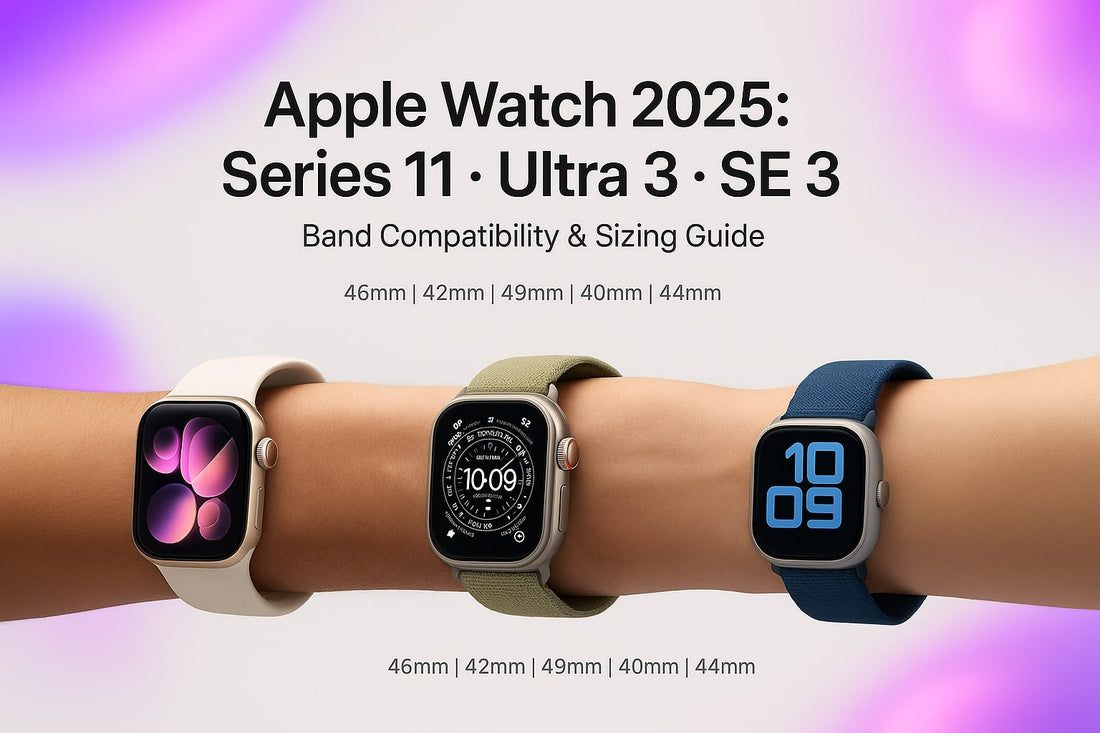
| Feature | Apple Watch Series 11 | Apple Watch SE 3 | Apple Watch Ultra 3 |
|---|---|---|---|
| Best For | Daily fitness and health | Budget-friendly tracking | Extreme sports and adventure |
| Durability | Water and dust resistant | Standard protection | Rugged titanium, deeper water rating |
| Display | Bright Retina | Standard Retina | Edge-to-edge, ultra-bright |
| Special Bands | Sport Loop, Solo Loop | Sport Band | Ocean, Alpine, Trail Loops |
Pick the Right Band for Your Activity

Match your band to your workout. Use the Sport Loop for gym sessions because it breathes well and wicks sweat. The Ocean Band suits swimmers, made from durable fluoroelastomer rubber. Hikers should consider the Alpine Loop, designed for long outdoor wear. For everyday comfort, the Braided Solo Loop offers a soft, seamless fit.
Use Voice and Accessibility Features
Ask Siri for Activity Updates
On supported models, raise your wrist and say, “Hey Siri, how are my Activity Rings?” Siri responds with a verbal summary and displays the rings on screen. You can also ask, “Did I close my Exercise ring?” or “How many steps today?” This hands-free option works during workouts or when your phone stays out of reach.
Adapt for Mobility Needs
Beyond Wheelchair Mode, the Apple Watch supports VoiceOver, Haptic feedback, and AssistiveTouch for users with limited dexterity. Enable these in Settings > Accessibility on the watch. Haptic alerts can replace audio cues during workouts, which helps hearing-impaired users stay on track.
Maintain Data Accuracy and Motivation
Calibrate for Better Accuracy
Improve distance and pace tracking by calibrating your watch outdoors. Take a 20-minute run or walk on a flat, GPS-friendly route. Afterward, open the Watch app on iPhone, go to Privacy > Location Services > System Services, and confirm Motion Calibration & Distance is on. This helps the watch fine-tune indoor workout metrics.
Avoid Common Tracking Mistakes
Do not rely solely on step count. Focus on active calories and exercise minutes for a clearer picture. The watch may credit arm movements like cooking as steps, but only brisk activity closes the Exercise ring. Always start a workout session for detailed metrics, since background tracking captures general movement but not sport-specific data.
Prevent Burnout with Smart Goals
If you consistently close your Move ring early, raise the goal gradually by no more than 50 to 100 calories per week. Sudden jumps lead to frustration. Use Trends to spot plateaus and adjust. If the app suggests walking more, break it into two 10-minute walks instead of one long session.
Frequently Asked Questions About Apple Watch Fitness Tracking
How accurate is the Apple Watch calorie counter?
The Apple Watch estimates active calories using heart rate, motion sensors, and personal metrics like weight and age. It is generally reliable for trend tracking but not exact for every individual. For medical-grade precision, use dedicated clinical equipment.
Can the Apple Watch track strength training?
Yes. Select Strength Training or Functional Strength Training in the Workout app. The watch tracks active calories, heart rate, and duration, though it does not count individual reps automatically.
Do I need my iPhone nearby for Apple Watch fitness tracking?
No. The Apple Watch tracks workouts independently using onboard sensors. You only need your iPhone for syncing data, viewing long-term trends, or streaming Apple Fitness+ content.
How long does the Apple Watch battery last during workouts?
Most workouts last one to two hours on a full charge. GPS-intensive activities like outdoor running drain faster. For long events, enable Low Power Mode to extend battery life.
Is the Apple Watch a medical device?
No. The Apple Watch is a wellness tool, not a medical device. It provides fitness insights but should not replace professional medical advice or diagnosis.
Can I share my fitness data with a trainer or doctor?
Yes. Export data through the Health app on your iPhone or share specific trends and workout summaries directly. Some third-party apps also integrate with Apple Health for deeper reporting.
Key Takeaways for Using Apple Watch Fitness Tracking
The Apple Watch turns fitness from a chore into a continuous, rewarding journey. Start by activating the Activity Rings and setting realistic goals. Use the watch for real-time workout metrics and the iPhone Fitness app for long-term trend analysis. Sync with AirPods and Apple Fitness+ to deepen the experience, and choose a model and band that match your activity style.
The most important habit is consistency, not perfection. Review your Trends weekly, adjust goals gradually, and celebrate small wins through the Awards system. Over time, those closed rings add up to real, measurable health improvements.