How to Connect Fitness Tracker
You just unboxed your new fitness tracker, charged it up, and now you’re ready to start tracking your steps, sleep, and workouts—only to realize it’s not doing much until you connect it to your phone. You’re not alone. Millions of users face the same hurdle: how to connect fitness tracker to their Android device and get data flowing seamlessly. The good news? It’s usually a simple process involving just a few apps and Bluetooth pairing. But the catch? It varies by brand, operating system, and which health platform you want to use.
For Android users, the system isn’t always plug-and-play. You might need Google Fit, Health Connect, or a brand-specific app like Zepp Life or Fitbit to bridge the connection. And if your tracker isn’t syncing data to your preferred app? You may even need a third-party bridge. This guide cuts through the confusion with a clear, step-by-step process tailored to Android’s evolving health ecosystem. Whether you have a Xiaomi Mi Band, Fitbit, or use niche platforms like Keep Health, you’ll learn exactly how to pair, sync, and secure your fitness data—no tech degree required.
Set Up Your Android Health Platform
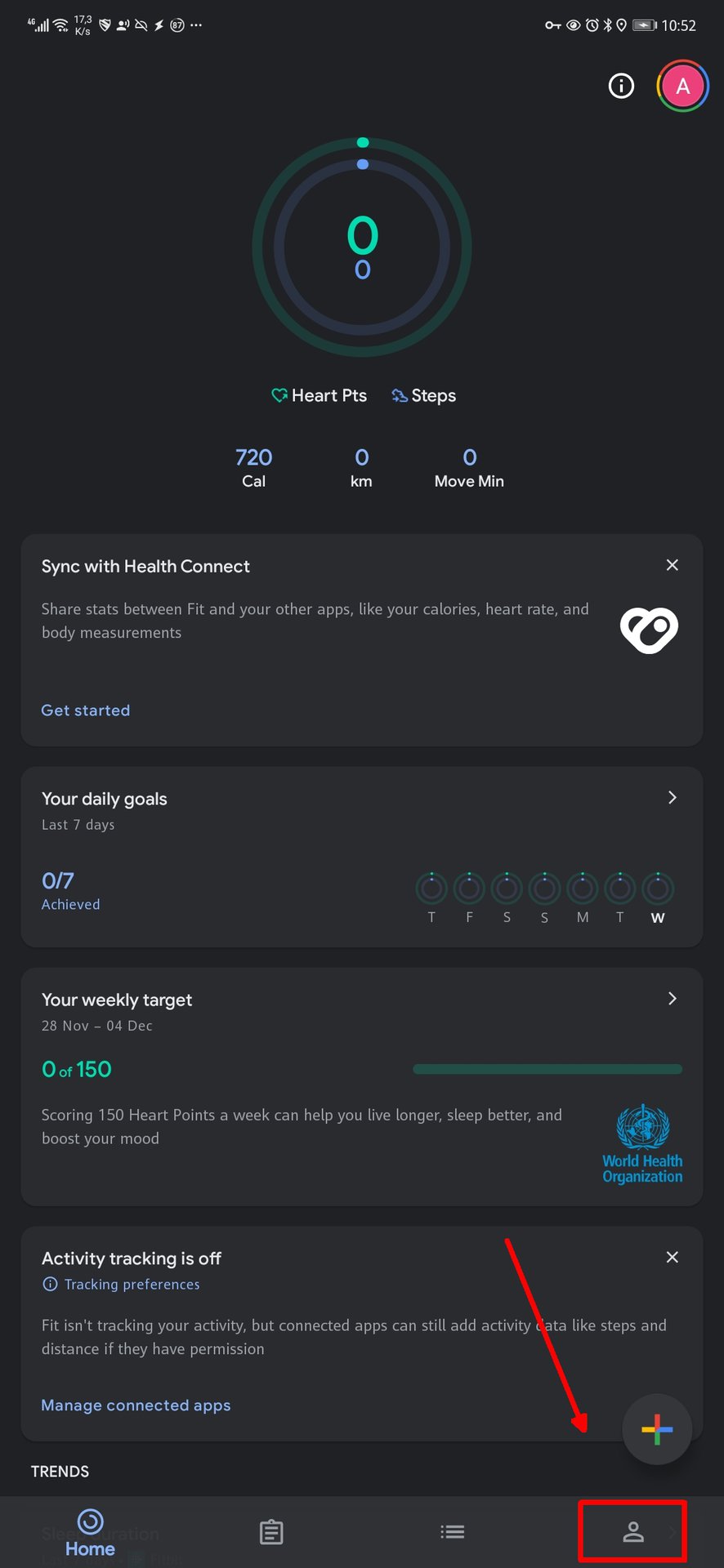
Before pairing your device, your phone needs a central hub to collect and display fitness data. Android is transitioning from Google Fit to a newer, more secure system—your first move depends on your device’s software version.
Install Health Connect or Google Fit
Most modern Android phones (Android 8.0+) should use Health Connect—Google’s latest privacy-focused health data manager. It stores your activity, sleep, heart rate, and more directly on your device, not in the cloud. To install:
- Open the Google Play Store
- Search for “Health Connect”
- Install the app (by Google LLC)
- Open it and grant all necessary permissions
If your phone doesn’t support Health Connect, fall back to Google Fit. While older, it still works well for basic sync tasks. Install it the same way and sign in with your Google account.
⚠️ Note: Health Connect has over 500 million downloads but a low 2.8-star rating—many users report bugs. If syncing fails later, this could be why.
Verify App Compatibility
Not all fitness apps work with Health Connect yet. Before proceeding, check compatibility at:
https://g.co/android/CompatibleWithHealthConnect
If your tracker’s app isn’t listed, you may need to stick with Google Fit or use a third-party sync tool.
Configure Privacy Settings
Health Connect gives you full control over who sees your data. After installation:
- Go to Settings > Apps > Health Connect
- Tap “Manage data access”
- Review which apps can read or write data
- Toggle off any you don’t trust
You’ll be prompted each time a new app requests access—always review the data types it wants (e.g., steps, sleep, weight). You can revoke access anytime, but note: data already collected cannot be deleted from the system.
Download Your Tracker’s Manager App
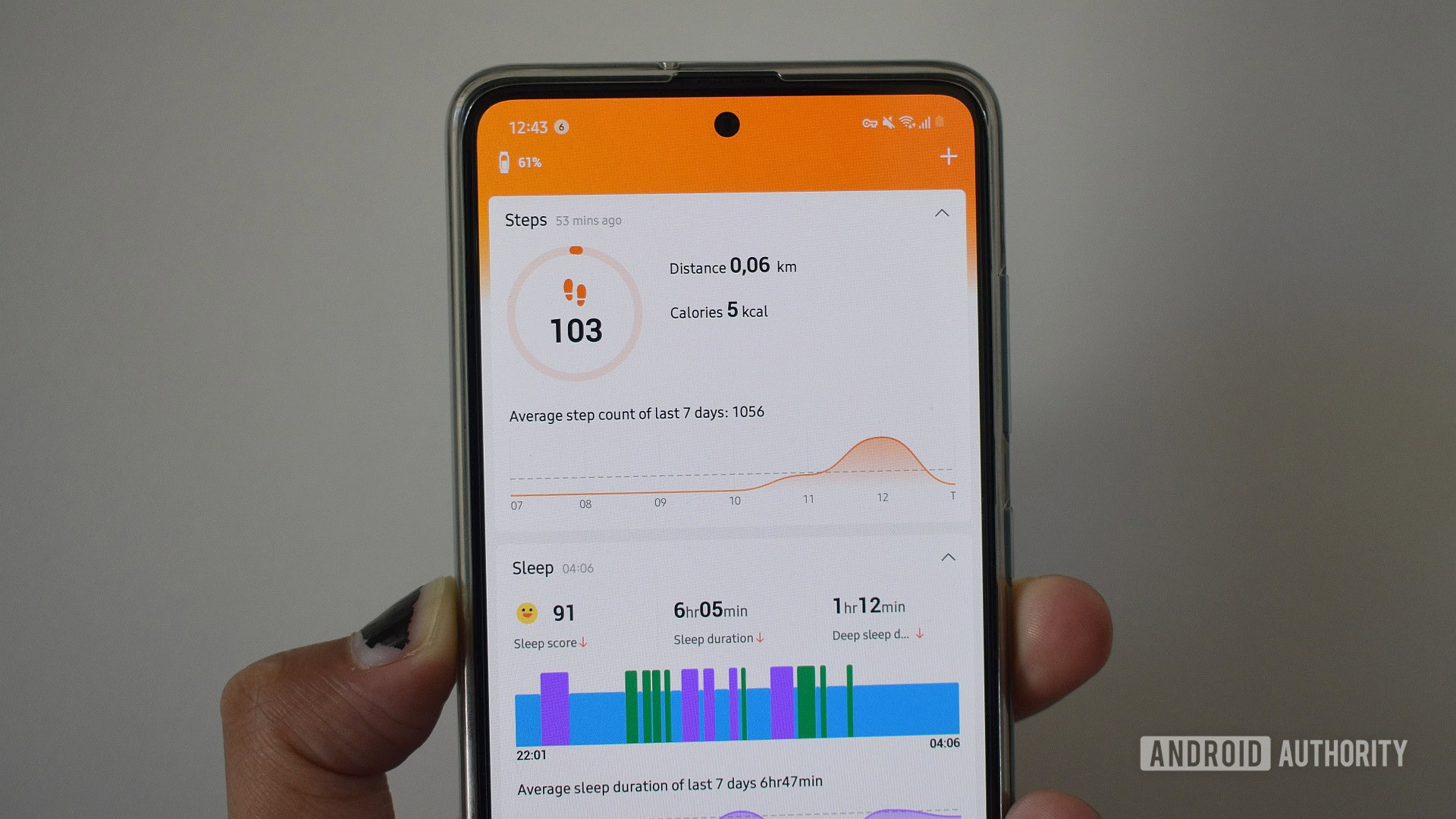
Your fitness tracker won’t connect without its brand-specific companion app. This is where pairing, firmware updates, and profile setup happen.
Find the Correct App by Brand
| Tracker Brand | Required App |
|---|---|
| Xiaomi / Mi Band | Zepp Life (formerly Mi Fit) |
| Fitbit | Fitbit |
| Samsung | Samsung Health |
| Huawei | Huawei Health |
| Amazfit | Zepp |
❗ Warning: Don’t guess the app. “Mi Band” might show dozens of results—only Zepp Life (by Anhui Huami) is official.
Install and Open the App
- Open the Google Play Store
- Search for your tracker’s exact app name
- Confirm the developer (e.g., “Fitbit, Inc.” or “Anhui Huami”)
- Install and open it
Once launched, the app will usually prompt you to sign up or log in. Use your email or Google account. This creates your user profile, which stores height, weight, goals, and activity history.
Pair Your Fitness Tracker via Bluetooth
Now it’s time to link the hardware to your phone. This step uses Bluetooth—make sure it’s enabled and your tracker is charged.
Enable Bluetooth and Start Pairing
- Swipe down and ensure Bluetooth is on
- Open your tracker’s manager app
- Tap “Add Device” or “Pair New Tracker”
- Select your model from the list
The app will search for your device. Keep the tracker close (within 3 feet) and on your wrist or on a flat surface.
Complete Initial Setup
Follow the on-screen prompts to:
- Name your device (e.g., “My Mi Band”)
- Set your fitness goals (daily steps, sleep target)
- Choose units (metric/imperial)
- Sync time and date
This usually takes 1–3 minutes. Once done, you’ll see a confirmation like “Device Connected” or a checkmark icon.
✅ Visual cue: Your tracker’s screen should display a paired icon or your phone’s name.
Sync Data to Your Health Platform
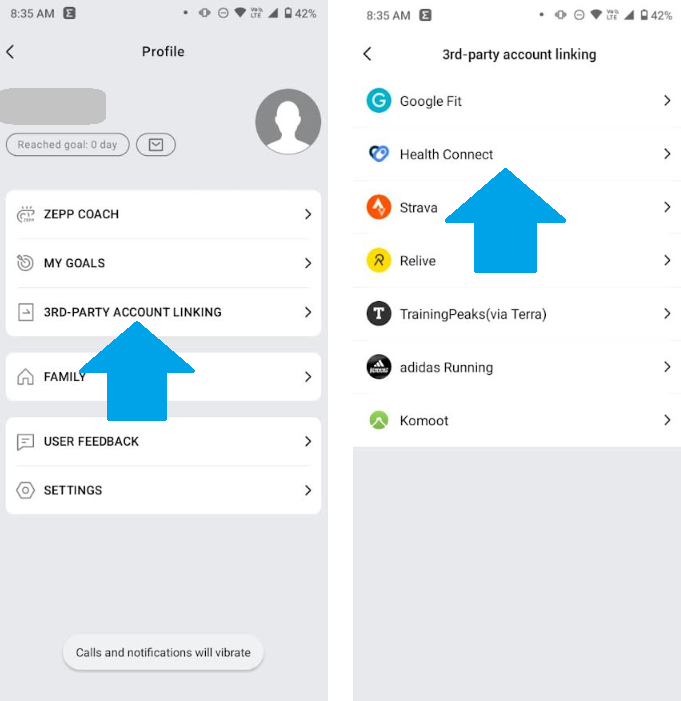
Pairing connects the tracker to the app—but to see data in Google Fit or Health Connect, you need to authorize data sharing.
Link to Health Connect
- Open the Health Connect app
- Tap “Apps” at the bottom
- Tap “Install or connect app”
- Search for your tracker’s manager app (e.g., Zepp Life)
- Tap it and allow permissions for data types (steps, heart rate, sleep)
The app will now feed data into Health Connect. It may take 5–10 minutes to appear.
Link to Google Fit (Legacy Method)
If using Google Fit:
- Open the Google Fit app
- Tap your profile picture > Settings > Connected apps & services
- Tap “Connect app”
- Select your tracker’s app from the list
- Grant access to activity, sleep, and weight data
🔁 Tip: Some apps only sync every 1–2 hours. Don’t panic if data isn’t instant.
Fix Common Connection Problems

Even with the right steps, things can go wrong. Here’s how to fix the most frequent issues.
No Sync After Pairing
Symptom: Tracker shows steps, but Google Fit or Health Connect stays blank.
Solutions:
– Force-close and reopen the manager app
– Restart your phone
– Unpair and re-pair the device in the app
– Check if the app has background permission (Settings > Apps > [App Name] > Battery > Unrestricted)
App Not Showing in Health Connect
Symptom: Your tracker’s app doesn’t appear in the “Apps” list.
Causes & Fixes:
– ❌ App not compatible: Check g.co/android/CompatibleWithHealthConnect
– ❌ App outdated: Update it via Play Store
– ❌ Health Connect glitch: Clear cache (Settings > Apps > Health Connect > Storage > Clear Cache)
Third-Party Bridge Required
Some trackers (like older Mi Bands) don’t sync directly with Google Fit or Health Connect. You’ll need a bridge app.
Use a Sync Bridge App
- Search Play Store for: “Mi Band Google Fit sync”
- Install a trusted bridge like “Notify for Google Fit” or “SyncMyTracks”
- Open it and log in to both your tracker app and Google Fit
- Authorize data flow
These apps run in the background and push data automatically. Some are free; others cost $2–5.
💡 Pro Tip: Look for apps with 4+ stars and recent updates. Avoid ones asking for unnecessary permissions.
Special Cases: Keep Health and Niche Platforms
Not everyone uses Google’s ecosystem. If you’re using Keep Health, the process changes.
Connect to Keep Health App
Keep Health is popular in fitness communities, especially via Amazon Live tutorials by experts like Hailianhua Tech.
Steps:
- Install Keep Health from the Play Store
- Open the app and create an account
- Go to Profile > Connected Devices
- Select your tracker brand
- Follow the in-app pairing guide
📹 Expert Note: Hailianhua Tech offers video walkthroughs for tricky setups. Search “Keep Health Mi Band setup” on YouTube for visual help.
Keep Health may not support all devices directly—check its compatibility list before buying a tracker.
Maintain Secure, Reliable Sync
Once connected, keep your setup running smoothly with these maintenance habits.
Update Apps and Firmware Regularly
Outdated software breaks sync. Do this monthly:
- Open Play Store > Manage apps & device > Update tracker app and Health Connect
- Open tracker app > Check for firmware updates
Updated firmware often fixes bugs and improves battery life.
Monitor Data Permissions
Apps can lose access after updates. Every few weeks:
- Open Health Connect > Apps
- Check if your tracker app still has green checkmarks
- Re-authorize if access is revoked
Restart Connection Weekly
Prevent Bluetooth drift with a quick reset:
- Turn off Bluetooth for 10 seconds
- Turn it back on
- Open tracker app to force a re-sync
Takes 30 seconds and prevents data gaps.
Frequently Asked Questions About Connecting a Fitness Tracker
Why isn’t my fitness tracker syncing to Google Fit?
The most common cause is a permission issue. Open Health Connect or Google Fit, check that your tracker’s app has access, and verify the app is compatible at g.co/android/CompatibleWithHealthConnect. Restarting the phone and re-pairing the device also resolves most glitches.
Do I need Health Connect or Google Fit?
Use Health Connect if your phone supports it (Android 8.0+). It offers better privacy and stores data on-device. If your tracker’s app isn’t compatible with Health Connect, fall back to Google Fit or use a third-party bridge app.
Can I connect a fitness tracker without an app?
No. Every fitness tracker requires a brand-specific manager app for pairing. Without it, the tracker cannot communicate with your phone or transfer data to any health platform.
Is Health Connect safe to use?
Yes. Health Connect stores data locally on your device, encrypts it in transit, and does not share data with third parties. However, data already collected cannot be deleted, though you can revoke app permissions anytime.
What is a third-party bridge app?
It’s a tool that transfers data between your tracker’s native app and Google Fit or Health Connect when no direct integration exists. Apps like “Notify for Google Fit” or “SyncMyTracks” work well for older Mi Bands and similar devices.
How long does the initial setup take?
Most users complete pairing and syncing in 5–10 minutes. The tracker’s manager app handles pairing in 1–3 minutes, while Health Connect or Google Fit may take an additional 5–10 minutes to display your first data points.
Key Takeaways for Connecting Your Fitness Tracker
Connecting your fitness tracker comes down to three essentials: install your platform (Health Connect or Google Fit), download your tracker’s brand app, and pair via Bluetooth. Once linked, authorize data sharing so your activity flows into the central health app.
If syncing fails, the issue is almost always software-related—permissions, app compatibility, or outdated firmware. Check Health Connect access first, then update your apps. For older devices, a bridge app fills the gap between your tracker and Google Fit.
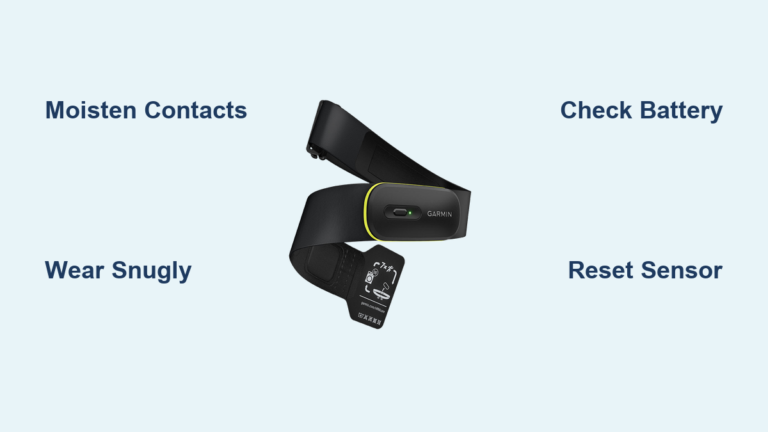
Now that your setup is complete, sync daily, wear your tracker snugly, and keep apps updated. Your data is ready to help you build healthier habits—one step, one beat, one night of better sleep at a time.