How to Connect Echelon Heart Rate Monitor
You’re ready to crush your next workout, but your Echelon app isn’t picking up your heart rate data. You’ve got the Echelon heart rate monitor in hand, but no clear guide on how to pair it. You’re not alone—many users struggle with connecting their Echelon heart rate monitor the first time. The good news? Once you know the exact steps, pairing is quick and reliable. This guide walks you through how to connect Echelon heart rate monitor to your app, including setup, Bluetooth pairing, troubleshooting, and pro tips for a seamless fitness experience.
Whether you’re using an Echelon bike, treadmill, or just the app, syncing your heart rate monitor boosts your workouts by showing real-time effort levels. We’ll cover compatible models, correct wear placement, and common errors like “device not found” or “no signal.” By the end, you’ll be able to pair your monitor in under a minute and get back to maximizing every session.
Check Compatibility First

Before pairing, confirm your heart rate monitor works with your device and the Echelon app.
Confirm Supported Devices
The Echelon heart rate monitor (chest strap) is compatible with:
– Echelon Fit app (iOS and Android)
– Echelon Smart Bikes (Connect, Smart, etc.)
– Echelon Rower and Treadmills with Bluetooth
It uses Bluetooth 4.0 (BLE) to transmit data. Most smartphones and tablets from the last 5 years support this standard.
Verify Your Monitor Model
Echelon typically sells two versions:
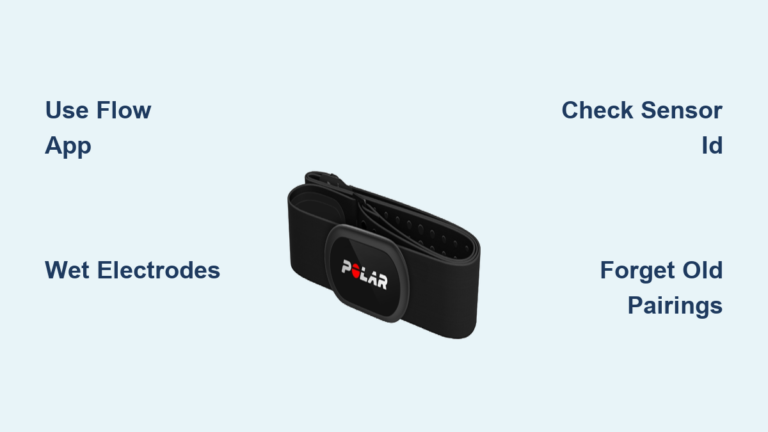
– Echelon Smart HR Monitor (black strap with gray connector)
– Polar H7-compatible straps (used with older setups)
Both pair the same way—via Bluetooth in the Echelon app. If your strap has “Polar” on it, it still works as long as you follow Echelon’s pairing process.
Download and Update Echelon App
A current app version ensures smooth Bluetooth detection.
Install from Official Store
- iOS Users: Download “Echelon Fit” from the App Store
- Android Users: Get it from Google Play
- Avoid third-party sites—only official stores offer secure, updated versions
Update to Latest Version
Outdated apps often fail to detect HR monitors.
1. Open your device’s app store
2. Search “Echelon Fit”
3. Tap “Update” if available
4. Restart the app after updating
Pro Tip: Enable auto-updates to avoid future connection issues.
Power On Your Heart Rate Monitor
The monitor must be active to pair.
Wet the Chest Strap Sensors
Moisten the sensor areas on the inside of the strap with water. This improves conductivity. Do not use sweat alone—dampening ensures immediate signal transmission.
Wear the Strap Correctly
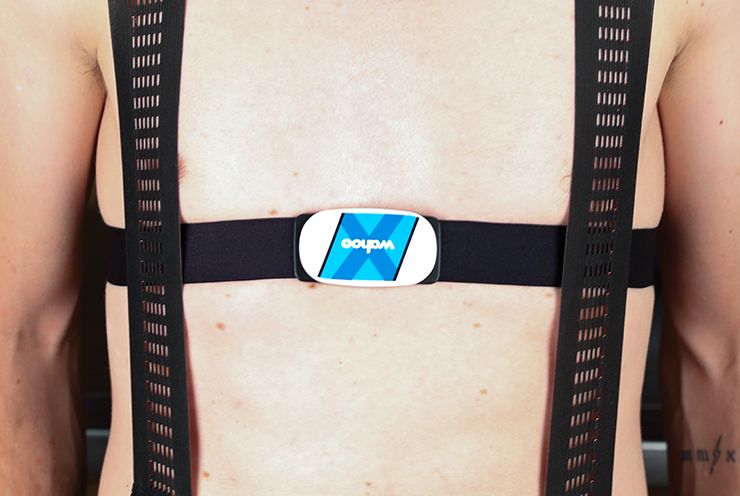
- Place the strap snugly around your chest, just below the pectoral muscles
- The Echelon logo should sit upright and centered
- Ensure no twists in the band
- Tighten enough to stay in place during movement—but not so tight it restricts breathing
Activate the Monitor
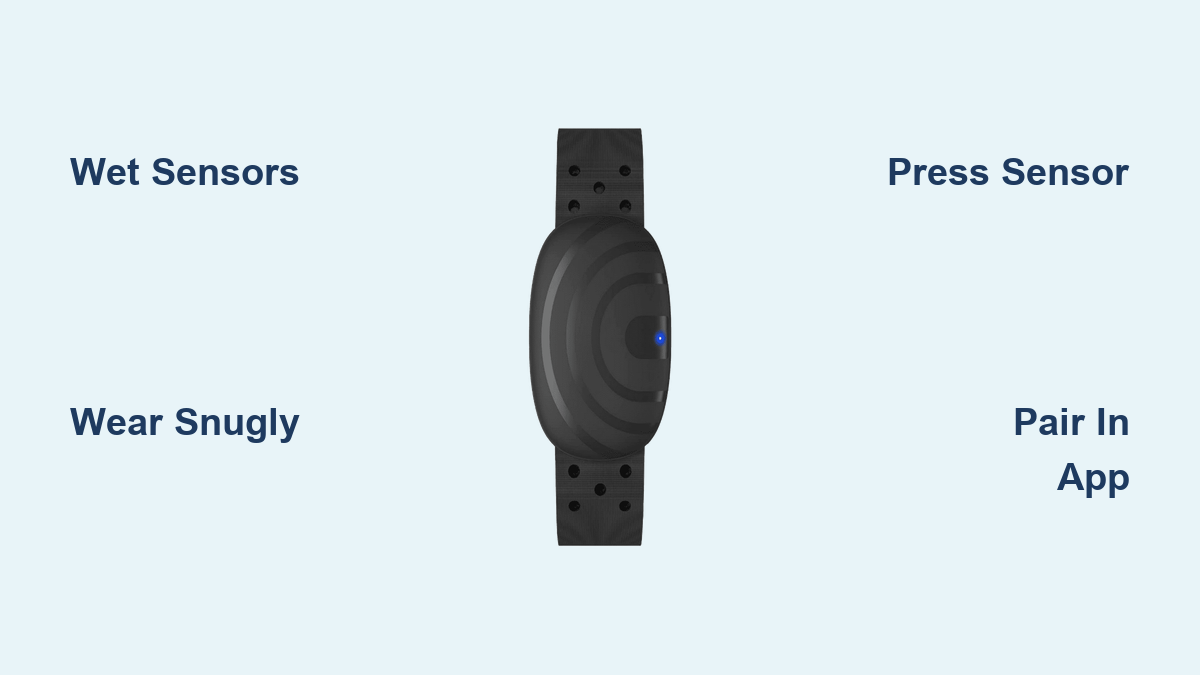
Tap or press the sensor module (gray box). You should feel a small vibration or see a brief LED flash. This means the device is powered and searching for a connection.
Note: The Echelon HR monitor only powers on when worn and pressed—it doesn’t stay on standby.
Enable Bluetooth on Your Device
Bluetooth must be active for pairing.
Turn On Bluetooth
- iPhone: Settings > Bluetooth > Toggle On
- Android: Quick Settings panel or Settings > Connected Devices > Bluetooth
Wait 10 seconds for your device to start scanning.
Avoid Interference
Keep your phone or tablet within 3 feet of the monitor. Avoid:
– Metal objects (like bikes or weights)
– Wi-Fi routers
– Other Bluetooth devices (especially heart rate straps or headphones)
Warning: Using a case with metal shielding can block signals—remove if pairing fails.
Pair Monitor in Echelon App
Now connect the devices through the app.
Open Echelon Fit App
Log in to your account. If you’re not prompted to connect a device, go manually.
Navigate to Device Settings
- Tap the More (three lines) icon
- Select Settings
- Choose Connected Devices
- Tap Heart Rate Monitor
The app will begin searching for available devices.
Select Your Monitor
When your HR monitor appears (usually listed as “Echelon HR” or “Polar H7”), tap it.
Wait 5–10 seconds. A confirmation message will appear: “Heart Rate Monitor Connected.”
Success Tip: If the name doesn’t appear, press the sensor module again to re-activate.
Test the Connection
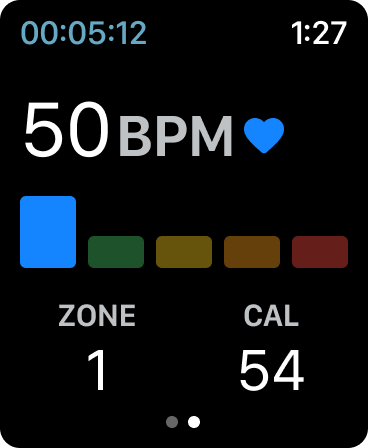
Verify your monitor is working before starting a workout.
Check Live Heart Rate
- Stay still for 15 seconds
- Watch the app—your real-time BPM should display
- Tap your chest lightly—you should see a small spike in the reading
Start a Quick Session
Begin a 2-minute ride or walk. Your heart rate should rise naturally with movement. If it stays flat or reads “0,” the connection failed.
Visual Cue: A pulsing heart icon on the screen confirms active tracking.
Troubleshoot Pairing Failures

Even with correct steps, issues happen. Here’s how to fix them.
“Device Not Found” Error
This means Bluetooth can’t detect the monitor.
Solutions:
- Re-wet the sensors—dry skin blocks signals
- Press the sensor firmly—tap until you feel a vibration
- Restart Bluetooth—turn it off/on in settings
- Restart the app—close completely and reopen
- Check battery—replace the CR2032 coin cell if older than 12 months
“Connection Lost During Workout”
Signal drops mid-session are frustrating but fixable.
Common Causes:
- Loose strap—tighten and reposition
- Sweat buildup—wipe sensors during long sessions
- Phone overheating—avoid direct sun on device
- Multiple Bluetooth devices—turn off unused ones (like earbuds)
Pro Tip: Use a heart rate armband (like Scosche or Wahoo) if you dislike chest straps—most work with Echelon via Bluetooth.
Use with Third-Party Apps
Your Echelon HR monitor isn’t limited to one app.
Pair with Peloton, Zwift, or MyFitnessPal
- Open the third-party app
- Go to device settings
- Select “Add Heart Rate Monitor”
- Choose “Echelon HR” or “Polar H7” when listed
Note: Some apps may show it as a generic BLE device—look for signal strength to confirm.
Sync Data Automatically
Apps like Google Fit and Apple Health can pull heart rate data during workouts if permissions are enabled in the Echelon app settings.
Maintain Your Monitor
Long-term reliability depends on care.
Clean After Every Use
- Wipe the sensor module with a dry cloth
- Hand-wash the strap with mild soap and water
- Air dry flat—never in direct heat
Never put the strap in a washing machine—the electronics will be damaged.
Replace Battery Annually
The CR2032 battery lasts about 12 months with regular use.
How to Replace:
- Use a small coin to twist open the back cover
- Remove old battery
- Insert new one (positive side up)
- Snap cover back on
Test immediately after replacement.
Maximize Accuracy

Even paired, inaccurate readings can occur.
Avoid Common Mistakes
- Wearing over clothing—strap must touch skin
- Incorrect positioning—too high or low reduces signal
- Ignoring moisture—dry sensors delay readings
- Using expired battery—weak power causes dropouts
Calibrate with Resting Rate
Check your resting heart rate in the morning. If the app shows +10–15 BPM above normal, re-pair the device.
Final Tips for Reliable Use
Make heart rate tracking effortless with these habits.
Pair Before Every Workout?
No. Once connected, the app remembers your device. It usually reconnects automatically when:
– Bluetooth is on
– Monitor is powered
– You open the app
But if you use multiple devices, manual re-pairing may be needed.
Use a Backup Option
Consider a wrist-based monitor (like Fitbit or Garmin) as a backup. While less accurate during sprints, they’re convenient for steady-state rides.
Contact Support If Stuck
If nothing works:
– Visit echelonfit.com/support
– Call 1-800-888-1234 (US)
– Include your monitor’s serial number (on the back of the sensor)
Echelon offers replacements under warranty if the unit is defective.
Frequently Asked Questions About Echelon Heart Rate Monitor Connection
Why won’t my Echelon heart rate monitor connect?
The most common reasons are dry sensors, inactive Bluetooth, or an outdated app. Re-wet the strap, toggle Bluetooth off and on, and ensure your Echelon Fit app is updated to the latest version.
How do I know if my heart rate monitor is on?
Press the sensor module firmly. You should feel a small vibration or see a brief LED flash. If nothing happens, the battery may need replacing (CR2032 coin cell).
Can I use my Echelon heart rate monitor with other apps?
Yes. The monitor works with any Bluetooth-enabled fitness app, including Peloton, Zwift, and MyFitnessPal. Pair it through the third-party app’s device settings under “Add Heart Rate Monitor.”
How often should I replace the battery?
Replace the CR2032 battery every 12 months with regular use. Weak batteries cause signal dropouts and inaccurate readings.
Do I need to pair my monitor every workout?
No. Once paired, the Echelon app remembers your device and reconnects automatically when Bluetooth is on and the monitor is activated.
Can I wear the chest strap over my shirt?
No. The strap must touch bare skin to transmit accurate heart rate data. Wearing it over clothing blocks the signal and causes “device not found” errors.
Key Takeaways for Connecting Your Echelon Heart Rate Monitor
Connecting your Echelon heart rate monitor takes just minutes when you follow the right steps. Ensure the strap is damp, worn correctly, and activated, then pair via the Echelon Fit app under Connected Devices. With a stable Bluetooth connection, you’ll get real-time feedback to push harder or recover smarter. Clean the strap after use, replace the battery yearly, and enjoy more effective, data-driven workouts. Now that you know how to connect Echelon heart rate monitor reliably, every beat counts.