How to Connect Wahoo Heart Rate Monitor
You just unboxed your Wahoo TICKR, snapped the strap around your chest, and opened Zwift, only to watch it spin on “Searching” forever. Sound familiar? Learning how to connect Wahoo heart rate monitor devices trips up even experienced users, mostly because of one critical mistake: pairing through your phone’s Bluetooth settings instead of through the app itself. That single error causes the majority of connection failures people report online.
This guide gives you the exact pairing sequence, fixes for stubborn Zwift issues, and maintenance habits that keep your TICKR working for years. Whether you use iPhone, Android, Mac, PC, or a Garmin watch, you’ll find clear steps tailored to your setup.
Wear the TICKR for a Reliable Signal
Snap and Adjust the Strap
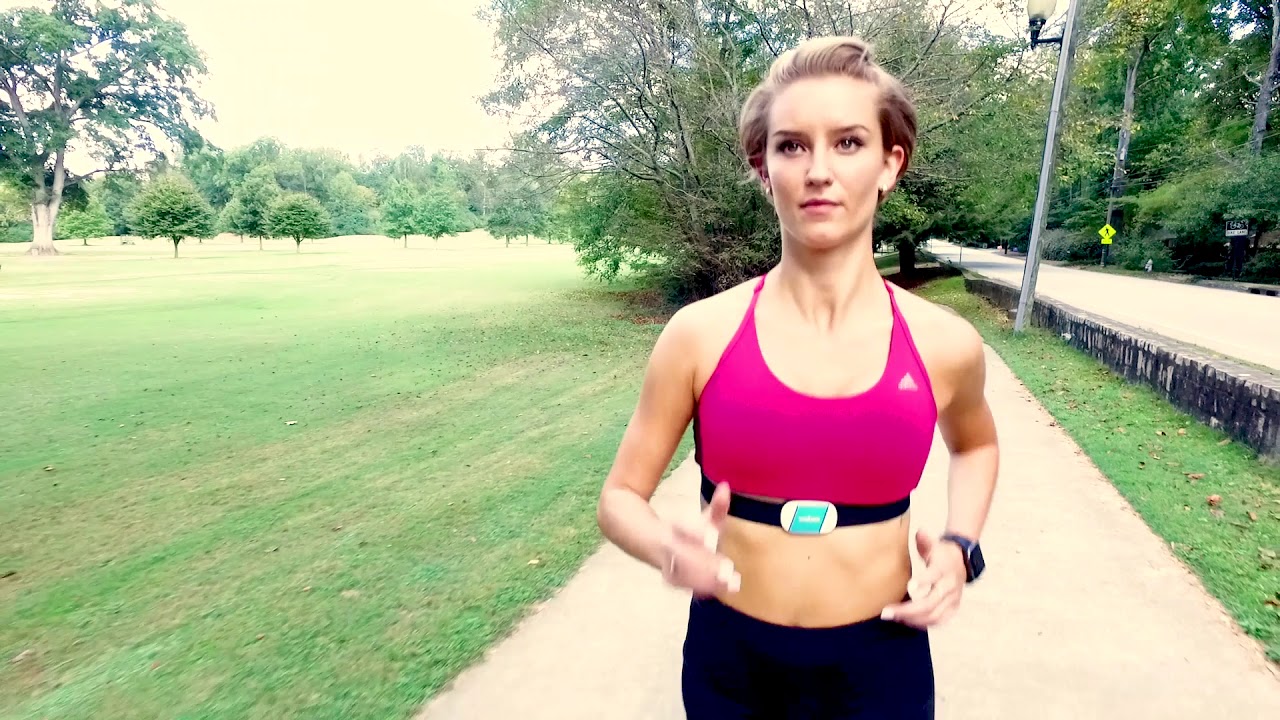
Slide the sensor pod into one end of the elastic strap until it clicks. Wrap the strap around your chest, positioning it just below the pectoral muscles (men) or under the bust line (women). Pull it snug enough to stay put during running, but loose enough to breathe comfortably.
Moisten the Metal Contact Points
The TICKR reads your heartbeat through electrical conductivity, which requires moisture. Before each session, wet the two metal pads on the strap’s interior with saliva or electrode gel. Dry contacts equal no signal, even on a perfectly functioning device.
Wake the Sensor
Fasten the buckle. The device powers on automatically when it detects your heartbeat through the wet contacts. You can also wake it manually by touching both buckle terminals together at the same time. Watch for a red LED flash with each heartbeat to confirm it’s reading your pulse.
Pair Through the Wahoo Fitness App
Download and Open the App
Grab the Wahoo Fitness app from the Apple App Store or Google Play Store. Make sure Bluetooth is turned on, then launch the app and sign in or create a free account.
Run the Setup Wizard
Tap “Pair or link sensors” at the bottom of the home screen. Choose “Add New Sensor”, then select “Setup wizard”. Pick “TICKR” from the list when prompted.
Finish Pairing and Update Firmware
Tap your device when it appears to connect. If the app offers a firmware update, install it right away. Firmware updates fix known bugs and improve compatibility with apps like Zwift. Tap “Finish Setup” to lock in the connection.
Connect to Zwift, Rouvy, and Other Training Apps

Skip the OS Bluetooth Menu
Never pair your TICKR through your phone’s Settings > Bluetooth screen. That method locks the connection and blocks apps from accessing the sensor. Always let the training app handle pairing on its own.
Start a Workout in Your App
Open Zwift, Rouvy, TrainingPeaks, or your preferred platform. Begin a new session and head to the sensor pairing screen. With the TICKR already on your chest and the red LED flashing, your device should show up in the list. Tap to connect.
Confirm Heart Rate Data Appears
Wait for your real-time BPM to populate on screen. A steady reading means the connection is solid. Hit “Start” to begin recording your workout.
Fix the Most Common Connection Failures
Zwift Stuck on “Searching”
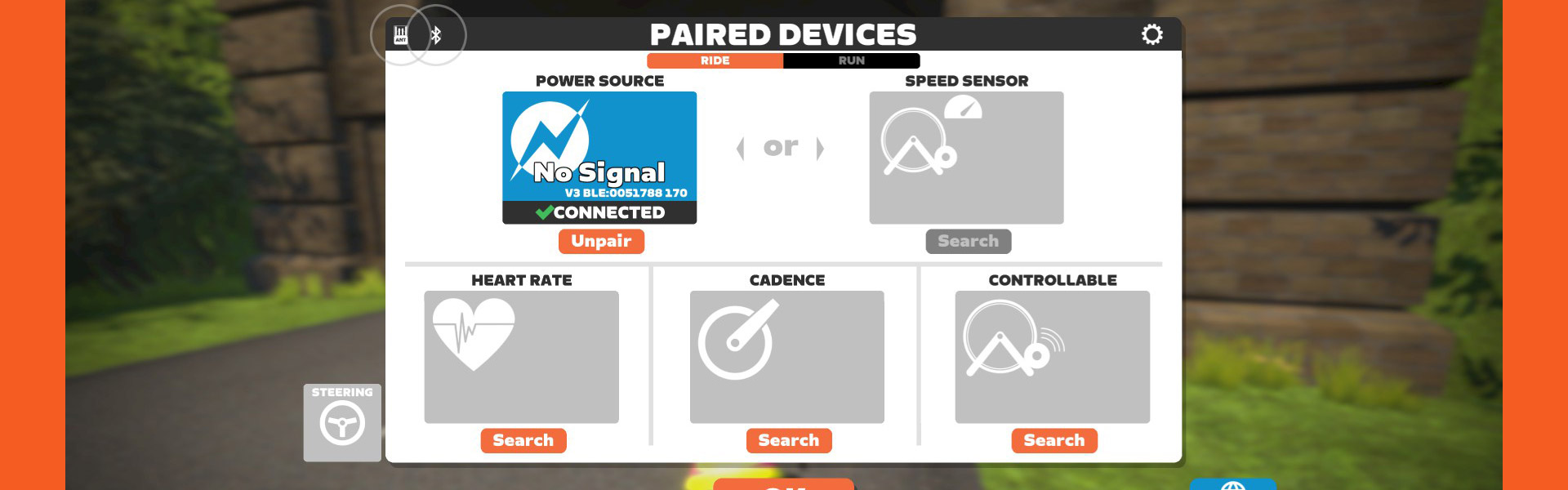
This is the most reported Wahoo TICKR problem. Clear it with these steps:
- Open Settings > Bluetooth on your phone.
- Find “TICKR” in the list and tap “Forget Device”.
- Reopen Zwift and pair through the app, not your OS.
This breaks conflicting Bluetooth bonds and lets Zwift claim the sensor.
Paired but Showing 0 BPM
A connection without data usually points to one of three culprits:
- Dry strap contacts
- Low battery
- Outdated firmware
Re-moisten the pads, check battery status in the Wahoo app, and confirm your firmware is current.
Works in Ride Mode but Not Run Mode (Tickr X)
Some Tickr X users see this glitch after software updates. Restart the Wahoo Fitness app, re-pair the sensor, then launch Zwift Run mode. This resets the data stream and typically clears the conflict.
Use Dual Bluetooth and ANT+ Connections

Pair to Multiple Devices at Once
The TICKR broadcasts on Bluetooth and ANT+ simultaneously. You can connect to your phone via Bluetooth for Zwift while your Garmin watch picks up the ANT+ signal at the same time.
Pro Tip: On Windows or Mac, an ANT+ USB dongle delivers more stable computer connections than native Bluetooth, especially in RF-crowded spaces like gyms.
Stay Within the Three-Device Limit
Bluetooth supports up to three active connections. You can link to a phone, smartwatch, and tablet without trouble. Just close background apps before starting a workout. A silent Strava session can hijack the sensor and disrupt your Zwift ride.
Troubleshoot Stubborn Pairing Problems
Hard Reset the Sensor
When nothing else works, force a reset:
- Pop out the battery from the pod.
- Reinsert it upside down for 3–4 seconds (no damage occurs).
- Flip it back to the correct polarity.
This clears cached data and often restores pairing ability. Reconnect through the Wahoo app afterward.
Update Firmware on Mobile Before Using a Computer
Desktop apps cannot update TICKR firmware. If your sensor won’t show up in Zwift on Mac or PC:
- Update firmware through the Wahoo app on your phone.
- Forget the device in phone Bluetooth settings.
- Pair successfully in Zwift on your phone.
- Open Zwift on your computer and the sensor should appear.
Switch to Electrode Gel for Better Conductivity
Saliva evaporates fast. For long sessions or dry climates, apply commercial electrode gel to the contact points. Users consistently report fewer dropouts and faster pairing with gel.
Maintain Your TICKR for Long-Term Use

Replace the CR2032 Battery the Right Way
When the LED dims or the sensor won’t wake, swap in a fresh CR2032 coin cell. Use a coin to twist the back casing counter-clockwise and remove it. Insert a name-brand battery (Duracell, Energizer, or Panasonic) and avoid bitter-coated cells, which interfere with electrical contact. Twist clockwise to lock the casing back in place. A quality battery typically lasts 1–2 years.
Clean the Strap After Every Workout
Sweat and salt corrode fabric and degrade conductivity over time. Hand wash the strap with mild soap and warm water, then hang it to dry completely. Skip the washing machine and never use bleach or harsh solvents.
Store with One Side Unbuckled
Always unclip one end of the strap before putting it away. Breaking the circuit between the contact points prevents the sensor from waking up accidentally in your gym bag, which silently drains the battery.
Frequently Asked Questions About Wahoo Heart Rate Monitor Pairing
Why won’t my Wahoo TICKR connect to Zwift?
The most common cause is pairing through your phone’s Bluetooth settings instead of the Zwift app. Go to Settings > Bluetooth, forget the TICKR, then pair directly inside Zwift. This clears the lock and allows Zwift to claim the sensor.
Do I need to moisten the Wahoo TICKR strap every time?
Yes. The TICKR uses electrical conductivity to detect heartbeats, and dry contacts block the signal. Wet the metal pads with saliva or electrode gel before each session for accurate readings and stable connections.
Can I connect my Wahoo TICKR to multiple devices at the same time?
Yes. The TICKR supports simultaneous Bluetooth and ANT+ connections, with Bluetooth allowing up to three active pairings. You can link your phone, smartwatch, and tablet simultaneously, but close unused fitness apps to prevent signal conflicts.
How do I update the firmware on my Wahoo TICKR?
Firmware updates are only available through the Wahoo Fitness mobile app on iOS or Android. Desktop applications cannot perform updates. Open the app, pair your sensor, and follow the prompts if an update is available.
What battery does the Wahoo TICKR use, and how long does it last?
The TICKR uses a standard CR2032 coin cell battery. A quality name-brand battery typically lasts 1–2 years depending on usage. Replace it by twisting the back casing counter-clockwise with a coin.
Why does my TICKR show 0 BPM even when paired?
Zero BPM usually means dry contacts, a low battery, or outdated firmware. Re-moisten the strap pads, check the battery level in the Wahoo app, and install any pending firmware updates.
Key Takeaways for Connecting Your Wahoo Heart Rate Monitor
Connecting your Wahoo TICKR comes down to three core habits: always moisten the strap contacts, always pair through the Wahoo Fitness app instead of your phone’s Bluetooth menu, and always keep firmware updated via mobile. These three steps eliminate the majority of connection headaches people encounter.
When pairing with Zwift specifically, remember the “Forget Device” trick if you get stuck on “Searching.” For long-term reliability, clean the strap after every workout, store it unbuckled, and use name-brand CR2032 batteries.
Your TICKR is built for flexibility with dual Bluetooth and ANT+ support, so take advantage of that by pairing it with your phone and watch at the same time. Now that you know exactly how to connect Wahoo heart rate monitor devices and keep them running smoothly, you’re ready to train with accurate, real-time heart rate data across every platform you use.