Fix Pixel Watch 2 Heart Rate Monitor
You check your Pixel Watch 2 after a workout and see flatlines where your heart rate graph should be. The Fitbit app shows zero data points for hours, even though your step counter and sleep tracker still work perfectly. This selective failure is one of the most reported Pixel Watch 2 bugs, and it usually appears right after a system update or when you switch to a new watch face.
The frustration is real because the watch seems functional. You can still check the time, track runs, and get notifications. But without heart rate data, workout zones, resting heart rate trends, and sleep-stage analysis all become useless. The good news is that this is almost always a software or permission issue, not a dead sensor. This guide walks you through the exact steps to restore heart rate tracking, starting with the fastest fixes and moving toward deeper system resets.
Switch to a Default Google Watch Face
Confirm the Third-Party Face Conflict
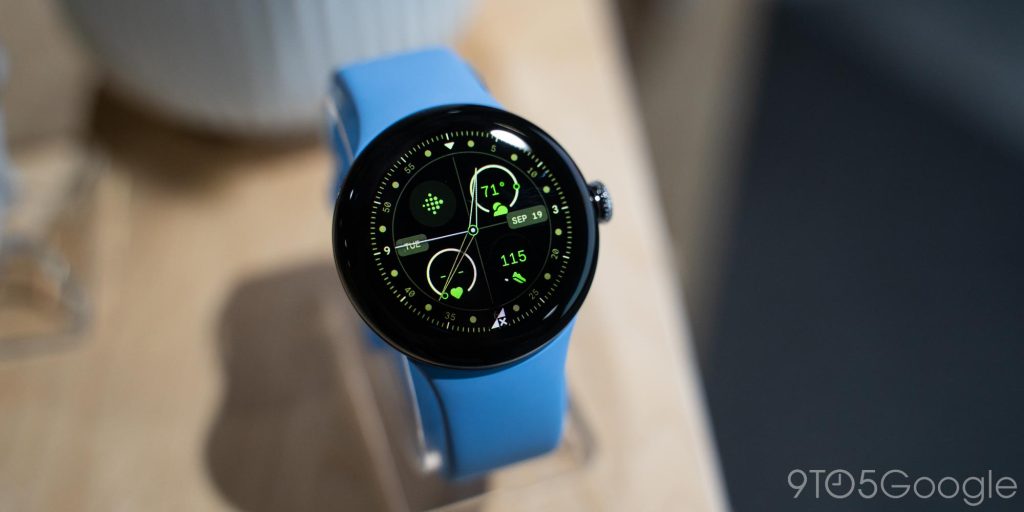
The single most common cause of Pixel Watch 2 heart rate monitor not working is a third-party watch face, especially those from the Facer platform. These faces frequently lose sensor permissions after updates, which breaks heart rate and step tracking while leaving other functions untouched.
To test whether your watch face is the culprit:
1. Long-press your current watch face on the watch.
2. Swipe through the carousel and select a default Google face like “Subtle gradients” or “Minimal.”
3. Tap to apply it.
Wait 15 to 30 minutes, then open the heart rate app on your watch or check the Fitbit app on your phone. If heart rate data starts appearing, you have confirmed the conflict. Do not reinstall the same face immediately. Try a different third-party face or wait for the developer to release a compatibility update.
Avoid Problematic Complications
Some complications cause more trouble than others. The #ZSC# complication from Facer is notorious for interfering with sensor access. Users have reported that this complication can cap step counts at exactly 999 and block heart rate data entirely. You may also notice titles flashing briefly during data updates due to rendering delays.
Until developers patch these compatibility issues, stick to simpler complications or use Google’s native options. Your heart rate data is more important than a flashy complication.
Fix Sensor Permissions for Third-Party Apps
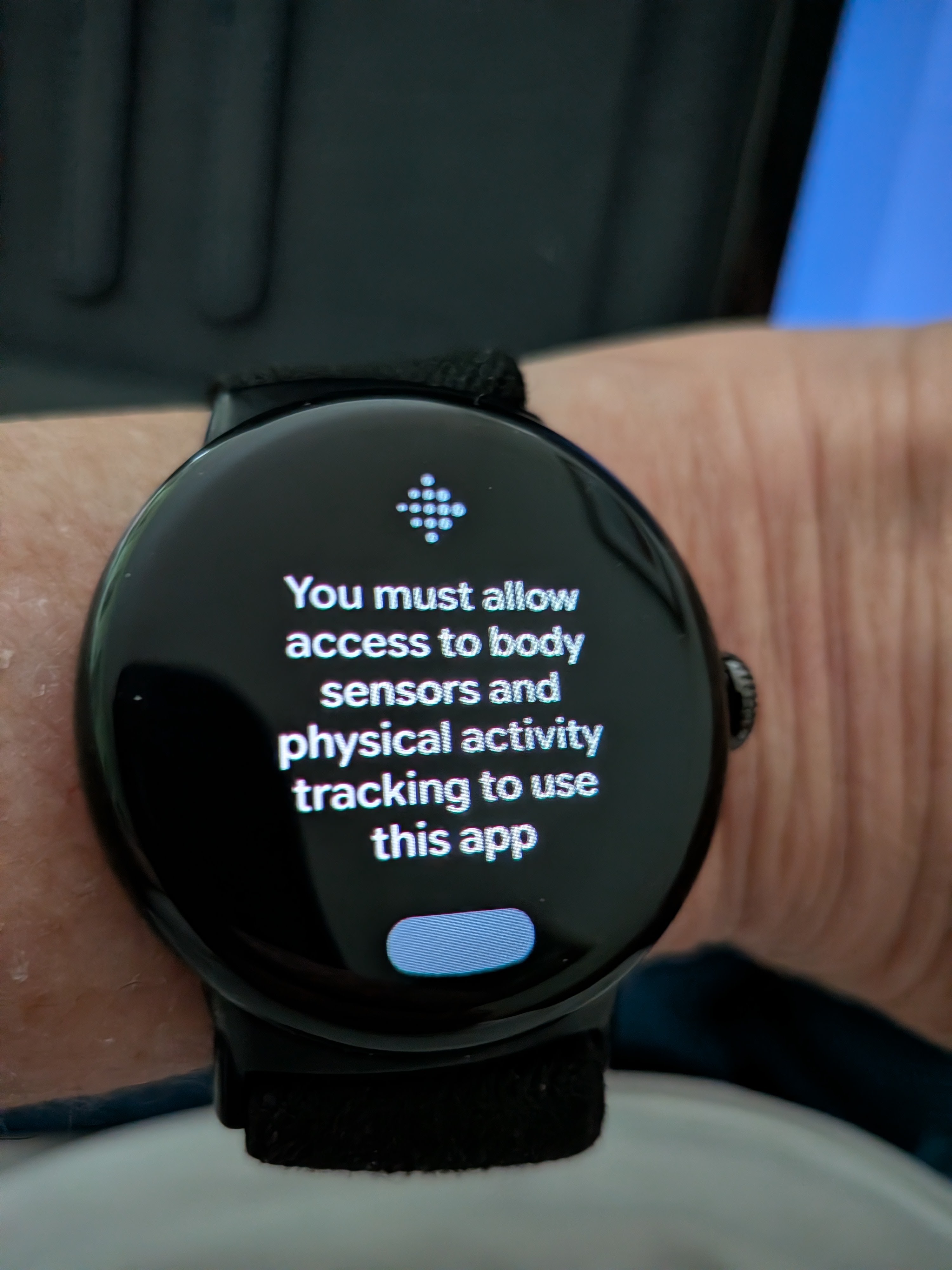
Grant “Allow All the Time” Access
Even if a third-party watch face worked perfectly before, system updates can silently revoke critical permissions. The Pixel Watch 2 requires “Allow all the time” access for sensors and physical activity data. The “Only while in use” setting will not work for continuous heart rate monitoring.
Here is how to fix the permissions:
1. Swipe down on your watch to open the quick settings menu.
2. Tap the gear icon to open Settings.
3. Navigate to Apps & notifications, then tap App permissions.
4. Find your watch face app in the list (for example, Facer).
5. Tap it and configure these settings:
– Physical Activity: Allow
– Sensors: Allow all the time
Heart rate data should resume within seconds. If nothing changes, restart the watch to force the new permissions to take effect.
Reinstall the App If Permissions Won’t Stick
Sometimes the app cache prevents permission changes from applying correctly. A clean reinstall resets the corrupted data pipeline.
Follow these steps:
1. Uninstall the watch face app via Settings > Apps or directly from the Play Store on your watch.
2. Restart your Pixel Watch 2 completely.
3. Reinstall the app from the Play Store.
4. On first launch, grant both Physical Activity and Sensors permissions immediately when prompted.
This process clears out any corrupted permission states and restores proper sensor access.
Reboot and Re-Pair the Watch
Perform a Full System Restart
A simple reboot clears temporary glitches that may be blocking sensor communication between the watch and the operating system.
To restart properly:
1. Press and hold the power button until the menu appears.
2. Tap Power off.
3. Wait at least 30 seconds.
4. Press the power button again to turn the watch back on.
After the reboot, check heart rate tracking and verify that your watch face still has the correct permissions. If the issue persists, move on to re-pairing.
Unpair and Re-Pair with Your Phone
This step resets the Bluetooth connection and the Health Connect bridge, which is critical for data syncing between the watch and your phone.
Steps to re-pair:
1. Open the Wear OS by Google app on your phone.
2. Tap the three-dot menu and select Unpair watch.
3. Confirm the action and wait for the process to finish completely.
4. Set up the watch again as if it were new.
5. Reinstall your preferred watch face and re-grant all permissions.
This process forces a fresh sync with Google Health Connect, which often resolves delayed or missing heart rate graphs that appear to be broken but are actually stuck in a sync queue.
Clean the Sensor and Adjust Your Fit
Remove Debris and Skin Residue
A dirty sensor is a surprisingly common cause of zero readings. Sweat, lotion, sunscreen, or dust can block the optical LEDs on the back of the watch, preventing them from detecting blood flow.
Clean the sensor properly:
1. Remove the watch from your wrist.
2. Use a soft, dry, lint-free cloth to wipe the back of the watch.
3. For stubborn grime, lightly dampen the cloth with water. Never apply liquid directly to the sensor.
4. Dry the watch completely before putting it back on.
Also, clean your wrist. Oily or dry skin can reduce sensor accuracy even when the hardware is working perfectly.
Tighten the Band for Better Skin Contact
The Pixel Watch 2 automatically disables heart rate monitoring when it does not detect proper skin contact. If your band is too loose, the sensor cannot maintain a consistent read.
Check your fit:
– Is the watch loose? It should feel snug but comfortable.
– Does the watch unlock when it is on your wrist? If not, the band is too loose.
For better readings, wear the watch slightly higher on your wrist, just above the wrist bone where blood flow is stronger. During workouts, use a ventilated band to prevent sweat from building up between the sensor and your skin.
Disable Battery Saver and Conflicting Modes
Turn Off Power-Saving Features
Battery Saver mode disables background sensors, including the heart rate monitor, to extend battery life. If this mode is active, your heart rate data will not be collected.
Check your settings:
1. Swipe down on your watch and tap the Battery icon.
2. If Battery Saver is on, disable it immediately.
Also, avoid using Bedtime Mode or Theater Mode during workouts or sleep tracking. These modes can suppress sensor polling to save power and may cause gaps in your heart rate data.
Close Background Apps That Drain Resources
Apps like YouTube Music and Spotify running in the background can overload system resources, especially on lower battery levels. This resource contention can indirectly affect sensor performance.
Close unused apps:
1. Press and hold the power button.
2. Swipe left to see your recent apps.
3. Swipe up on any music or fitness apps you are not actively using.
Freeing up system resources gives the heart rate sensor a better chance of polling data consistently.
Verify Data Sync in Google Health and Fitbit

Force a Manual Sync
Even if your watch is recording heart rate data correctly, it may not appear in the app due to sync delays. This is especially common during the transition from Fitbit to Google Health Connect.
To force a sync:
1. Open the Fitbit app on your phone.
2. Pull down on the Today tab to trigger a manual refresh.
3. Wait for the sync animation to complete.
Check if heart rate data appears in the app. If it does, the issue was a syncing delay, not a sensor problem.
Check Google Health Connect Permissions
Data flows through Google Health Connect, so all layers of the system need proper access. If permissions are missing at any level, data will not reach your phone.
On your phone:
1. Open Settings, then tap Apps, then find Google Health Connect.
2. Tap Manage connected apps.
3. Find both Fitbit and Wear OS in the list.
4. Ensure both have Heart rate and Physical activity access enabled.
Without these permissions, data recorded on your watch will never appear in your health apps.
Address Firmware and Update Issues

Wait Out Post-Update Instability
After major system updates, users frequently report temporary sensor issues as the operating system re-indexes data and updates background services. Signs of update-related glitches include intermittent heart rate drops, delayed step counts, and unusual battery drain.
If you recently updated your watch, give it 24 to 48 hours before attempting deeper troubleshooting. The system often resolves these issues on its own once background processes stabilize.
Ensure You Have the Latest Software
An outdated operating system can cause compatibility bugs that affect sensor performance.
Check for updates:
1. On your watch, go to Settings, then System, then About.
2. Tap System update.
3. Install any pending updates.
Also, make sure the Wear OS app on your phone is updated to the latest version from the Play Store.
When to Seek Hardware Support
Rule Out Sensor Failure
If you have tried switching to a default watch face, resetting permissions, rebooting and re-pairing, cleaning the sensor, and disabling battery saver, and your heart rate still shows zero or blank readings, the optical sensor itself may be faulty.
Other signs of hardware issues include:
– No skin contact detection even with a tight band
– Persistent error messages in the Fitbit app
– Speaker crackling at higher volumes, which is a known Pixel Watch 2 defect
Contact Google Support
If all software fixes fail, it is time to contact Google for hardware evaluation.
To reach support:
1. Open the Wear OS app on your phone.
2. Tap your watch, then select Help & support.
3. Describe the issue in detail and request troubleshooting or a replacement.
If your device is under warranty, Google may offer a repair or replacement. Do not attempt to open or repair the watch yourself, as this will void your warranty.
Prevent Future Heart Rate Failures
Choose Reliable Watch Faces
Avoid Facer faces that use the #ZSC# complication or other complex live complications. Instead, choose:
– Google’s default watch faces
– Verified simple third-party faces
– Faces with native Google Fit integration
These options are less likely to lose sensor permissions after updates.
Establish a Regular Maintenance Routine
Perform these tasks weekly:
– Clean the sensor and band with a soft cloth
– Reboot the watch to clear temporary glitches
– Check app permissions to ensure nothing has been revoked
Before sleep tracking, verify that the watch fits snugly, the battery is above 30 percent, and Battery Saver is disabled.
Monitor Health Connect Syncs
Pull down on the Fitbit app daily to confirm your data is syncing properly. If you notice delays, try re-pairing the watch or restarting both the watch and your phone.
Frequently Asked Questions About Pixel Watch 2 Heart Rate Issues
Why does my Pixel Watch 2 heart rate monitor stop working after an update?
System updates can reset app permissions, especially for third-party watch faces. After any update, check that your watch face app still has “Allow all the time” access to Sensors and Physical Activity data. This single permission change resolves most post-update failures.
Can a third-party watch face really break heart rate tracking?
Yes. Facer watch faces and certain custom complications like #ZSC# are known to cause heart rate data to flatline. These faces may lose sensor permissions or interfere with the polling rate. Switching to a default Google face is the fastest way to confirm whether your watch face is the cause.
How do I know if my heart rate sensor is broken or just a software issue?
If heart rate data returns after switching to a default watch face, resetting permissions, rebooting, and re-pairing, the sensor is fine. A hardware failure is likely only if all software fixes fail and the sensor still shows zero readings even with a clean, tight fit on your wrist.
Does Battery Saver mode affect heart rate monitoring?
Yes. Battery Saver disables background sensors to extend battery life, which means your heart rate will not be tracked continuously. Disable Battery Saver whenever you want continuous heart rate data, especially during workouts and sleep tracking.
How long does it take for heart rate data to appear after fixing permissions?
In most cases, heart rate data resumes within seconds after granting the correct permissions. If nothing changes immediately, wait 15 to 30 minutes or restart the watch to force the new permissions to take effect.
Key Takeaways for Fixing Your Pixel Watch 2 Heart Rate Monitor
The Pixel Watch 2 heart rate monitor not working is almost always a fixable software or permission issue, not a hardware failure. Start by switching to a default Google watch face to rule out third-party conflicts. If that does not work, manually re-grant “Allow all the time” permissions for Sensors and Physical Activity to your watch face app. A reboot, re-pairing, or sensor cleaning resolves most remaining cases.
Keep your device clean, your band snug, and your permissions updated, especially after system updates. If you have exhausted all software fixes and the sensor still shows zero, contact Google Support for a warranty evaluation. With proper care and the right troubleshooting steps, your Pixel Watch 2 can deliver accurate, reliable heart rate data for years to come.