How to Sync Polar Heart Rate Monitor
You just unboxed your Polar H10 heart rate monitor and want to start tracking workouts with precision. But first, you need to sync it the right way. Many users assume pairing means just turning on Bluetooth, yet the H10 requires a specific process through the Polar Flow app to unlock full functionality. Getting this wrong leads to failed connections, missing data, and frustrating workout sessions.
The key to a successful connection is using the Polar Flow app, not your phone’s native Bluetooth settings. Once synced properly, your H10 delivers real-time heart rate data, stores workout history, and receives automatic firmware updates. In this guide, you’ll learn how to sync your Polar heart rate monitor with the Flow app, connect it to a Polar watch, and troubleshoot common pairing issues.
Pair with Polar Flow App
Before tracking your heart rate, you must sync your H10 with the Polar Flow app. This step is the foundation of your setup and ensures access to live data plus software updates.
Open and Sign In to Flow App
Begin by downloading the Polar Flow app from the App Store (iOS) or Google Play (Android). Once installed, open the app and sign in to your Polar account. If you don’t have one, create a free account, which is required for syncing and data storage.
Your Polar account links all your devices and keeps training history in one place. Use the same account across devices to avoid sync conflicts.
Wear the Sensor Correctly
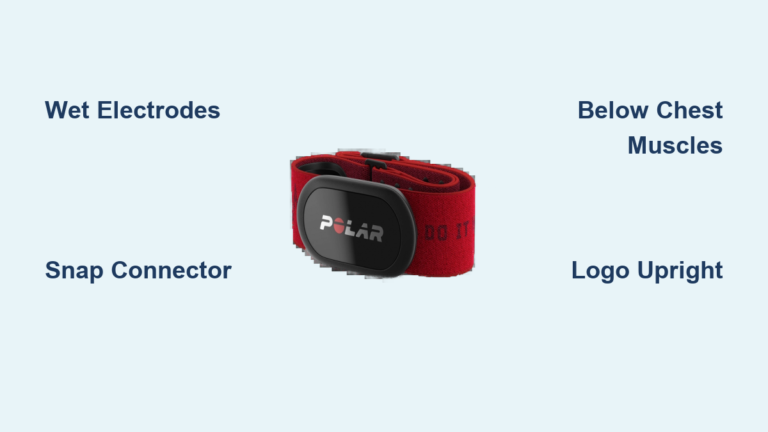
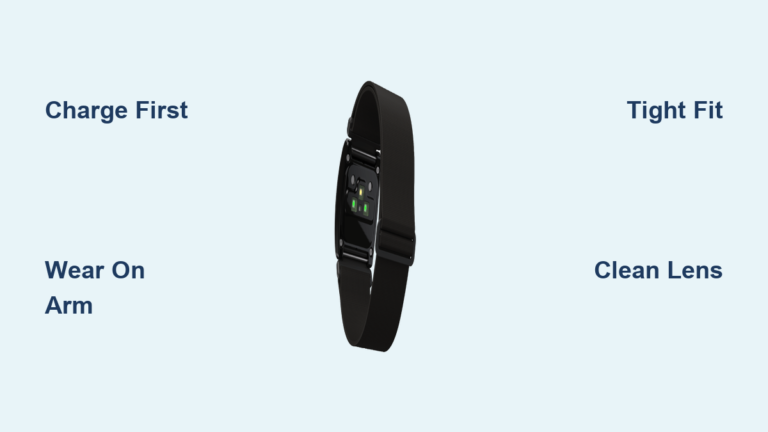
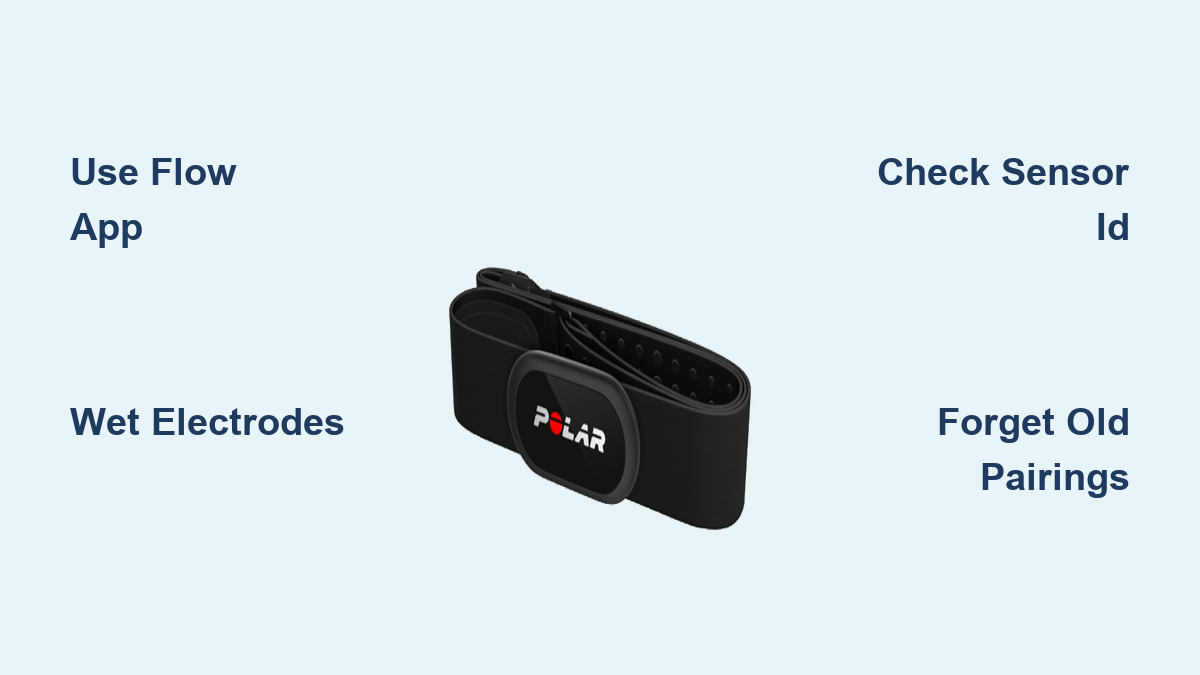
Place the H10 transmitter on the chest strap and wet the electrodes on the inside of the strap. Moistening the contact points with water improves signal conductivity. Position the strap snugly around your chest, just below the pectoral muscles, with the logo facing up.
A loose fit or dry electrodes are common causes of failed pairing or erratic readings. Ensure the sensor clicks securely into the strap’s grooves.
Initiate Bluetooth Pairing
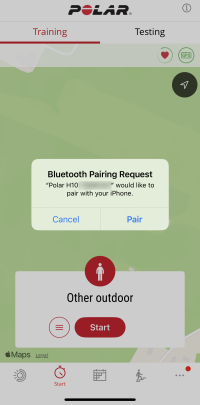
With the sensor worn, go to the Start tab in the Flow app. The app will automatically search for nearby Polar devices.
When a pairing request appears, verify the sensor ID shown in the app matches the number printed on the side of your H10. This step prevents accidental pairing with another device, especially in gym settings.
Tap Pair to confirm. Once connected, your real-time heart rate will appear at the top of the Training view in the app.
Pro Tip: If no pairing prompt appears, press the button on the side of the H10 until the LED flashes. This activates transmission mode.
Sync With Polar Watch
If you own a Polar watch, you’ll want to pair your H10 with it for more accurate workout tracking during runs, swims, or gym sessions.
Check Watch Compatibility
Most modern Polar watches support external heart rate sensors like the H10. Confirm compatibility by visiting support.polar.com and searching your watch model. Look for compatible accessories or heart rate sensor support in the specs.
Older models may only support earlier sensors, so verification is crucial before attempting to pair.
Pair Through Watch Menu
Each Polar watch has a slightly different pairing process, but the general flow follows a similar pattern. Go to your watch’s sensor settings, select heart rate sensor, and let the device search for available transmitters.
When your H10 appears with a matching ID, select it to pair. Once paired, your watch will display heart rate data during workouts.
Note: Always wear the H10 before starting the pairing sequence on your watch. The sensor goes into sleep mode when idle and won’t be discoverable unless activated.
Troubleshoot Failed Syncs

Even with correct steps, syncing can fail due to software glitches or outdated firmware. Here’s how to fix common issues.
No Pairing Prompt in Flow App
If the Polar Flow app doesn’t detect your H10, start by ensuring Bluetooth is enabled in your phone settings. Restart the app and reopen it to refresh the connection search.
Press the H10 button until the LED flashes, which forces broadcast mode. Also check the battery level, since a dead or weak battery prevents transmission.
Avoid using third-party fitness apps during initial pairing, as they might intercept the Bluetooth signal and block the Flow app from connecting.
Sensor Already Paired Elsewhere
If your H10 was previously used with another phone or watch, it may still be connected elsewhere. This can block new pairings.
To resolve this, unpair the H10 from any previous devices via their Bluetooth settings. Then delete the pairing in the Polar Flow web service and restart the pairing process.
This clears old connections and allows fresh discovery.
Delete Old Pairings
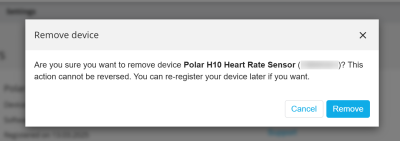
Over time, you may switch phones or troubleshoot persistent sync issues. Fully removing old pairings is essential in these cases.
Remove From Flow Web Service
To delete pairing with the Flow app, visit flow.polar.com and sign in. Click your name in the upper right corner and select Products.
Find your H10 in the list and click the delete icon (X). Confirm by clicking Remove. This removes the device from your Polar account and stops data syncing.
Unpair From Phone Bluetooth
Next, remove the H10 from your phone’s Bluetooth memory.
On iOS, go to Settings, then Bluetooth, tap “i” next to Polar H10, and select Forget This Device. On Android, go to Settings, then Bluetooth, tap the cogwheel icon next to your H10, and select Forget.
Skipping this step may cause auto-reconnection attempts that interfere with new pairings.
Expert Note: Always delete both from the web service and phone Bluetooth. One without the other leaves residual connections that cause sync errors.
Prevent Common Sync Issues
Avoid frustration by following best practices every time you sync your Polar heart rate monitor.
Avoid Phone Bluetooth Settings
Never pair the H10 through your phone’s Bluetooth menu. While it may seem logical, doing so creates an incomplete connection that doesn’t integrate with Polar services.
The Polar Flow app manages full functionality, including firmware updates, data logging, and multi-device syncing. Relying on system Bluetooth bypasses these features.
Keep Apps Updated
An outdated Polar Flow app may fail to recognize your H10 or miss firmware updates.
Enable auto-updates in your app store and check for updates monthly. Reinstall the app if sync issues persist, since app bugs are often resolved in newer versions.
Maintain Long-Term Sync Reliability
Once synced, your H10 should connect automatically in the future, but only if maintained properly.
Store Properly Between Uses
After workouts, rinse the chest strap with water and air dry completely before storing. Keep the sensor away from magnets or metal surfaces, as moisture buildup or magnetic exposure can interfere with Bluetooth transmission over time.
Frequently Asked Questions About Syncing Polar Heart Rate Monitors
Should I pair my Polar H10 through phone Bluetooth settings or the Flow app?
You should always pair through the Polar Flow app, not your phone’s Bluetooth settings. Pairing through system Bluetooth creates an incomplete connection that bypasses firmware updates and data syncing features.
How do I delete a Polar H10 pairing from the Flow app?
Visit flow.polar.com and sign in. Click your name in the upper right corner, choose Products, find your H10, and click the delete icon (X). Confirm by clicking Remove. Then forget the device in your phone’s Bluetooth settings.
Can I use my Polar H10 with multiple devices at once?
Yes, the H10 supports connections with multiple devices. However, the initial pairing should always be done through the Polar Flow app to ensure full functionality and firmware updates.
Why is my Polar Flow app not detecting my H10?
Common causes include Bluetooth being off, the sensor being in sleep mode, or a weak battery. Press the H10 button to activate transmission mode, restart the Flow app, and ensure the battery has sufficient charge.
Do I need to wet the chest strap electrodes every time?
Yes, moistening the electrodes with water improves conductivity and signal quality. Dry electrodes are a common cause of failed pairing and erratic heart rate readings.
Key Takeaways for Syncing Your Polar Heart Rate Monitor
Syncing your Polar heart rate monitor comes down to three essential habits. First, always pair through the Polar Flow app rather than your phone’s Bluetooth settings to unlock full functionality. Second, verify the sensor ID during pairing to avoid connecting to the wrong device. Third, delete old pairings from both the Flow web service and your phone’s Bluetooth when switching devices.
Start by downloading the Flow app, creating an account, and following the pairing sequence outlined above. With these steps in place, your H10 will deliver accurate heart rate tracking for every workout.