Fix Wahoo Heart Rate Monitor Not Working
You’re mid-workout, app open, ready to track, but your Wahoo heart rate monitor isn’t responding. No signal. No data. Maybe no lights at all. You’re not alone. Thousands of users report recurring issues with Wahoo devices, especially the TICKR, TICKR X, TICKR FIT, and TRACKR models. While Wahoo offers solid customer support, many problems stem from preventable issues like signal interference, battery connection failures, or outdated firmware. The good news? Most of these problems can be fixed in under 10 minutes.
This guide walks you through step-by-step solutions for chest strap and armband models, reveals hidden design flaws, and shows you how to avoid the replace-every-year cycle many users face. By the end, you’ll know exactly how to revive your Wahoo, prevent future failures, and decide if it’s time to switch.
Diagnose the Core Problem
Before diving into fixes, identify the exact symptom. Your solution path depends on whether the device is completely dead, pairing but not transmitting, or showing erratic data.
No Power or LED Response
If your Wahoo shows no lights when pressed or clipped on, start here:
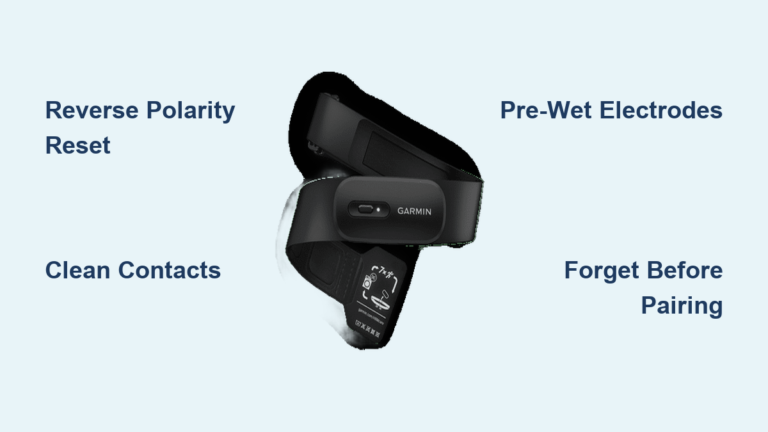
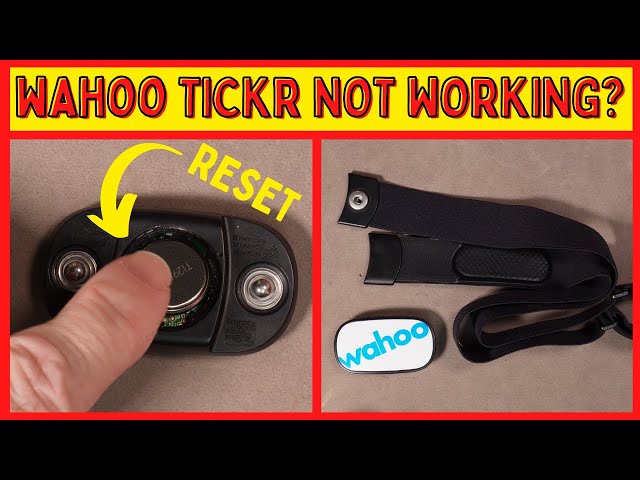
- For TICKR/TICKR X (coin-cell battery): Remove the battery, flip it upside down (negative side up), reinstall for 3 seconds, then reinstall correctly. This hard reset often revives unresponsive units.
- For TRACKR (rechargeable): Connect to the charging cable and a known-good power source. Let it charge for 5–10 minutes. If still no response, clean the charging contacts with rubbing alcohol.
- For TICKR FIT (armband): Hold the blue button for 3 seconds. If no blue light, charge fully and clean charging pins.
Pro Tip: A common failure point in coin-cell models is the battery contact prong. With the battery out, gently pull the metal prong upward so it makes firm contact when reinstalled. A weak connection causes no-power symptoms even with a fresh battery.
Device Pairs But No Data
If your app shows the device as connected but displays no heart rate:
- Moisten the electrode pads because dry skin or dry pads break conductivity.
- Center the strap below the pectorals, not above or to the side.
- Delete and re-pair the sensor in your app.
- Reset your phone’s Bluetooth stack: Turn Bluetooth off for 15 seconds, then back on.
Check This: If the TICKR LED flashes when you clip it on, the sensor is alive and transmitting. The issue is likely on the receiving end, such as app settings, interference, or device compatibility.
Erratic or Low Readings
Some users report heart rates 20–50 bpm below actual, especially with TICKR X V2 models. This low-reading glitch often appears after battery replacement, with low battery warnings, or during high-intensity efforts.
Immediate Fix: Perform a hard reset (battery flip) and ensure firmware is up to date. If the problem persists across multiple units, it may be a known V2 hardware flaw.
Fix Chest Strap Models (TICKR, TICKR X, TRACKR)
Update Firmware First
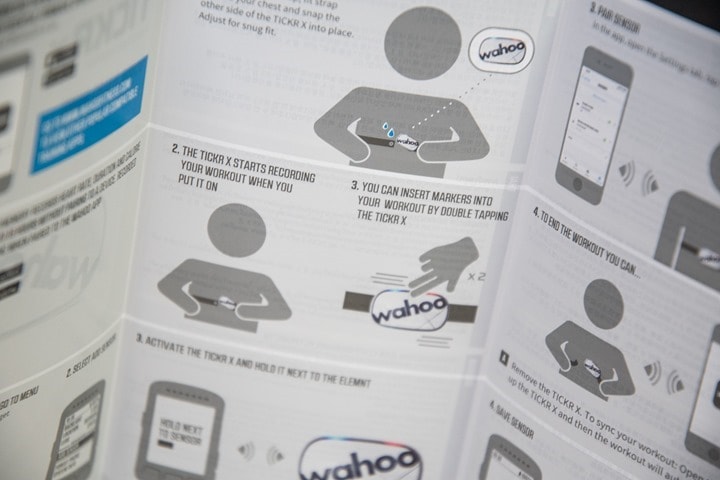
Many Wahoo issues vanish after a firmware update. New units, even sealed ones, often ship with outdated software.
- Open the Wahoo Fitness app.
- Pair your TICKR or TRACKR.
- If prompted, install the latest firmware.
- Do this before your first workout.
Warning: Skipping firmware updates is a top cause of inaccurate readings and pairing failures. Don’t skip this step.
Clean and Maintain Contacts
Corrosion (sometimes called electrical rust) on metal studs or battery contacts kills performance.
Cleaning Steps:
1. Remove the sensor from the strap.
2. Dampen a cotton swab with isopropyl (rubbing) alcohol.
3. Scrub the electrode studs and battery compartment contacts.
4. Let dry completely before reassembly.
Avoid WD-40: While some users report temporary success with WD-40 on corroded studs, it’s not recommended. It can degrade rubber and plastic over time and may void your warranty.
Replace Battery Correctly
Wahoo coin-cell models (TICKR, TICKR X) use CR2032 batteries. But quality matters.
- Use fresh, name-brand batteries (Duracell, Energizer).
- Replace every 3–6 months, even if no low-battery warning appears.
- Check the battery cap because if loose, it won’t maintain pressure.
Pro Tip: If the battery dies quickly, inspect the battery prong. A flattened prong causes intermittent contact, leading to rapid drain and signal dropouts. Bend it up slightly for better pressure.
Fix TICKR FIT Armband Issues
Charging Problems? Clean the Pads
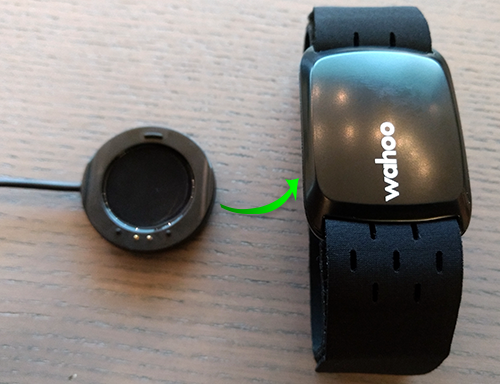
The TICKR FIT uses magnetic charging. If it won’t charge:
- Clean the charging pads on the back of the unit with alcohol.
- Clean the pins on the charger.
- Ensure full contact when attaching the cable.
Visual Cue: A faint blue light should appear during charging. No light? Either the device is dead or the connection is blocked by grime.
Placement Matters
Unlike chest straps, the TICKR FIT relies on optical sensing.
- Wear on the upper forearm, not the wrist.
- Strap should be snug but not tight with no sliding during motion.
- Skin under the sensor must be clean and dry before starting.
Common Mistake: Wearing it too loose causes motion artifacts. The sensor thinks movement is heart rate, leading to spikes or dropouts.
Reset When Unresponsive
If the TICKR FIT won’t turn on:
- Charge for 30 minutes using a clean cable.
- Hold the power button for 5 seconds.
- If still dead, contact Wahoo support because internal battery failure is not user-repairable.
Eliminate Signal Interference
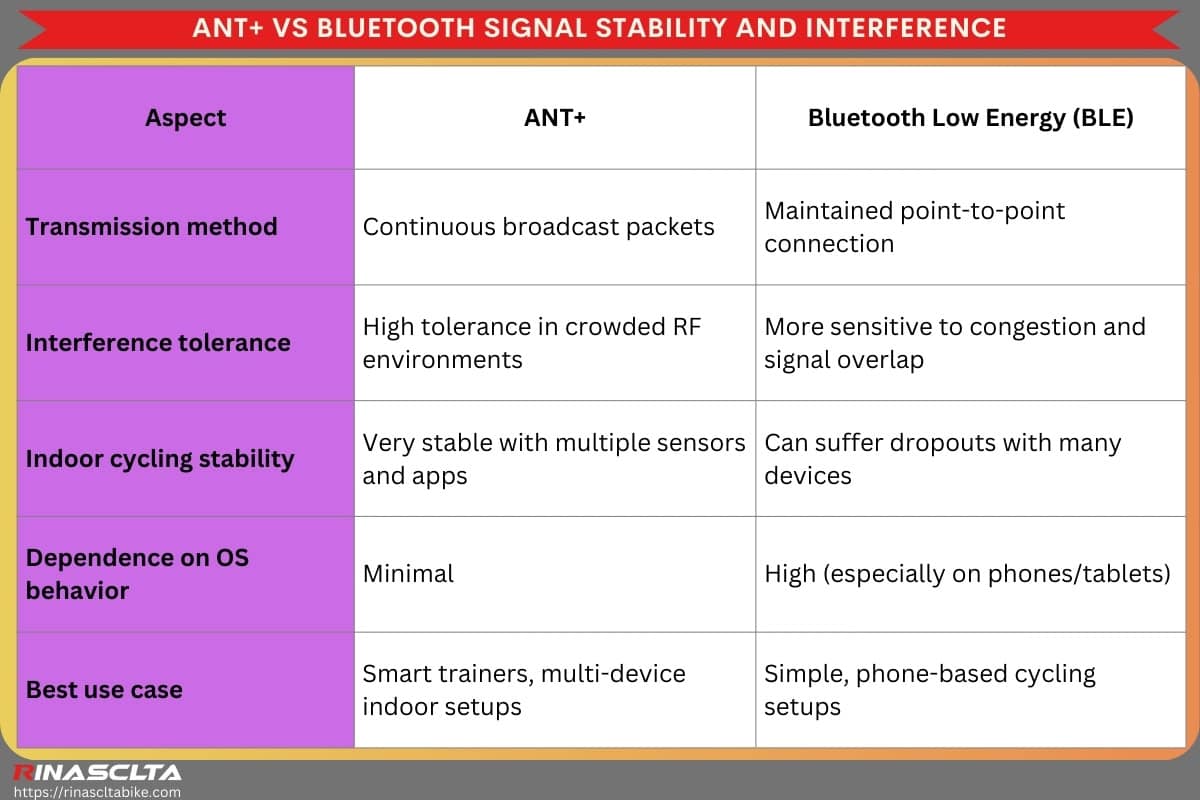
Signal dropouts are often not the sensor’s fault. Environmental interference is a top culprit.
Common Interference Sources
These devices can block or disrupt ANT+ and Bluetooth signals:
- Wireless headphones and speakers
- Bike lights (especially wireless or high-frequency models)
- GoPros and video transmitters
- Smart TVs, routers, and microwaves
- Cordless phones and baby monitors
- Large fans placed between you and the device
- Power strips, electrical boxes, and wall wiring
Test This: Move to a different room or outdoors. If the signal stabilizes, interference was the issue.
Fix Bluetooth Conflicts
Your phone may be trying to connect to multiple devices at once.
Steps to Fix:
1. Go to Bluetooth settings.
2. Forget the Wahoo device.
3. Turn Bluetooth off for 15 seconds, then back on.
4. Re-pair in your app.
App Interference: Close background apps like Strava, Garmin Connect, or old Wahoo sessions. A hidden app can hog the Bluetooth connection.
Prevent Future Failures
Wash the Strap Regularly
Sweat, salt, and dirt corrode contacts and degrade strap elasticity.
- After every 3–5 uses, hand wash the strap with mild soap and water.
- Air dry; never machine dry.
- Store in a cool, dry place.
Avoid this: Leaving the sensor attached during washing. Always remove it first.
Check Firmware Monthly
New firmware fixes bugs and improves stability.
- Open the Wahoo Fitness app.
- Check device settings for updates.
- Install immediately if available.
Replace Straps Proactively
The strap wears out faster than the sensor.
- V2 straps degrade faster than V1, with users reporting cracking and loss of conductivity.
- Replace every 12–18 months, or sooner if fit feels loose.
Upgrade Option: Use a third-party strap (like a Mio or generic ANT+ compatible) with your Wahoo sensor pod.
When to Replace or Switch Brands

Use Warranty Wisely
Wahoo offers no-questions-asked replacements for defective units.
- Contact support via the Wahoo app or website.
- Describe symptoms clearly.
- They’ll ship a replacement, often next day.
But Beware: If you’ve had multiple failures, especially with TICKR X V2 models, you may be getting the same flawed hardware. One user reported three replacements, all with the same low-reading issue.
Consider a More Reliable Alternative
Many users switch after repeated Wahoo failures. Here’s what they move to:
Polar H10
- Pros: Flawless pairing, 400-hour battery life, no need to wet pads.
- Cons: Slightly firmer strap, dual Bluetooth requires Polar app setup.
- User Verdict: “Just works.”
Garmin HRM-Pro
- Pros: Solid-state design with no exposed studs, ANT+/Bluetooth dual-band, long battery life.
- Cons: Higher price.
- User Verdict: “No more corrosion or dropouts.”
4iiii viiiva
- Pros: No pre-wetting, immediate connection, excellent durability.
- Cons: Less common in apps.
- User Verdict: “Set and forget.”
Polar Verity Sense (Optical)
- Best alternative to TICKR FIT.
- Rechargeable, reliable, accurate.
- Wears on arm or bicep.
Bottom Line: If you’re replacing your Wahoo every year, you’re spending more than users of Polar or Garmin. It’s time to switch.
Frequently Asked Questions About Wahoo Heart Rate Monitors
Why does my Wahoo heart rate monitor show no lights when I press the button?
The LEDs on TICKR devices automatically turn off after approximately 30 seconds to conserve power. This is normal behavior. If no lights appear at all, perform a hard reset by removing the battery, flipping it upside down for 3 seconds, then reinstalling correctly. For rechargeable models like the TRACKR, connect to power and clean the charging contacts with rubbing alcohol.
How do I fix my Wahoo TICKR that pairs but shows no heart rate?
Moisten the electrode pads, center the strap below your pectorals, and re-pair the device in your app. Reset your phone’s Bluetooth by toggling it off for 15 seconds. If the LED flashes when clipped on, the sensor is transmitting and the issue lies with your app, interference, or device compatibility.
What causes erratic or low heart rate readings on the TICKR X?
A specific low-reading glitch affects TICKR X V2 units, often appearing after battery replacement or with low battery warnings. Perform a hard reset and update firmware. If the problem persists across multiple replacement units, it may indicate a V2 hardware design flaw.
How often should I replace the battery in my Wahoo TICKR?
Replace CR2032 batteries every 3–6 months using fresh, name-brand cells like Duracell or Energizer. Check the battery contact prong periodically and flex it upward if compressed. A flattened prong causes intermittent contact, rapid drain, and signal dropouts.
What wireless devices interfere with Wahoo heart rate monitors?
Common interference sources include wireless headphones, bike lights, GoPros, smart TVs, routers, microwaves, cordless phones, baby monitors, and large fans placed between you and the receiver. Power lines, electrical boxes, and wall wiring can also disrupt signals. Keep your receiving device within 5 feet of the sensor for optimal performance.
When should I switch from Wahoo to another brand?
Consider switching if you’ve experienced multiple warranty replacements (especially with V2 models), recurring corrosion on studs, or frequent battery drain. Polar H10, Garmin HRM-Pro, and 4iiii viiiva are cited by former Wahoo users as more reliable long-term alternatives with superior design integrity.
Final Checklist Before Declaring Your Wahoo Dead

Run through this quick list before giving up:
- Battery: Fresh? Correctly installed? Prong making contact?
- Firmware: Updated in the Wahoo app?
- Contacts: Cleaned with alcohol? No corrosion?
- Strap: Moistened (chest models)? Snug fit?
- Interference: Headphones off? Router far away?
- Bluetooth: Reset? Device forgotten and re-paired?
- Environment: Tested in a different location?
If all checks pass and it still fails, contact Wahoo support. But if this is your second or third unit, strongly consider switching to Polar H10 or Garmin HRM-Pro for long-term reliability.
Wahoo heart rate monitors can work well if you stay on top of maintenance and firmware. But recurring issues with V2 models, battery life, and corrosion suggest a design trade-off that frustrates long-term users. Fix what you can, replace under warranty when needed, but don’t ignore the pattern. Your training data deserves consistency.