How to Use Polar H10 Heart Rate Monitor
You just unboxed your Polar H10 heart rate monitor—now what? This chest strap delivers lab-grade accuracy for tracking real-time heart rate and heart rate variability (HRV), but only when set up correctly. Improper pairing order, loose strap placement, or poor receiver positioning can cause dropped signals, erratic readings, or failed connections. The good news is that once you understand the setup sequence and best practices, the H10 becomes a seamless part of every workout.
The Polar H10 transmits data via Bluetooth®, ANT+™, and Polar GymLink (5 kHz), making it compatible with nearly every fitness device on the market. That versatility comes with a catch: setup order matters. Skip steps or pair out of sequence, and you risk missing critical firmware updates or draining the battery prematurely. This guide walks you through every essential step, from first-time pairing to maximizing signal strength and connecting with apps like Zwift, Strava, and TrainerRoad. By the end, you will know exactly how to get reliable, second-by-second heart rate data every session.
Pair with Polar Flow First
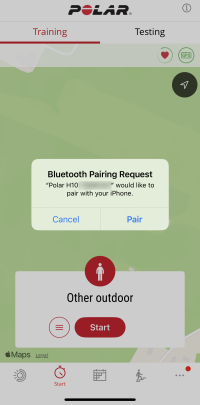
Before connecting to any other device, pair your H10 with the Polar Flow app. This step is non-negotiable for optimal performance and unlocks firmware updates and core settings.
Why Start with Polar Flow?
Polar Flow is the only app that installs firmware updates and manages sensor settings. Skipping this step risks outdated software, unstable connections, or missing features. The initial pairing triggers an automatic firmware check, ensuring your H10 runs the latest version for improved Bluetooth® stability and compatibility with newer phones and watches.
Step-by-Step Pairing Process
- Download Polar Flow from the Apple App Store or Google Play.
- Create a Polar account (required for setup).
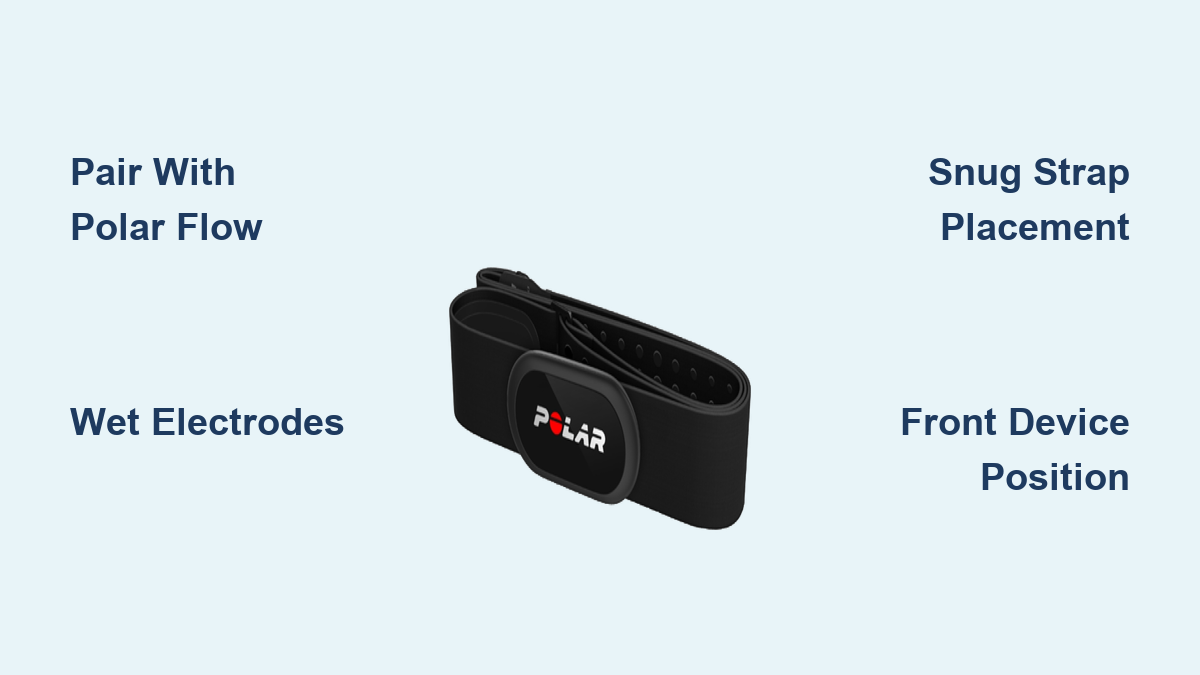
- Wet the electrodes on the back of the strap or attach the Polar H10 Smart Sensor module.
- Open the app, tap “More” > “Settings” > “Heart Rate Sensor.”
- Select “Add Sensor” and follow the on-screen prompts.
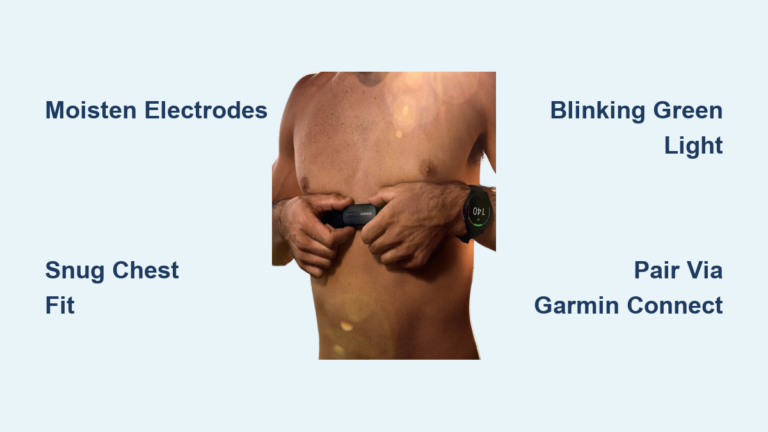
- Wear the strap snugly across your chest with electrodes down and logo centered.
- Wait for confirmation: once paired, the app displays “Connected.”
After successful pairing, leave the H10 in place for a few minutes to complete background firmware checks.
Enable or Disable Transmission Modes
By default, the H10 broadcasts over Bluetooth® and ANT+™ simultaneously, allowing dual-device use, but this drains the battery faster.
Choose Your Connection Type
You can disable one protocol to extend battery life. For example:
– Use Bluetooth® only when pairing with a phone or tablet.
– Use ANT+™ only for compatibility with gym consoles or cycling computers.
– Keep both active if syncing with a watch and phone at the same time.
How to Change Transmission Settings
- Open Polar Flow.
- Go to “More” > “Settings” > “Heart Rate Sensor.”
- Tap your connected H10.
- Toggle Bluetooth® or ANT+™ off as needed.
Note: Disabling a mode stops all broadcasts on that channel. If your watch uses ANT+™ and you turn it off, the connection will fail.
Optimize Strap Placement

Even a perfectly paired H10 delivers poor data if worn incorrectly. Placement is critical for signal accuracy and transmission reliability.
Wear It Snug, Not Tight
The strap should sit just below your pectoral muscles, two fingers above the bottom of your sternum. It must be:
– Snug enough to keep electrodes in constant contact with skin.
– Loose enough to allow comfortable breathing during intense effort.
Too loose causes signal dropouts. Too tight causes discomfort and skin irritation.
Wet the Electrodes
Dry skin disrupts conductivity. For best results:
– Dampen the integrated electrodes with water before wearing.
– In dry climates or winter, apply a small amount of electrode gel to improve contact.
Avoid using lotions or oils on your chest before use, as they create a barrier that blocks the signal.
Position Your Receiving Device Correctly
Bluetooth® signals weaken when blocked by your body. Your phone or watch must be in front of your torso to maintain a strong link.
Best Device Locations
- Front pocket of shorts or jacket
- Armband on forearm (screen facing up)
- Handlebar mount for cycling
Avoid These Positions
- Back pocket
- Backpack
- Waistband behind your back
Your torso acts as a signal blocker. If the receiver sits behind you, the H10 may disconnect or show erratic heart rate spikes.
Pro Tip: During treadmill runs, place your phone on the console. For outdoor runs, use a hydration vest with a front chest pocket.
Connect to Third-Party Apps
Once paired with Polar Flow, the H10 works with most fitness apps. Each app handles sensor connections differently, so follow the specific pairing flow.
Supported Applications
Popular apps that support the H10 include:
– Zwift
– Strava
– TrainerRoad
– Garmin Connect
– Apple Watch (via Bluetooth®)
How to Pair with Zwift
- Open Zwift and start a workout.
- Tap “Pair Sensors” on the home screen.
- Select “Heart Rate.”
- Choose “Polar H10” from the list.
- Begin pedaling or moving so Zwift auto-detects the signal.
If the sensor does not appear, restart the H10 by removing the battery for 10 seconds.
How to Use with Apple Watch
- Wear the H10 and ensure it is powered on.
- On your iPhone, open Watch app > My Watch > Workout.
- Enable “Heart Rate” under “Other Apps.”
- Start a Workout; your Apple Watch prompts you to use the H10 instead of the optical sensor.
Benefit: The H10 provides more accurate heart rate data than wrist-based sensors, especially during high-intensity intervals.
Maintain Signal Stability During Workouts
Even with correct setup, signal issues can occur mid-workout. Knowing how to prevent and fix them keeps your data intact.
Prevent Mid-Workout Dropouts
- Check strap tightness before starting.
- Ensure the battery cover is fully snapped shut, since a loose cover interrupts power.
- Avoid wearing thick layers between the strap and your skin.
- Keep moisture levels consistent by re-wetting electrodes if you pause for long periods.
Fix Connection Failures
If your app shows “No Heart Rate”:
1. Pause the workout.
2. Check if the H10 is still transmitting (LED flashes when wet and worn).
3. Restart the receiving device’s Bluetooth®.
4. Re-pair the sensor in the app.
5. Resume tracking.
Quick Fix: Take the strap off, dry and re-wet the electrodes, then reapply.
Use with Gym Equipment
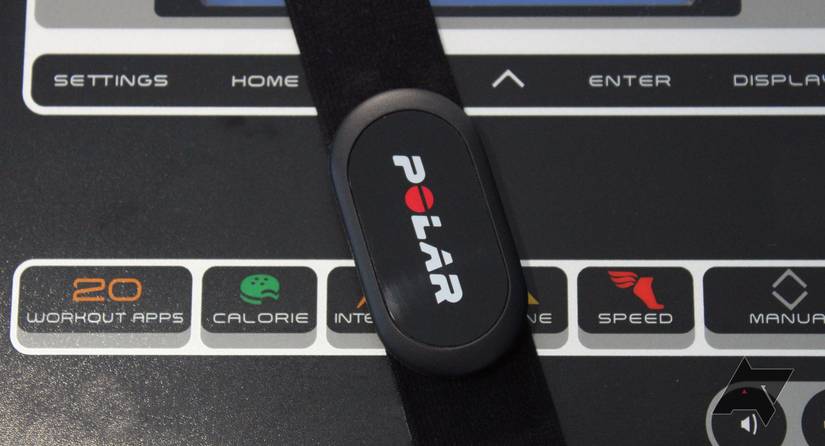
Many cardio machines support Polar GymLink (5 kHz) or ANT+™, letting you view heart rate directly on the console.
How to Connect to Treadmills and Bikes
- Wear the H10 properly.
- Start the machine and look for a “Heart Rate” or “Polar” option.
- Select “Wireless HR” or “Polar Telemetry.”
- Wait for the machine to detect your H10.
Not all gym equipment supports external sensors. Look for Polar-compatible logos near the handlebars or console.
Common Issue: Some older machines only accept 5 kHz signals. If your H10 will not connect, ensure ANT+™ is enabled in Polar Flow settings.
Replace the Battery Like a Pro
The H10 uses a standard CR2032 coin battery that lasts up to 400 hours of use. Replace it when:
– The LED does not flash when worn.
– Pairing fails repeatedly.
– Apps show “Low Battery” warnings.
Step-by-Step Battery Replacement
- Remove the black rubber cover on the sensor module.
- Pop out the old battery with a plastic tool (not metal).
- Insert a new CR2032 with the positive side up.
- Press the cover back on until it clicks securely.
Warning: Never force the cover. Misalignment damages the seal and risks water ingress.
After replacement, re-pair the H10 with Polar Flow to confirm functionality.
Analyze HRV and Training Readiness

One of the H10’s standout features is heart rate variability (HRV) tracking, which feeds Polar’s Nightly Recharge™ and Training Load Pro metrics.
Measure Recovery with Nightly Recharge
- Wear the H10 to bed with the Polar Flow app running in the background.
- Keep your phone nearby (within 3 meters).
- In the morning, open Flow to see:
– ANS Charge: how well your nervous system recovered.
– Heartbeat Signal Quality: whether data was clean.
High HRV indicates good recovery. Low HRV signals potential overtraining or stress.
Best Practice: Perform this test consistently, ideally 3 or more nights per week.
Use with TrainingPeaks or Garmin Connect
While Flow offers the deepest analysis, you can export HRV data:
– Sync H10 workouts from Flow to TrainingPeaks via integration.
– Enable Garmin Connect sync in Flow settings to share daily HRV trends.
Third-party apps receive basic HRV values but not full Nightly Recharge scoring.
Troubleshoot Common Issues
Even reliable devices have hiccups. Here is how to fix the most frequent problems.
No Lights When Worn
- Cause: Dead battery or poor electrode contact.
- Fix: Replace the battery and wet the electrodes.
Sensor Detected but No Data
- Cause: Interference from other Bluetooth® devices.
- Fix: Turn off nearby sensors (such as other chest straps), restart your phone, and re-pair.
Inconsistent Readings
- Cause: Loose strap or dry skin.
- Fix: Re-tighten and dampen electrodes. Avoid wearing over clothing.
Cannot Pair with Watch
- Cause: Incorrect pairing sequence.
- Fix: Ensure the H10 is already paired with Flow. Then pair the watch via its sensor menu.
Reset Tip: Remove the battery for 30 seconds to reset the H10 completely.
Maximize Battery Life
The H10 activates automatically when wet and worn. Smart habits extend battery life even further.
Power-Saving Tips
- Disable unused protocols by turning off ANT+™ if you only use Bluetooth®.
- Remove the battery during long storage to prevent drain and corrosion.
- Avoid constant idle pairing by disconnecting the H10 from your phone when not in use.
With both Bluetooth® and ANT+™ active, expect roughly 200 to 300 hours of use. With one protocol off, battery life extends up to 400 hours.
Frequently Asked Questions About the Polar H10
Do I need to pair the Polar H10 with Polar Flow before using it with other apps?
Yes. Polar Flow is the only app that installs firmware updates and manages transmission settings. Pairing with Flow first ensures your sensor runs the latest software and connects reliably with third-party apps like Zwift or Strava.
Can I use the Polar H10 with a treadmill or gym bike?
Yes, if the equipment supports Bluetooth®, ANT+™ heart rate, or 5 kHz Polar GymLink. Look for a Polar-compatible logo on the console, then select the wireless heart rate option once you are wearing the strap.
How long does the Polar H10 battery last?
A single CR2032 coin battery lasts up to 400 hours when only one transmission protocol is active. Running both Bluetooth® and ANT+™ simultaneously reduces total life to roughly 200 to 300 hours.
Why does my Polar H10 keep disconnecting during workouts?
The most common causes are a loose strap, dry electrodes, or a receiver placed behind your body. Tighten the strap, re-wet the electrodes, and move your phone or watch to a front pocket or armband.
Does the Polar H10 track HRV and recovery?
Yes. When worn overnight with the Polar Flow app running, the H10 captures HRV data that powers the Nightly Recharge feature, which shows how well your autonomic nervous system recovered during sleep.
Is the Polar H10 more accurate than a wrist-based heart rate monitor?
Yes. Chest straps measure electrical signals from the heart directly, while wrist sensors estimate heart rate optically. The H10 is far more accurate during high-intensity intervals, strength training, and activities involving wrist movement.
Final Tips for Getting the Most From Your Polar H10
Using the Polar H10 effectively comes down to consistency, placement, and maintenance. Always start with Polar Flow for firmware and settings management. Keep your receiver in front of your body, never in a back pocket. Wet the electrodes every time for reliable contact, and check the battery seal integrity after each replacement. Use the H10 for HRV tracking to guide recovery and training intensity decisions.
Whether you are a weekend warrior or a competitive athlete, the Polar H10 delivers lab-grade heart rate data when used correctly. Follow these steps, and you will unlock every drop of performance insight the sensor can offer. Start by pairing with Polar Flow today, then expand to your favorite apps and devices as your training evolves.