How to Use iFit Heart Rate Monitor
If your treadmill workouts feel like guesswork, the iFIT heart rate monitor paired with ActivePulse™ technology offers a smarter solution. This system automatically adjusts your treadmill’s speed and incline based on your real-time heart rate, removing the need for constant manual tweaks. Whether your goal is fat burn, endurance, or recovery, ActivePulse™ keeps you training in the right zone every session.
But this smart feature only works with the right equipment, proper setup, and correct activation. Many users run into problems because they try it in manual mode, use unsupported devices, or skip important calibration steps. Getting it right transforms your treadmill into an AI coach that responds to your body in real time.
In this guide, you’ll learn how to use the iFIT heart rate monitor from start to finish. We cover choosing compatible hardware, pairing your device, enabling ActivePulse™, customizing your zones, and fixing common issues. By the end, you’ll be able to train more efficiently with automatic intensity adjustments.
Confirm Your Treadmill Supports ActivePulse™
Check Compatible Brands and Models
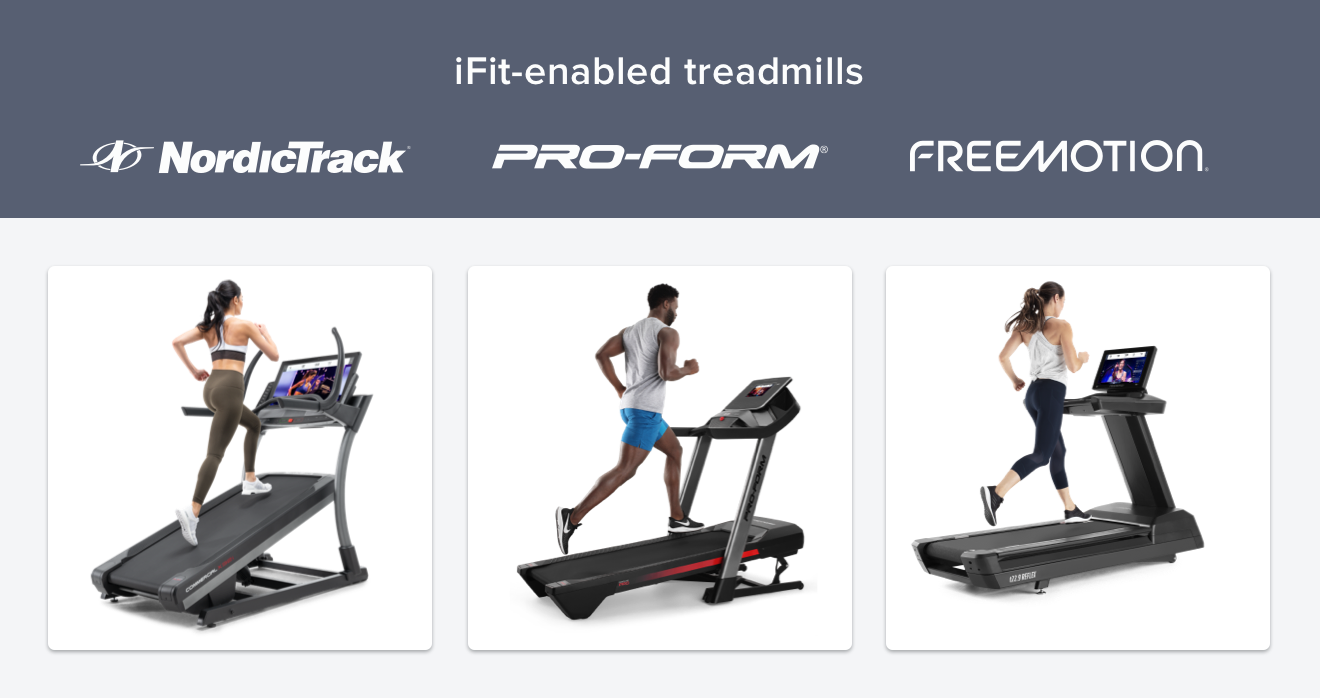
ActivePulse™ only works on iFIT-enabled treadmills from specific manufacturers. The feature is not available on smartphones or standalone apps.
Supported configurations include:
– Built-in iFIT console treadmills from NordicTrack, ProForm, or Freemotion
– Tablet-connected treadmills running the iFIT app
If your machine falls outside these brands or setups, ActivePulse™ will not function, even if you own a heart rate monitor.
Choose a Supported Heart Rate Monitor
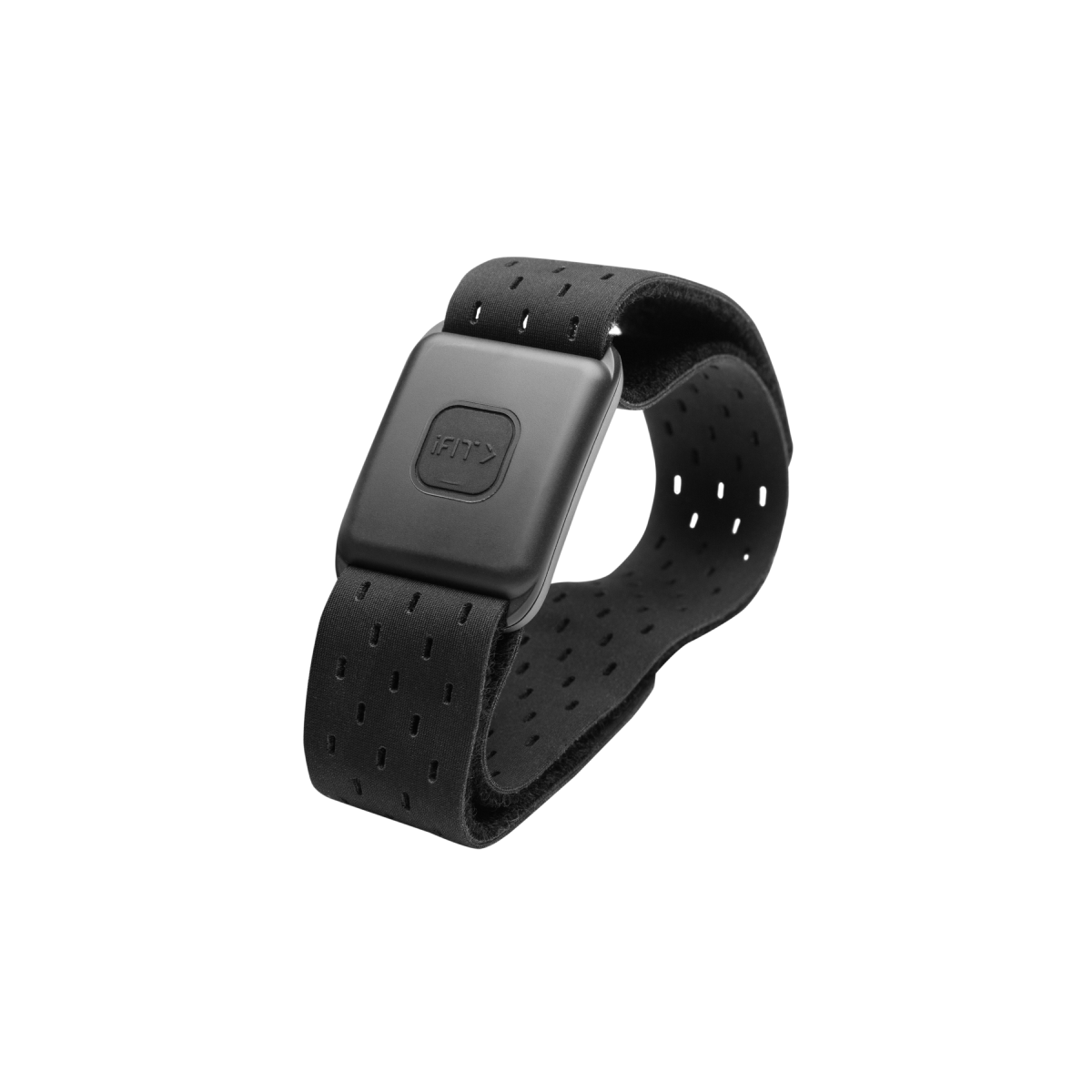
You need a Bluetooth® heart rate monitor that broadcasts data publicly. Two reliable options exist:
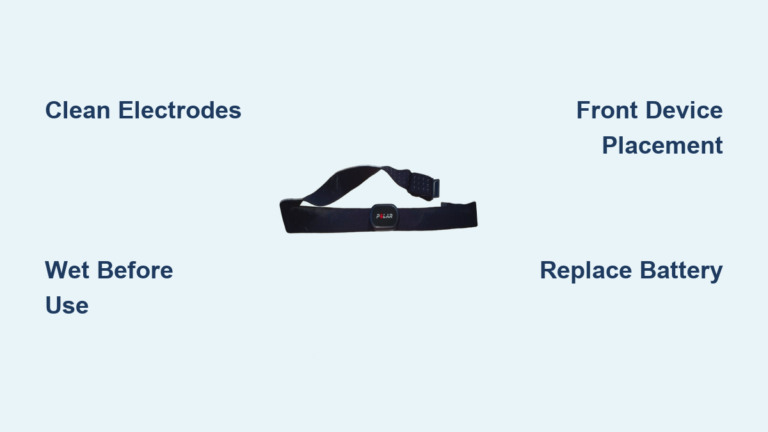
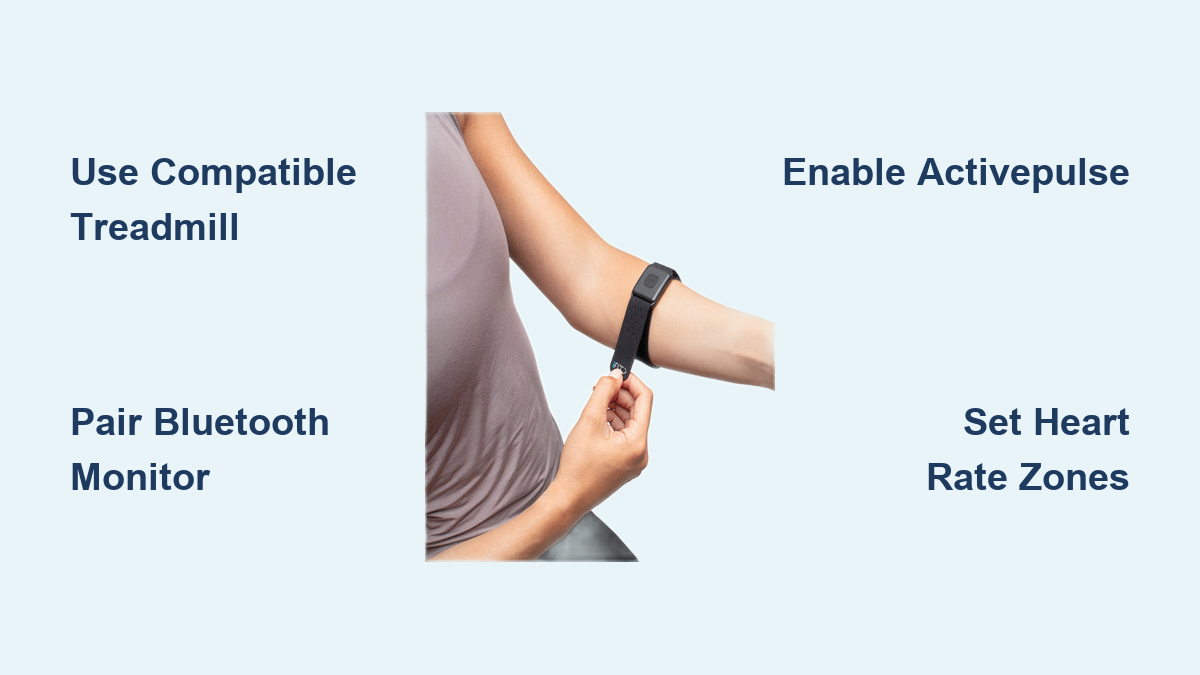
- iFIT SmartBeat™ Forearm Monitor (Recommended): This optical PPG sensor wraps around your forearm or upper arm. It pairs directly with your treadmill or tablet for seamless integration.
- Third-Party Bluetooth Straps or Armbands: Any chest strap or optical armband supporting public heart rate broadcasting works, provided it connects to your iFIT-enabled device.
⚠️ Note: The iFIT SmartBeat™ costs $99.00 and does not ship internationally. International users should source a compatible third-party Bluetooth monitor.
Prepare Your System Before Training
Update iFIT App and Firmware
Outdated software can prevent ActivePulse™ from working properly. Take these steps before every session:
- Open the iFIT app on your tablet or console.
- Navigate to Settings > System > Software Update.
- Install any available updates.
This ensures your system supports heart rate syncing and automatic intensity adjustments.
Calibrate Your Heart Rate Profile
Accurate heart rate zones are essential for ActivePulse™ to respond correctly. Set up your profile using one of these methods:
- Automatic Calculation: iFIT estimates your max heart rate using age-based formulas by default.
- Manual Input: Go to Profile > Health Settings and enter your actual Max Heart Rate and Resting Heart Rate for better accuracy.
- Max Heart Rate Test: Search for “Max Heart Rate Test” in the iFIT app, then follow the guided warm-up, sprint intervals, and cool-down. The app records your peak heart rate and updates your profile automatically.
✅ Pro Tip: Recalibrate every 3–6 months as your fitness level improves.
Pair Your Heart Rate Monitor Correctly
Activate the iFIT SmartBeat™
Follow these steps to pair the SmartBeat™ monitor:
- Place the device on your forearm or upper arm (avoid the wrist).
- Press the center button once to power it on.
- Tap again to enter discovery mode (the LED will pulse).
Keep the monitor within 3 feet of the treadmill console during pairing.
Connect Third-Party Bluetooth Devices
For chest straps or alternative armbands:
- Wear the device and power it on.
- Ensure it is not already paired to another phone, watch, or tablet.
- Allow the device to begin reading your pulse before starting the workout.
❌ Common Mistake: Leaving your strap connected to a smartwatch blocks public broadcasting and prevents iFIT from detecting your heart rate.
Start a Guided Workout and Enable ActivePulse™
Select an ActivePulse-Compatible Workout
ActivePulse™ only functions in guided iFIT workouts, not manual or Quick Start modes.
- Tap “Browse” in the iFIT app.
- Navigate to “ActivePulse Training” for workouts optimized for heart rate control.
- Select your session and tap Play.
You can also use ActivePulse™ with other video-led workouts outside this section, but always choose guided content.
Complete the Warm-Up and Wait for Detection
After tapping Play, a warm-up sequence begins. During this phase:
- The treadmill automatically scans for Bluetooth heart rate devices.
- Detection can take up to 30 seconds.
- Do not skip the warm-up early, as this may interrupt the pairing process.
Once detected, your real-time heart rate appears on screen.
Tap “Enable” to Activate ActivePulse™
When the system recognizes your monitor, an “Enable” button appears on screen. Tap it to activate ActivePulse™.
⚡ Important: Enabling ActivePulse™ automatically turns on SmartAdjust™, allowing the treadmill to adjust speed and incline without your input.
From this point forward:
– If your heart rate drops below target, the machine increases speed or incline.
– If your heart rate rises too high, the machine reduces intensity to bring you back into zone.
Customize Your Training Zones and Preferences
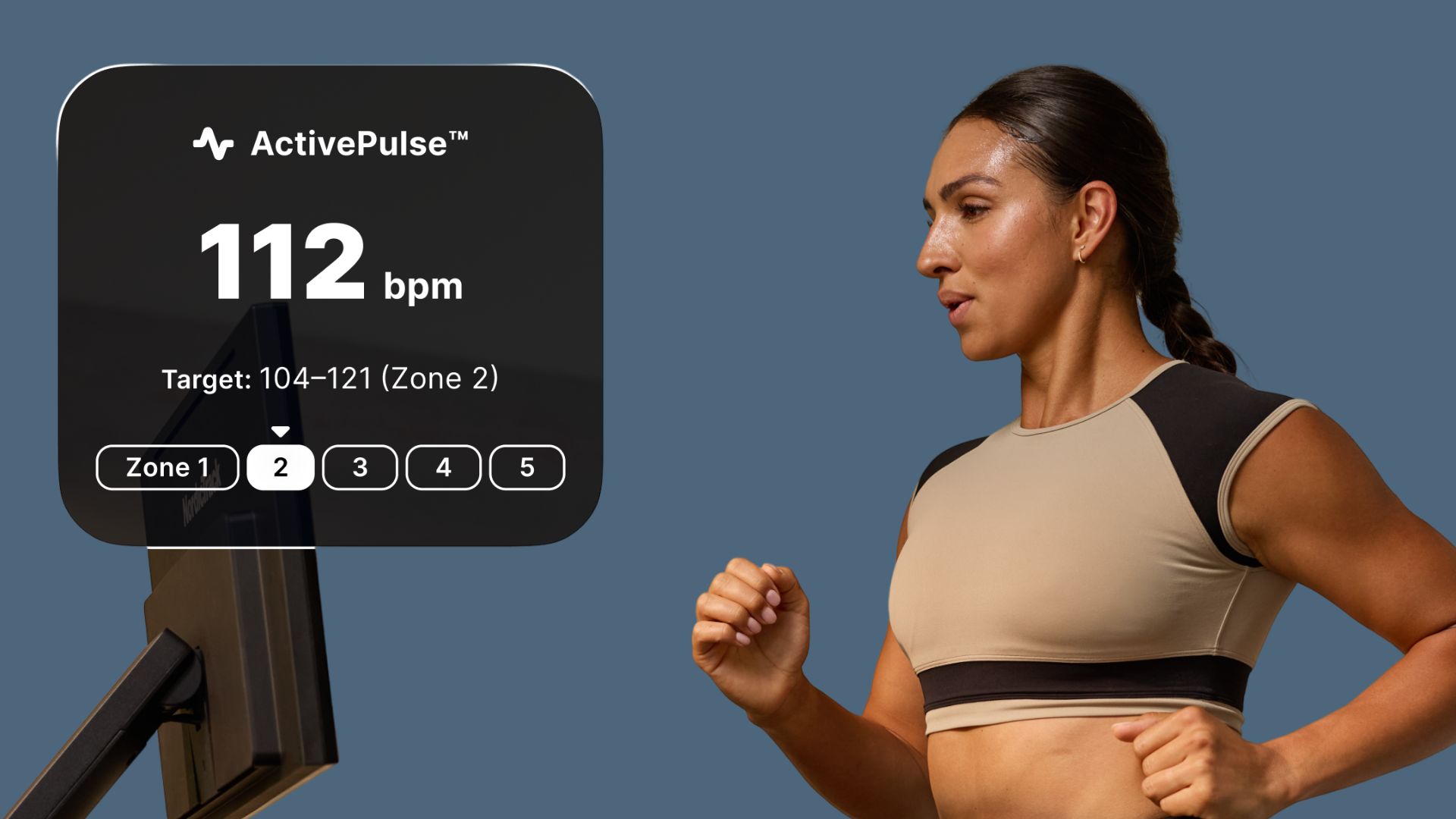
Access In-Workout Settings
During any ActivePulse™ session, tap the Settings icon (gear) on screen, then open In Workout Settings > Personalized Training.
From here, you can adjust the following parameters:
Set Heart Rate Zones
Choose zones aligned with your training goal:
– Fat Burn (60–70% of max HR)
– Cardio (70–80% of max HR)
– Peak (80–90% of max HR)
You can also create custom ranges based on your personal Max Heart Rate.
Limit Maximum Speed
Set a speed cap so the treadmill never exceeds your comfort level. For example, if you set a max speed of 6 mph, the machine will not go faster, even if your heart rate demands more intensity. This prevents unsafe acceleration and builds confidence during automatic adjustments.
Save Starting Preferences
Decide whether ActivePulse™ and SmartAdjust™ should:
– Auto-enable at the start of every workout
– Require manual activation each session
✅ Best for beginners: Choose manual activation until you become comfortable with automatic changes.
Troubleshoot Common Connection Issues

Heart Rate Monitor Not Detected
If your device doesn’t connect within 30 seconds, check these factors:
- Is the monitor charged?
- Is it in discovery mode (LED blinking)?
- Is it within range of the console?
- Is it already paired to another device? Disconnect first.
- Try restarting both the monitor and treadmill.
🔄 Reset Tip: Power off both devices, wait 10 seconds, then retry the pairing process.
ActivePulse™ Option Missing
This usually indicates one of three issues:
- You’re in manual mode → Switch to a guided iFIT workout.
- Your treadmill brand isn’t supported → Confirm it’s NordicTrack, ProForm, or Freemotion.
- The app is outdated → Check for updates in Settings.
Follow Safety Guidelines During Automatic Workouts
Never Use ActivePulse™ in Manual Mode
ActivePulse™ only functions in programmed iFIT workouts. It will not appear in:
– Quick Start
– Manual Run
– Any non-video session
The system requires trainer-led content to calculate expected effort and adjust intensity appropriately.
Stay Alert During Auto-Adjustments
Since the treadmill changes speed and incline without your input:
- Keep your hands near the console or rails.
- Be ready to slow down manually if needed.
- Stop immediately if you feel dizzy, short of breath, or experience chest pain.
⚠️ iFIT Disclaimer: This technology is not medical advice. Consult your doctor before starting any new fitness program.
Follow Basic Equipment Safety Rules
Always take these precautions:
– Clip the safety key to your clothing.
– Wear proper athletic shoes.
– Maintain a clear area around the treadmill.
Automatic adjustments don’t mean hands-free training. Stay engaged throughout your session.
Frequently Asked Questions About iFIT Heart Rate Monitor
Does ActivePulse™ work without an iFIT subscription?
ActivePulse™ requires an active iFIT membership and a guided iFIT workout to function. Without a subscription, you cannot access the video-led workouts needed to trigger automatic heart rate adjustments.
Can I use a smartwatch instead of a chest strap?
Standard smartwatches typically don’t support public Bluetooth heart rate broadcasting. iFIT requires a monitor that broadcasts data openly so the treadmill or tablet can detect it. Use the iFIT SmartBeat™ or a compatible third-party Bluetooth strap or armband instead.
Why doesn’t ActivePulse™ appear in Quick Start mode?
ActivePulse™ is designed exclusively for guided iFIT workouts. Quick Start and manual modes lack the trainer-led structure needed to calculate target intensity. Switch to a video-led workout from the iFIT library to access the feature.
How long does the heart rate monitor take to connect?
The iFIT system scans for up to 30 seconds after the warm-up begins. Keep your monitor charged, in discovery mode, and within 3 feet of the console during this window for reliable detection.
Can I set a maximum speed limit during ActivePulse™ workouts?
Yes. Open In Workout Settings > Personalized Training during any session to set a speed cap. This prevents the treadmill from exceeding your preferred pace, even if your heart rate falls below the target zone.
Is the iFIT SmartBeat™ monitor available outside the US?
No. The SmartBeat™ Forearm Heart Rate Monitor does not ship internationally. International users should purchase a third-party Bluetooth heart rate strap or armband that supports public broadcasting.
Key Takeaways for Using iFIT Heart Rate Monitor with ActivePulse™
Setting up the iFIT heart rate monitor with ActivePulse™ turns your treadmill into a responsive training partner. To make it work properly, confirm you own a compatible NordicTrack, ProForm, or Freemotion treadmill, pair a Bluetooth heart rate monitor, and start a guided iFIT workout. Calibrate your heart rate profile for accurate zone targeting, then tap Enable when prompted to activate automatic adjustments.
Customize your zones and speed limits to match your training goals, and always stay alert during auto-adjustments. With the right setup, you’ll spend less time guessing your effort level and more time training effectively. Start your first ActivePulse™ workout today and experience smarter, more personalized treadmill training.