How to Connect Coospo Heart Rate Monitor
You just unboxed your new CooSpo heart rate monitor and want to start tracking workouts with accurate biometric data. The challenge is figuring out how to get it talking to Strava. While Strava does not support direct Bluetooth pairing with most external heart rate monitors, including CooSpo devices, you can still sync your heart rate data using a compatible app as a bridge. In this guide, you will learn exactly how to connect your CooSpo heart rate monitor to Strava step by step.
The key is understanding that CooSpo devices use standard Bluetooth to transmit data, and Strava relies on third-party apps like Wahoo Fitness or Garmin Connect to collect that data first. Once set up, your heart rate zones and real-time beats per minute will appear in your Strava activity feed. Let us walk through how to make it happen.
Pair CooSpo HR Monitor via Bluetooth

Enable Bluetooth on Your Phone
Before pairing, ensure your smartphone’s Bluetooth is turned on. Go to Settings > Bluetooth and toggle it on. Avoid connecting the CooSpo device directly through the phone’s Bluetooth menu, as this will not work for fitness data. Instead, you will pair it inside a compatible fitness app.
Open a Compatible Fitness App
Download and install a Bluetooth-compatible app that supports external heart rate monitors and syncs with Strava. Top choices include:
- Wahoo Fitness (iOS/Android)
- Garmin Connect (iOS/Android)
- Polar Beat (iOS/Android)
Launch the app and create an account if needed. These apps act as intermediaries, receiving heart rate data from your CooSpo monitor and sending it to Strava later.
Start Device Search in App
Navigate to the sensors or devices section of your chosen app. For example:
- In Wahoo Fitness, tap Sensors > Heart Rate Monitor > Scan for Sensors
- In Garmin Connect, go to Devices > Add New Device > Sensors
Wait for the app to scan nearby Bluetooth devices. Make sure your CooSpo monitor is powered on by wearing it snugly against your chest and pressing the side button briefly to activate.
Confirm Connection to CooSpo Device
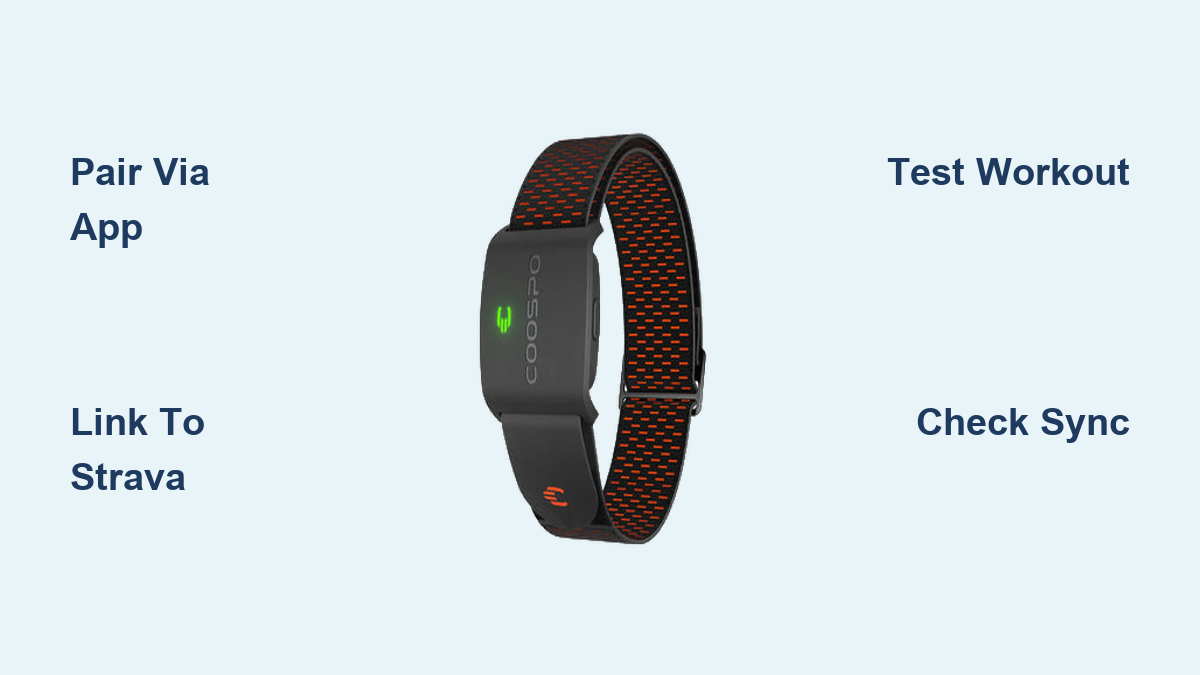
When the app detects your monitor, it will show a device name like CooSpo H6 or CooSpo H7. Tap to connect. You should see real-time heart rate readings within seconds.
If the device does not appear:
– Ensure the battery is charged (replace CR2032 if needed)
– Reset the monitor by holding the button for 10 seconds
– Move away from Wi-Fi routers or other Bluetooth interference
Once connected, test the signal by tapping your chest. Your heart rate should jump momentarily.
Sync Heart Rate Data to Strava
Link Strava to Your Fitness App
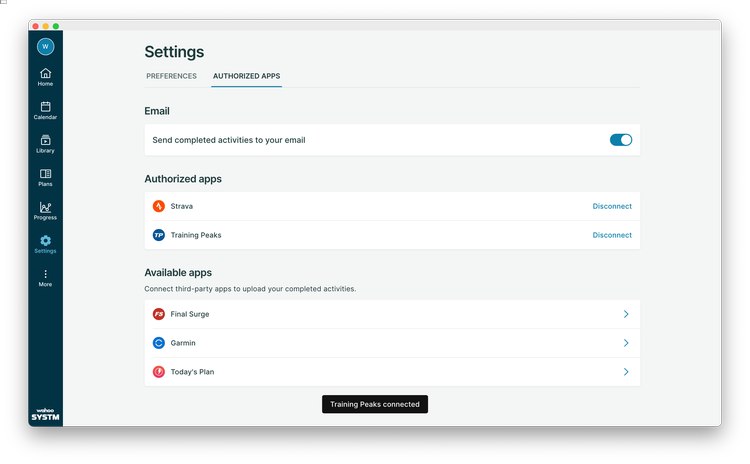
Before your data can reach Strava, you must authorize the connection between your fitness app and Strava.
In Wahoo Fitness:
1. Go to Settings > Connected Services
2. Tap Strava and log in to your account
3. Grant permission to sync activities
In Garmin Connect:
1. Open the app
2. Go to Settings > Data Sharing
3. Connect to Strava and enable automatic syncing
Now, any workout recorded with your CooSpo monitor will automatically upload to Strava.
Record a Test Workout
Start a new workout session in your fitness app. Choose running, cycling, or walking. Wear the CooSpo monitor and begin moving. After 2 to 3 minutes, check the app to confirm heart rate data is updating live.
Complete a short 5-minute workout, then stop and save it. The app will process and upload the activity.
Verify Data in Strava
Open the Strava app or website and refresh your feed. Locate the test workout and tap to view details.
Scroll down to the Heart Rate section. If everything worked, you will see:
– Average and max heart rate
– Heart rate zone breakdown
– A graph showing HR fluctuations during the activity
If heart rate data is missing, double-check:
– Was the CooSpo monitor paired during the workout?
– Did the fitness app record HR in real time?
– Is Strava still connected under Connected Apps?
Troubleshoot Common Connection Issues

No Signal from CooSpo Monitor
If your app cannot detect the heart rate monitor:
– Check battery level – Replace the CR2032 coin cell if older than 6 to 12 months
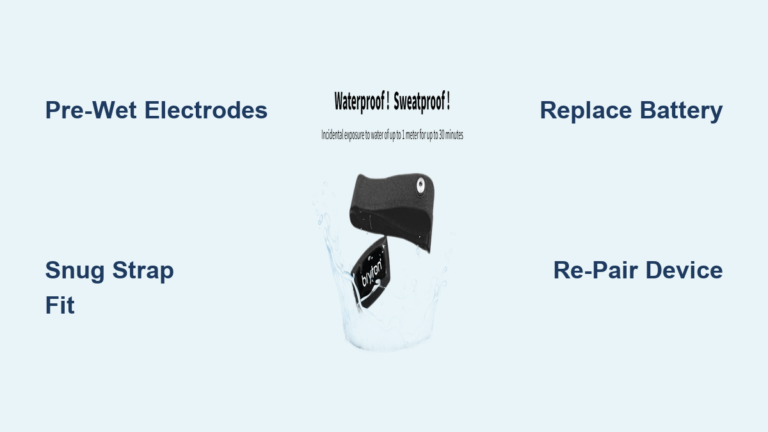
– Moisten chest strap sensors – Dry skin blocks conductivity; dampen the rubber pads slightly
– Wear it snugly – The strap should sit tight under the pectoral muscles, not loose
– Avoid interference – Stay away from metal objects or crowded gyms with many Bluetooth devices
Try resetting the monitor by holding the button for 10 seconds until the LED flashes rapidly.
Data Drops During Workout
Intermittent heart rate readings often stem from poor contact or low battery.
Fix it by:
– Re-wetting the electrode areas mid-run with water
– Ensuring the monitor module clicks securely into the strap
– Updating the fitness app to the latest version
– Disabling battery-saving modes that restrict background Bluetooth
Strava Shows No Heart Rate
Even if the fitness app records HR, Strava might not display it.
Causes:
– Strava sync failed (check app notifications)
– Activity type not set to one that supports HR
– Manual upload without sensor data
Solution:
Go to your fitness app and re-sync the activity. In Wahoo, tap the activity > Share > Strava. In Garmin, go to Recent Activities > select workout > Sync to Strava.
Wait a few minutes, as sync delays can take up to 15 minutes.
Optimize for Future Workouts
Set Up Auto-Sync Workflows
Save time by enabling automatic syncing.
In Wahoo Fitness:
– Settings > Connected Services > Strava > Auto Upload = ON
In Garmin Connect:
– Account settings > Third-party apps > Strava > Enable auto-sync
Now, every workout recorded with your CooSpo monitor uploads to Strava without manual steps.
Use Reliable Apps Consistently
Stick with one primary app to avoid confusion. Switching between Wahoo and Garmin may cause sync conflicts or duplicate activities.
Recommended setup:
– Use Wahoo Fitness for running and cycling
– Keep CooSpo monitor paired permanently
– Let it auto-sync to Strava after each session
This minimizes setup time and maximizes reliability.
Alternative: Use GPS Watch with Bluetooth
Pair CooSpo with Smartwatch
If you own a Garmin, Wahoo, Polar, or Coros watch, pair your CooSpo monitor directly to the watch instead of your phone.
Steps:
1. On your watch, go to Sensors or Bluetooth Devices
2. Select Add Heart Rate Monitor
3. Start scanning and wait for “CooSpo” to appear
4. Confirm pairing
Now your watch displays real-time heart rate and saves it with GPS data.
Sync Watch to Strava
Most smartwatches sync automatically to Strava via their companion app.
For Garmin watches:
– Ensure Garmin Connect is linked to Strava
– After finishing a workout, sync watch to phone
– Activity appears in Strava within minutes
This method gives you full offline tracking without needing your phone during exercise.
Maintain Your CooSpo Monitor

Clean Strap After Every Use
Sweat degrades the rubber and electrode pads over time.
Cleaning tips:
– Rinse the strap with fresh water after workouts
– Air dry, never use a dryer or direct heat
– Store loosely coiled, not stretched
Avoid washing in a machine or using soap, which can damage sensors.
Replace Battery Annually
The CooSpo H6 and H7 use a standard CR2032 battery lasting 6 to 12 months depending on usage.
Signs of low battery:
– Intermittent connection
– Slow pairing
– No LED flash when pressed
To replace:
1. Remove the module from the strap
2. Use a coin to twist open the back cover
3. Insert new CR2032 (positive side up)
4. Reassemble and test
A fresh battery restores strong Bluetooth performance.
Frequently Asked Questions About CooSpo Heart Rate Monitor
Can you connect a CooSpo heart rate monitor directly to Strava?
No, Strava does not support direct Bluetooth pairing with CooSpo monitors. You need a compatible third-party app like Wahoo Fitness or Garmin Connect to receive the data first, then sync it to Strava.
Which apps work best for connecting CooSpo to Strava?
Wahoo Fitness and Garmin Connect are the most reliable options. Both support CooSpo Bluetooth heart rate monitors and offer seamless Strava integration through their connected services settings.
Why is my CooSpo heart rate monitor not showing up in the app?
Common causes include a depleted CR2032 battery, dry electrode pads, or Bluetooth interference. Moisten the strap sensors, replace the battery if needed, and ensure no nearby devices are causing signal conflicts.
How long does the CooSpo heart rate monitor battery last?
The CR2032 coin cell battery typically lasts 6 to 12 months depending on usage frequency. Replace it when you notice intermittent connections or slow pairing.
Will my heart rate data appear automatically in Strava after setup?
Yes, once you enable auto-sync in your fitness app’s connected services settings, every workout recorded with your CooSpo monitor will upload to Strava automatically without manual steps.
Key Takeaways for Connecting Your CooSpo Heart Rate Monitor
You cannot pair a CooSpo heart rate monitor directly with Strava, but using a bridge app like Wahoo Fitness or Garmin Connect solves the problem completely. The setup process involves pairing your monitor via Bluetooth inside the fitness app, linking that app to your Strava account, and enabling auto-sync for future workouts.
For the best experience, stick with one reliable app, keep your chest strap moist and snug during workouts, and replace the CR2032 battery annually. If you prefer training without your phone, pair the CooSpo monitor directly to a compatible GPS watch and let it sync to Strava through the watch’s companion app. Start by downloading Wahoo Fitness today and complete your first test workout to see your heart rate data flow seamlessly into Strava.