Fix Heart Rate Monitor Not Working
Nothing kills workout momentum faster than a heart rate monitor not working mid-session. One minute you’re tracking your zones, the next your wrist reads 267 bpm or your chest strap drops signal entirely. Whether you rely on a chest strap for HRV training or an Apple Watch for daily tracking, erratic readings waste time and skew your data. The fix is usually simpler than you think. Most failures come down to dirty electrodes, weak batteries, or pairing glitches, all of which you can solve in under 10 minutes. This guide walks you through every proven fix, from quick field repairs to firmware resets, so you can stop troubleshooting and start training.
Clean the Sensor and Strap the Right Way

Sweat, skin oils, and salt buildup are the number one cause of signal loss. Even a thin film on the electrodes can block the electrical signal your heart produces.
Rinse the Strap After Every Workout
Run the chest strap under lukewarm water immediately after use. Focus on the rubbery electrode pads where conductivity happens. Wipe the sensor pod with a damp cloth only. Never soak or machine wash the pod itself, since water can destroy the electronics inside.
Deep Clean When Readings Get Flaky
If your signal cuts in and out, soak the strap overnight in water with a small drop of mild laundry soap. Remove the battery pack first. This dissolves mineral deposits and organic residue that routine rinsing leaves behind. Air dry completely before your next session. Skip this step only if your manufacturer specifically labels the strap non-washable.
Inspect and Clean the Metal Contacts
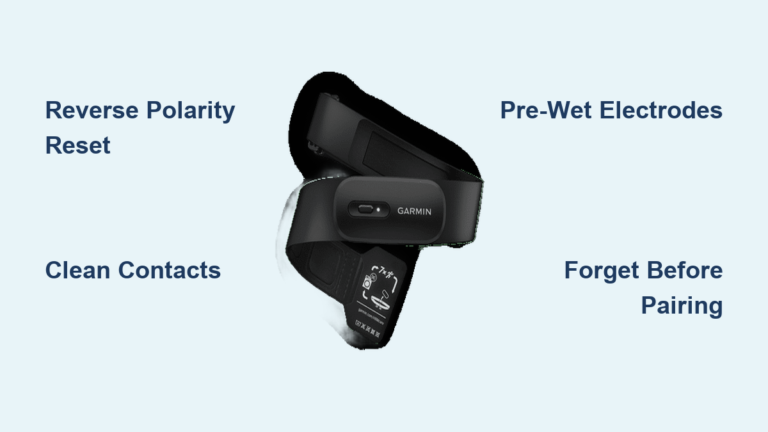
Pop out the sensor pod and check the metal contact points where it snaps into the strap. Rust or grime here stops power flow. Wipe gently with a cotton swab dipped in rubbing alcohol and let it dry fully before reinserting the battery.
Add Moisture to Restore Conductivity

Dry electrodes cannot transmit your heart’s electrical signal. Even brand-new straps need moisture to function properly.
Pre-Wet Before You Start Moving
Wear the strap one to two hours before your workout so natural sweat accumulates between the electrodes and your skin. If that’s not practical, wet the electrode zones with water or a damp cloth. Avoid spraying water directly onto the pod, since moisture can seep inside and damage the circuit board.
Use Saliva When You’re in a Rush
No time to pre-wet? Lick the electrodes. It sounds odd, but it’s a widely used field fix that restores conductivity instantly when sweat hasn’t kicked in yet.
Apply Conducting Gel for Long Sessions
For workouts over 60 minutes, especially in dry or cold air, use medical-grade conducting gel. Apply a pea-sized amount to each electrode. Too much gel makes the strap slippery, so if you see it oozing during your session, swipe it off with your finger to keep the strap secure.
Replace the Battery and Run a Power Reset
Power issues often look like software failures. A weak or old battery can cause intermittent drops even when the device powers on normally.
Swap in a Fresh Battery
Most chest straps use CR2032 button cells. Replace the battery even if your current one seems fine. Devices sit on shelves for months, draining the original cell. Some brands, including Wahoo, recommend non-coated batteries because coated versions can interfere with the electrical contact.
Try the Upside-Down Reset Trick
Remove the battery and reinsert it backwards (negative side up) for 10 seconds. This drains residual charge and resets the internal circuit. Then reinsert it correctly. This trick resolves ghost readings and pairing failures that a simple battery swap won’t fix.
Check the Battery Contacts for Damage
Look inside the pod for bent, broken, or corroded metal arms. A loose connection kills signal transfer. Damaged contacts often mean the unit needs replacement, especially in budget models where the parts are not serviceable.
Verify Fit, Position, and Orientation
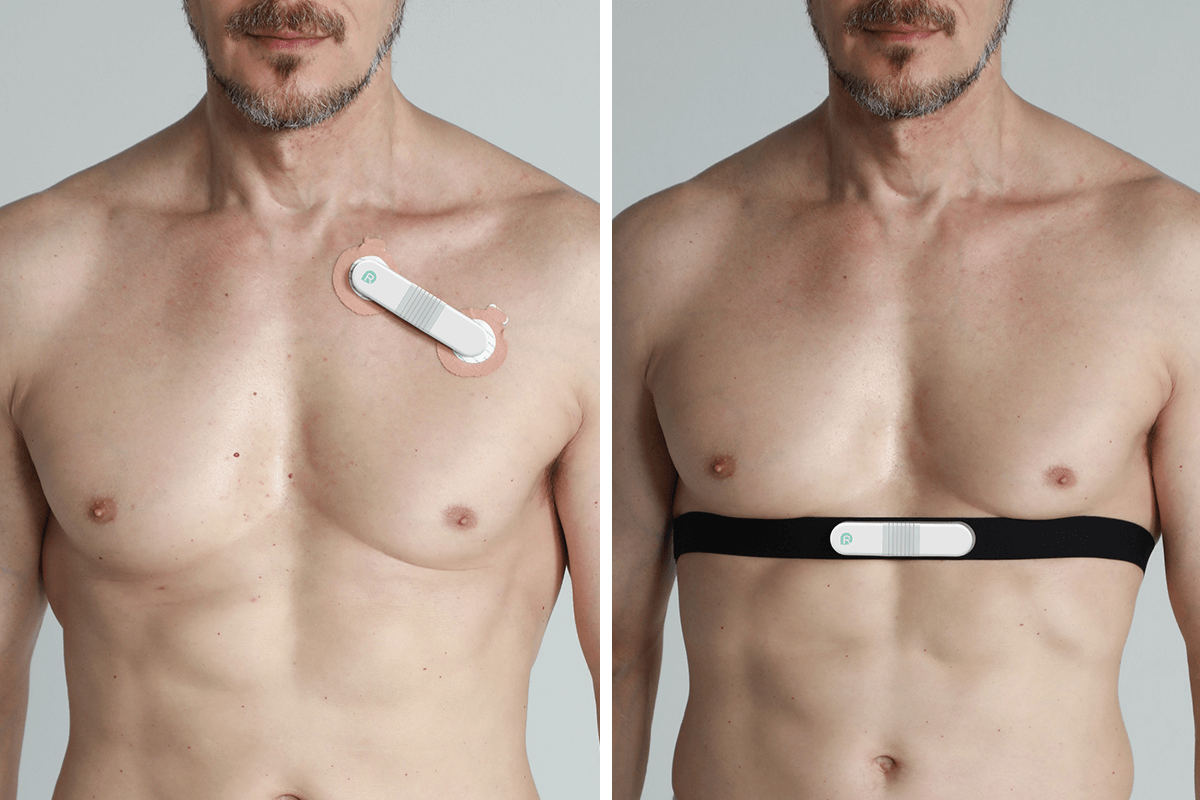
Even a clean, fully charged strap fails when worn incorrectly. Fit and placement matter more than most users realize.
Wear It Snug Against Your Chest
The strap must press firmly against your skin, just below the pectoral muscles. It should not ride up or slide during movement. Elastic degrades over time, so if the strap feels loose even when adjusted, replace it.
Keep the Logo Facing Up
Many sensors are orientation-sensitive. The Suunto Smart Sensor, for example, reads less accurately when worn upside down or backwards. Check for left/right markings on the strap and keep the logo upright and facing forward.
Place the Strap Directly on Skin
Wear the strap against your bare chest, then layer shirts, jackets, or sports bras over it. Fabric between the sensor and skin blocks signal, especially tight technical materials or dyed fabrics that bleed color onto the electrodes.
Eliminate Environmental Interference
Wind, static, and certain fabrics can corrupt your signal even when everything else is working perfectly.
Change Your Shirt or Vest
Some synthetic blends and bright-colored garments interfere with transmission. If your monitor acts up, switch tops. As a quick test, wear the strap backwards. If the signal returns, fabric was the culprit.
Avoid High-Wind Conditions
Gusts create static that disrupts wireless signals. Cyclists and runners in windy environments should expect occasional spikes. Pause briefly, reseat the sensor, and wait for the reading to stabilize before continuing.
Reseat the Sensor Mid-Workout
If your monitor goes berserk during a session, flick the sensor sharply against your chest. This can dislodge it, restore contact, and re-establish conductivity. It works best when combined with moisture from sweat or gel.
Update Firmware and Re-Pair the Device
Software glitches cause false failures. Always rule these out before replacing hardware.
Check for Firmware Updates
Visit the manufacturer’s app or website and search for your device name plus “firmware.” Polar and Wahoo push updates via Bluetooth through their companion apps. Outdated firmware is a common cause of erratic heart rate jumps and dropped connections.
Forget and Re-Pair from Scratch
On your phone, watch, or bike computer, go to Bluetooth settings. Find your heart rate monitor in the device list and select “Forget This Device.” Then re-pair it as if it were new. This clears corrupted connection data that can block signal transfer.
Restart Your Receiving Device
Turn off your phone or watch, wait 10 seconds, and power it back on. Close background fitness apps before restarting, since they can lock onto bad sensor data and prevent a clean reconnection.
Test with Another Device to Isolate the Problem
Before replacing your strap, confirm whether the strap or the receiver is at fault.
Pair with a Phone or Tablet
Most smartphones support Bluetooth heart rate monitors. Download a free app like Wahoo Fitness or Polar Beat and try pairing your strap. If it works, the issue lies with your original device, not the sensor itself.
Rule Out App Conflicts
Third-party sleep trackers and heart rate apps can hijack your sensor signal. Uninstall any non-essential health apps, reboot, and test again. Sometimes a single rogue app is the only problem.
Fix Apple Watch Optical Sensor Problems

Wrist-based monitors fail for different reasons than chest straps. Most issues come down to software settings or poor skin contact.
Enable Heart Rate Permissions
On your iPhone, open the Watch app. Tap My Watch, then Privacy. Make sure both Fitness Tracking and Heart Rate are toggled on. Without these permissions, the optical sensor cannot record data.
Turn Off Power Saving Mode
In the Watch app, go to My Watch, then Workout. Toggle Power Saving Mode off. This feature disables the optical heart rate sensor to extend battery life, which means no readings during workouts.
Wear the Watch Snug, Not Loose
The watch must stay flush with the top of your wrist. If it shifts or detects a gap, the sensor locks as a safety measure. Tighten the band so the watch does not rotate during movement.
Watch Out for Tattoos
Dark or dense tattoo ink blocks the green LED light that optical sensors use to measure blood flow. If your wrist is heavily inked, try wearing the watch slightly higher up the arm, or switch to a chest strap for reliable data.
Force Restart Both Devices
Close the Workout, Activity, and Heart Rate apps on your watch. Close the Health and Watch apps on your iPhone. Turn off both devices, then restart the iPhone first and the Apple Watch second. If problems persist, unpair the watch and re-pair it from scratch.
Upgrade to a More Reliable Monitor

If troubleshooting fails, consider replacing your current unit with a proven model.
Polar H10: Best for Accuracy
The Polar H10 supports both Bluetooth and ANT+, is waterproof, and delivers the most accurate readings available for HRV and serious training. It uses a replaceable battery, so you’ll never deal with built-in obsolescence.
Wahoo Tickr: Best Value
The Wahoo Tickr pairs faster than the Suunto Smart Sensor and costs roughly half the price. It works with most apps and devices and recommends non-coated batteries for optimal connectivity.
Coospo: Best Budget Pick
The Coospo chest strap delivers solid performance at a fraction of the price. It is well-tested by long-term users and works well as a backup or entry-level option.
Avoid the Suunto Smart Sensor if reliability matters. Users report ghost readings, dye interference, and high maintenance requirements for the price point.
Use RPE When Technology Fails
If your monitor refuses to cooperate, do not abandon your workout. Use Rate of Perceived Exertion (RPE) to guide your effort on a scale of 1 to 10:
- 1 to 3: Light effort, easy conversation
- 4 to 6: Moderate effort, short sentences only
- 7 to 9: Hard effort, grunting responses
- 10: Maximum effort
You can train effectively without a number on your wrist. Your body knows the effort even when your device does not.
Test at Home Before You Head Out
Avoid trailhead panic by testing your monitor before every important session:
- Wet the electrodes.
- Pair with your device.
- Do a 5-minute jog in place.
If the reading stays clean, you are good to go. If it stutters, wash the strap, reapply gel, or swap the battery before you leave home.
Frequently Asked Questions About Heart Rate Monitor Problems
Why does my heart rate monitor show crazy high numbers like 267 bpm?
Erratic spikes usually mean poor electrode contact, static interference, or a dying battery. Clean the strap, moisten the electrodes, and replace the battery. If spikes continue, re-pair the device and check for firmware updates.
Can I machine wash my chest strap?
Only if your manufacturer confirms it is machine washable. Most straps require hand rinsing or overnight soaking. Never machine wash the sensor pod itself, since water destroys the electronics.
How do I know if my chest strap battery is dead?
If the device fails to power on, shows intermittent drops, or pairs inconsistently, the battery is likely weak. Replace it with a fresh CR2032 cell. Even “new” batteries can be drained from shelf time.
Why does my Apple Watch heart rate stop reading during workouts?
Power Saving Mode disables the optical sensor to save battery. Turn it off in the Watch app under My Watch, then Workout. Also confirm that Fitness Tracking and Heart Rate permissions are enabled under Privacy settings.
Do tattoos really affect optical heart rate sensors?
Yes. Dark or dense tattoo ink absorbs the green LED light that optical sensors use to measure blood flow. If your wrist is heavily inked, the sensor may fail entirely. Move the watch higher up your arm or switch to a chest strap.
What should I do if my monitor works with my phone but not my watch?
The issue lies with your watch, not the strap. Restart the watch, forget the device in Bluetooth settings, and re-pair from scratch. Check for firmware updates and close background fitness apps that may be blocking the connection.
Key Takeaways for Fixing a Heart Rate Monitor Not Working
A heart rate monitor not working is almost always a fixable problem, not a dead device. Start with the basics: clean the strap, moisten the electrodes, and replace the battery. If readings stay erratic, run the upside-down reset and re-pair the device. For Apple Watch users, check privacy settings, disable Power Saving Mode, and ensure a snug fit. When troubleshooting fails, upgrade to a proven model like the Polar H10 or Wahoo Tickr. And remember, if the tech gives out mid-workout, your perceived effort is just as valuable as any number on a screen. Test your gear at home before every important session, and you’ll never face a silent screen at the trailhead again.