How to Pair Garmin Heart Rate Monitor
You’ve just unboxed your new Garmin heart rate monitor, charged it up, and are ready to start tracking your workouts with precision. But when you open your Garmin device or app, it won’t connect. You’re not alone—many users struggle with pairing their Garmin heart rate monitor correctly the first time. The good news is that pairing a Garmin heart rate monitor is quick and simple once you know the right steps.
Whether you’re using a chest strap like the HRM-Dual or HRM-Pro, syncing it to your Garmin watch or smartphone app is essential for accurate fitness tracking. In this guide, you’ll learn exactly how to pair a Garmin heart rate monitor across various devices and via the Garmin Connect app. We’ll walk you through setup, troubleshooting, and keeping your monitor synced.
Check Compatibility Before Pairing
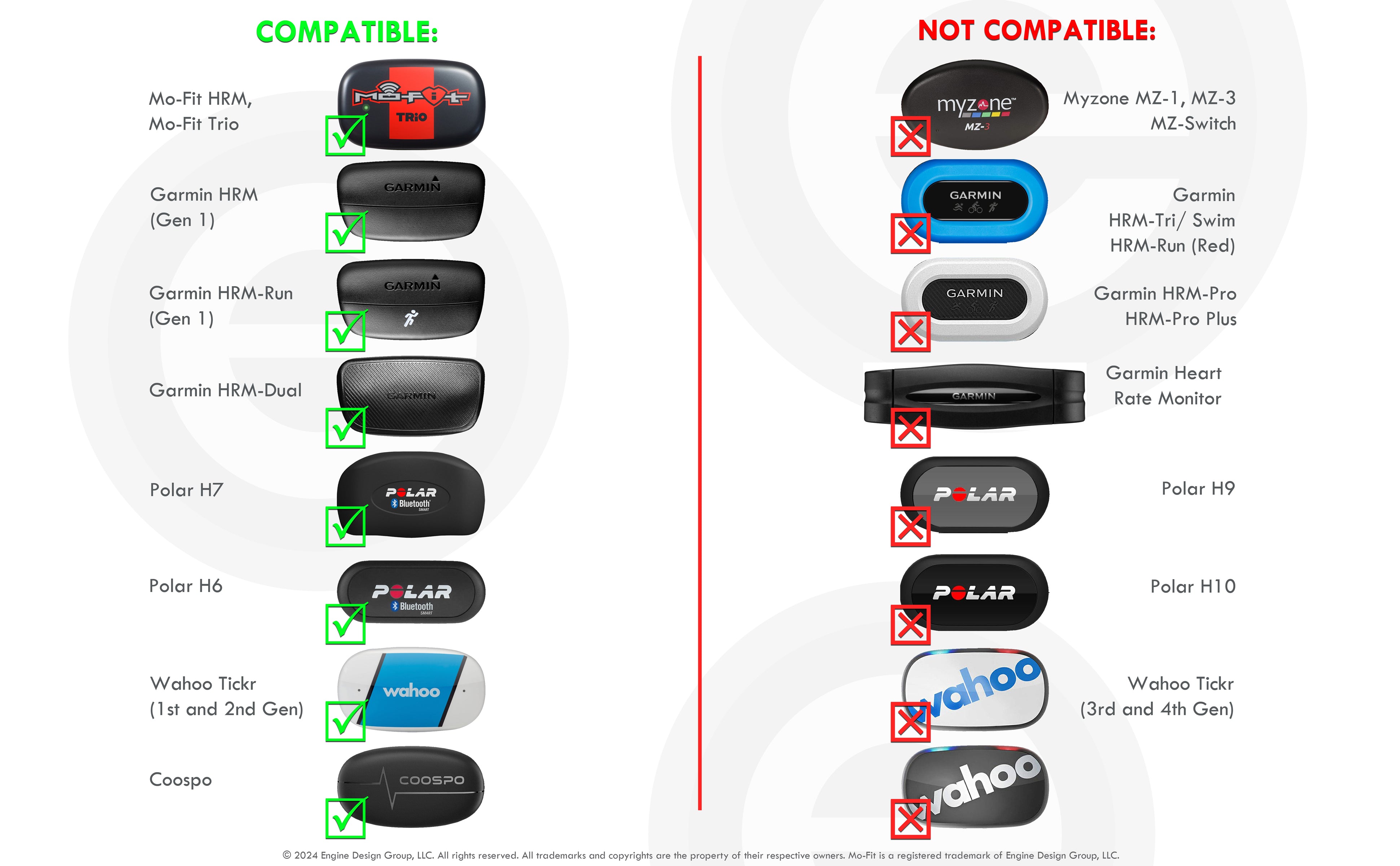
Before attempting to pair, confirm your heart rate monitor works with your device.
Supported Garmin Devices
Garmin heart rate monitors use ANT+ and Bluetooth Low Energy for connectivity. Most Garmin watches from the last decade support both. Common compatible series include Forerunner, Fenix, Epix, Venu, Edge cycling computers, and the Instinct series.
Choose the Right Monitor Type
- HRM-Dual sends data via ANT+ and BLE simultaneously, which is ideal for pairing with watches and phones.
- HRM-Run offers advanced running metrics and works best for Forerunner and Fenix users.
- HRM-Tri is designed for triathletes with water resistance and dual-band support.
- HRM-Pro includes premium features like breathing rate and inactivity alerts.
💡 Pro Tip: If using Garmin Connect on a smartphone, make sure Bluetooth is enabled. ANT+ requires a compatible Garmin watch unless you have a third-party ANT+ USB stick.
Pair via the Garmin Connect App
The easiest way to pair for most users is through the Garmin Connect mobile app.
Start the Setup Process
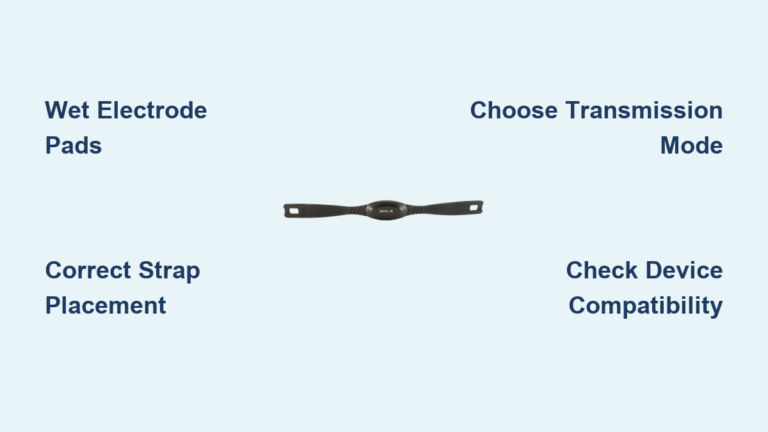
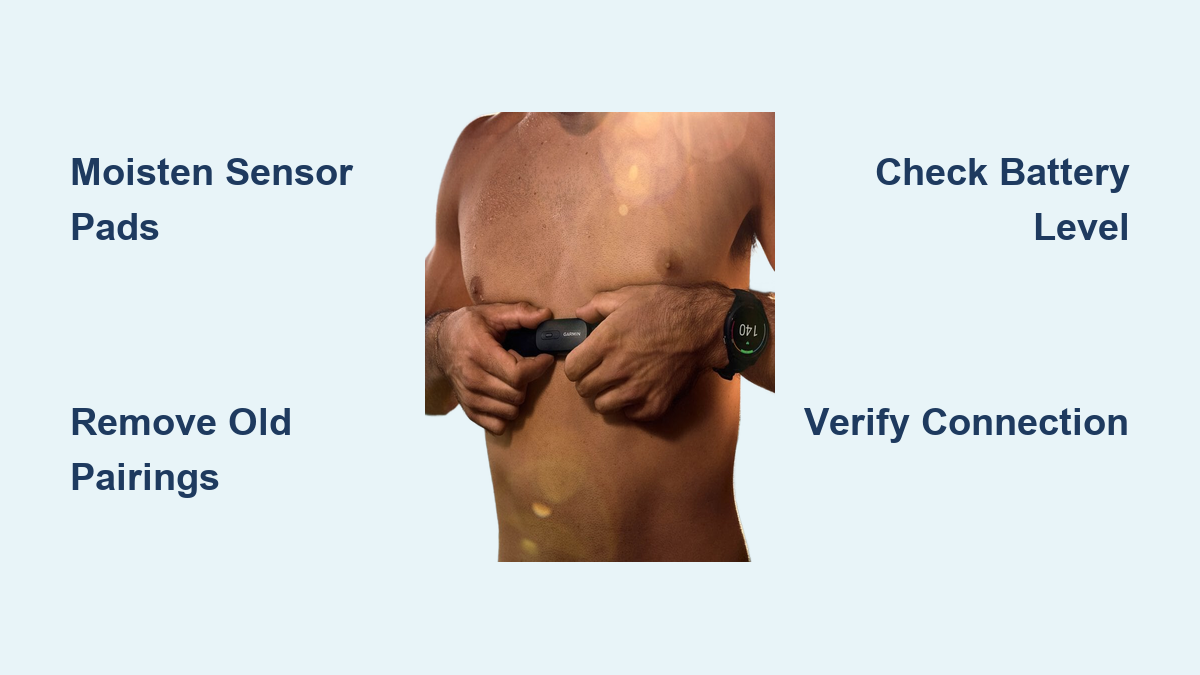
- Wear the heart rate monitor snugly around your chest.
- Moisten the sensor pads for better conductivity.
- Open the Garmin Connect app on your phone.
- Tap the Add Device button in the Today tab.
- Select Heart Rate Monitor from the list.
Complete the Pairing
- The app will search for nearby devices.
- When your monitor appears, tap it.
- Confirm pairing when prompted.
✅ Success Signal: You’ll see real-time heart rate values updating in the app.
Common Mistakes to Avoid
- Not moistening the electrodes, since dry sensors fail to detect signal
- Wearing the strap too loose; it should be tight enough to stay in place but comfortable
- Leaving old connections active, which can cause conflicts
Pair Directly to a Garmin Watch
If you prefer not to use a phone, you can pair directly to your watch.
Access Sensor Settings
- Press the menu button on your Garmin watch.
- Navigate to Settings > Sensors & Accessories > Add New > Heart Rate.
- Wait for the device to search.
Confirm the Connection
- Once your monitor appears, select it.
- You should feel a brief vibration or see a confirmation screen.
- Real-time heart rate will now display during activities.
⏱️ Time Estimate: Setup takes under 2 minutes if the battery is charged and the strap is properly worn.
Visual Indicators to Check
- A blinking LED light on the monitor means it’s transmitting.
- No light suggests a battery issue or that the sensor module needs reseating.
Troubleshoot Failed Pairing
Even with correct steps, pairing can fail. Here’s how to fix it.
Reset the Heart Rate Monitor
- Remove the sensor module from the strap.
- Wait 30 seconds.
- Reinsert firmly until it clicks.
- Moisten the pads and wear again.
🔁 This resets the Bluetooth chip and often resolves connectivity issues.
Clear Old Pairings
On your watch:
1. Go to Settings > Sensors & Accessories.
2. Find the existing heart rate monitor entry.
3. Select Remove or Forget.
On the Garmin Connect app:
1. Open the Devices tab.
2. Tap the heart rate monitor.
3. Choose Remove Device.
Then retry pairing as a new device.
Fix Bluetooth and ANT+ Conflicts
Some monitors send dual signals, which can confuse devices.
Understand Signal Types
- ANT+ works best with Garmin watches and stays stable during intense workouts.
- Bluetooth connects easily to smartphones and apps.
- Dual mode (ANT+ and BLE) supports multi-device use but can cause interference if both are active.
Prioritize One Connection
If using with a watch:
– Disable Bluetooth heart rate in the Connect app.
– Let the watch connect via ANT+.
If using only a phone:
– Remove the monitor from your watch if previously paired.
– Pair fresh via the app.
🛠️ Expert Note: Use ANT+ for reliability during runs or races, and Bluetooth for casual gym tracking with your phone.
Test the Connection
After pairing, verify it works before heading out.
Perform a Live Test
- Start a workout on your watch or app.
- Select an activity type that uses heart rate, such as Run.
- Wait 10 to 20 seconds for data to appear.
A working connection updates heart rate every few seconds. If it’s still not working, try these steps:
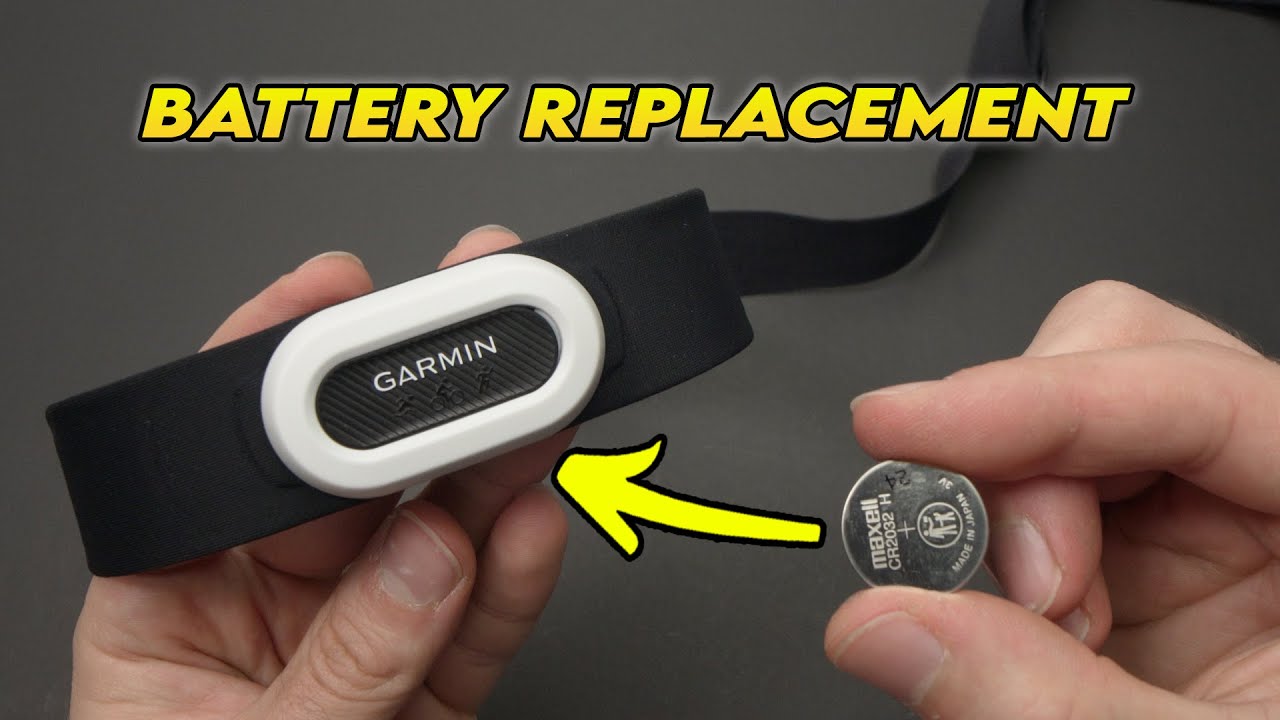
– Replace the monitor’s battery (CR2032 coin cell).
– Update your Garmin device software.
– Try pairing with another compatible device to isolate the issue.
Maintain a Strong Connection
Once paired, keep your heart rate monitor reliable.
Wear It Correctly
- Position the sensor below the pectoral muscles and centered.
- Keep the Garmin logo upright and facing forward.
- Adjust tightness so it’s snug but not restrictive.
Keep Firmware Updated
- Open the Garmin Connect app.
- Tap Devices > Heart Rate Monitor.
- Check for firmware updates.
Updates often improve pairing stability and battery life.
Clean After Every Use
- Rinse the strap with water after sweaty workouts.
- Air dry and never use heat.
- Remove the sensor and store it separately.
🧼 Dirty sensors reduce conductivity and may trigger false disconnects.
Replace the Battery
A weak battery is the top reason for failed pairing.
Signs You Need a New Battery
- No blinking light when worn
- Intermittent signal drops
- A “Heart Rate Sensor Not Found” error
Battery Replacement Steps
- Remove the sensor from the strap.
- Use a coin to twist the back cover counterclockwise.
- Take out the CR2032 battery.
- Insert a fresh one with the positive side up.
- Reattach the cover and click it back into the strap.
🔋 Battery lasts 2 to 4 years depending on usage.
Final Pairing Checklist
Use this quick list before every setup:
- Moistened sensor pads
- Sensor positioned correctly with logo up
- Chest strap snug and level
- Monitor powered on with blinking light
- Old pairings removed
- Bluetooth and ANT+ settings correct
- Device software updated
Frequently Asked Questions About Pairing a Garmin Heart Rate Monitor
Why won’t my Garmin heart rate monitor pair?
The most common reasons include a dead battery, dry sensor pads, or old pairings still saved on your device. Try moistening the pads, replacing the CR2032 battery, and removing previous connections before retrying.
Do Garmin heart rate monitors use Bluetooth or ANT+?
Most Garmin chest straps support both Bluetooth Low Energy and ANT+. The HRM-Dual and HRM-Pro transmit on both simultaneously, letting you connect to a watch and a phone at the same time.
How long does the battery last in a Garmin heart rate monitor?
A CR2032 coin cell battery typically lasts 2 to 4 years depending on usage and conditions.
Can I pair my Garmin heart rate monitor without a phone?
Yes. You can pair directly through your Garmin watch by going to Settings, then Sensors and Accessories, then Add New, then Heart Rate.
How do I know if my heart rate monitor is working?
A blinking LED on the sensor module confirms it’s transmitting. You should also see real-time heart rate values appear within 10 to 20 seconds of starting an activity.
Key Takeaways for Pairing Your Garmin Heart Rate Monitor
Learning how to pair a Garmin heart rate monitor comes down to three essentials: prepare the sensor, choose the right connection method, and verify the signal before your workout. Always moisten the pads, confirm compatibility, and remove old pairings to avoid conflicts. Keep your firmware updated and your strap clean for long-term reliability. Start your next session with confidence knowing your heart rate data is accurate and consistent.