Connect iFit Heart Rate Monitor to Treadmill
Tracking your heart rate during treadmill workouts transforms guesswork into measurable progress. Connecting an iFIT-compatible heart rate monitor to your treadmill delivers real-time BPM data, enabling personalized training through features like ActivePulse and SmartAdjust. Whether you prefer a chest strap, Apple Watch, Garmin, or Samsung Galaxy Watch, the right pairing method ensures your effort stays in the optimal zone for fat burn, endurance, or peak performance.
This guide covers every step to pair your device successfully, troubleshoot common issues, and maximize iFIT’s intelligent workout adjustments. You’ll find model-specific instructions, compatibility insights, and proven fixes for the most frequent setup mistakes.
iFIT Heart Rate Monitor Pairing Basics
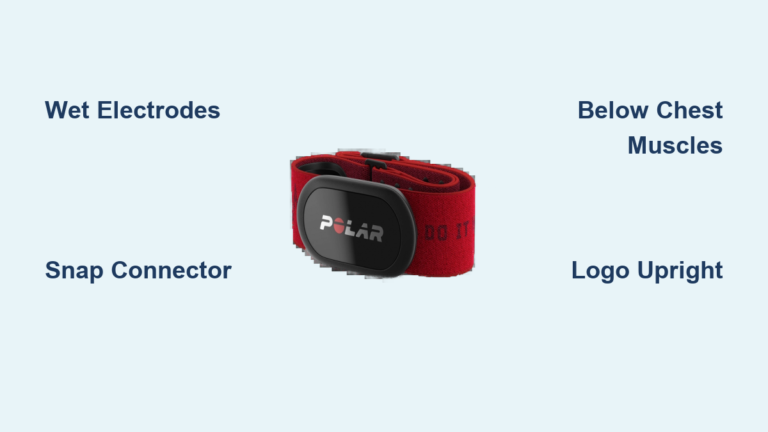
Before connecting any monitor, confirm your iFIT treadmill is powered on and connected to Wi-Fi. The iFIT system communicates with heart rate devices through Bluetooth Smart (Bluetooth 4.0 or later). Most modern monitors from Polar, Wahoo, Garmin, and Apple support this standard. Your treadmill’s touchscreen handles the pairing process automatically once your monitor enters discoverable mode. Keep the sensor charged or fitted with fresh batteries, and wear it correctly. For chest straps, position the sensor snug against your skin just below the chest.
Activate Bluetooth on Your Treadmill
From the home screen, tap the Settings icon (gear symbol). Navigate to Bluetooth Devices or Heart Rate Monitor under the “Connected Devices” section. Switch Bluetooth on if it’s currently off. The console immediately begins scanning for nearby compatible devices. Keep your heart rate monitor within 3 feet (1 meter) of the console for optimal signal strength.
Put Your Monitor in Pairing Mode
For chest straps, lightly moisten the electrodes and secure the strap snugly. Press and hold the button (if available) until the LED flashes, signaling active broadcasting. For smartwatches like Apple or Garmin, confirm Bluetooth is enabled, the device is unlocked, and the screen is awake. Some models require you to open a heart rate app or initiate a workout before becoming discoverable.
Wait 10–20 seconds for your device to appear on the treadmill’s screen. Devices typically display by model number or brand name. Tap to pair, then look for a confirmation message indicating a successful connection.
Compatible iFIT Heart Rate Monitors
iFIT supports a broad range of Bluetooth 4.0+ heart rate monitors. Choosing the right device ensures seamless pairing and accurate data throughout every workout.
Supported Chest Strap Models
- Polar H10
- Wahoo TICKR
- Garmin HRM-Pro
- Fitbit Sense (via Bluetooth)
- Adidas miCoach Heart Rate Monitor
These straps deliver the highest accuracy and excel during intense or extended sessions. The Polar H10 stands out for its dual connectivity (Bluetooth and ANT+) and broad compatibility with both iFIT and third-party apps.
Compatible Smartwatches
- Apple Watch (Series 3 and later)
- Garmin Forerunner, Venu, and Fenix series
- Samsung Galaxy Watch 4, 5, 6
- Fitbit Charge 5, Sense 2
Smartwatches eliminate extra gear and offer convenience. They may respond slightly slower than chest straps during rapid heart rate changes, but remain highly effective for steady-state cardio.
Devices to Avoid
Older or non-Bluetooth monitors (such as analog straps or 2.4 GHz-only devices) will not pair with iFIT. If your monitor fails to appear after multiple attempts, verify it on iFIT’s official compatibility list or update the device firmware.
Connect a Chest Strap to Your iFIT Treadmill

Follow these steps to pair a Bluetooth chest strap with your treadmill.
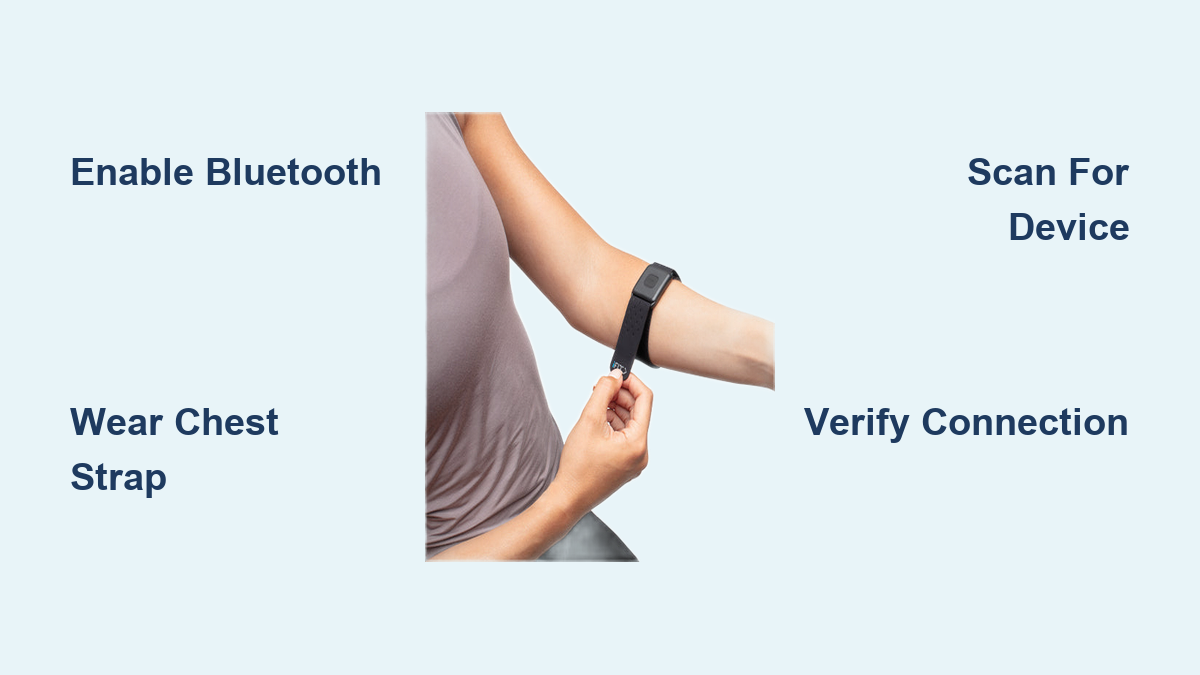
1. Power On and Wear the Strap
Position the heart rate monitor snugly below your pectoral muscles. Moisten the sensor pads with water to improve skin conductivity. Activate the strap by pressing the button or simply wearing it. Many models auto-detect skin contact and power on automatically.
2. Access the Bluetooth Menu
On the treadmill touchscreen, go to:
Settings > Devices > Heart Rate Monitor
Select Scan for Devices. The console searches for available sensors in range.
3. Select Your Device
When your strap appears (e.g., “Polar H10” or “Wahoo”), tap it. Confirm pairing if prompted. A heart icon appears on the workout screen once the connection is active.
4. Verify the Connection
Start a manual walk or choose a guided workout. Watch for real-time heart rate data in beats per minute (BPM). If numbers appear and rise with your exertion, the connection is stable.
Pro Tip: If the treadmill fails to detect the strap, remove and reapply it, or restart both devices to refresh the Bluetooth handshake.
Connect Apple Watch to iFIT Treadmill

Apple Watch users can stream heart rate data directly to iFIT without a chest strap.
Enable Bluetooth and Workout Detection
On your Apple Watch, open Settings > Bluetooth and confirm it’s enabled. Launch the Heart Rate app to wake the sensor. Start a workout on the watch (such as Outdoor Walk) to force continuous heart rate transmission.
Pair via the iFIT Console
On the treadmill, navigate to:
Settings > Bluetooth Devices > Heart Rate Monitor
Wait for “Apple Watch” or your specific watch name to appear. Tap to connect. Once linked, your BPM syncs live during iFIT workouts.
Note: The iFIT mobile app does not need to be open. Just keep both devices nearby and awake.
Troubleshooting Apple Watch Issues
- No signal? Restart Bluetooth on both the watch and treadmill.
- Delayed data? Start the workout on your watch first, then begin on the treadmill.
- Frequent disconnects? Update watchOS and iFIT firmware to the latest versions.
Pair Garmin Watch with iFIT Treadmill
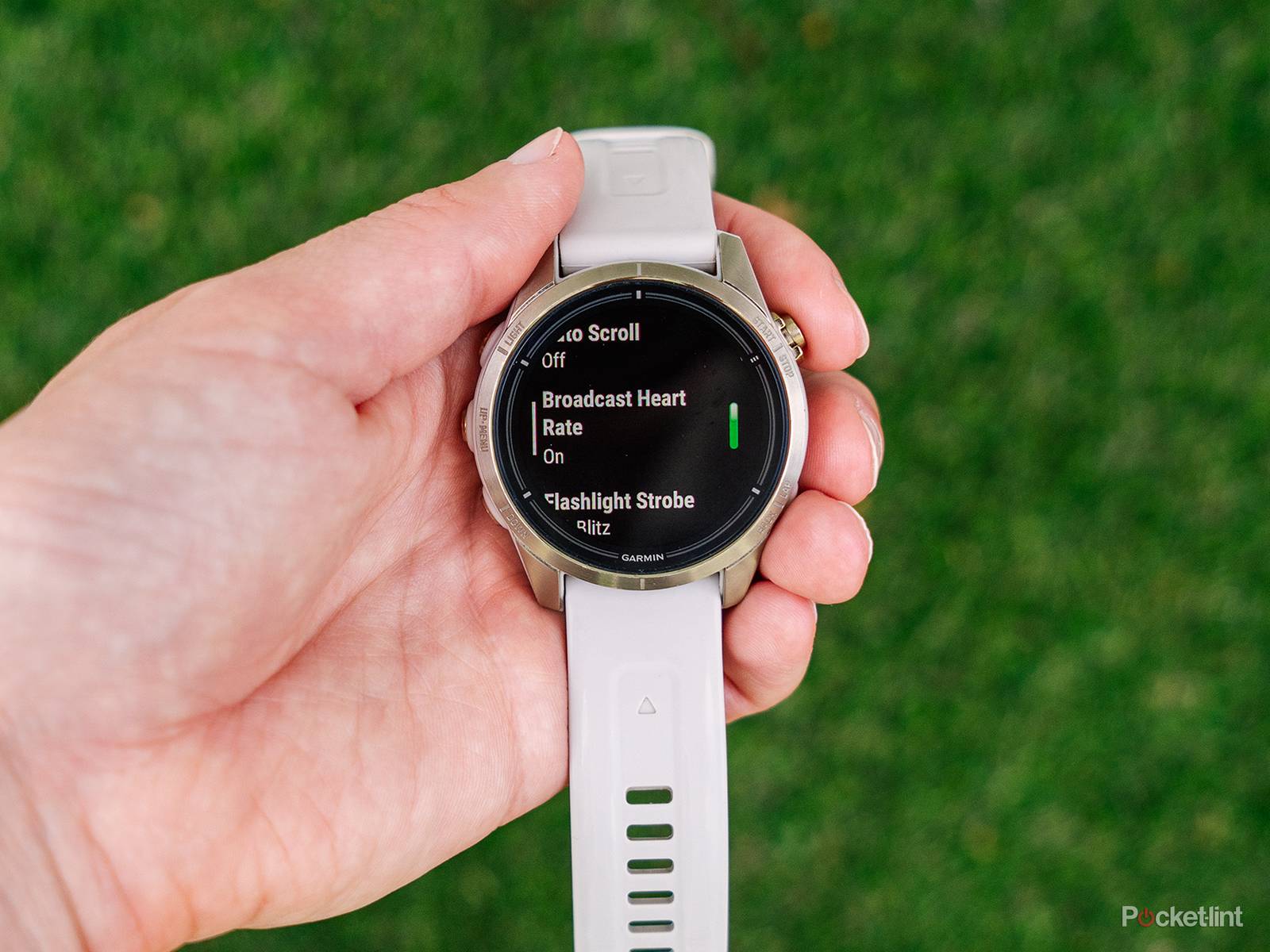
Garmin watches require slightly different preparation but follow a similar pairing flow.
Enable Bluetooth HR Broadcast
On your Garmin device:
Settings > Sensors & Accessories > Add New > Heart Rate
Select Internal Sensor or Broadcast mode. This setting tells the watch to transmit HR data via Bluetooth, even outside an active workout.
Connect to the Treadmill
From the iFIT console:
Settings > Devices > Heart Rate Monitor > Scan
Locate your Garmin model (e.g., “Forerunner 265”) in the list. Tap to pair.
Expert Tip: Some Garmin models only broadcast during an active workout. To prevent dropouts, start a run or cardio activity on the watch before initiating pairing.
Confirm Data Sync
Your heart rate should appear on the iFIT screen within seconds. If data doesn’t show, verify that Airplane Mode is off and Do Not Disturb isn’t blocking Bluetooth signals.
Use Samsung Galaxy Watch with iFIT

Samsung Galaxy Watches (4 and later) support Bluetooth heart rate sharing with iFIT.
Turn On Heart Rate Monitoring
On your watch:
Settings > Connections > Bluetooth – confirm it’s enabled
Open the Heart Rate app and take a manual reading to activate continuous monitoring
Pair Through the iFIT Console
On the treadmill:
Settings > Bluetooth > Heart Rate Monitor > Search
When “Galaxy Watch” appears, select it. The connection typically establishes in under 10 seconds.
Warning: Older Samsung models (like Watch 3) may pair inconsistently. Updating to Wear OS with Samsung Health improves reliability.
Troubleshoot Failed iFIT Heart Rate Connections
Even with compatible devices, pairing occasionally fails. Use this checklist to resolve common problems.
Device Not Showing Up?
- Replace batteries in chest straps
- Restart both devices
- Forget and re-pair the monitor in settings
- Move away from Wi-Fi routers or microwaves that cause interference
Heart Rate Spikes or Drops?
- Reposition the chest strap so it sits level and tight
- Avoid layering clothing between the sensor and skin
- Clean electrode pads with mild soap and water
Connection Drops Mid-Workout?
- Keep the watch or strap within 3 feet of the console
- Limit other Bluetooth devices (headphones, phones) connected simultaneously
- Update treadmill firmware to fix software instability
Optimize Heart Rate for iFIT Workouts
Once connected, your heart rate data powers key iFIT features like ActivePulse and SmartAdjust.
Enable ActivePulse Training
ActivePulse uses real-time BPM to adjust treadmill speed and incline automatically, keeping you in your ideal training zone. To activate:
- Start a Cardio or HIIT workout
- When prompted, select Use Heart Rate Monitor
- Choose your goal: Fat Burn, Cardio, or Peak
The system now increases or decreases intensity based on your live effort.
Customize Heart Rate Zones
In the iFIT app or web portal, go to:
Profile > Fitness Settings > Heart Rate Zones
Enter your maximum heart rate or let iFIT estimate it from your age. This ensures ActivePulse responds accurately to your fitness level.
Maintenance and Best Practices
Keep your heart rate monitor reliable with simple, consistent upkeep.
Clean After Every Use
Wipe chest straps with a damp cloth. Remove the sensor module (if detachable) and hand-wash the band. Air dry only. Never machine wash.
Store Properly
Keep straps loose rather than coiled to prevent wire damage. Store watches in cool, dry locations away from direct sunlight.
Test Weekly
Even if not used daily, test the connection once per week to confirm battery and sensor functionality.
Frequently Asked Questions About Connecting iFIT Heart Rate Monitors
Which heart rate monitors are compatible with iFIT treadmills?
iFIT supports Bluetooth 4.0+ devices including Polar H10, Wahoo TICKR, Garmin HRM-Pro, Apple Watch (Series 3+), Garmin Forerunner/Venu/Fenix, and Samsung Galaxy Watch 4 and later.
Why won’t my iFIT treadmill detect my heart rate monitor?
Common causes include dead batteries, Bluetooth being off, the monitor not being in pairing mode, or interference from other devices. Restart both devices and move closer to the console.
Do I need the iFIT app open to connect my Apple Watch?
No. The iFIT mobile app does not need to be open. Just keep your Apple Watch unlocked, Bluetooth enabled, and within range of the treadmill console.
Can I use a Fitbit as a heart rate monitor with iFIT?
Yes, Fitbit Sense, Sense 2, and Charge 5 support Bluetooth heart rate sharing with iFIT-enabled equipment.
How do I enable ActivePulse on my iFIT treadmill?
Start a Cardio or HIIT workout, select “Use Heart Rate Monitor” when prompted, and choose your training goal (Fat Burn, Cardio, or Peak). ActivePulse then adjusts intensity automatically.
How often should I replace my chest strap battery?
Most Bluetooth chest straps last 6–12 months on a single coin-cell battery. Replace immediately if you notice connection drops or inconsistent readings.
Key Takeaways for Connecting Your iFIT Heart Rate Monitor
Connecting an iFIT heart rate monitor to your treadmill takes only minutes once you know the steps. Start by confirming Bluetooth is active on both devices, then select your monitor from the treadmill’s scan menu. Keep devices within 3 feet of the console, maintain fresh batteries, and update firmware regularly to prevent dropouts.
Once paired, your heart rate data unlocks ActivePulse and SmartAdjust, two features that automatically tailor workout intensity to your effort level. Test your connection weekly, clean your strap after each use, and store devices properly to extend their lifespan.
Your next step: power on your treadmill, enable Bluetooth, and pair your monitor today. Within minutes, you’ll have live BPM data guiding every workout toward smarter, more effective training.