How to Set Up Apple Watch Heart Rate Monitor
You’ve just unboxed your Apple Watch and want to start tracking your heart rate, but figuring out where to begin feels overwhelming. The good news: Apple Watch automatically begins measuring your heart rate in the background once it’s paired and worn correctly. Still, to get accurate readings and unlock advanced features like irregular rhythm notifications and ECG, you’ll need to configure a few key settings. Whether you own a Series 3, Ultra, or the latest model, this guide covers everything you need to know to set up and optimize your heart rate monitor.
In the next few minutes, you’ll learn how to access heart rate data, enable alerts, improve measurement accuracy, and use both optical and electrical sensors effectively. No technical jargon, just clear steps to make your Apple Watch a reliable heart health companion.
Enable Heart Rate Tracking on Your Apple Watch

Apple Watch starts collecting heart rate data automatically once set up, but you should verify that permissions and background tracking are active.
Check Heart Rate App Access
Open the Heart Rate app directly from your watch face. If it shows “Measuring…” and delivers a reading within 10 seconds, your optical sensor is working. If it fails repeatedly, go to the Watch app on your iPhone, tap Privacy & Security, then Motion & Fitness, and ensure Heart Rate is toggled on. Also confirm that Fitness Tracking and Health access are enabled.
Grant Health App Permissions
On your iPhone, open the Health app, tap your profile, then Apps, and select Workout and Heart. Make sure both have read and write access. Without these, third-party apps and system features may not record or display heart data properly.
Read Heart Rate Data Accurately
Knowing where and how to view your heart rate ensures you’re getting meaningful insights, not just numbers.
Use the Heart Rate App
From your Apple Watch, tap the Heart Rate app icon. Keep your arm flat and still on a surface for best results. After a few seconds, you’ll see your current BPM. The app displays context like “Resting” or “Workout” depending on recent activity.
Add a Heart Rate Complication
To check your heart rate without opening an app, add a complication to your watch face. Press and hold the watch face, tap Edit, choose a complication slot, and select Heart Rate. Now you’ll see real-time updates with a glance.
View Historical Trends
Open the Health app on your iPhone, tap Browse, then Heart, and select Heart Rate. Here you’ll find resting rate, walking average, and recovery data over days, weeks, or months. Scroll down to see trends and export PDFs for your doctor.
Turn On Heart Rate Notifications
Stay informed if your heart rate goes too high or too low during the day, or if an irregular rhythm is detected.
Set High and Low Alerts
On your iPhone, open the Watch app, go to Heart Rate, then Heart Rate Notifications. Toggle on High Heart Rate and Low Heart Rate. Set your thresholds, typically 100–140 BPM for high and 40–60 BPM for low, depending on fitness level. You’ll get a notification if your heart stays outside these ranges for five minutes or more.
Enable Irregular Rhythm Detection
Still in the Watch app, tap Irregular Rhythm Notification. Follow the setup flow, which includes a brief questionnaire about heart conditions. If eligible and available in your region, Apple Watch will scan your heart rhythm every 90 seconds in the background using infrared light. If an irregular pattern like AFib is found, you’ll be prompted to take an ECG.
Note: Irregular rhythm notifications require watchOS 5.1.2 or later and are not available in all countries.
Use the ECG App With the Electrical Sensor
Apple Watch Series 4 and later, plus all Apple Watch Ultra models, can record an electrocardiogram, giving you medical-grade heart rhythm data.
Open the ECG App
Find the ECG app on your watch. Sit still, rest your arm on a flat surface, and place your finger on the Digital Crown. Hold for 30 seconds. The app records electrical signals and generates a PDF you can share with your doctor.
Warning: ECG is not supported on Apple Watch SE. It requires the electrical heart sensor in the Digital Crown and back crystal.
Save and Share Results
After each reading, the ECG is saved in the Health app under Electrocardiograms. Tap any entry to view the waveform, rhythm classification (Sinus, AFib, etc.), and notes. Use the share button to send it via Messages, Mail, or AirDrop.
Improve Heart Rate Measurement Accuracy
Even the best tech needs the right conditions. Optimize your setup to avoid false readings.
Wear Apple Watch Correctly
Fit the watch snugly, about one finger’s width above your wrist bone. It should stay in place during movement but not cut off circulation. Loosen slightly during sleep or swelling, and tighten during workouts.
Clean the Sensor Regularly
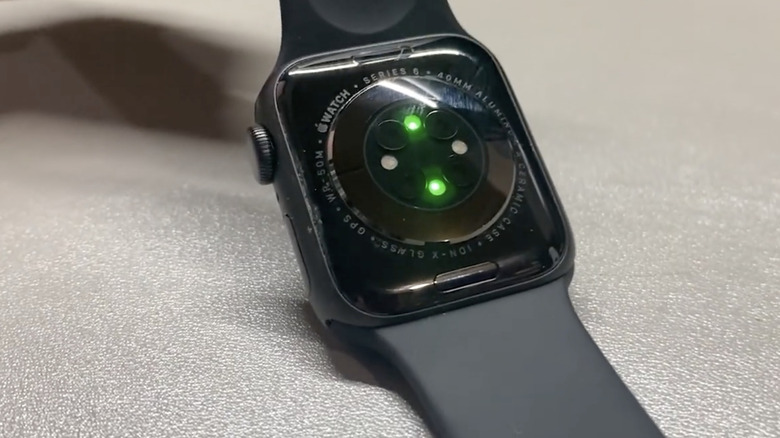
Flip your watch over and wipe the back sensors with a soft, dry, lint-free cloth. Sweat, dirt, tattoos, or lotions can block light absorption and disrupt readings.
Avoid Common Interference
Certain factors reduce optical sensor performance:
- Tattoos on the wrist: Ink can absorb green LED light.
- Very cold hands: Poor blood flow reduces signal.
- Loose band or arm movement: Causes motion artifacts.
- Low battery sampling: Background readings may pause when battery is under 10%.
For higher accuracy during rest or sleep tracking, use the electrical sensor by launching the Heart Rate app and touching the Digital Crown. This gives one-second updates instead of five-second intervals.
Understand Background Heart Rate Monitoring
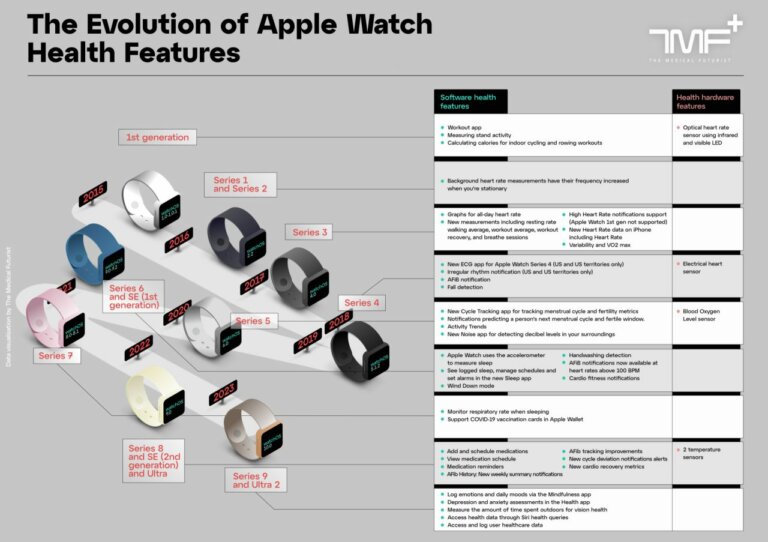
Apple Watch doesn’t measure your heart 24/7, but it captures key moments smartly.
Know When It Measures
- At rest: Every few minutes when your arm is still.
- While walking: Periodically to calculate walking average.
- During workouts: Continuously, plus 3 minutes post-workout for recovery analysis.
- Post-workout recovery: Automatically triggered after ending a session in the Workout app.
If you don’t see frequent background readings, ensure you’re wearing the watch consistently and staying still long enough for passive scans.
View Walking and Resting Averages
In the Health app on iPhone, navigate to Heart > Heart Rate > Walking Average or Resting Rate. These metrics rely on correlating heart data with motion from the accelerometer. You’ll need several days of consistent wear before trends appear.
Troubleshoot Missing or Inaccurate Readings
No heart rate? Wrong number? Try these fixes before contacting support.
Force a Manual Reading
Open the Heart Rate app and wait. If it says “Not Available,” close and reopen the app. Make sure your wrist is warm, the watch is tight, and your hand is level with your heart.
Restart Both Devices
Reboot your Apple Watch: press and hold the side button, then slide to power off. Turn it back on after 10 seconds. Restart your iPhone too, since Bluetooth glitches can disrupt sensor data flow.
Reset All Settings
If problems persist, go to Settings > General > Transfer or Reset Watch > Erase All Content and Settings. Re-pair your watch and re-enable heart features. This often clears corrupted sensor permissions.
Maximize Heart Rate Use During Workouts
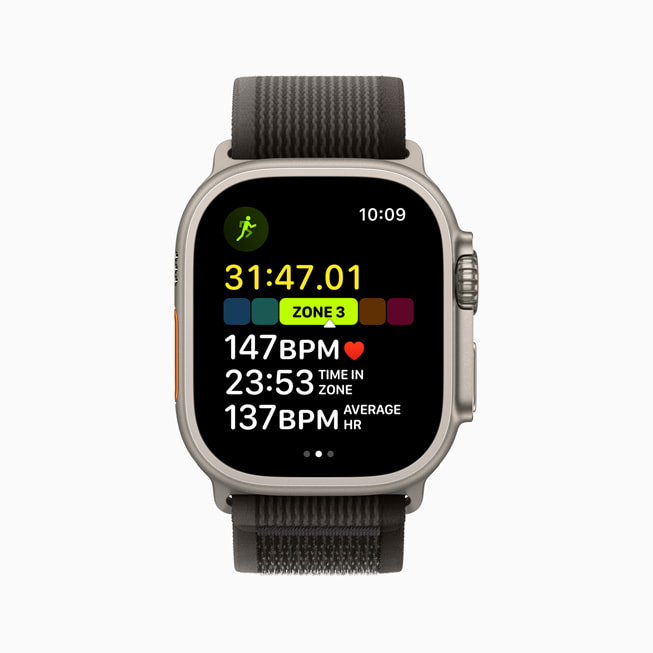
Your Apple Watch shines when tracking fitness. Use heart rate zones to train smarter.
Start a Workout Session
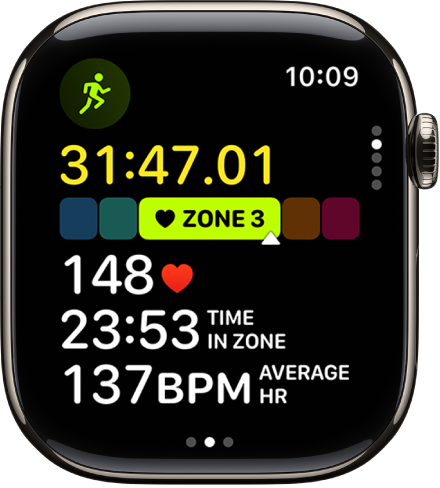
Open the Workout app, choose an activity (e.g., Outdoor Run), and begin. Your heart rate updates in real time at the top of the screen. Swipe left to see your current zone: Resting, Zone 1 (Light) through Zone 5 (Max).
Customize Heart Rate Zones
On your iPhone, go to Watch app > Workout > Heart Rate Zones. You can set custom zones based on max heart rate (e.g., 70–85% for endurance). This helps tailor alerts and post-workout summaries.
Monitor Recovery Post-Exercise
After stopping a workout, keep the watch on. It continues measuring for 3 minutes to calculate recovery rate, a sign of cardiovascular fitness. A faster drop in BPM correlates with better heart health.
Maintain Long-Term Heart Health Tracking
Consistency beats perfection. Build habits that make heart monitoring useful over time.
Wear Watch Daily
For accurate resting and walking averages, wear your Apple Watch at least 12 hours per day, including during sleep if enabled. More data means better trend analysis.
Update watchOS Regularly
Apple improves heart rate algorithms with each update. Go to Settings > General > Software Update on your watch to install the latest version.
Pair With a Health Routine
Use the Breathe (now Mind) app daily for one-minute heart rate variability (HRV) checks. Lower stress often leads to lower resting heart rate over time.
Frequently Asked Questions About Apple Watch Heart Rate Monitoring
How does Apple Watch measure heart rate?
Apple Watch uses photoplethysmography with green LED lights and light-sensitive photodiodes to detect blood flow in your wrist. It calculates heart rate by measuring how much green light is absorbed between beats. The optical sensor supports a range of 30–210 beats per minute.
Can Apple Watch take an ECG?
Yes, Apple Watch Series 4 and later and all Apple Watch Ultra models can take an ECG using electrodes built into the Digital Crown and the back crystal. The ECG app is not supported on Apple Watch SE and is available only in certain countries and regions.
Why is my heart rate not showing on Apple Watch?
If your heart rate isn’t appearing, check that permissions are enabled in the Watch app under Privacy & Security > Motion & Fitness. Make sure the watch fits snugly, the sensors are clean, and your wrist is warm. Restart both devices if the issue persists.
What is an irregular rhythm notification?
This feature occasionally checks your heart rhythm in the background using infrared light. If it detects signs of atrial fibrillation, it alerts you so you can take an ECG. It requires watchOS 5.1.2 or later and is not available in all countries.
How often does Apple Watch measure heart rate in the background?
Apple Watch measures your heart rate periodically when you’re still or walking, and continuously during workouts plus 3 minutes afterward for recovery data. The exact timing varies based on your activity level.
How can I get a more accurate heart rate reading?
Wear the watch about one finger’s width above your wrist bone with a snug fit. Keep the sensors clean and dry. For the highest accuracy, place your finger on the Digital Crown to use the electrical sensor, which provides readings every second instead of every 5 seconds.
Key Takeaways for Setting Up Your Apple Watch Heart Rate Monitor
Setting up your Apple Watch heart rate monitor takes only minutes, but using it wisely can impact your health for years. Start by verifying permissions in both the Watch and Health apps, then enable high and low heart rate notifications and irregular rhythm alerts if available in your region. Add the Heart Rate complication to your watch face for quick access, and review trends in the Health app regularly.
For the best results, wear your watch snugly above the wrist bone, keep the sensors clean, and update watchOS whenever new versions release. During workouts, customize your heart rate zones to train smarter, and always wear the watch for at least 12 hours daily so resting and walking averages stay accurate.
Your next step: open the Heart Rate app on your Apple Watch right now, confirm it’s reading correctly, and enable at least one notification alert. That single action turns your watch into an active heart health tool starting today.