How to Reset a Fitness Tracker
Your fitness tracker has been faithfully counting steps, logging workouts, and monitoring your sleep. Then one morning, the screen freezes, syncing fails, or the device simply stops responding. Before you toss it in a drawer or buy a replacement, there’s a powerful fix most people overlook: resetting your fitness tracker. This single procedure can resolve stubborn glitches, restore smooth performance, and even prepare your device for a new owner.
But here’s the catch. Not all resets work the same way. A soft restart clears bugs without touching your data. A factory reset, on the other hand, wipes everything clean. The method also varies by brand. Fitbit relies on button holds, Garmin uses settings menus, and Apple Watch requires app coordination. Get it wrong, and you could lose months of fitness history. This guide walks you through how to reset a fitness tracker the right way, covering every major brand, key pitfalls, and proven maintenance habits.
Soft Reset vs Factory Reset: Which One Do You Need?
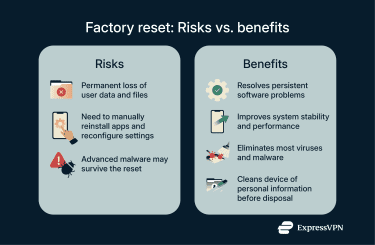
Choosing the wrong reset type is the fastest path to lost data. Understanding the difference protects your fitness history.
When a Soft Reset Is the Right Call
A soft reset is a simple reboot. It clears temporary memory and closes stuck processes without erasing your data. Use it when your screen freezes, apps crash, syncing fails repeatedly, or the device won’t turn off normally. Think of it like restarting your computer. All settings, goals, and activity logs stay intact. You can safely perform this weekly as routine maintenance.
When a Factory Reset Becomes Necessary
A factory reset is a full wipe. The device returns to its original out-of-the-box state. Reserve this method for selling or gifting the device, fixing persistent software bugs that survive updates, resolving deep pairing issues, or starting fresh with a complete setup. Once done, all local data disappears, including alarms, goals, saved workouts, and watch face preferences. Always sync to the cloud first.
Forced Reset for Completely Frozen Trackers
If your tracker won’t respond to taps or buttons at all, you need a forced hardware reset. Hold the power button for 10–15 seconds. For Fitbit Charge models, connect the device to its charger first. On Apple Watch, press and hold both side buttons until the screen goes black. This cuts power at the hardware level and usually acts as a soft reset. If the screen flickers but doesn’t fully restart, leave it charging for 20 minutes before retrying.
Pre-Reset Checklist: Don’t Skip These Steps
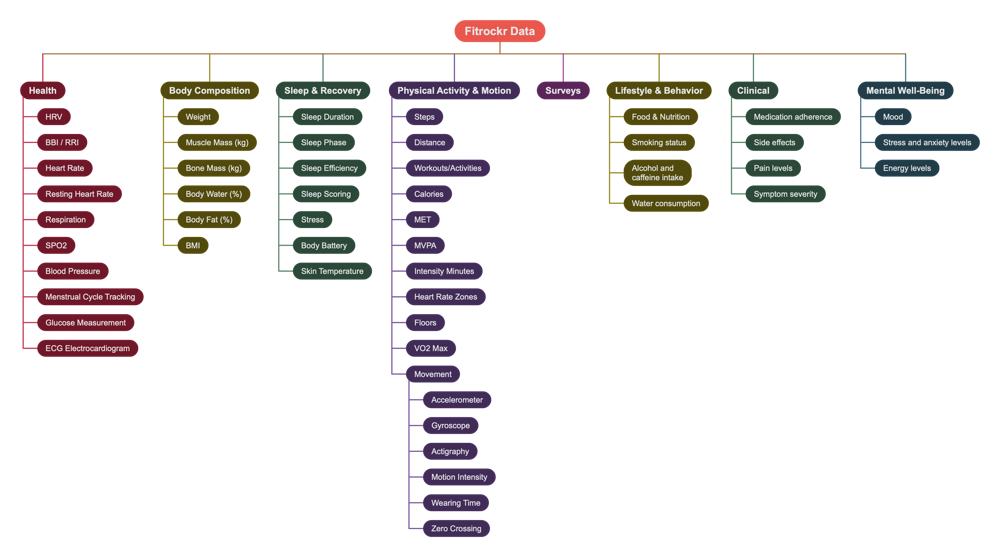
Preparation prevents permanent data loss. Complete every item below before touching that reset button.
Sync All Data to the Companion App
Unsynced data lives only on the device. A factory reset deletes it forever.
For Fitbit:
1. Open the Fitbit app
2. Pull down on the dashboard to force a sync
3. Confirm “Last Synced” shows within the last few minutes
For Garmin:
1. Open Garmin Connect
2. Wait for the sync icon to complete
3. Verify device status shows “Synced”
For Apple Watch:
1. Keep the watch near your iPhone
2. Wait for the sync circle in the Watch app to finish
3. Ensure no pending updates are downloading
Charge the Device Before Resetting
Low battery can interrupt a reset and trap your device in a boot loop. Aim for at least 30% battery before starting. Fitbit models like Charge 4 actually require connection to the charger during button-based resets. Apple Watch needs a minimum of 20% to erase content and settings. If the device is completely dead, plug it in, wait 15–20 minutes, then try again.
Record Your Custom Settings
Factory resets erase local configurations. Write down your alarm times, preferred watch face, activity goals, and notification settings. You’ll need to reconfigure these manually after the reset completes.
Fitbit Reset Procedures by Model

Fitbit devices vary widely in button layout. Use the instructions that match your specific model.
Charge Series: Soft Reset
- Connect the device to its charging cable
- Press and hold the side button for 8–10 seconds
- Release when the Fitbit logo appears
- The device restarts automatically
This fixes frozen screens, sync errors, and unresponsive touch input.
Charge Series: Factory Reset
- Connect to the charger
- Press and hold the side button for 15 seconds
- Keep holding until the logo disappears and reappears
- Release and wait for the reboot
Warning: All data is wiped. You must set up the device in the app again.
Versa Series: Soft Reset
- Press and hold the back (left) and bottom (right) buttons
- Hold for 10 seconds
- Release when the Fitbit logo appears
Use this method when apps freeze or the screen stops responding.
Versa Series: Factory Reset
- Tap Settings on the watch
- Scroll to About > Factory Reset
- Confirm the action
- Wait for the wipe and restart
No button combination needed. The entire process happens in the menu.
Inspire Series: Soft Reset
- Connect to the charger
- Press and hold the side button for 5 seconds
- Release when a smiley face icon appears
- The device restarts
If nothing happens, clean the charging pins and retry.
Inspire Series: Factory Reset
- Go to Settings
- Select Clear User Data
- Confirm to wipe all personal info
- Re-pair via the Fitbit app
Unlike other models, Inspire uses “Clear User Data” instead of “Factory Reset.”
Fixing Incorrect Time on Fitbit
If your time zone is wrong after travel, correct it through the app:
1. Open the Fitbit app
2. Tap Today > Profile > App Settings > Time Zone
3. Enable Set Automatically or choose your zone manually
4. Force a sync
5. Perform a soft reset if the time still displays incorrectly
Garmin Reset Methods

Garmin watches offer granular control. You can reset everything or just specific data streams.
Full Factory Reset
- Power off the watch
- Press and hold the Power/Light button for 10–15 seconds
- When the prompt appears, select Yes to reset
- The watch reboots to default settings
Pro Tip: This is especially useful for persistent GPS errors or firmware corruption.
Partial Data Resets
Don’t want to wipe everything? Reset only what you need.
Reset Activity Tracking:
– Navigate to Settings > Activity > Reset Activity to start your daily step count fresh.
Reset Sleep Data:
– Navigate to Settings > Sleep > Reset Sleep Data to clear the previous night’s log.
Delete Saved Workouts:
– Open Garmin Connect, go to Activities, select the workout, and tap Delete.
These options preserve your device settings while cleaning up old records.
Pairing After a Garmin Reset
After a factory reset, you must pair the device again:
1. Enable Bluetooth on your phone
2. Open Garmin Connect
3. Tap Add Device
4. Follow the pairing prompts
5. Install any firmware updates when prompted
Skipping updates can cause recurring issues. Always run the latest version.
Apple Watch Reset Guide
Apple Watch integrates tightly with iPhone, so reset options reflect that connection.
On-Watch Factory Reset
- Open the Settings app
- Tap General > Reset
- Choose Erase All Content and Settings
- Enter your Apple ID password to disable Activation Lock
- Wait for the wipe and restart
Important: This step is required before resale. It prevents new users from getting locked out.
Remote Reset via iPhone
Use this method when the watch is unresponsive:
1. Open the Watch app on your iPhone
2. Tap My Watch > All Watches
3. Select your watch, then tap Unpair Apple Watch
4. Confirm the action
The app automatically saves a backup before wiping the device.
Recovery from a Boot Loop
If your Apple Watch restarts continuously:
1. Force restart by holding the side button + Digital Crown for 10 seconds
2. Release when the Apple logo appears
3. If the loop continues, connect to the charger and retry
Sometimes a low battery mimics a software crash.
Samsung Galaxy Watch and Wear OS Reset Steps
Samsung Galaxy Watch and Google-powered devices follow similar paths.
Samsung Galaxy Watch: Standard Reset
- Open Settings
- Go to General > Reset
- Tap Factory Reset
- Confirm with your PIN if one is set
- Wait for the reboot
This works on both Tizen and Wear OS versions.
Recovery Mode for Unresponsive Watches
If the screen is frozen:
1. Press and hold the Power/Home button
2. When the menu appears, select Recovery
3. Choose Wipe Data/Factory Reset
4. Confirm and reboot
Only use this when the standard reset fails.
Fossil and TicWatch (Wear OS)
- Swipe up to open the app drawer
- Tap Settings
- Go to System > Disconnect & Reset
- Confirm the reset
- Re-pair through the Wear OS app
After resetting, reinstall your apps and re-sync Google Fit data.
Troubleshooting Common Reset Issues
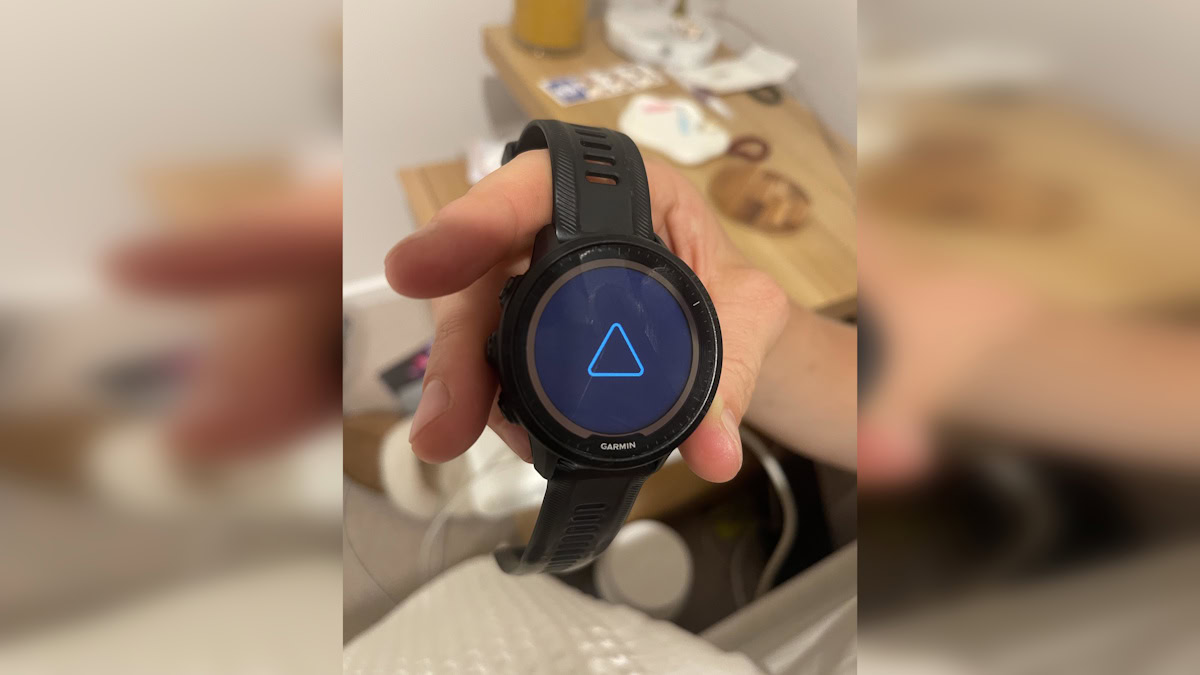
Even with correct steps, things can go sideways. Here’s how to recover.
Device Won’t Respond to Reset Commands
Check the battery first. A dead battery blocks any reset. Charge for 15–20 minutes before retrying, and try different cables if the device shows no signs of power.
Clean the charging port. Dirt and sweat block connections. Use a dry toothbrush or compressed air to gently clean around the pins, then reconnect the charger.
Press buttons correctly. Fitbit Charge must be on the charger during the button press. Garmin requires holding only the power button, not multiple buttons. Apple Watch needs both side buttons pressed simultaneously.
Stuck in a Boot Loop
When the device restarts endlessly, you need to intervene.
Connect to the charger. Some watches only complete the boot sequence when powered externally. Plug in and wait 30 seconds, then try a forced restart.
Update the firmware. After a successful boot, open the companion app and install any available updates immediately. Boot loops often stem from corrupted update files.
Perform a forced hard reset. For Fitbit, hold the side button for 20 seconds while on the charger. For Apple Watch, hold the side button and Digital Crown for 15 seconds. This cuts power and forces a clean start.
Missing Data After Reset
Was the data synced? If not, it’s gone permanently. Cloud-stored history will reappear after re-pairing, but local data like unsynced workouts cannot be recovered.
Re-sync after setup. Pair the device again, open the app, and wait for automatic sync. Historical data should repopulate, though alarms, goals, and watch faces must be reconfigured manually.
Can’t Pair After Reset
Forget the device on your phone. Go to Bluetooth settings, find your tracker, and tap Forget or Unpair. This removes old connection conflicts.
Restart both devices. Turn off your phone and watch, wait 10 seconds, then power on the phone first, followed by the watch. This clears temporary Bluetooth glitches.
Reinstall the companion app. If pairing still fails, uninstall the Fitbit, Garmin, or Apple Watch app, reboot your phone, then reinstall from the App Store or Play Store. Logging back in often fixes corrupted app caches.
Maintenance Tips to Avoid Future Resets
Prevention beats repair. These habits keep your tracker running smoothly.
Update Software Regularly
Outdated firmware causes bugs. Enable auto-updates in the companion app, check for updates monthly, and always install during a full charge. Most freezes are fixed in newer versions.
Manage Storage Space
Too many apps slow down performance. Delete unused watch faces, remove old music files, and uninstall third-party apps you no longer use. Free space helps the operating system run efficiently.
Clean the Screen and Buttons
Dirt blocks touch and button input. Wipe the screen daily with a microfiber cloth, clean around buttons with a slightly damp cotton swab, and dry thoroughly before charging. This prevents “unresponsive” issues that trigger unnecessary resets.
Perform Weekly Soft Resets
Keep the system fresh by restarting your tracker once a week. For Fitbit, hold the button for 10 seconds. For Garmin, power off and back on. For Apple Watch, hold the side button and slide to power off. It takes 30 seconds and prevents lag buildup.
Protect Battery Health
Extreme temperatures damage battery chemistry. Avoid leaving your tracker in a hot car or freezing environment, remove it from the charger when full, and don’t use it while charging. A healthy battery ensures reliable reset performance.
Frequently Asked Questions About Resetting a Fitness Tracker
Will resetting my fitness tracker delete my fitness history?
A soft reset preserves all data. A factory reset wipes local data permanently, but any history synced to the cloud through the companion app will repopulate after re-pairing. Always verify your “Last Synced” timestamp before performing a factory reset.
How long does it take to reset a fitness tracker?
A soft reset takes less than a minute. A factory reset typically completes within 2–5 minutes, though re-pairing and syncing afterward can add another 10–15 minutes depending on your device and data volume.
Can I undo a factory reset on my tracker?
No. A factory reset is irreversible. Once the device wipes, all unsynced local data is permanently lost. This is why syncing to the companion app before resetting is essential.
Why is my fitness tracker stuck on the logo screen?
This usually indicates a boot loop caused by corrupted firmware or an interrupted update. Connect the device to its charger, perform a forced hard reset by holding the power button for 15–20 seconds, then update the firmware as soon as it boots successfully.
Do I need to reset my tracker before selling it?
Yes. A factory reset removes your personal data, accounts, and pairing information. For Apple Watch, you’ll also need to disable Activation Lock by entering your Apple ID password during the reset process.
How often should I restart my fitness tracker?
Performing a soft reset once a week is a healthy maintenance habit. It clears temporary memory caches, closes stuck processes, and keeps the operating system responsive without any risk to your data.
Final Thoughts on Resetting Your Fitness Tracker the Right Way
Knowing how to reset a fitness tracker gives you control over your device’s performance and longevity. Start with a soft reset for any minor glitch, frozen screen, or sync error. Reserve factory resets for serious software corruption, ownership transfers, or deep pairing issues. Always sync first, charge fully, and record your custom settings before wiping anything.
Your next step is simple. If your tracker is acting up right now, try a soft reset using the instructions for your specific model. Most issues resolve within minutes, and your data stays exactly where it belongs.