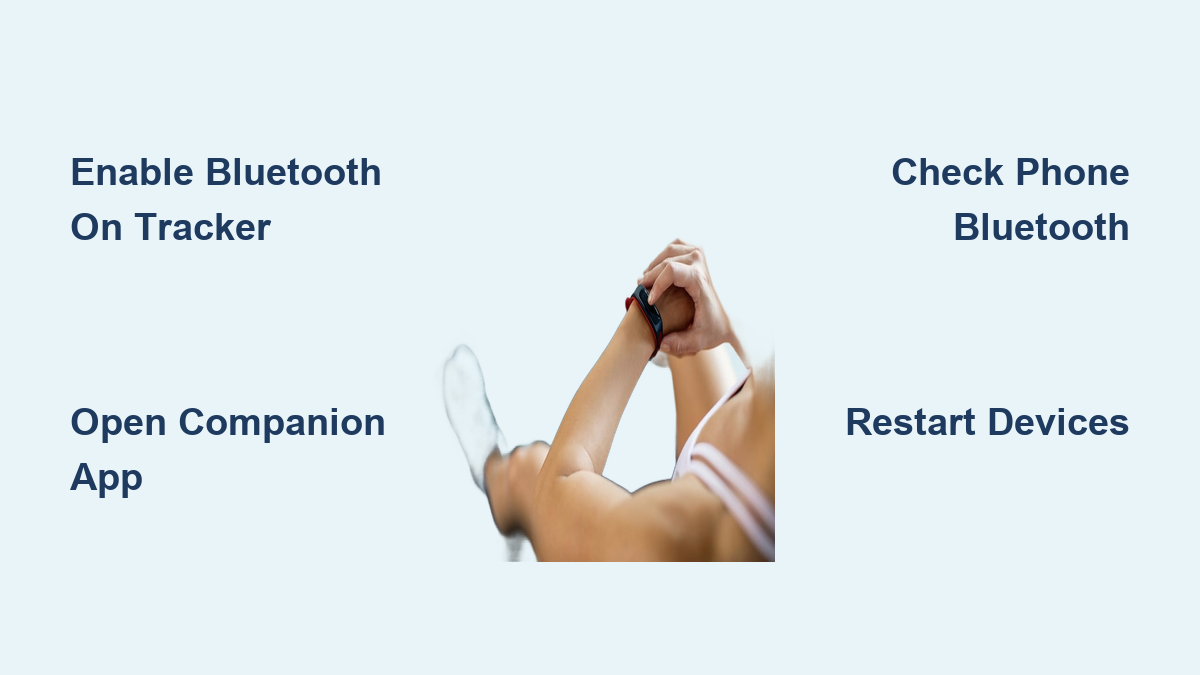
How to Turn On Bluetooth on Fitness Tracker
Your fitness tracker is designed to sync your steps, heart rate, sleep data, and workout stats, but only if it can connect to your phone. Bluetooth is the key that unlocks this connection. Without it, your tracker might record data, but you won’t see it in your app, get notifications, or control music. Turning on Bluetooth is usually simple, but the steps vary slightly depending on your device and phone. Whether you’re setting up your tracker for the first time, reconnected after a reset, or troubleshooting sync issues, this guide will walk you through how to turn on Bluetooth on your fitness tracker, quickly and correctly.
You’ll learn how to enable Bluetooth directly on the tracker, through your smartphone, and how to fix common connection problems. No matter if you own a Fitbit, Garmin, Xiaomi, Samsung, or generic fitness band, these steps apply to nearly all models.
Access Fitness Tracker Settings
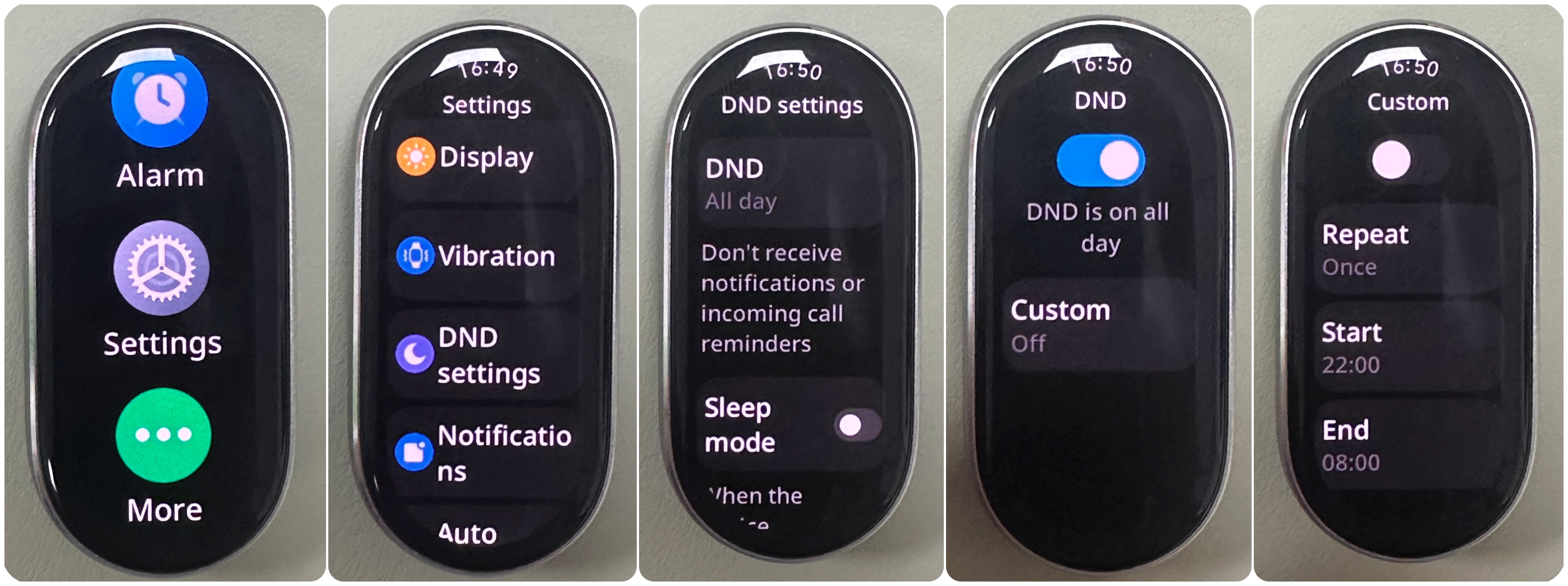
To turn on Bluetooth from your fitness tracker, you first need to navigate its settings menu. While interface designs differ, most trackers use a similar layout.
Wake up your tracker by tapping the screen or pressing the side button. Swipe left, right, up, or down to find the Settings icon, usually a gear or wrench symbol. Tap to open it.
Scroll through the menu until you see Connectivity, Connections, or Bluetooth. Some models group wireless features under a “Device” or “Phone” section. Tap the relevant option.
If Bluetooth is off, you’ll see a toggle switch. Tap it to turn Bluetooth on. A Bluetooth icon should appear on your tracker’s screen, confirming it’s active.
Pro Tip: Not all fitness trackers let you manually toggle Bluetooth. Many automatically enable it when syncing or when the companion app requests a connection.
What to Do If No Bluetooth Option Exists
Some basic fitness bands don’t display a Bluetooth toggle in settings. That’s normal. These models keep Bluetooth on only when syncing and rely on the smartphone app to manage the connection.
In this case, skip manual activation on the tracker. Instead, open your phone’s Bluetooth settings or launch the companion app to trigger pairing.
Look for Visual Connection Cues
Once Bluetooth is on, watch for signs of connection:
– A Bluetooth symbol appears on the screen
– A message says “Connected to [Your Phone]”
– Sync begins automatically
– Notifications from your phone start appearing
If none of these happen, the tracker may be on but not paired, or your phone’s Bluetooth is off.
Use the Companion App to Enable Bluetooth
Most fitness trackers rely on a companion smartphone app, like Fitbit, Garmin Connect, Mi Fitness, or Samsung Health, to manage connections. This app can turn on Bluetooth even if the tracker doesn’t let you do it manually.
Start by installing the correct app from the App Store (iOS) or Google Play (Android). Make sure your phone’s Bluetooth is already enabled by going to Settings > Bluetooth and toggling it on.
Open the app and follow the setup prompts. Choose “Add Device” or “Set Up a New Tracker.” The app will scan for nearby devices.
When your fitness tracker appears in the list, tap it. A pairing code may show on both screens. Confirm it matches, then accept.
Note: During setup, the app forces the tracker into pairing mode and enables Bluetooth automatically. No manual toggle needed.
Force Sync Through the App
Even after pairing, your tracker might not sync. To force a connection:
1. Open the companion app
2. Pull down on the main screen (refresh gesture)
3. Wait 10 to 20 seconds
If Bluetooth is active and within range, your data will sync. If not, check the next section.
Enable Bluetooth on Your Smartphone

Your fitness tracker can’t connect if your phone’s Bluetooth is off, a common oversight. Even if the tracker shows Bluetooth is on, it needs the phone to respond.
Go to your phone’s Settings app and tap Bluetooth. Make sure the switch is green (iOS) or blue (Android). If it’s off, tap to turn it on.
Your phone should now show paired devices. Look for your tracker’s name (e.g., “Fitbit Charge 6,” “Xiaomi Band 8”).
Re-Pair If Connection Fails
If the tracker appears as “Not Connected” or has a warning icon:
– Tap the device name
– Select Forget This Device or Unpair
– Restart both devices
– Re-pair using the companion app
This clears corrupted pairing data and often restores Bluetooth functionality.
Check Phone Permissions
Some Android phones disable Bluetooth permissions for battery-saving reasons. To fix this:
1. Go to Settings > Apps > [Your Tracker App]
2. Tap Permissions
3. Ensure Location and Bluetooth are allowed
Why Location? Android requires location access for Bluetooth scanning, a security rule that often causes confusion.
Troubleshoot Bluetooth Pairing Problems

Even with Bluetooth turned on, your fitness tracker might not connect. Here’s how to fix common issues.
Restart Both Devices
A soft reset clears temporary glitches:
– Fitness tracker: Hold the side button for 10 to 15 seconds until it restarts
– Smartphone: Power off, wait 10 seconds, then power back on
After restarting, open the companion app and try syncing.
Check Bluetooth Range
Bluetooth works within 30 feet (10 meters), but walls, metal, and Wi-Fi interference can reduce this. Keep your phone and tracker close, especially during setup.
Don’t test connection from another room. Stay within arm’s reach.
Ensure Tracker Is Charged
Low battery can disable Bluetooth or prevent syncing. If your tracker has less than 10% charge:
– Plug it into the charger
– Wait 15 to 30 minutes
– Try pairing again
Most trackers won’t sync when critically low on power.
Remove Old Pairings
If you’ve used the tracker with another phone, it may still be paired there. This prevents new connections.
On the old phone, go to Bluetooth settings and unpair the tracker. Then try pairing with your current device.
Fix Automatic Bluetooth Disconnection

Some users report that Bluetooth turns off by itself. This usually happens due to power-saving settings.
Disable Battery Optimization (Android)
Android may shut down Bluetooth to save power. To stop this:
1. Go to Settings > Apps > [Tracker App]
2. Tap Battery > Battery Optimization
3. Select the app and choose Don’t Optimize
This keeps Bluetooth running in the background.
Keep Phone and Tracker Updated
Manufacturers release updates to fix Bluetooth bugs. Check for updates:
– In the companion app (look for a “Check for Updates” option)
– On your phone’s OS (Settings > System > Software Update)
Update both devices to the latest versions.
Prevent Future Bluetooth Issues
Once you’ve turned on Bluetooth and paired your devices, keep the connection stable with these tips.
Sync Daily
Sync your tracker at least once a day. This ensures data uploads and keeps the Bluetooth link active.
Most apps sync automatically when in range. If not, open the app manually to trigger it.
Avoid Multiple Pairings
Don’t pair your fitness tracker with more than one phone at a time. While some models allow it, conflicts often arise.
Stick to one primary device unless the manufacturer confirms multi-pairing support.
Clean Bluetooth Cache (Android)
If problems persist, clear the Bluetooth cache:
1. Go to Settings > Apps > Show System Apps
2. Find Bluetooth and Bluetooth MIDI Service
3. Tap Storage > Clear Cache
This resets wireless memory without deleting paired devices.
Frequently Asked Questions About Turning On Bluetooth on a Fitness Tracker
Why won’t my fitness tracker connect even though Bluetooth is on?
Connection failures often result from outdated pairing data, low battery, or distance issues. Try unpairing the device, restarting both your tracker and phone, and re-pairing within arm’s reach.
Do I need to turn on Bluetooth before opening the companion app?
Yes. Your phone’s Bluetooth must be enabled for the app to detect and pair with your tracker. Go to Settings > Bluetooth and confirm the toggle is on before launching the app.
Can I use my fitness tracker without Bluetooth?
You can record data like steps and heart rate offline, but you won’t see it in the app or receive notifications until you sync via Bluetooth later.
How do I know if Bluetooth is working on my tracker?
Look for a Bluetooth icon on the screen, a “Connected” message, or automatic syncing when you open the companion app. These all confirm a working connection.
Why does my Android phone ask for location access to use Bluetooth?
Android requires location permission for Bluetooth scanning as a security measure. Granting it allows your phone to find nearby devices like fitness trackers.
Will Bluetooth drain my fitness tracker’s battery faster?
Bluetooth Low Energy (BLE) uses minimal power, but constant syncing or leaving Bluetooth on in the background can reduce battery life slightly. Sync daily rather than continuously.
Key Takeaways for Turning On Bluetooth on Your Fitness Tracker

Turning on Bluetooth on your fitness tracker is essential for syncing data, receiving alerts, and using smart features. Whether you enable it through the tracker’s settings, the companion app, or your phone’s Bluetooth menu, the process is straightforward once you know where to look.
Remember: most issues aren’t about turning Bluetooth on, but keeping it connected. Restart devices, update software, and avoid battery-saving modes that interfere with pairing.
Now that you know how to turn on Bluetooth and maintain a stable link, your fitness tracker can do its job: helping you stay active, informed, and connected, one step at a time.