How to Use Google Fit to Track Sleep
You toss and turn all night, wake up exhausted, and wonder if you’re actually getting deep sleep. The problem is that without real data, you’re just guessing. Google Fit does not track sleep on its own using your phone, but it works as a powerful dashboard when paired with the right tools. By syncing a dedicated sleep app like Sleep as Android or a Google Nest Hub, you can push accurate sleep data straight into Google Fit for one unified view.
In this guide, you will learn how to set up Google Fit for sleep tracking, which apps work best, how to sync them properly, and how to read your results. Whether you use just your phone or a Nest Hub, you will get a full step-by-step workflow you can follow tonight.
Install the Required Apps
Download Sleep as Android
Google Fit does not record sleep using your phone’s built-in sensors. You need a third-party app to capture that data. Sleep as Android is the most reliable option for Android users because it tracks movement, sound, and sleep phases, then sends those results to Google Fit.
Open the Google Play Store and install Sleep as Android. The app is free to download, with optional premium features for smart alarms and sleep coaching.
Set Up Google Fit
Make sure Google Fit is installed and updated on the same device. Open the app and sign in with the Google account you plan to use in Sleep as Android. Using the same account on both apps ensures your data syncs without errors. Once both apps are ready, you can move on to connecting them.
Connect Sleep as Android to Google Fit
Link the Two Apps
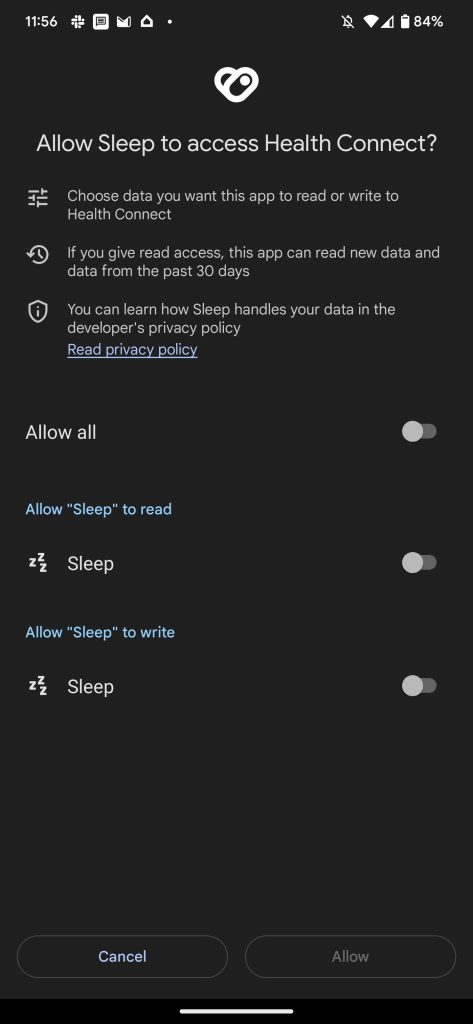
Open Sleep as Android and skip the welcome screen if prompted. Tap the search bar at the top of the screen and type “Google Fit.” Select the Google Fit option under the Services section.
You will be asked to grant permissions. Tap Allow when prompted to give Sleep as Android access to your physical activity data. If you have multiple Google accounts, choose the one linked to your Google Fit installation. Review the permission list, then tap Allow again to confirm.
Activate Cloud Upload
Still inside Sleep as Android, find the Upload to Cloud button and tap it. This action syncs any existing sleep records immediately and turns on automatic uploads for every future session. After this step, your sleep data will appear in Google Fit within minutes of stopping a session.
Start Tracking Your Sleep
Set Your Alarm First
Before bed, open Sleep as Android and tap the flashing Set alarm button. Pick your planned wake-up time so the app knows your target sleep window. This step also powers the smart wake-up feature and prepares the app for accurate tracking.
Begin a Sleep Session
Tap Start Sleep Tracking when you are ready to sleep. The app will start monitoring your movements and sounds right away. For best results, place your phone on the mattress near your upper body or on a bedside table within arm’s reach.
Avoid putting your phone in a drawer or across the room. The accelerometer and microphone need to detect subtle movements and breathing patterns to map your sleep stages correctly.
End and Save Your Sleep Session
Stop Tracking in the Morning
When you wake up, open Sleep as Android and scroll to the bottom of the screen. You will see Stop and save. Swipe up and press the red button to end the session. The app will stop collecting data and process your sleep stages, including light, deep, and REM sleep.
Review Your Sleep Graph
After stopping, you will see a detailed sleep graph inside Sleep as Android. From here, you can:
– Rate your sleep quality on a 1 to 5 star scale
– Add tags like “stress,” “alcohol,” or “workout”
– View estimated wake-up moments throughout the night
This detailed analysis stays inside Sleep as Android. The summary, including bedtime, wake time, and total duration, syncs to Google Fit.
View Your Sleep Data in Google Fit
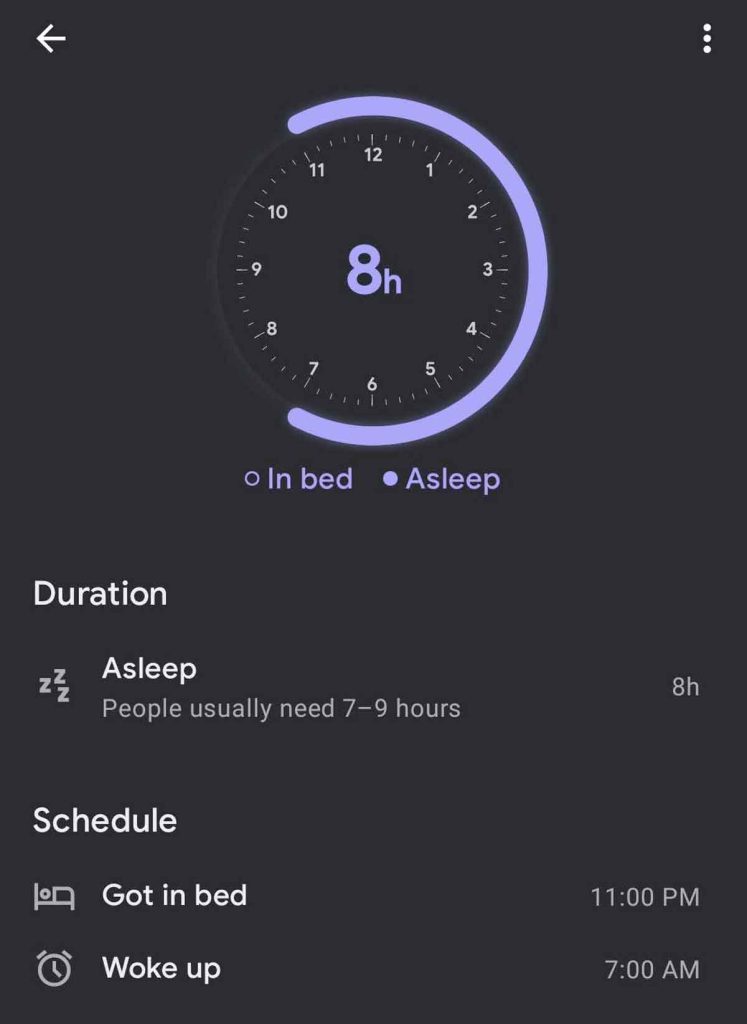
Open the Sleep Chart
Launch Google Fit on your phone. On the home screen, look for the Sleep card. If your sync worked, you will see a timeline chart showing your sleep duration and schedule.
Tap the chart to expand the view. Use the date selector at the top to check past nights, weekly averages, or monthly trends.
Read the Sleep Metrics
The expanded view shows several useful metrics:
– Bedtime Schedule: When you went to bed and woke up
– Total Duration: Hours and minutes of sleep
– Average Sleep: 7-day or 30-day averages
If you used a Nest Hub, you will also see Time to fall asleep and Time to wake up. These detailed latency metrics are not available with phone-only tracking.
Use Nest Hub for Better Sleep Tracking
Enable Radar-Based Monitoring
Nest Hub (2nd gen and later) uses Soli radar to track sleep without cameras or wearables. It detects breathing and movement through the air, which gives you more accurate phase detection than a phone alone.
Set up sleep sensing inside the Google Home app. Once enabled, your nightly data automatically appears in Google Fit, so you do not even need your phone by the bed.
Watch for Real-Time Status
After waking, check Google Fit. If you used a Nest Hub, an in-progress summary may appear for up to 30 minutes while the system confirms you are fully awake. During this window, “Woke Up” and “Time to wake up” will show as In progress. Wait for full processing before reviewing your final numbers.
Know the Limits of Sleep Tracking

Phone vs. Nest Hub Accuracy
| Feature | Phone + Sleep as Android | Nest Hub |
|---|---|---|
| Sleep Duration | Accurate | Accurate |
| Bedtime and Wake Time | Yes | Yes |
| Time to Fall Asleep | Estimated | Detailed |
| Real-Time Status | No | Yes |
| Deletion Delay | Standard | 2 Hours |
Phone-based tracking estimates sleep onset based on movement alone. Nest Hub provides precise latency data using radar, making it the stronger choice if you want to study insomnia or sleep inertia.
Allow Time for Syncing
After stopping a session, give the system 5 to 10 minutes to upload data to Google Fit. The Upload to Cloud process runs in the background and may slow down on weak internet connections. If your data still does not appear after 30 minutes, reopen Sleep as Android and tap Upload to Cloud manually.
Fix Common Sync Problems
Reconnect When Sync Fails
If sleep data stops appearing in Google Fit, open Sleep as Android and go to Services. Check the Google Fit connection status. If it shows as disconnected, repeat the linking steps from earlier.
Re-grant permissions and tap Upload to Cloud again. This quick fix often resolves sync breaks caused by app updates or operating system changes.
Stop Battery Optimization From Killing the App
Android may force Sleep as Android to sleep in the background to save power. To prevent this:
1. Open Settings, then Apps, then Sleep as Android, then Battery
2. Select Unrestricted or Allow background activity
This ensures the app keeps recording all night, even when your screen is off.
Manage and Delete Sleep Data
Respect the Deletion Window
Nest Hub users must wait 2 hours after a session ends before deleting it. This lock prevents accidental removal of incomplete data.
If you need to correct a session early, do it inside Sleep as Android before it syncs to Google Fit. Once the data locks in, editing options become limited.
Edit Sessions in the Source App
For phone-based tracking, always make corrections inside Sleep as Android. You can adjust bed and wake times, delete sessions, or change sleep quality ratings. Changes sync automatically to Google Fit on the next upload.
Keep Your Tracking Accurate
Check the Connection Monthly
Permissions can reset after phone updates. Open Sleep as Android once a month and confirm that Google Fit is still listed under Connected Services. If the connection is gone, repeat the setup steps to re-enable syncing.
Stick to Basic Mode
Sleep as Android has dozens of advanced settings, but you do not need most of them for Google Fit integration. Use basic mode to keep things simple. You do not need smart wake-up, snore detection, or smart home triggers to get accurate duration and schedule data.
Set your alarm, start tracking, stop in the morning, and let the sync happen on its own.
Get More From Your Sleep Data
Track Trends Over Time
Use Google Fit to spot patterns in your sleep. Are you consistently getting less than 7 hours? Do weekends improve your rest? The 7-day average and monthly charts help you identify habits that affect your sleep.
Pair this with manual tags inside Sleep as Android, like “no caffeine” or “evening yoga,” to discover what truly improves your sleep quality.
Combine Sleep With Other Health Data
Google Fit shows sleep alongside steps, heart points, and weight. Use this to see how exercise affects your rest. Did a 10,000-step day lead to deeper sleep? Open the Journal tab to view all health activities in one timeline.
This holistic view helps you improve not just sleep, but your overall wellness.
Frequently Asked Questions About Google Fit Sleep Tracking
Does Google Fit Track Sleep Automatically?
No. Google Fit does not track sleep on its own using your phone’s sensors. You need to sync it with a sleep-tracking app like Sleep as Android or use a Google Nest Hub to capture sleep data.
Which App Works Best for Syncing Sleep to Google Fit?
Sleep as Android is the most reliable option for Android users. It records sleep using your phone’s accelerometer and microphone, then uploads the data to Google Fit automatically.
How Long Does It Take for Sleep Data to Appear in Google Fit?
Allow 5 to 10 minutes after stopping a session for the data to sync. If it does not show up after 30 minutes, reopen Sleep as Android and tap Upload to Cloud manually.
Can I Track Sleep Without My Phone by the Bed?
Yes, if you own a Google Nest Hub (2nd gen or later). It uses Soli radar to track your sleep without a phone, and the data flows directly into Google Fit.
Why Is Some Sleep Data Marked “In Progress”?
This happens for Nest Hub users. After waking, the system needs up to 30 minutes to confirm you are fully awake. During that window, “Woke Up” and “Time to wake up” show as In progress.
Can I Delete a Sleep Session Right After Waking Up?
No. Nest Hub users must wait 2 hours after a session ends before deleting it. If you need to fix something sooner, edit the session inside Sleep as Android before it syncs to Google Fit.
Key Takeaways for Tracking Sleep With Google Fit
Google Fit becomes a powerful sleep dashboard when paired with the right tools. Install Sleep as Android and Google Fit, link them through the Services menu, and enable Cloud Upload. Place your phone near your bed each night, start tracking before sleep, and stop the session in the morning. Within minutes, your sleep duration and schedule appear in Google Fit, ready to analyze.
For the most accurate results, consider adding a Google Nest Hub to your setup. It captures detailed latency data and offers real-time status updates that phone-only tracking cannot match. Start tonight, stay consistent, and use the trends inside Google Fit to build healthier sleep habits over time.