How to Set Up Heart Rate Monitor on Peloton
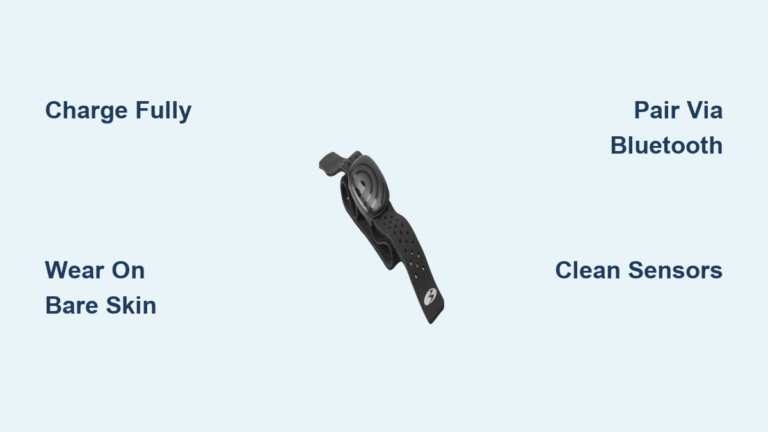
You just unboxed your new heart rate monitor and are ready to see real-time stats during your Peloton workouts, but now you’re wondering how to actually connect it. You’re not alone. Many Peloton users struggle with pairing their heart rate monitor, only to find the process is simpler than it seems once you know the right steps. Whether you’re using a Peloton-branded chest strap, a third-party monitor, or a smartwatch, getting accurate heart rate data synced to your Peloton bike, treadmill, or app is essential for tracking effort and maximizing performance.
This guide walks you through exactly how to set up a heart rate monitor on Peloton, step by step. You’ll learn how to pair your device, troubleshoot common connection issues, and ensure your workouts reflect your true intensity. No jargon, no guesswork, just clear, actionable instructions that work whether you’re using a Peloton Bike, Bike+, Tread, or the Peloton App.
Prepare Your Peloton Device for Pairing
Before connecting any heart rate monitor, your Peloton device needs to be ready to detect Bluetooth signals. The setup process takes less than a minute once your equipment is recognized.
Confirm Bluetooth Is Active
Peloton devices support Bluetooth Low Energy connections for heart rate monitors. Bluetooth is built into all Peloton equipment and mobile apps.
- On Peloton Bike or Tread: Bluetooth is automatically enabled.
- On mobile devices: Go to Settings, then Bluetooth, and toggle it on.
- Ensure no other fitness devices are interfering with the signal.
Wait for your Peloton screen to show the heart rate monitor search option before proceeding.
Navigate to the Heart Rate Settings
Access the pairing menu through your Peloton interface.
- Tap More on your Peloton touchscreen or app.
- Select Heart Rate Monitor.
- Choose Start Search to begin scanning for nearby devices.
Your Peloton device will display detected monitors by name once the search begins.
Activate and Position Your Heart Rate Monitor

Proper setup of the monitor itself ensures a stable connection and accurate readings from the start.
Wet and Fasten the Sensor
Moisture improves conductivity between the sensor and your skin.
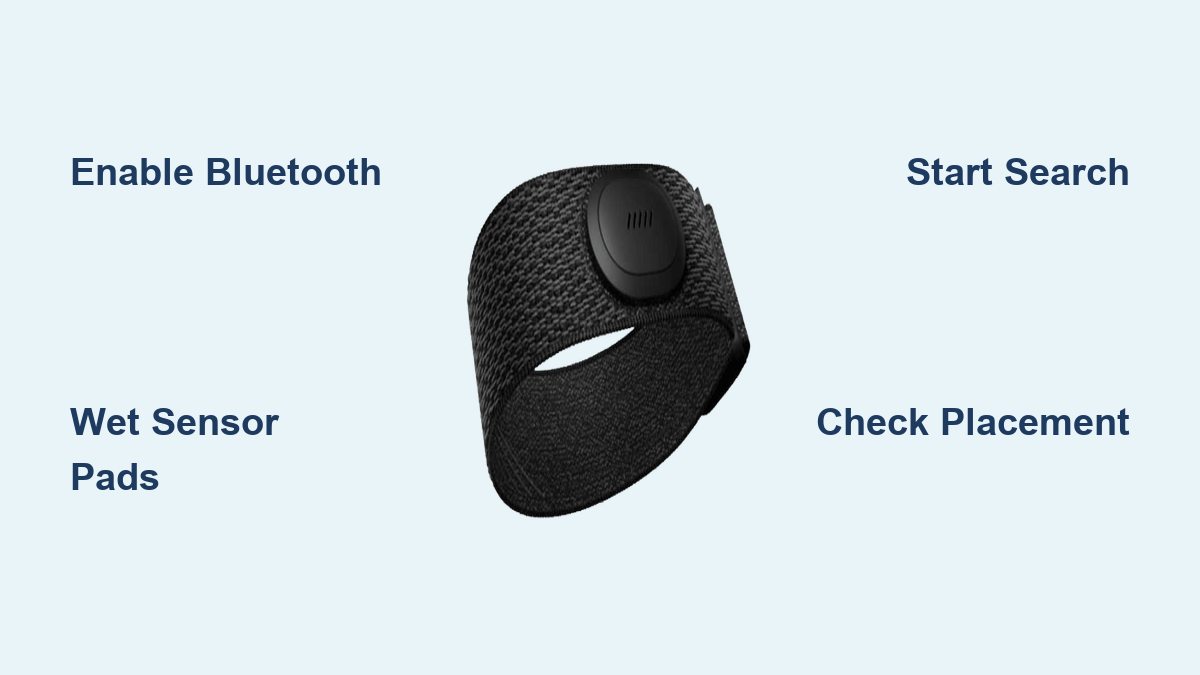
- Lightly wet the sensor pads with water or electrode gel.
- Fasten the strap snugly around your chest, just below the pectoral muscles.
- Press the button on the sensor once to activate it.
Two green lights will flash, indicating the monitor is transmitting data.
Confirm Placement and Fit
Correct positioning prevents signal drops during intense movement.
- Position the sensor so the logo faces forward.
- Ensure the strap is tight enough to stay in place without restricting breathing.
- Avoid wearing the strap over clothing, as this reduces conductivity.
Within seconds, your Peloton screen should detect the monitor and display your BPM.
Connect Third-Party Heart Rate Monitors
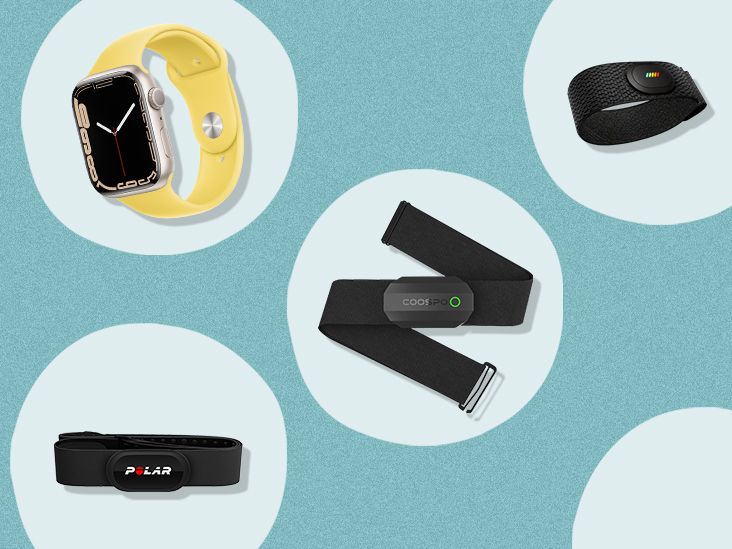
You don’t need a Peloton-branded monitor to track your heart rate. Many users prefer alternatives like the Polar H10 or Wahoo TICKR for durability or multi-device compatibility.
Pair Popular Third-Party Chest Straps
Steps to connect a third-party chest strap:
- Turn on your monitor by wetting sensors and attaching the strap.
- On your Peloton device, tap More, then Heart Rate Monitor, then Start Search.
- Wait for your device to appear in the list of detected monitors.
- Tap to pair. Connection typically happens within 10 seconds.
Some monitors require a button press to wake them up before pairing becomes possible.
Understand Smartwatch Limitations
If you wear an Apple Watch, Samsung Galaxy Watch, or Garmin watch, you might wonder about using its optical sensor.
Peloton does not currently support direct heart rate streaming from smartwatches via Bluetooth. You must use a Bluetooth chest strap that pairs directly with Peloton for accurate data during workouts.
Troubleshoot Common Connection Problems

Even with compatible hardware, pairing doesn’t always go smoothly. Here’s how to fix frequent issues quickly.
Monitor Not Detected During Search
If your Peloton device isn’t finding your heart rate monitor, try these solutions:
- Restart the sensor: Remove the battery if removable, or power it off and on.
- Reposition the monitor: Ensure chest straps are snug and moistened.
- Reduce interference: Move away from Wi-Fi routers, microwaves, or other Bluetooth devices.
- Limit active Bluetooth devices: Disconnect unused headphones or speakers.
Try pairing again after each adjustment to identify what resolves the issue.
Fix Intermittent Heart Rate Readings
Dropping signals mid-workout are frustrating but preventable with proper maintenance.
Common causes:
– Dry sensor pads losing contact with skin
– Loose chest strap shifting during movement
– Low battery reducing signal strength
– Signal interference from nearby electronics
Fix it:
– Re-wet the electrodes before starting each session.
– Tighten the strap so it doesn’t move during exercise.
– Replace the battery if readings become erratic.
– Avoid placing your phone or tablet directly under the bike’s screen.
Reset and Re-Pair Your Device
If nothing works, reset the connection completely:
- Go to More, then Heart Rate Monitor.
- Tap the gear icon next to your paired device.
- Select Forget Device.
- Restart the sensor by removing and reinserting the battery.
- Begin a new search and re-pair.
This clears any corrupted Bluetooth handshake and forces a fresh connection.
Optimize Heart Rate Accuracy During Workouts
:max_bytes(150000):strip_icc()/shp-heart-rate-monitors-test-polar-h9-sensor-christine-digangi-14_crop-db5c7c05973e472ca284b340e24de0a1.jpeg)
Getting connected is one thing. Getting accurate data is another. Follow these best practices to ensure your heart rate reflects your true effort.
Wear the Strap Correctly Every Time
Improper placement leads to false readings or disconnections during critical workout moments.
Do:
– Place the strap directly under the chest muscles.
– Align the sensor so text reads left to right.
– Moisten the pads with water before each session.
Don’t:
– Wear it over clothing, which reduces conductivity.
– Let it ride up during movement.
– Use fabric softener when washing, as residue insulates sensors.
Calibrate Your Effort Zones
Peloton uses your max heart rate to calculate color zones showing workout intensity. By default, it estimates this value based on age.
For better accuracy, enter your actual max heart rate if known from a fitness test or medical evaluation. Now your zones reflect real physiology rather than population averages.
Maintain Your Heart Rate Monitor for Long-Term Use

A little care extends the life of your monitor and keeps readings reliable across hundreds of workouts.
Clean After Every Session
Sweat damages electronics over time if left unchecked.
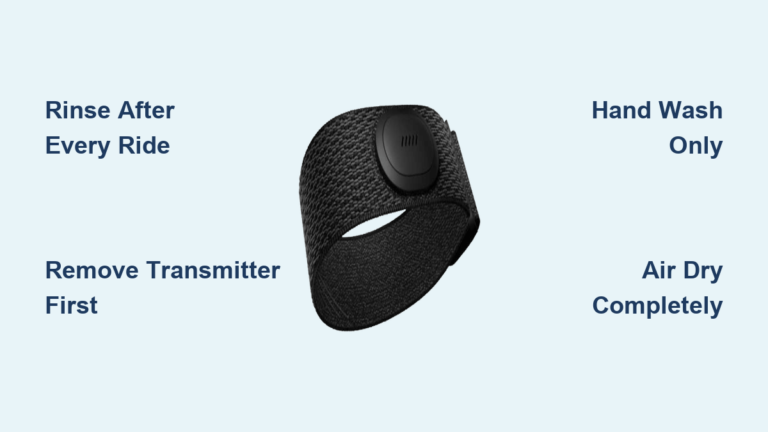
- Rinse the sensor under tap water after removing it from the strap.
- Air dry completely before storage.
- Hand wash the strap with mild soap. Never machine wash.
Replace Batteries Promptly
Most chest straps use coin-cell batteries lasting 1 to 2 years with regular use.
Signs of low battery include delayed pairing, flickering lights, and intermittent readings. Carry a spare CR2032 battery for quick swaps when needed.
Frequently Asked Questions About Peloton Heart Rate Monitors
Why won’t my Peloton detect my heart rate monitor?
Your Peloton may not detect your heart rate monitor if Bluetooth is disabled, the sensor isn’t activated, or interference from other devices is present. Restart the sensor, ensure it’s moistened and properly positioned, then run a new search from the Heart Rate Monitor menu.
Can I use an Apple Watch with Peloton for heart rate?
No, Peloton does not currently support direct heart rate streaming from smartwatches via Bluetooth. You’ll need a Bluetooth chest strap that pairs directly with your Peloton device for accurate real-time data during workouts.
How do I know if my heart rate monitor is connected?
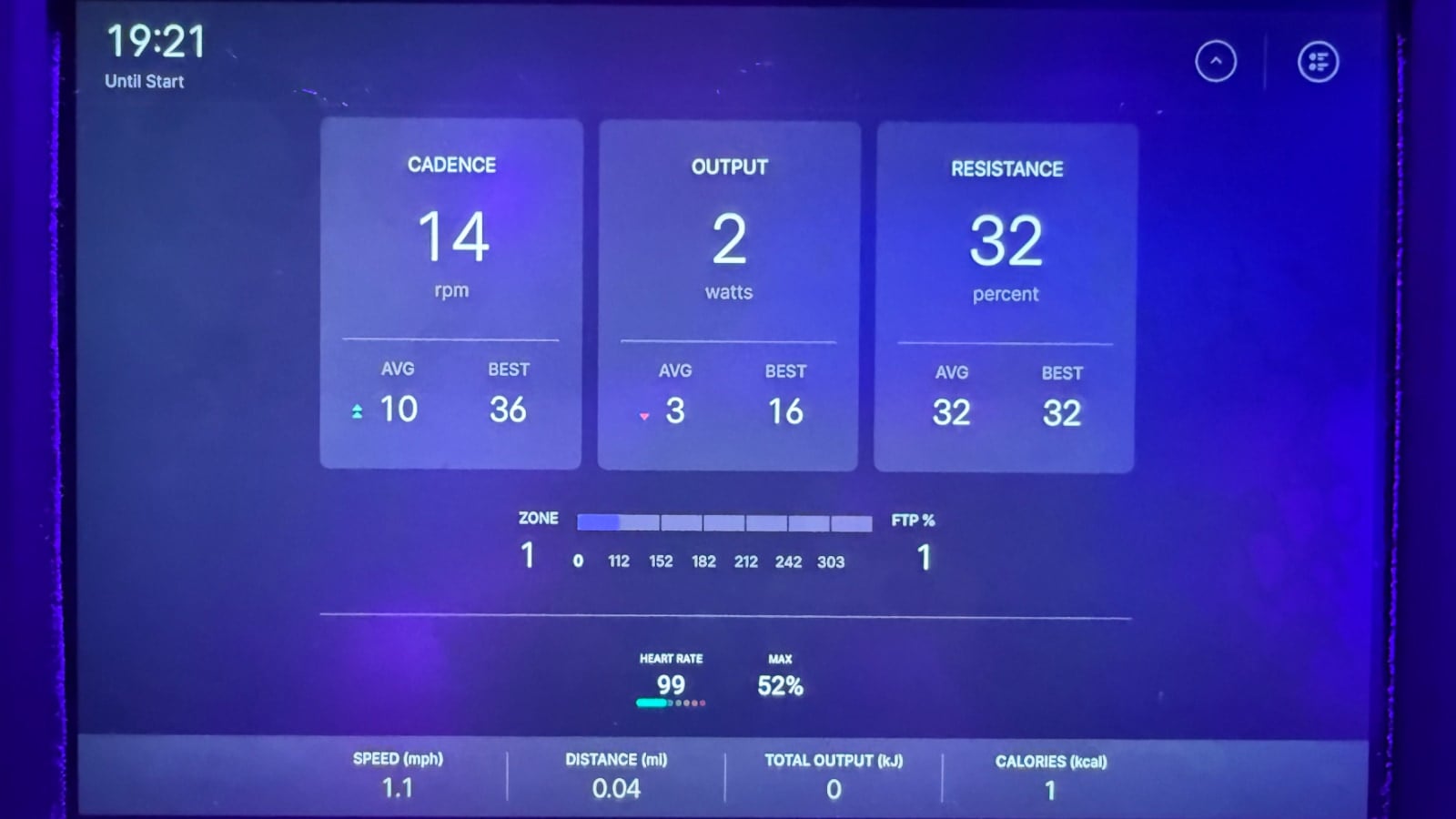
Your heart rate monitor is connected when your BPM appears in the upper left corner of the Peloton screen during a workout. The display also shows percentage of max heart rate and colored effort zones to indicate intensity.
Which heart rate monitors work with Peloton?
Peloton works with most Bluetooth Low Energy heart rate monitors, including the Peloton-branded chest strap, Polar H10, Wahoo TICKR, and Garmin HRM-Pro. Check your monitor’s specifications to confirm Bluetooth 4.0 or higher compatibility.
How long does the battery last in a Peloton heart rate monitor?
The battery in most Peloton-compatible chest straps lasts 1 to 2 years with regular use. Replaceable coin-cell batteries like the CR2032 are standard, and signs of low battery include delayed pairing and flickering indicator lights.
Where is the heart rate monitor setting on Peloton?
The heart rate monitor setting is located under More on your Peloton touchscreen or app. Select Heart Rate Monitor, then Start Search to begin pairing a new device or manage existing connections.
Final Tips for Setting Up Your Peloton Heart Rate Monitor
Now that you know how to set up a heart rate monitor on Peloton, here’s how to get the most from it:
- Pair before starting your workout and wait for confirmation before beginning your warm-up.
- Use the same monitor consistently, since different devices may vary slightly in readings.
- Keep sensor pads moistened for the most stable connection throughout your session.
- Check for firmware updates through your monitor’s companion app for performance improvements.
With your heart rate monitor properly set up, you’ll gain deeper insight into your effort, recovery, and progress, turning every ride or run into a data-driven workout. Start by activating your sensor and navigating to the Heart Rate Monitor menu on your Peloton device today.