How to Connect Garmin Heart Rate Monitor to Zwift
Struggling to get your Garmin heart rate monitor to show up in Zwift? You’re not the only one dealing with pairing failures, 0 BPM readings, or random signal drops mid-ride. The problem usually traces back to Bluetooth vs. ANT+ confusion, wrong pairing order, or background apps stealing the signal. This guide gives you the exact steps to fix all of it.
Below you’ll find which Garmin models actually work with Zwift, how to install the right drivers on Windows, and the proven workarounds that keep your heart rate feed stable. Whether you ride on iPhone, Apple TV, Windows PC, or Android, you’ll know exactly what to do by the end.
Check Your Garmin HRM Model Compatibility First
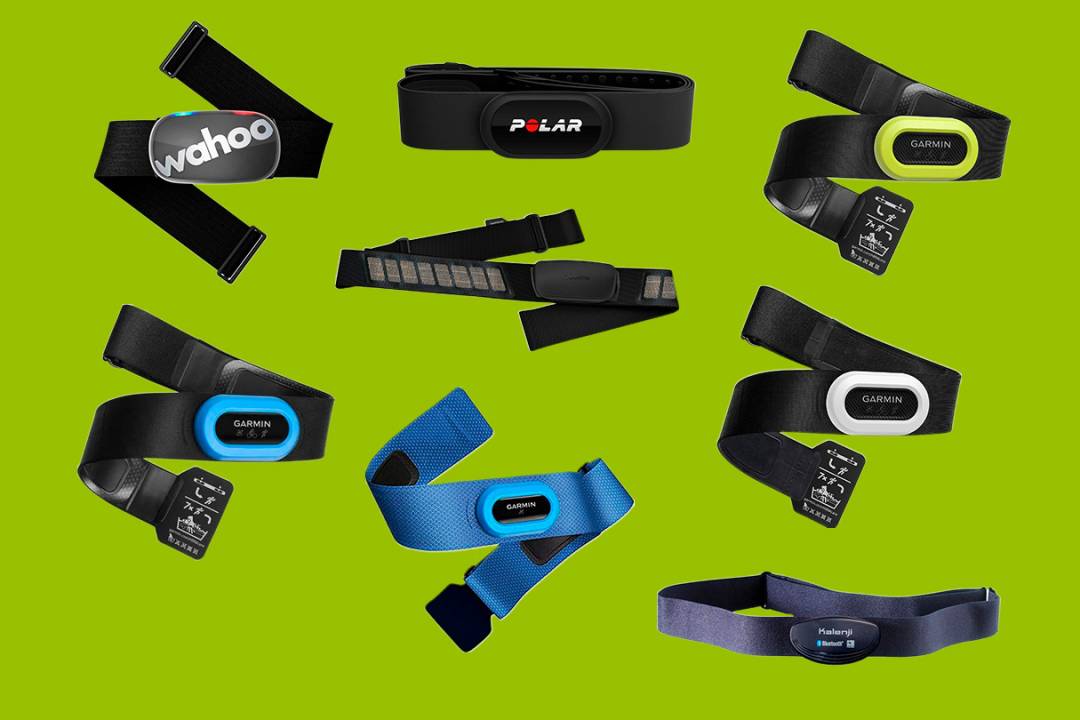
Before touching any settings, confirm your Garmin chest strap matches your device. Not every model speaks the same wireless language, and using the wrong one is the fastest path to frustration.
Use the HRM-Dual for iPhone, iPad, and Apple TV
The Garmin HRM-Dual is the only current Garmin strap that broadcasts over Bluetooth Low Energy (BLE). If you ride on iOS, this is your strap. Zwift on iPhone and iPad does not accept ANT+ signals, so older Garmin models like the HRM-Tri, HRM-Run, and HRM-Sport simply won’t appear during pairing.
Use ANT+ Models Only With a USB Dongle on Windows
The HRM-Tri, HRM-Run, and HRM-Sport transmit ANT+ only. They work on Windows PCs, but only when you plug in a dedicated ANT+ USB dongle. Without that stick, your computer has no way to hear the signal. Insert the dongle before launching Zwift every time.
Match Your Strap to Your Platform
| Platform | Compatible Garmin HRM | ANT+ Dongle Needed? | Bluetooth Required? |
|---|---|---|---|
| iPhone/iPad | HRM-Dual only | No | Yes |
| Apple TV | HRM-Dual | No | Yes |
| Windows PC | HRM-Dual (Bluetooth) or ANT+ models | Yes for ANT+ models | Optional |
| Android TV | HRM-Dual or ANT+ (with OTG support) | Yes if using ANT+ | Yes if using HRM-Dual |
Install the Correct ANT+ Driver on Windows
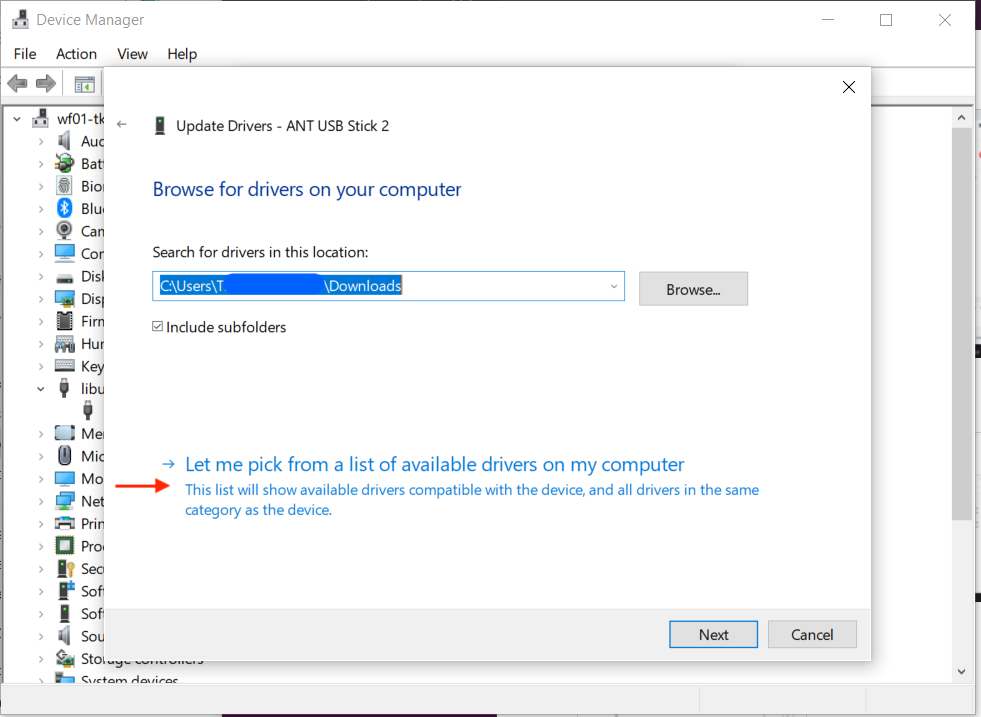
If you’re running an ANT+ strap on a Windows PC, driver problems are the number-one reason the stick shows up but does nothing.
Spot the NULL Driver Problem
When you plug in an ANT+ USB stick, Windows often auto-installs a generic “NULL Driver.” Open Device Manager and look under “Universal Serial Bus devices.” A yellow warning triangle means the driver is broken, and Zwift will never detect your heart rate.
Manually Install the Garmin ANT+ Driver
- Download the Garmin ANT+ USB Stick driver v2.3.1.2 (or newer) from Garmin’s support site.
- Open Device Manager and find your ANT+ device.
- Right-click it and choose Update driver.
- Select Browse my computer for drivers.
- Point to the folder where you saved the Garmin driver files.
- Pick the
.inffile and finish the installation.
Restart Zwift after installation. The dongle should now pick up your strap.
Pair Your Heart Rate Monitor in Zwift the Right Way
Even with perfect hardware, a wrong pairing sequence causes most dropouts. Follow this order every time.
Wear and Activate the Strap First
Moisten the electrodes on the back of the chest strap before putting it on. Dry electrodes create weak or missing signals. Position the strap snugly just below your pectoral muscles.
Open Zwift and Reach the Pairing Screen
- Launch Zwift and log in.
- Wait for the Pairing Screen that lists detected sensors.
- Do not skip this screen. All pairing must happen here.
Search and Connect the Heart Rate Sensor
- In the Heart Rate section, click or tap Search.
- Wait 10–20 seconds for your device (e.g., “HRM-Dual”) to appear.
- Select it from the list.
- Confirm with Okay or Connect.
- Wait for a live BPM reading before moving on.
Fix the HRM-Dual No-Signal Issue on Windows
Plenty of riders pair the HRM-Dual successfully on Windows but see 0 BPM or dashes the entire ride. The cause is a Bluetooth stack conflict, and the fix is surprisingly simple.
Disable Bluetooth on Your PC
Windows juggles multiple Bluetooth devices at once (mouse, keyboard, headphones), and that traffic interferes with the HRM-Dual handshake.
- Turn off Bluetooth completely through the Action Center or Settings menu.
- Restart Zwift and return to the pairing screen.
- Pair the HRM-Dual again.
- Once you see a live BPM, you can turn Bluetooth back on if you need it.
Many users report the heart rate reading appears within seconds of disabling Bluetooth, confirming this is a system-level interference issue.
Prevent Signal Dropouts During Your Ride

Random disconnects mid-ride usually come down to pairing order. Zwift prioritizes power and cadence sensors, so if you connect those first, your HRM gets pushed aside and times out.
Always Pair the Heart Rate Monitor First
- Unpair every sensor in Zwift.
- Pair the heart rate monitor first and wait for live BPM.
- Only then pair your power meter, cadence sensor, or speed sensor.
- Start your ride.
This single change solves dropouts for most riders.
Stop App Conflicts From Blocking the Signal
Another device or app may be holding an exclusive lock on your HRM, which prevents Zwift from connecting at all.
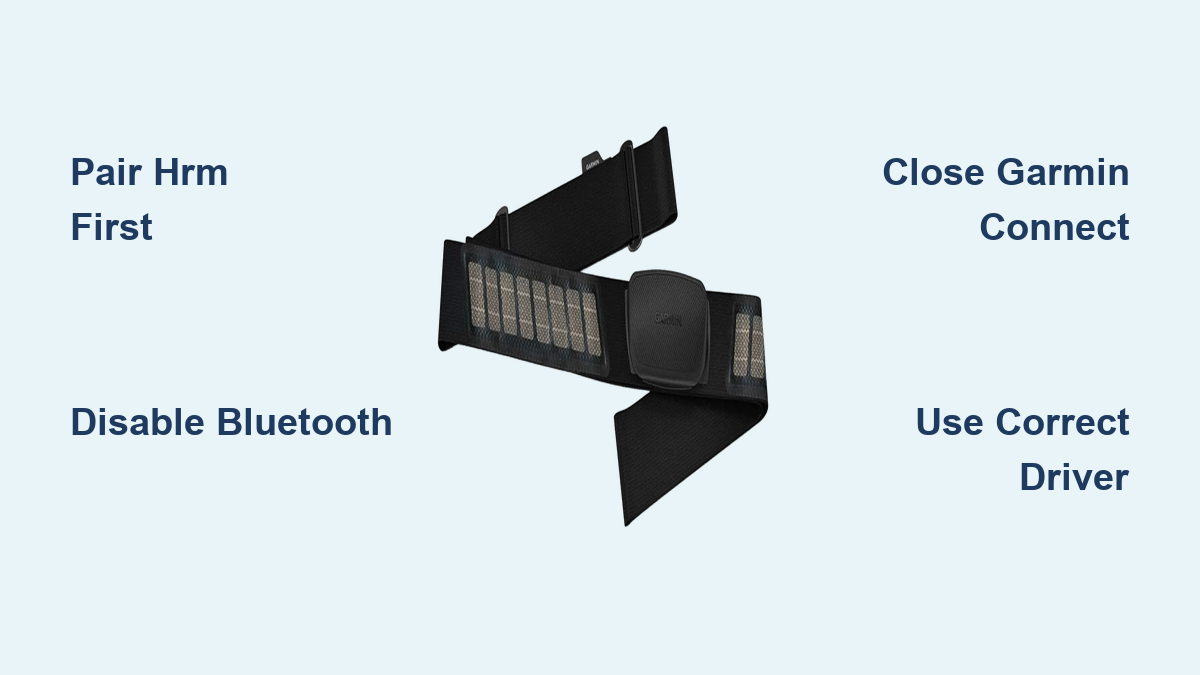
Close the Garmin Connect App
The Garmin Connect app on your phone or tablet auto-connects to the HRM-Dual whenever it’s nearby. That connection blocks Zwift.
- Force close Garmin Connect on every phone, tablet, and watch.
- Turn off Bluetooth on devices you’re not using for Zwift.
- Make sure no other fitness apps (Strava, TrainerRoad, etc.) are running.
Isolate the Bluetooth Connection
Move your phone to another room, or disable its Bluetooth entirely during the ride. Less competition means a more stable signal.
Troubleshoot iOS Detection Failures
If your HRM-Dual doesn’t show up on iPhone or iPad, the issue is almost always software-related.
Restart the iOS Bluetooth Stack
- Fully close the Garmin Connect app (swipe up from the app switcher).
- Restart your iPhone or iPad.
- Open Zwift and try pairing again.
This clears stuck connections and resets the wireless stack.
Use the Zwift Companion App as a Workaround
If direct pairing still fails:
1. Install the Zwift Companion App on your iPhone.
2. Pair the HRM-Dual through Companion.
3. Cast to Apple TV via AirPlay, or use Companion as your main controller.
This method often bypasses stubborn iOS detection bugs.
Optimize Your Setup for Apple TV and Android TV
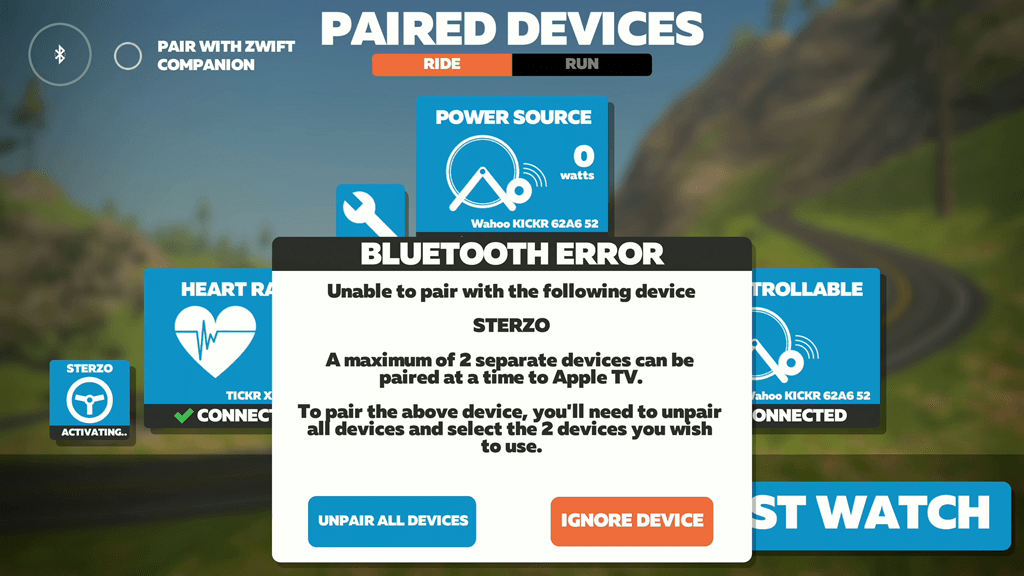
Both platforms rely on Bluetooth, so the process mirrors iOS with a few extra checks.
Apple TV Tips
- Pair the HRM-Dual directly via Bluetooth.
- Close all Garmin apps on nearby iPhones, iPads, and Apple Watches.
- Disable Bluetooth on other Apple devices during your ride.
Android TV Tips
- If your Android box supports USB OTG, plug in an ANT+ dongle and use an ANT+ HRM.
- Otherwise, stick with the HRM-Dual over Bluetooth.
- Test Bluetooth stability before committing to long rides, since some Android boxes have weak chips.
Maintain Your Heart Rate Monitor for Long-Term Reliability
A clean, charged strap delivers stronger signals and lasts for years.
Clean the Strap After Every Ride
Rinse the fabric strap (never the plastic pod) with water after sweaty sessions. Salt buildup slowly kills conductivity. Let it air dry completely.
Replace the Battery When Pairing Fails
The HRM-Dual uses a CR2032 coin cell that lasts 1–2 years. If pairing becomes unreliable or the LED stops flashing, swap the battery.
Store the Strap Properly
Pop the pod out of the strap when you’re not using it. Keep it in a dry place away from extreme heat or cold.
Quick Reference: Best Practices by Device
| Device | Best Garmin HRM | Key Step | Pro Tip |
|---|---|---|---|
| iPhone/iPad | HRM-Dual | Close Garmin Connect app | Restart iOS if not detected |
| Apple TV | HRM-Dual | Disable Bluetooth on nearby devices | Use Companion App for pairing |
| Windows PC | HRM-Dual or ANT+ model | Disable Bluetooth or install correct ANT+ driver | Pair HRM first, then power meter |
| Android TV | HRM-Dual or ANT+ (with dongle) | Verify OTG support | Test Bluetooth stability first |
Frequently Asked Questions About Connecting Garmin HRM to Zwift
Which Garmin heart rate monitors work with Zwift on iPhone?
Only the Garmin HRM-Dual works with Zwift on iPhone and iPad. Zwift’s iOS app uses Bluetooth exclusively, and older Garmin straps like the HRM-Tri, HRM-Run, and HRM-Sport transmit ANT+ only, so they won’t be detected.
Why does my HRM-Dual show 0 BPM in Zwift on Windows?
This is a Bluetooth stack conflict on Windows. The verified fix is to disable Bluetooth on your PC entirely, restart Zwift, and re-pair the HRM-Dual. Once you see a live BPM, you can turn Bluetooth back on if needed.
Do I need an ANT+ dongle for my Garmin HRM on Windows?
You only need an ANT+ dongle if you’re using an ANT+ only model (HRM-Tri, HRM-Run, or HRM-Sport). The HRM-Dual uses Bluetooth natively, so no dongle is required for that strap.
Why does my heart rate drop out during Zwift rides?
Dropouts usually happen because power or cadence sensors were paired first. Zwift prioritizes those sensors and lets the HRM time out. Always pair the heart rate monitor first, wait for live BPM, then pair your other sensors.
Why won’t Zwift find my HRM-Dual on iOS?
The most common cause is the Garmin Connect app holding the Bluetooth connection. Force close Garmin Connect, restart your iPhone or iPad, and try pairing again. If it still fails, use the Zwift Companion app to manage pairing.
How do I stop the Garmin Connect app from interfering with Zwift?
Force close Garmin Connect on every nearby phone, tablet, and watch before opening Zwift. Also disable Bluetooth on devices you’re not actively using for Zwift to keep the signal path clear.
Key Takeaways for a Stable Garmin HRM to Zwift Connection
- Pair the heart rate monitor first, before any power or cadence sensors.
- Use the HRM-Dual on iPhone, iPad, and Apple TV since it’s the only Bluetooth-enabled Garmin strap.
- Disable Bluetooth on Windows if your HRM-Dual pairs but shows 0 BPM.
- Install the Garmin ANT+ driver manually when using an ANT+ dongle to avoid NULL Driver failures.
- Close Garmin Connect and other fitness apps on every nearby device before riding.
Your next step is simple: pick your platform from the table above, follow the pairing order, and run through the troubleshooting checklist if anything misbehaves. With these settings locked in, you’ll get a reliable heart rate feed every time you clip in.