How to Use Orangetheory Heart Rate Monitor
If you’re new to Orangetheory Fitness, mastering the Orangetheory heart rate monitor is essential for getting accurate data and maximizing every workout. Whether you choose the OTconnect Beat™ armband or the OTbeat Link for Apple Watch, proper setup ensures you stay in your target zones and track real progress. This guide covers placement, charging, syncing, and troubleshooting so you can focus on effort, not equipment issues.
Your heart rate monitor is the engine behind Orangetheory’s “sweat equity” system. It measures how long you spend in each zone (Gray, Blue, Green, Orange, Red), which directly influences your calorie burn and fitness results. Using it correctly means better data, smarter training, and faster progress over time.
You’ll learn how to wear each device, connect it to the app, and avoid common mistakes that cause signal loss. Whether you’re a first-timer or upgrading to the latest OTconnect Beat™, this walkthrough gives you everything you need for success.
Choose Your Device Type
Orangetheory offers two main monitoring systems, each designed for different preferences and workout styles.
OTconnect Beat™ Armband
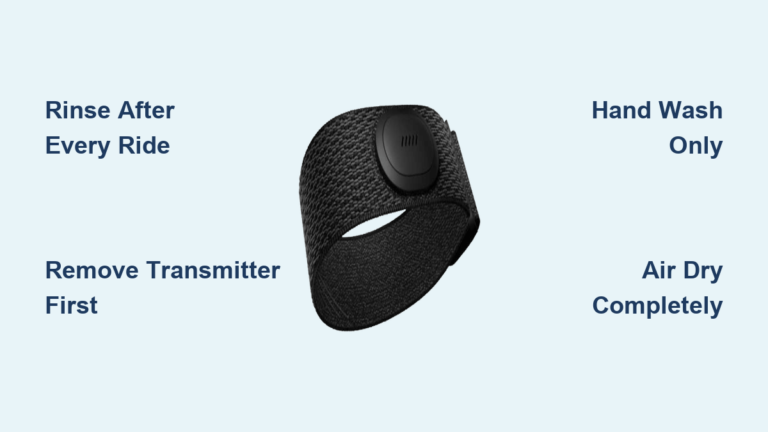
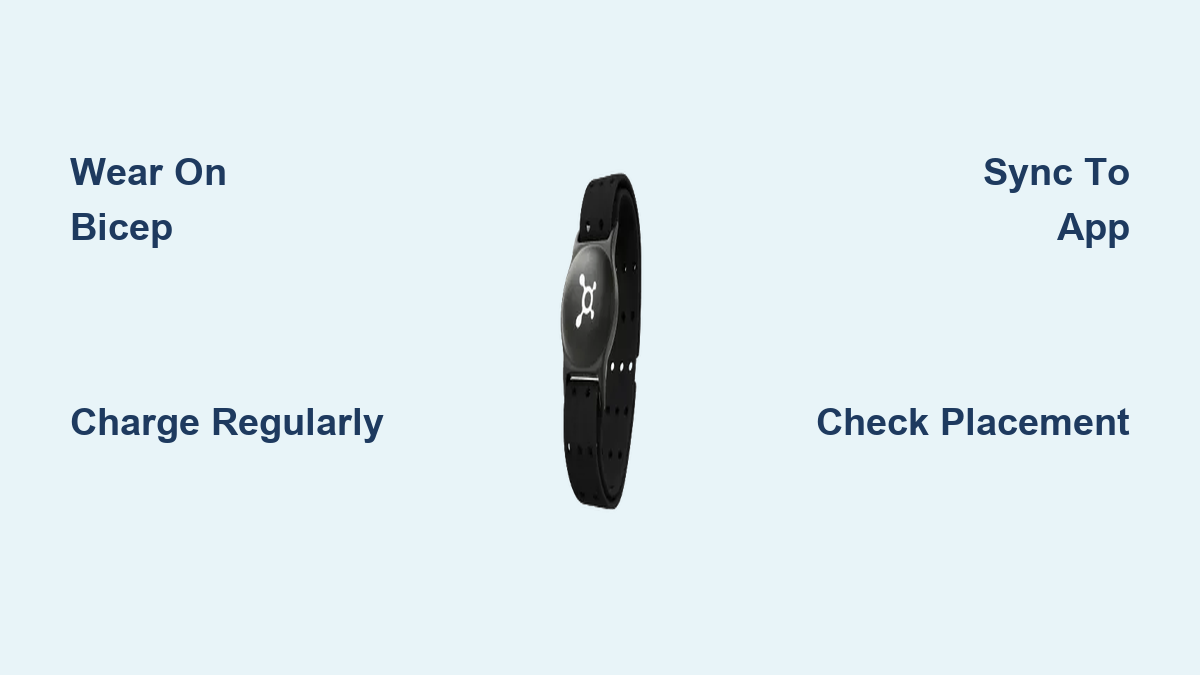
This official in-studio monitor delivers maximum accuracy and real-time feedback. It wraps around your bicep and uses optical sensors to track heart rate four times per second, ideal for HIIT workouts with rapid intensity changes.
Key features include:
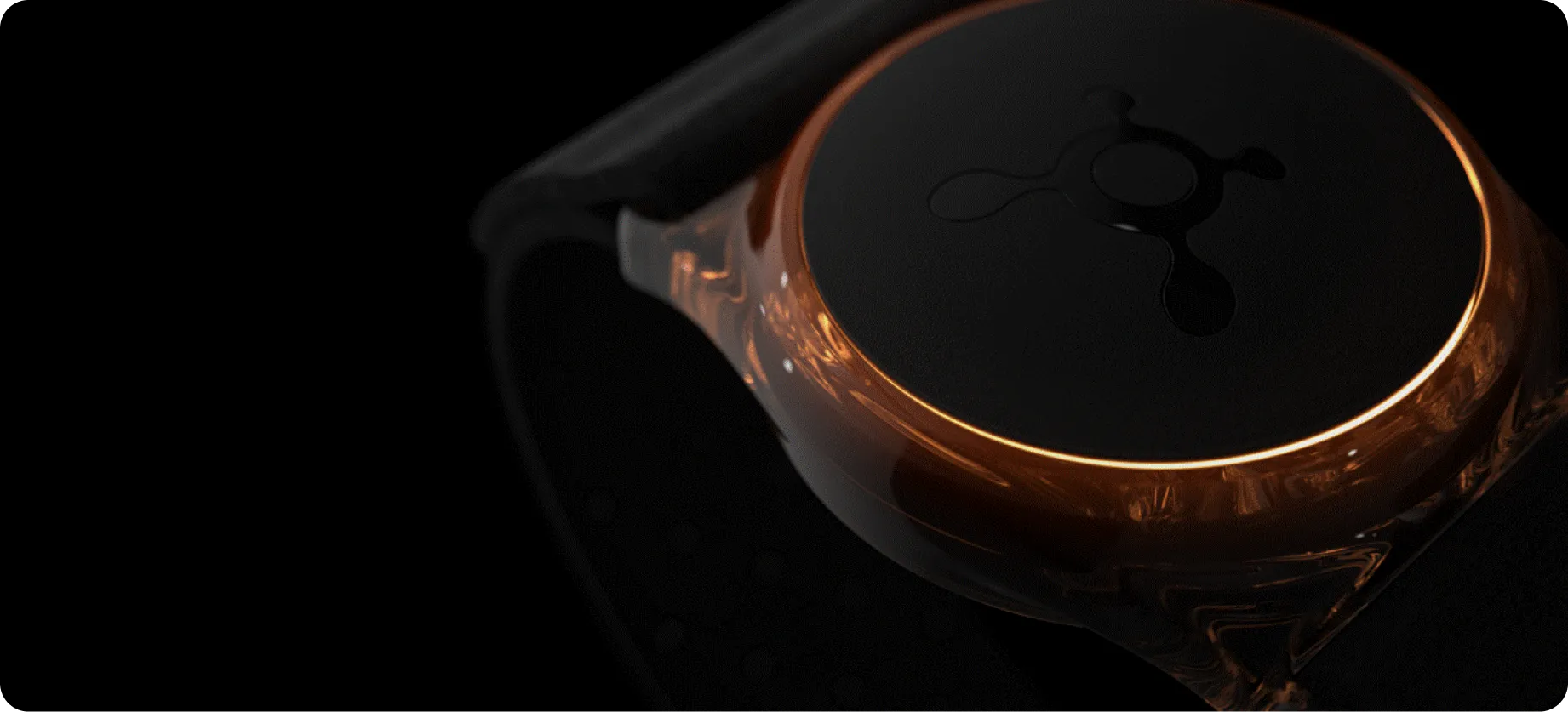
– LED light ring that shows your zone color directly on the floor
– USB-C charging compatible with most phone cables
– Automatic syncing with the Orangetheory app and studio system
– Continuous tracking of steps, calories, and heart rate
This option works best for members who want the most accurate, studio-optimized experience.
OTbeat Link for Apple Watch
For Apple Watch users, the OTbeat Link is a small adapter that connects your watch to Orangetheory’s in-studio system. You wear your Apple Watch as usual, and the Link transmits your heart rate to studio screens.
Key notes:
– Requires the Orangetheory Mobile App, Watch App, and Health App permissions
– Measures heart rate once every 5 seconds, slower than the OTconnect Beat™
– Does not work outside Orangetheory studios
– Data syncs to Apple Activity Rings
This option works best for tech-savvy users already in the Apple ecosystem who prefer fewer devices.
Proper Placement for Accuracy

Where and how you wear your monitor determines data quality. Incorrect placement is the leading cause of gray zones or signal loss.
OTconnect Beat™: Wear It Right
- Location: Place snugly on your bicep, not your forearm.
- Orientation: The sensor pod must face outward, away from your body.
- Skin Contact: Ensure the optical sensor on the underside touches bare skin directly.
- Avoid Tattoos: Do not place the sensor directly over tattoos, as ink can block optical readings.
- Fit: Use the correct strap size (small, medium, or large). Exchange straps free at your studio before your first class.
Alternative placements include:
– 3 fingers below the elbow, like a watch position
– 3 fingers above the elbow on the outer arm
Pro Tip: Once placed, do not adjust the monitor during class. It takes up to 3 minutes to recalibrate after any movement.
OTbeat Link: Position on Apple Watch Band
- Attach the OTbeat Link to your Apple Watch band, just above or below the watch face.
- Keep it within 2 inches of the Apple Watch during pairing.
- Ensure the connection is secure with no loose wiggling.
Before class, confirm the device is seated properly and not covered by clothing.
Charge and Power Up
A dead battery means no data. Follow these steps to keep your device ready for every session.
OTconnect Beat™ Charging Steps
- Lift the rubber cover on the back of the pod to expose the USB-C port.
- Plug in any USB-C cable (same as most phones).
- Connect to a power source such as a laptop, wall charger, or car port.
LED indicators include:
– Pulsing white: Currently charging
– Solid white (2 sec), then off: Fully charged
– Blinks red 3 times: Battery below 15%, charge immediately
– Flashing yellow: Firmware updating
– Flashing green: Update complete
Battery life lasts up to 10 hours of continuous use. Charge after 2 to 3 classes if used regularly.
OTbeat Link: Use the Charging Case
- Place the OTbeat Link into its magnetic charging case.
- Plug the case into USB-C.
- Do not attempt to charge the Link directly; it only charges in the case.
Case indicators include:
– Lit LED: Currently charging
– Green light: Fully charged
Battery specifications:
– OTbeat Link lasts 6 hours per charge
– Case holds 8 to 10 full charges before needing a refill (approximately 2.5 hours to refill)
The OTbeat Link has no power button and remains on in low-power mode at all times.
Sync to the Orangetheory App
Your monitor must connect to the app to track workouts and display data properly.
Connect OTconnect Beat™ to Mobile App
- Open the Orangetheory Mobile App (must be version 5.0.0 or later).
- Tap the gear icon (Settings) in the top-right corner.
- Select “Devices” and choose your OTconnect Beat™.
- Enable “Use Device for In-Studio Workouts” for automatic recognition in class.
- Enable “Heart Rate Zone Display” to activate the LED ring.
If the device doesn’t appear:
– Ensure it’s powered on
– Restart Bluetooth on your phone
– Move closer to the device
– Reset the monitor by holding the button until it vibrates
Pair OTbeat Link with Apple Watch
Before first use, install the Orangetheory Mobile App, grant access to Apple Health, and download the Orangetheory Watch App.
Pairing steps:
1. Open the Orangetheory Watch App.
2. Tap “Scan” to find your OTbeat Link.
3. Confirm the Device ID matches the serial number on your packaging.
4. At the studio, give the serial number to front desk staff to register it to your profile.
After pairing, the app remembers your device, so no re-pairing is needed. To disconnect, open the Watch App, swipe left, and tap “DISCONNECT.”
Start Your In-Studio Workout
Once set up, here’s how your monitor functions during class.
OTconnect Beat™: Automatic Start
- Walk into the studio with your monitor on and app synced.
- The system auto-detects your device if “In-Studio Workouts” is enabled.
- When the coach starts the timer, your workout begins automatically.
- Watch the LED ring change color with your heart rate zone:
– Blue: Base (50–60% max HR)
– Green: Build (61–70%)
– Orange: Push (71–83%)
– Red: Peak (84–91%)
If no LED color appears, Zone Display may be disabled in your app settings.
OTbeat Link: Manual Start
- Open the Orangetheory Watch App before class.
- Tap “Start Workout.”
- If the class hasn’t begun, you’ll see “STARTING SOON.”
- Your workout auto-starts when the coach hits “Start” if you forget.
During class, check your Apple Watch face for zone updates. Data refreshes every 5 seconds, slightly delayed compared to the OTconnect Beat™.
End or Pause Your Workout
- OTconnect Beat™: Data saves automatically after class.
- OTbeat Link: Swipe left and tap “End” to finish early, or wait for class end.
- Resume Function: Tap “RESUME” if you paused mid-workout.
Post-class, review your stats in the app, including time in zones, calories, steps, and Splat Points.
Use Monitor for At-Home Workouts
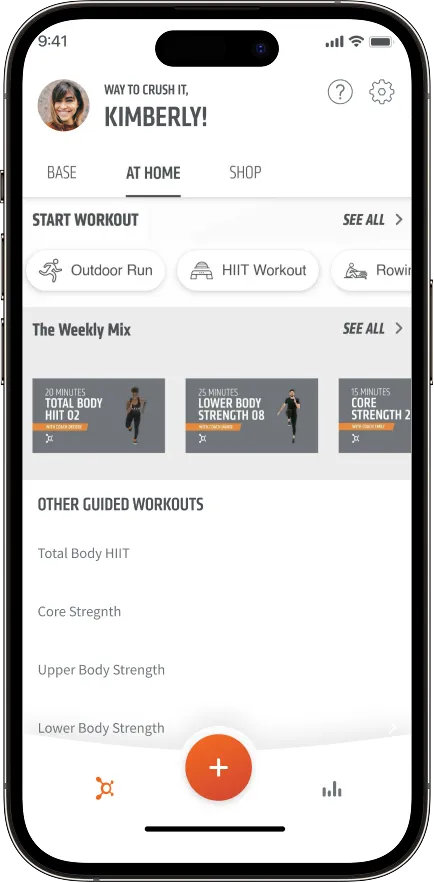
You’re not limited to the studio; your OTconnect Beat™ works at home too.
OTconnect Beat™: At-Home Mode
- Open the Orangetheory app.
- Tap “At Home” on the home screen.
- Start your workout; the app will try to connect to your monitor.
- If it doesn’t find the device, tap “Continue Without Device” or reconnect.
After workout, tap Pause, then Finish, and choose to Save or Discard. Data syncs to your dashboard just like a studio class.
OTbeat Link: Not Supported at Home
The OTbeat Link only works in Orangetheory studios and cannot sync to the Orangetheory app during at-home workouts.
For outdoor or home sessions, use the Apple Watch’s native workout app. Data goes to Apple Health but not to your Orangetheory dashboard.
Clean and Maintain Your Device
Proper care extends your monitor’s life and keeps readings accurate.
Clean After Every Use
- Wipe the optical sensor with a soft, dry cloth.
- For deeper cleaning, use mild soap and cool water.
- Dry thoroughly before storing.
Do NOT:
– Machine wash the pod
– Use alcohol, bleach, or abrasive cleaners
– Submerge the device beyond IPX8 limits
– Machine dry the strap
Strap Care
The strap is machine washable in cold water on a gentle cycle. Air dry only; never use a dryer.
Storage Tips
Store in a cool, dry place away from extreme heat and direct sunlight. Avoid leaving it on a car dashboard.
Troubleshoot Common Issues
Even with proper setup, problems can occur. Here’s how to fix them quickly.
No Signal or Gray Zone
Common causes include:
– Loose fit or incorrect placement
– Pooled sweat under the sensor
– Tattoo interference
– Low battery
Solutions:
– Re-tighten and reposition the band
– Wipe under the pod
– Move away from others to reduce signal interference
– Charge if blinking red
LED Ring Not Lighting Up
- Check app: Is “Heart Rate Zone Display” enabled?
- Is the battery charged?
- Restart the monitor by holding the button until vibration
OTbeat Link Won’t Connect
- Ensure the Orangetheory Watch App is open
- Keep Link within 2 inches of Apple Watch
- Confirm serial number is registered with the studio
- Restart Bluetooth on phone and watch
App Not Recognizing OTconnect Beat™
- Update Orangetheory app to version 5.0.0 or later
- Forget device in app, then re-pair
- Reset monitor by holding button for 10 seconds
- Try a different phone if possible
Maximize Your Results

Using the Orangetheory heart rate monitor correctly transforms your fitness journey.
Pro Tips for Better Workouts
- Arrive early to set up and pair your device
- Hydrate well, as dehydration affects heart rate accuracy
- Wear moisture-wicking shirts to reduce sweat interference
- Track trends in your app to look for improvements in zone time and recovery
Why Accuracy Matters
The higher sampling rate (4x per second) of the OTconnect Beat™ captures rapid heart rate changes during sprints and lifts, giving you a true picture of effort. Apple Watch users get solid data but may miss short spikes due to slower update intervals.
Long-Term Benefits
Consistent users report improved sleep and energy, better recovery tracking, and higher motivation from visible effort on screens.
Frequently Asked Questions About Orangetheory Heart Rate Monitors
Where should I wear my OTconnect Beat™ for the best accuracy?
Place it snugly on your bicep with the sensor pod facing outward and the optical sensor touching bare skin. Avoid placing it directly over tattoos, as ink interferes with optical readings. The band should be secure but not restrictive.
Can I use the OTbeat Link for at-home workouts?
No, the OTbeat Link only functions inside Orangetheory studios because it relies on the in-studio OTbeat system. For home sessions, use your Apple Watch’s native workout app, though that data won’t sync to your Orangetheory dashboard.
How long does the OTconnect Beat™ battery last?
The OTconnect Beat™ provides up to 10 hours of continuous use on a full charge. If you attend classes regularly, charging after every 2 to 3 sessions keeps it ready to go.
Why is my heart rate monitor showing a gray zone?
Gray zones typically result from loose fit, incorrect placement, pooled sweat under the sensor, tattoo interference, or low battery. Re-tighten the band, wipe under the pod, move away from other users, and check battery status to restore signal.
Do I need to re-pair my OTbeat Link every class?
No, the Orangetheory Watch App remembers your device after initial pairing. You only need to re-pair if you manually disconnect or switch to a different Link.
How do I clean my Orangetheory heart rate monitor?
Wipe the optical sensor with a soft, dry cloth after each use. For deeper cleaning, use mild soap and cool water, then dry thoroughly. Never machine wash the pod or use alcohol, bleach, or abrasive cleaners. The strap is machine washable but must air dry.
Key Takeaways for Mastering Your Orangetheory Heart Rate Monitor
Choosing the right device, placing it correctly, and keeping it charged are the foundations of accurate tracking. The OTconnect Beat™ delivers higher sampling rates for data-driven athletes, while the OTbeat Link offers convenience for Apple Watch users who train primarily in-studio.
Syncing to the Orangetheory app unlocks automatic recognition, zone display, and post-workout analytics. Regular cleaning and proper storage extend your device’s lifespan and maintain sensor accuracy over time.
Your next step: Pick up your monitor, confirm it’s charged, and sync it to the app before your next class. Walk in with confidence, trust your zones, and watch your fitness data tell the story of your effort.