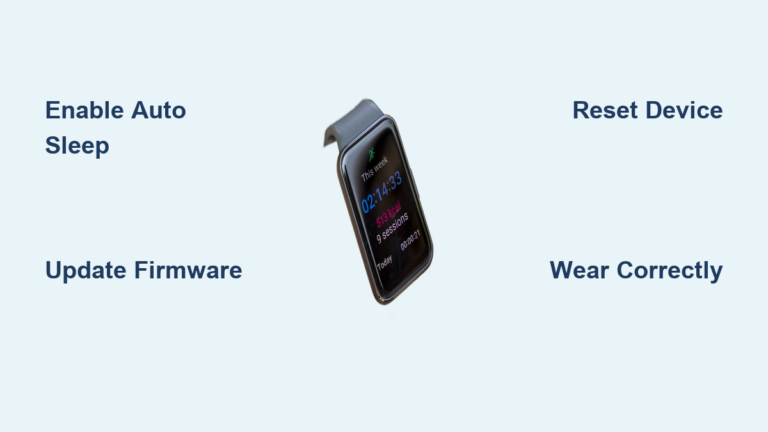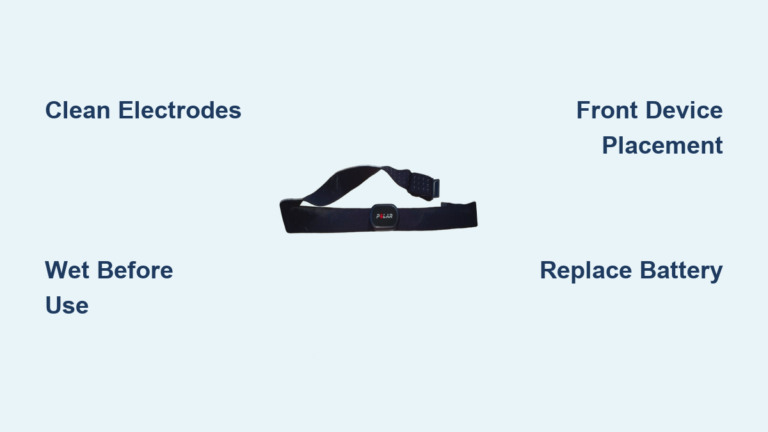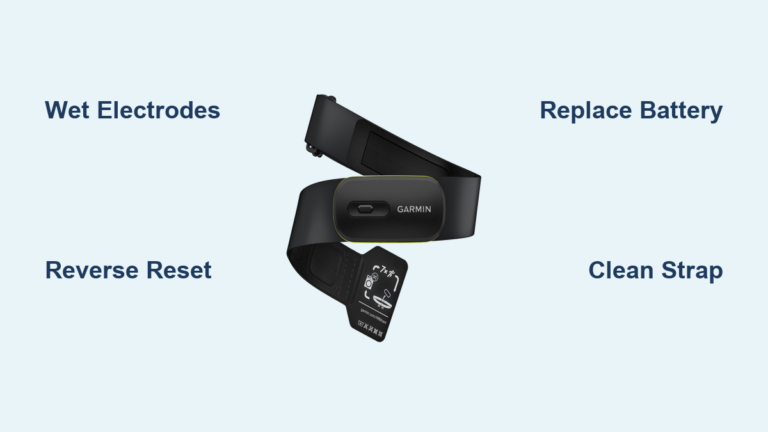
Fix Fitness Tracker Not Tracking Steps
You’ve clipped on your fitness tracker, walked thousands of steps, and opened the app, only to see zero steps recorded. Frustrating, right? You’re not alone. Millions of users face this issue daily, but most don’t realize it’s often not a broken device. It’s usually a fixable glitch in sensors, settings, or sync.
A fitness tracker not tracking steps typically stems from three core areas: misconfigured software permissions, hardware placement issues, or connectivity breakdowns. The good news? Over 90% of these problems can be resolved in under 15 minutes with the right approach.
In this guide, you’ll learn exactly why your fitness tracker misses steps, how to diagnose the root cause using real-world symptoms, and what to do step by step to restore accurate tracking. Whether you use an Apple Watch, Fitbit, Garmin, Xiaomi band, or smartphone app, this troubleshooting roadmap applies universally.
Check Motion Permissions First
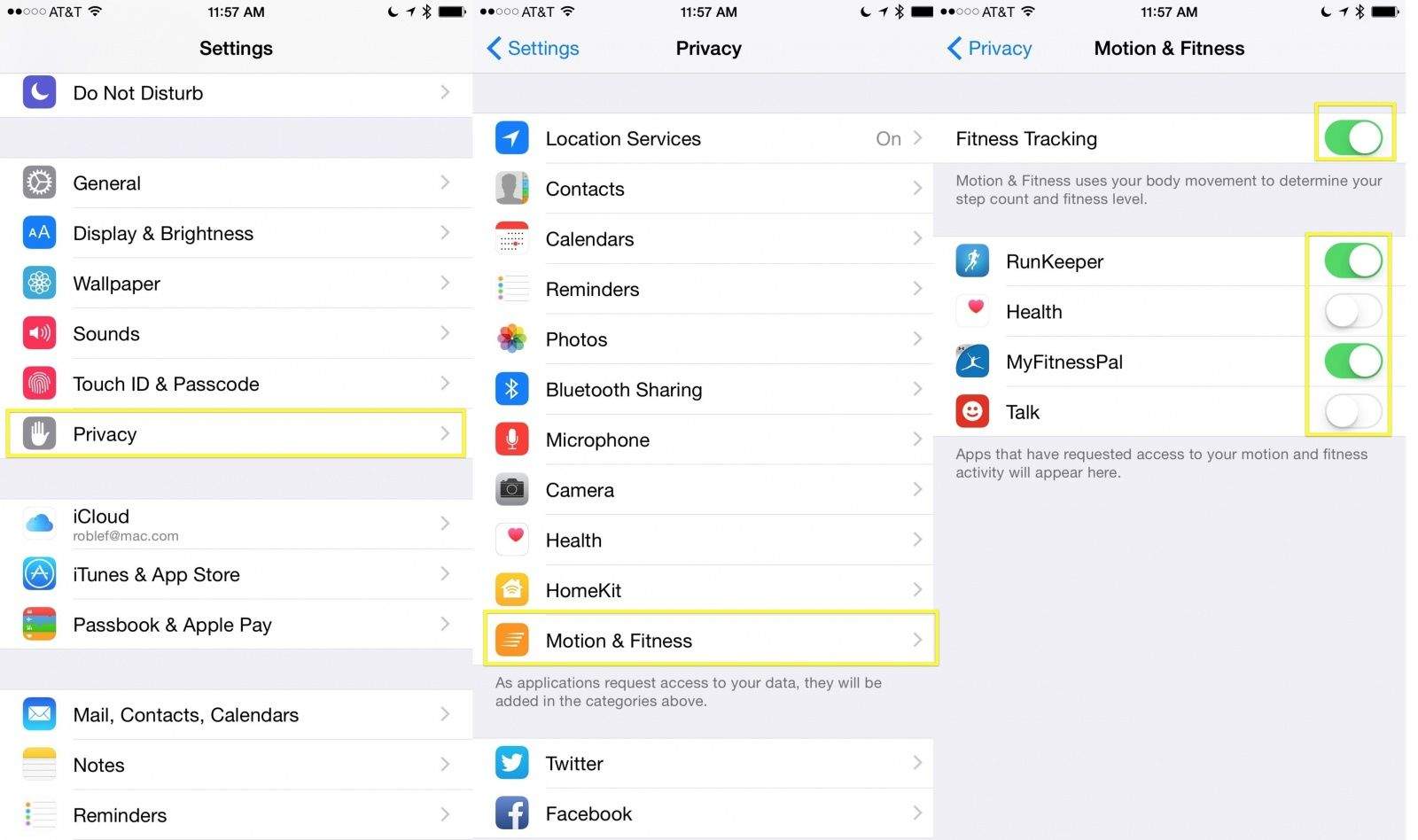
If your app shows zero steps no matter how much you walk, blocked OS-level permissions are the likely culprit. Your tracker cannot count steps if the system won’t let it access motion data.
iOS: Enable Motion and Fitness Access
Apple restricts motion sensor access by default. If this setting is off, your fitness app receives no data.
- Go to Settings > Privacy & Security > Motion & Fitness
- Find your fitness app (e.g., Fitbit, Samsung Health)
- Toggle it ON
Missing this single permission means zero step tracking, even if everything else is configured correctly. After enabling, restart the app and take a 20-step walk. Steps should appear within 30 seconds.
Android: Allow Physical Activity Permission
Android uses a similar gate but labels it “Physical activity” permission.
- Open Settings > Apps > [Your App]
- Tap Permissions
- Grant access to Physical activity
Some brands like Xiaomi or Huawei hide this under “App battery usage” or “Special access.” Also disable battery optimization for the app to prevent Android from revoking permissions when killing background processes.
Disable Battery Optimization
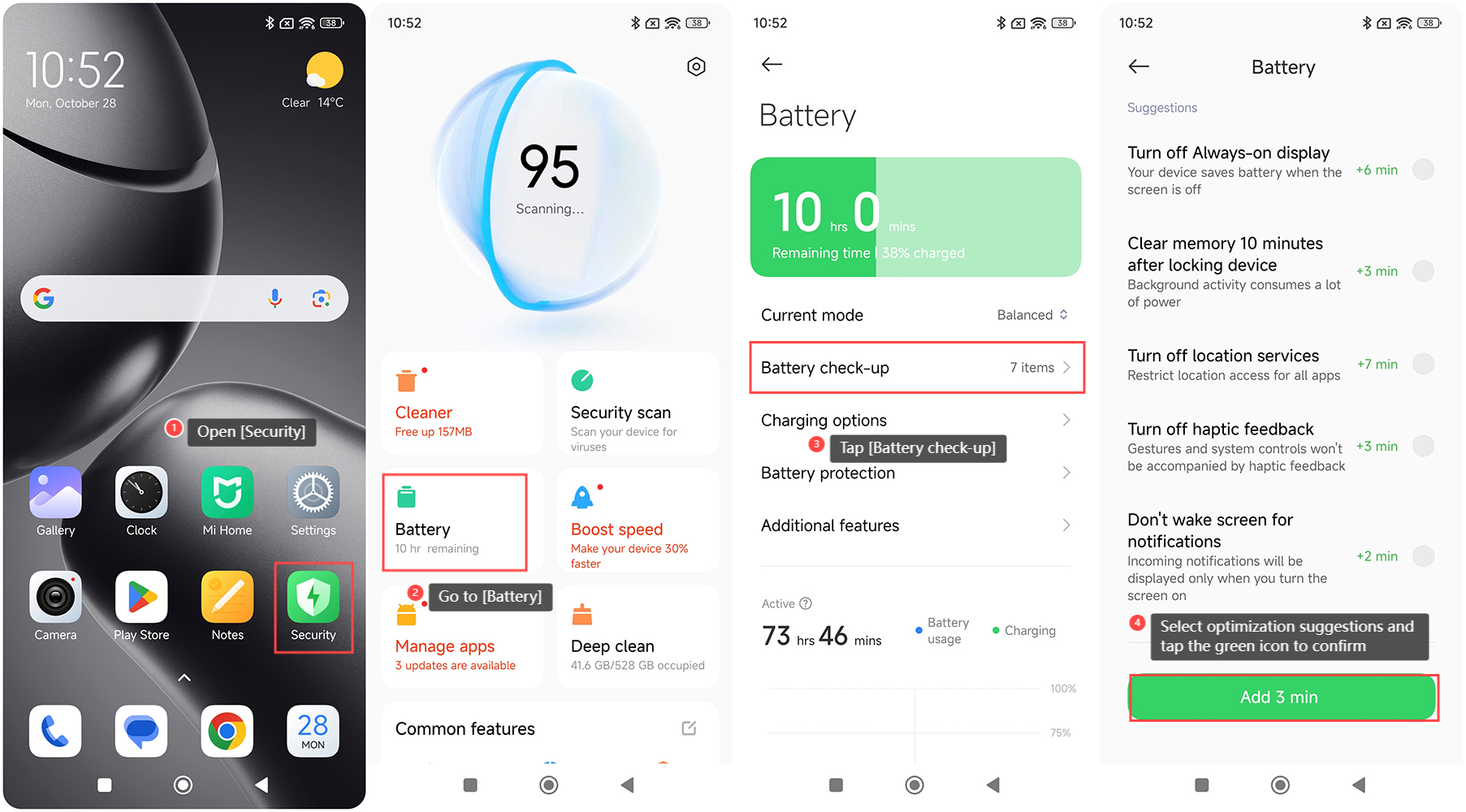
Android aggressively shuts down background apps to save power. This kills step tracking mid-day, even when permissions are correctly set.
Set App to Unrestricted Mode
If your tracker stops counting after the screen locks, battery optimization is likely interrupting it.
- Go to Settings > Apps > [Your App] > Battery
- Select Unrestricted or Don’t optimize
- Confirm when prompted
For Samsung devices, use the search bar and type “Battery optimization.” For Xiaomi or Redmi, navigate to Settings > Apps > [App] > Battery Saver > No restrictions. Walk 50 steps with the phone locked afterward. Open the app and steps should update immediately.
Verify Bluetooth and Sync Status
Steps aren’t lost; they’re often just stuck on the device. When Bluetooth fails, data doesn’t sync to your phone.
Force a Manual Sync
When steps don’t appear, force the app to pull data:
- Open the fitness app
- Pull down to refresh or tap “Sync”
- Keep the tracker within 3 feet of your phone
- Wait 30 seconds
If no sync occurs, toggle Bluetooth off and on, then restart the app completely by swiping it away from recent apps. Most trackers store 7 to 30 days of data locally, so sync issues cause delayed counts rather than permanent loss.
Re-Pair Your Device
Corrupted Bluetooth profiles cause persistent sync failures. To fix this:
- Go to Phone Settings > Bluetooth
- Tap the gear icon next to your tracker
- Select Forget This Device
- Open your fitness app and follow pairing instructions again
After re-pairing, a full sync should reveal any missing steps from the past 24 hours.
Clean Sensor and Adjust Wear Position
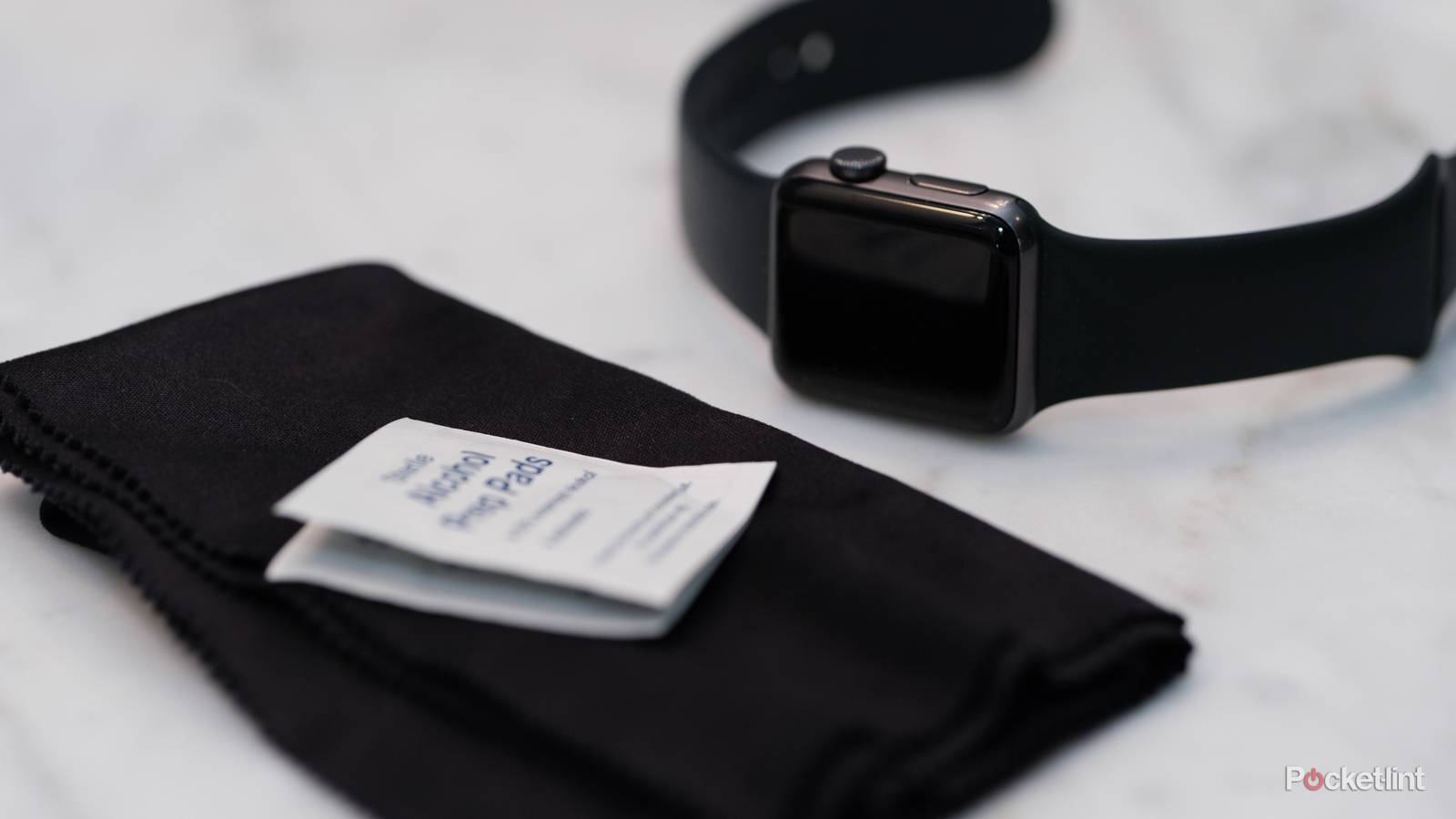
Even perfect settings fail if the hardware isn’t positioned correctly.
Tighten Band and Clean Sensor
A loose band or dirty sensor leads to erratic or missing data.
- Tighten the band so it touches skin firmly with no sliding
- Use a microfiber cloth to wipe the back of the device
- Remove sweat, lotion, sunscreen, or dirt blocking the optical sensor
Clean the sensor regularly. Sweat, sunscreen, lotion, and dirt can block or scatter the light emitted by the sensor, preventing accurate readings.
Carry Phone Correctly for App Users
If using a phone-based tracker like Google Fit or iPhone Health, placement matters significantly.
- Avoid: Deep pockets, backpacks, hand-holding
- Best: Front pants pocket or armband
- Why: Phones need consistent motion and GPS signal
Deep pockets and backpacks can block GPS signals and dampen motion signals. Compare step counts walking with phone in hand versus front pocket. The pocket typically delivers better results.
Confirm Step Counting Is Enabled

Some trackers don’t auto-track steps unless explicitly configured.
Activate Step Mode in App
Check your device settings inside the companion app:
- Open the app (e.g., Fitbit, Garmin Connect)
- Go to Devices > [Your Tracker] > Settings
- Look for Step Tracking, All-Day Sync, or Activity Tracking
- Ensure it’s turned ON
Some budget trackers require manual activation of pedometer mode. Check your user manual for specific instructions.
Set Dominant or Non-Dominant Hand
Wearing the tracker on your dominant hand increases false positives, such as typing counted as steps. But setting it incorrectly can cause undercounting.
- In the app, find Wrist Setting or Hand Preference
- Choose Dominant or Non-Dominant based on actual wear
- Save and restart tracking
A right-handed person wearing the tracker on the right wrist should select Dominant. This setting adjusts algorithm sensitivity and is critical for accuracy.
Understand Step Thresholds
Your tracker may ignore short walks by design.
Walk 10 to 15 Steps Continuously
Most devices use a step threshold. They only start counting after 10 to 15 consecutive steps. A trip to the bathroom (5 steps) won’t register, but walking to your car (20 steps) will count as 20.
This threshold prevents false steps from small movements like standing up. If you walk slowly or with minimal arm swing, such as pushing a stroller, the sensor may not detect a valid stride.
Walk Briskly to Trigger Detection
To ensure detection:
- Swing arms naturally
- Walk at a pace above 1 mph
- Avoid shuffling or holding bags that restrict motion
As a workaround, use “Walk” or “Outdoor Walk” workout mode for short trips. This bypasses the threshold and records every step.
Fix Inaccurate Activity Recognition

Not all movement counts as steps, even when it should.
Cycling and Elliptical Won’t Count as Steps
Standard step algorithms detect foot impact and arm swing. Activities like cycling, elliptical training, rowing, and pushing a shopping cart often won’t register steps because their motion patterns differ from walking.
Don’t expect step counts during these activities unless you use a specific workout mode.
Use Dedicated Workout Modes
To track non-step activities:
- Open your fitness app before starting
- Tap Start Workout
- Select the correct type (e.g., “Cycling,” “Elliptical”)
- Let the app record duration, calories, and distance
These modes use different sensors like GPS and gyroscope and don’t rely on step algorithms. Some apps, including Fitbit, estimate steps based on effort during these workouts.
Update Firmware and App
Outdated software causes bugs, sync errors, and poor accuracy.
Check for Firmware Updates
Manufacturers release updates to improve sensor logic and fix tracking bugs. In your fitness app:
- Go to Devices > [Your Tracker]
- Look for Firmware Update or System Update
- If available, start the update with the device charged and near your phone
Updates typically take 5 to 15 minutes. Don’t interrupt the process.
Update the Companion App
An outdated app may not process data correctly.
- Open Google Play Store or App Store
- Search for your app (e.g., Fitbit, Samsung Health)
- Tap Update if available
Enable auto-updates for both apps and system software to stay current.
Reset or Reinstall the App
When nothing works, corrupted app data may be the cause.
Clear Cache on Android
Before deleting:
- Go to Settings > Apps > [App] > Storage
- Tap Clear Cache (not Clear Data)
- Restart the app
Reinstall the App on iOS or Android
If steps still don’t track:
- Back up data and ensure cloud sync is working
- Uninstall the app
- Reboot your phone
- Reinstall from the official store
- Log in and re-pair your device
Most data is saved to the cloud. Local-only data that hasn’t synced may be lost, so sync first before uninstalling.
When to Seek Hardware Repair
If all steps fail, the issue may be hardware-related.
Test the Accelerometer
The three-axis accelerometer is essential for step detection. If it fails, no software fix will work.
Signs of hardware failure include:
- Zero steps even after full troubleshooting
- No movement data in any app
- Device doesn’t vibrate during notifications (if it should)
- Frequent crashes or unresponsiveness
Contact Manufacturer Support
Before assuming failure, provide:
- Device model and serial number
- OS version (iOS or Android)
- List of all troubleshooting steps tried
- Screenshots of settings and step logs
Warranty status determines next steps. In-warranty devices may qualify for free repair or replacement, while out-of-warranty devices may receive paid repair or upgrade offers.
Common support channels include:
- Fitbit: support.fitbit.com
- Garmin: support.garmin.com
- Apple: Apple Support app or visit an Apple Store
- Xiaomi: Mi Fit app > Help Center
Frequently Asked Questions About Fitness Tracker Step Tracking
Why does my fitness tracker show zero steps after walking?
This usually indicates blocked motion permissions on your device. On iOS, check Settings > Privacy & Security > Motion & Fitness. On Android, verify Physical Activity permission is granted under app settings. Without these permissions, the app cannot access accelerometer data.
How many steps does my tracker need to start counting?
Most fitness trackers require 10 to 15 consecutive steps before the counter begins incrementing. This threshold prevents false positives from minor movements like standing up or shifting in your chair. Short trips below this threshold won’t register.
Can battery optimization stop my fitness tracker from counting steps?
Yes. Android battery savers aggressively terminate background apps, which breaks the data sync chain. If your tracker stops updating after the screen locks, set your fitness app to Unrestricted or Don’t Optimize in battery settings.
Why aren’t my steps syncing to my phone?
Sync failures typically stem from Bluetooth issues. Toggle Bluetooth off and on, force-close and reopen the app, or unpair and re-pair the device. Most trackers store 7 to 30 days of data locally, so unsynced steps aren’t lost, just delayed.
Does wearing my tracker on the wrong wrist affect step count?
Yes. If you wear it on your dominant hand but set it to non-dominant (or vice versa), the algorithm sensitivity becomes miscalibrated. This can cause overcounting from typing or undercounting from filtered movements. Match the setting to your actual wear position.
Will cycling or elliptical workouts count as steps?
Standard pedometer algorithms are optimized for walking and running. Cycling, elliptical training, and rowing typically won’t register as steps because they lack the foot impact and arm swing signature. Use dedicated workout modes to track these activities accurately.
Key Takeaways for Fixing Your Fitness Tracker Step Count
A fitness tracker not tracking steps is rarely a dead device. It’s usually a settings misstep, sync failure, or placement issue. Start with permissions and battery settings, then verify sync and wear position. Over 90% of cases resolve in under 15 minutes.
Keep your firmware updated, wear the device properly with a tight band and clean sensor, and use workout modes for non-walking activities. Remember the 10 to 15 step threshold when troubleshooting short walks.
Now go take those steps. You know they’ll be counted.