How to Turn Off a Fitness Tracker
You’re mid-drum solo, sticks flying, and your Apple Watch buzzes with a “Move goal achieved” notification. You haven’t left the kit, yet your wrist just logged 2,000 steps. For Apple Watch Series 7 users, this sensor confusion is a daily annoyance. The accelerometer and heart rate sensor can’t tell the difference between a paradiddle and a jog, so your activity rings fill with false data. Unfortunately, there is no one-tap method to turn off fitness tracking directly on the watch, but you can disable it manually or speed up the process with smart workarounds.
This guide shows you exactly how to turn off fitness tracking on your Apple Watch, explains why the process is so clunky, and reveals shortcuts that cut your navigation time from minutes to seconds. Whether you’re a musician, crafter, or someone who simply wants sensor-free time, you’ll find the most effective methods available right now.
Disable Fitness Tracking Manually Through the Watch App
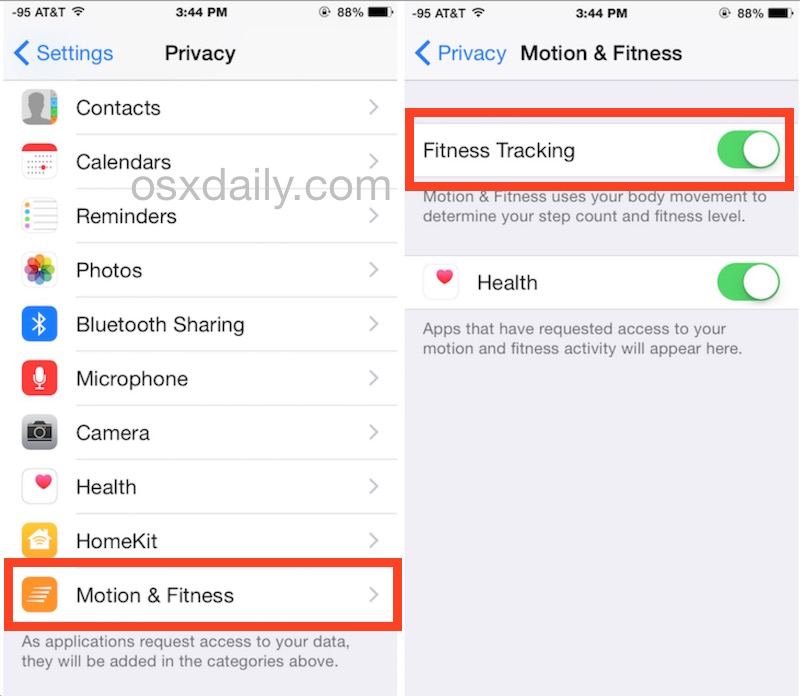
The only guaranteed way to stop your Apple Watch from recording activity data is through the iPhone’s Watch app. This method fully halts motion and fitness tracking but requires several taps.
Navigate to Motion & Fitness Settings
Open the Watch app on your iPhone and tap the My Watch tab at the bottom of the screen. Scroll down and select Privacy, then tap Motion & Fitness. You’ll see two key toggles: Fitness Tracking and Heart Rate.
Turning off Fitness Tracking stops the watch from logging steps, distance, active calories, and exercise minutes. Your Activity rings will pause during this time. If you also want to halt heart rate monitoring, toggle off Heart Rate as well.
Note: Disabling these sensors creates a gap in your health data. Re-enable them after your activity to resume accurate tracking.
Re-enable Tracking After Your Activity
After your drum lesson or knitting session, return to the same menu and toggle Fitness Tracking back on. Otherwise, your daily activity won’t be recorded until you do. This manual reset is one of the biggest pain points users report, as there is no automatic recovery.
Time Required: ~30 seconds
Difficulty: Easy, but repetitive
Best For: Occasional use when precision matters
Create a Shortcut for Faster Access
While you can’t automate the actual toggle, you can cut navigation time dramatically using an Apple Shortcut that jumps straight to the settings page.
Build a “Disable Fitness” Shortcut
Open the Shortcuts app on your iPhone or iPad. Tap the + icon to create a new shortcut, then choose Add Action. Search for Open URL and select it.
In the URL field, paste this exact link:
text

watch://settings?section=privacy&subsection=motion-and-fitness
This deep link opens the Motion & Fitness settings directly inside the Watch app. Tap Done, name your shortcut (e.g., “Turn Off Fitness”), and save it.
Add the Shortcut to Your Home Screen
For one-tap access, add the shortcut to your iPhone’s Home Screen:
- Open the shortcut, tap the three dots (•••), then Add to Home Screen
- Customize the icon and label (a stop icon works well)
- Tap Add
Now, tapping the Home Screen icon launches the correct settings page instantly, with no scrolling through menus required.
Pro Tip: Pin the shortcut to your Today View widget or assign it to a Back Tap gesture (Settings > Accessibility > Touch > Back Tap) for even faster access.
Efficiency Gain: Reduces steps from 5+ taps to 1 tap + manual toggle
Limitation: Still requires you to flip the switch manually
Pair Your Shortcut with a Focus Mode

If you regularly disable tracking for specific activities like drumming, link your shortcut to a custom Focus Mode to create a seamless routine.
Set Up a “Drum Practice” Focus
Go to Settings > Focus > + and create a new Focus (e.g., “Drum Practice”). Choose which apps and people can notify you during this time, then set a custom wallpaper like a red background to signal the mode is active.
Under People and Apps, allow only what you need (e.g., Messages from bandmates). Then scroll to Shortcuts and tap Add Shortcut. Select your “Turn Off Fitness” shortcut.
Activate the Focus to Trigger Your Workflow
When you start drumming, activate the Drum Practice Focus. Your phone silences distractions, changes appearance, and prompts the shortcut. Tap it to jump straight to the Motion & Fitness settings and disable tracking.
This doesn’t auto-toggle the switch, but it bundles everything into one context: fewer steps, fewer distractions, and a built-in reminder.
Best For: Frequent, scheduled activities
User Benefit: Combines focus, automation, and workflow in one action
Understand Why There’s No On-Watch Toggle
Despite years of user requests, Apple has not added a Control Center toggle or Watch face complication to turn off fitness tracking with a single tap.
System Limitations Block Direct Control
Apple’s privacy and security model restricts third-party and even built-in shortcuts from directly toggling system-level features like Fitness Tracking. These controls are sandboxed to prevent unauthorized access to motion and health data.
As a result:
- No app or automation can flip the switch programmatically
- The Control Center lacks a native fitness tracking icon
- watchOS does not support custom toggles the way iOS supports flashlight or airplane mode
Community Demand Is Growing
Users, especially musicians and artisans, have long called for a fix. Online forums are filled with complaints about inaccurate step counts during drum lessons or guitar practice. Many consider this update a “no-brainer.”
“It’s hard to believe the developers haven’t already run into the issue. It’s a no-brainer that it should be fixed.” — User feedback
Apple has not responded publicly, but users are encouraged to submit feedback via the official Product Feedback portal to increase visibility.
Check Heart Rate Separately to Stop All Sensing

A common mistake is assuming turning off Fitness Tracking stops all sensing. It doesn’t.
Two Toggles, Two Different Functions
- Fitness Tracking: Controls step count, exercise minutes, and Activity ring progress
- Heart Rate: Enables continuous optical monitoring (every 5–10 minutes) and background readings
Disabling one does not disable the other. If you want to stop all sensor activity, you must manually turn off both switches in the Motion & Fitness menu.
Warning: Leaving heart rate on while disabling fitness tracking may still log irregular rhythms or high BPM events, potentially triggering false alerts.
Prevent Data Gaps and Battery Drain
Turning off fitness tracking creates blind spots in your health data. Use these tips to avoid long-term issues.
Remember to Re-Enable Tracking
The biggest risk is forgetting to turn tracking back on. Once disabled, your watch won’t record:
- Steps or distance
- Active calories
- Exercise minutes
- Stand hours
This can skew weekly trends and break streaks. To reduce forgetfulness:
- Set a reminder to re-enable after 1 hour
- Use a time-based Focus Mode that ends automatically (e.g., “Drum Lesson – Ends in 60 min”)
- Pair re-enabling with another habit (e.g., “After I put away my drumsticks, I turn tracking back on”)
Monitor Battery Impact
With sensors off, your Apple Watch may last slightly longer, but the gain is minimal unless you also disable heart rate monitoring. For extended sessions like 3+ hour rehearsals, this could add 5–10% battery life.
Watch for Future Updates and Workarounds
Until Apple adds native support, users must rely on partial solutions. But change could come.
Monitor iOS and watchOS Release Notes
Look for these keywords in upcoming updates:
- “Control Center customization”
- “Fitness Tracking toggle”
- “Focus Mode actions”
- “Automation for health settings”
Apple occasionally expands shortcut capabilities. A future update could finally allow direct toggling.
Track Community Feature Requests
Users are asking for:
- A Quick Control in the Apple Watch Control Center
- A one-tap complication on the watch face
- Automatic disabling when a Focus Mode starts
- App-specific tracking rules (e.g., ignore motion during music apps)
Until then, the URL shortcut remains the fastest workaround.
Consider Alternative Devices With More Control
If frequent disabling is essential, explore devices with more flexible tracking controls.
Garmin, Fitbit, and Samsung Options
Some competitors offer:
- Activity detection override (pause tracking with a button hold)
- Custom sport modes that ignore non-relevant motion
- On-device toggles for sensors
However, none currently offer perfect solutions for drumming or knitting either. Most still rely on algorithmic filtering rather than user control.
Apple’s ecosystem leads in integration but lags in granular privacy controls for niche use cases.
Combine Methods for the Best Results
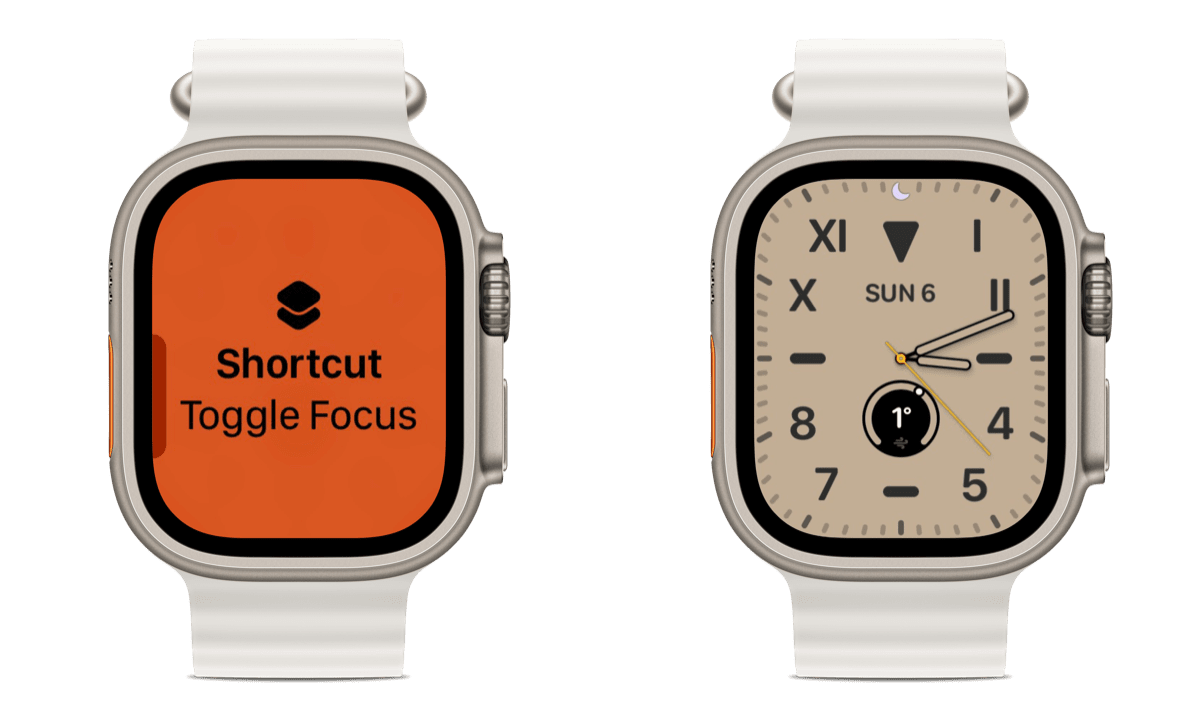
Maximize efficiency and accuracy with this pro workflow:
- Activate “Drum Practice” Focus to silence your phone
- Tap the linked shortcut to jump to settings
- Toggle off Fitness Tracking and Heart Rate
- Set a 55-minute reminder labeled “Re-enable fitness tracking”
This end-to-end approach minimizes friction and forgetfulness.
Test Your Setup Before Relying On It
Before a live session, run through the full disable and re-enable process:
- Confirm no activity is logged during a 5-minute test
- Ensure heart rate stops updating in the Health app
- Verify your reminder fires correctly
Submit Feedback to Apple
The more users request a native toggle, the more likely Apple is to act. Visit apple.com/feedback and submit a request titled “Add Fitness Tracking Toggle to Control Center or Focus Mode.” Include your use case (e.g., “I’m a drummer and my watch logs false activity”). Real-world scenarios help shape future updates.
Frequently Asked Questions About Turning Off Fitness Tracking
Can you turn off an Apple Watch fitness tracker with one tap?
No. There is no native one-tap method to disable fitness tracking on the Apple Watch. The fastest workaround is creating a URL shortcut that opens the Motion & Fitness settings page directly, reducing navigation from 5+ taps to a single tap plus a manual toggle.
Does turning off Fitness Tracking also stop heart rate monitoring?
No. These are two separate toggles within the Motion & Fitness menu. You must manually disable both Fitness Tracking and Heart Rate if you want to stop all sensor activity.
Will my Activity rings update after I turn tracking back on?
No. Any data missed while tracking was disabled will not be recovered. Your rings will resume recording from the moment you re-enable the feature, which can create gaps in your daily totals.
Can Focus Modes automatically disable fitness tracking?
Not currently. Apple’s system restrictions prevent Focus Modes from toggling health settings directly. However, you can link a shortcut to a Focus Mode so the settings page opens with one tap when the Focus activates.
How do I stop my Apple Watch from counting drum practice as steps?
The most reliable method is to disable Fitness Tracking through the Watch app before you begin. Using a custom shortcut with a URL deep link speeds up this process significantly.
Key Takeaways for Turning Off Your Fitness Tracker
While you can’t turn off an Apple Watch fitness tracker with a single tap, you can streamline the process using URL shortcuts and Focus Modes. The manual method through the Watch app remains the only guaranteed way to fully halt tracking, but pairing it with a shortcut cuts your time from 30 seconds to under 10. For musicians and crafters, building a habit around re-enabling tracking is just as important as disabling it, since gaps in data can skew your long-term trends. Submit feedback to Apple and watch for watchOS updates that may finally bring a native toggle to Control Center.